
Too Many Teams Chats? Make Your Chat List Work for You
If your Teams chat list is a wall of names, meeting chats from three weeks ago and channels you joined once and never opened, you're not doing anything wrong. Teams just sorts everything by whatever happened most recently, so the stuff that actually needs you gets buried under the stuff that doesn't.
The fix isn't to read faster. It's to set Teams up so the list itself tells you what needs attention. Most of what makes that possible is already built in, and nobody turns it on. Here's how I set mine up, starting with the idea that made the biggest difference.
Sort Your Chats by What You Need to Do
Teams lets you create your own sections in the chat list. Most people who find this feature make one section per project or per team. That helps a little, but you still have to open every section to figure out what's waiting on you.
Try organizing by action instead. A few sections that work well:
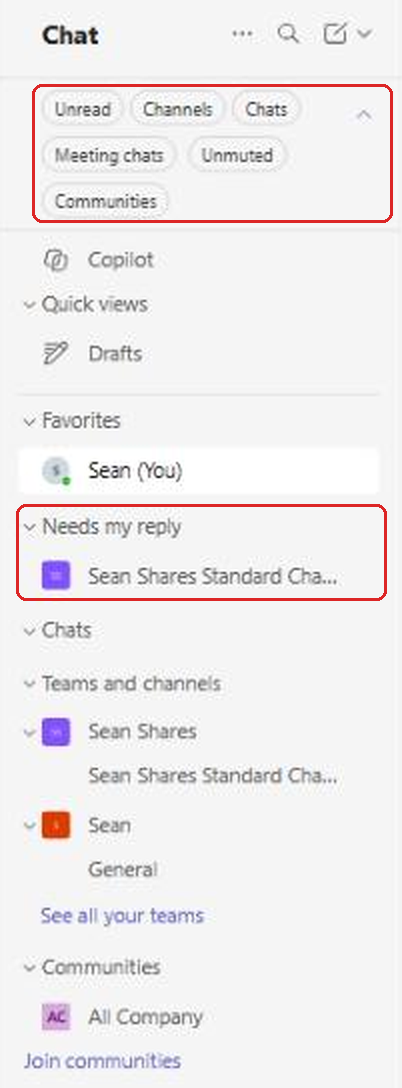
- Needs my reply: chats and channels where someone is waiting on you.
- Waiting on others: things you've asked for and need to follow up on.
- Keep an eye on: busy channels you want to skim, but don't need to act on.
Now the top of your list is literally your to-do list. When you've answered something, move it back out. It takes a second, and it means you never again scroll through 40 chats wondering which ones you forgot.
Create a Section
- In Teams, select Chat.
- Select the arrow next to the new message button at the top of the list.
- Choose New section.
- Type a name and select Create. You can also pick an emoji for it, which makes sections easy to spot when you're scanning.
Move a Chat or Channel Into It
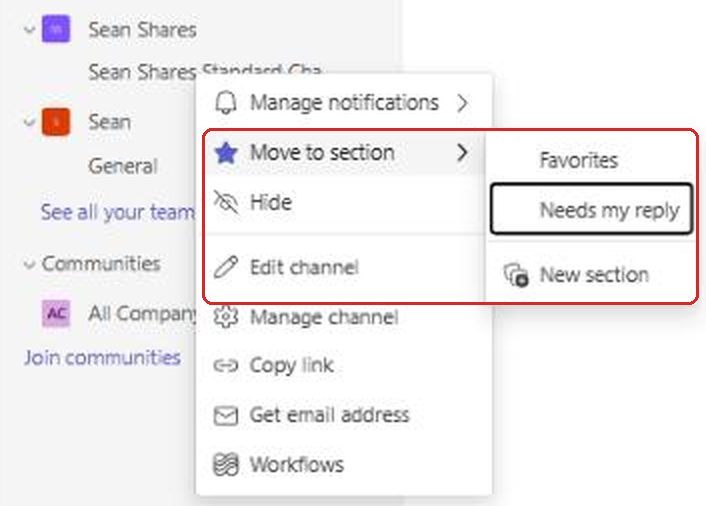
- Right-click the chat or channel, or hover over it and select ... (more options).
- Select Move to section.
- Pick the section you want, or choose New section to create one on the spot.
You can also drag items between sections. Microsoft's guide says you can have up to 50 sections with up to 50 conversations in each, which is far more than anyone needs.
One thing I noticed when I tested this with a channel: it showed up in my new section, but it also stayed listed under its team in Teams and channels. That's fine. The section is a shortcut to the channel, not a new home for it.
Use the Filters Above the List
Right above your chats is a row of filter buttons. Select Unread and the list shrinks to only conversations with something new. That's the fastest way I know to catch up after a morning of meetings.
Select the arrow at the end of the row to see more. In my tenant the full set is Unread, Channels, Chats, Meeting chats, Unmuted and Communities. You can combine them, too. Unread plus Chats shows only your direct and group chats that have new messages, and leaves out the channels.
The one most people miss is Unmuted. Once you've muted the noisy stuff (more on that below), this filter hides it completely, so you only see conversations you actually care about.
Filters also stay on when you leave and come back, so if your list ever looks oddly empty, check whether a filter is still selected.
Don't Ignore Quick Views and Favorites
At the very top of the chat list there's a Quick views area. In my tenant it showed Drafts, and Microsoft's guide also lists views like @mentions and Followed threads. Hover over Quick views and select See more to add the ones you want.
The @mentions view is the one I'd add first. It collects every message where someone mentioned you by name, across chats, meeting chats and channels, in one place. On a busy day, that view is a shorter and more honest to-do list than your whole chat list.
Drafts is the sneaky useful one. Teams saves messages you started typing and never sent. If you've ever written half a reply, got pulled into a call and forgot about it, it's sitting in Drafts waiting for you.
Then there's Favorites. It's just another section, but it always stays at the top. Keep it small: your manager, your closest teammates and the one or two chats you're in all day. If Favorites grows to 15 items, it stops being useful, so move things out as often as you add them.
Declare Bankruptcy With Mark All as Read
Coming back from vacation to 200 unread conversations is miserable, and you're not going to read all of them. Teams has a reset button for this.
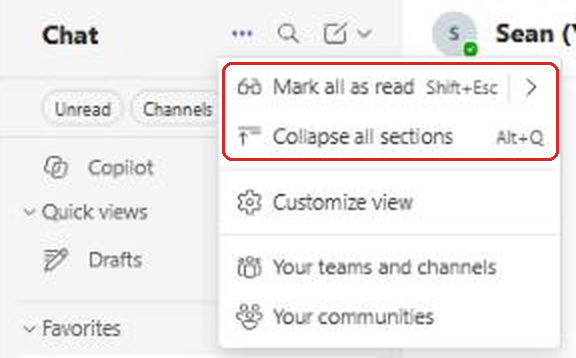
- Select ... (more list options) at the top of the chat list.
- Choose Mark all as read.
Before you do it, skim your @mentions first so you don't miss anything aimed at you. Then wipe the slate clean. Anything important will come back to the top when someone replies.
Notice the shortcuts listed in that menu. In my browser they were Shift+Esc for mark all as read and Alt+Q to collapse every section. Collapsing all sections is a nice way to see just the section names when the list gets long.
Mute, Hide and Mark as Unread
Right-click any chat and you'll find three options that do more than they look like.
- Mute stops notifications from a chat but keeps it in your list. Perfect for big group chats where people post a lot of "thanks!" messages. You'll still be notified if someone @mentions you.
- Hide takes a chat out of your list entirely. It comes back on its own if someone posts something new, so it's safe to use on old meeting chats you're done with.
- Mark as unread is my favorite. When you read something on your phone but can't deal with it yet, mark it unread so it stays bold and doesn't slip through the cracks.
If you only remember one of these, make it Mark as unread. It turns the unread dot into a reminder you control.
Pick How Loud Each Channel Is
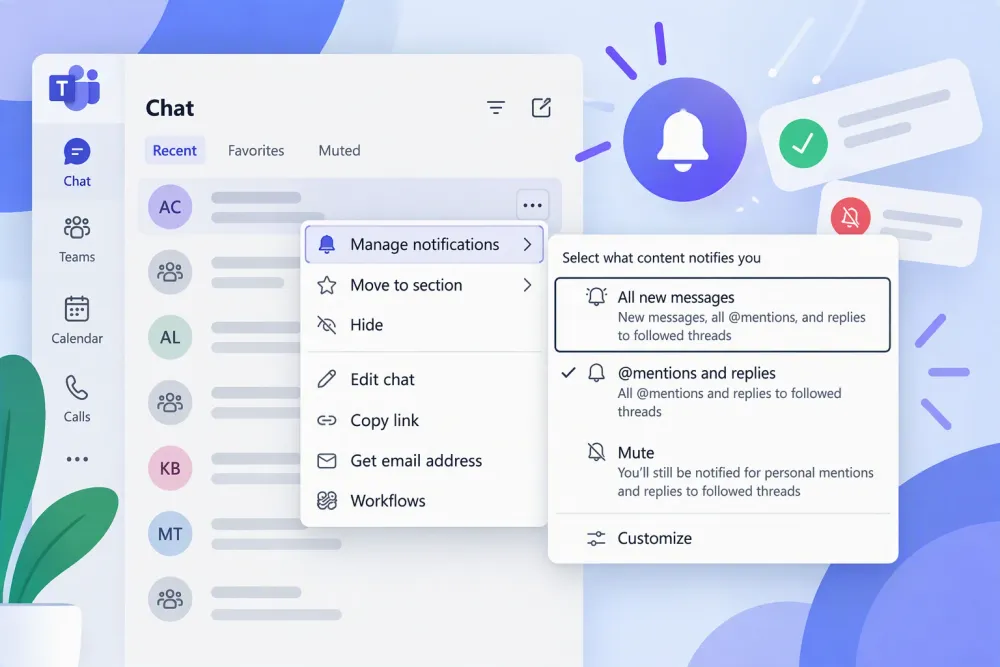
Channels are where most Teams noise comes from, and the default is a middle ground that doesn't suit everybody. You can set each channel separately.
- Right-click the channel, or select ... next to it.
- Select Manage notifications.
- Choose All new messages, @mentions and replies, or Mute.
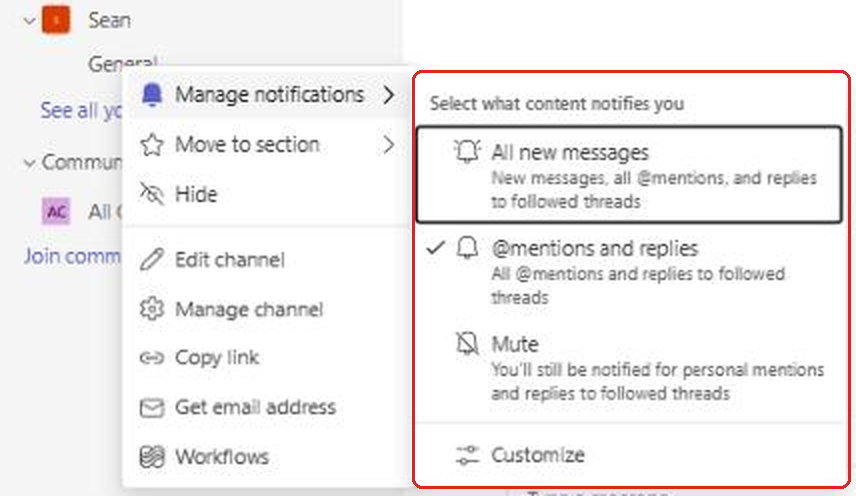
My rule of thumb: the one or two channels where your manager or your closest team posts get All new messages. Everything else gets @mentions and replies. Announcement channels and social channels get Mute. Even muted, you'll still be notified when someone mentions you by name or replies in a thread you follow, so you won't miss anything aimed at you.
While you're in that menu, look at Get email address. It gives the channel its own email address. Forward an email there and it gets posted to the channel, which is a handy way to share a vendor email or an alert with your team without starting a reply-all chain.
Three Settings Most People Never Touch
Open Settings and more (the ... next to your profile picture), select Settings, then Chats and channels. A few options in here make a big difference day to day.
Combined or Separate
The new Teams can show chats and channels in one combined list, or keep them apart the way the old Teams did. Neither is wrong. If you mostly live in chats and only check channels now and then, Separate keeps channel chatter out of your way. If you use both all day, Combined plus a few custom sections works better.
In the same area you can turn on Show message previews and Show time stamps. Previews let you see the first line of a message without opening it, which helps you decide what to open first. They're off by default on desktop and the web.
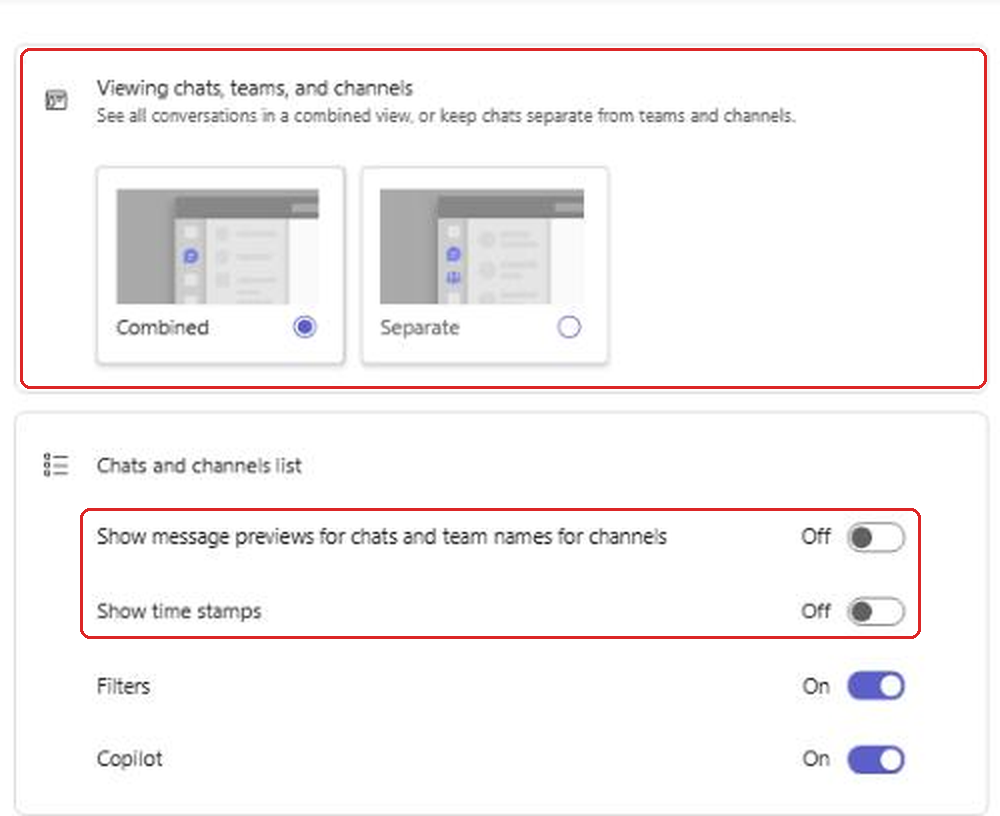
Open Chats Where You Left Off
Under When I open a chat, take me to, make sure Last read message is selected. When you open a busy group chat after a meeting, Teams drops you right where you stopped reading instead of at the bottom, so you can read what you missed in order instead of scrolling back up to find it.
Stop Sending Half-Finished Messages
If you've ever hit Enter to start a new line and accidentally sent a half-written message, this one's for you. Under When writing a message, press Enter to, choose Start a new line. From then on, Enter adds a line and you send with the Send button or Ctrl+Enter. It feels odd for a day, then you'll wonder why it isn't the default.
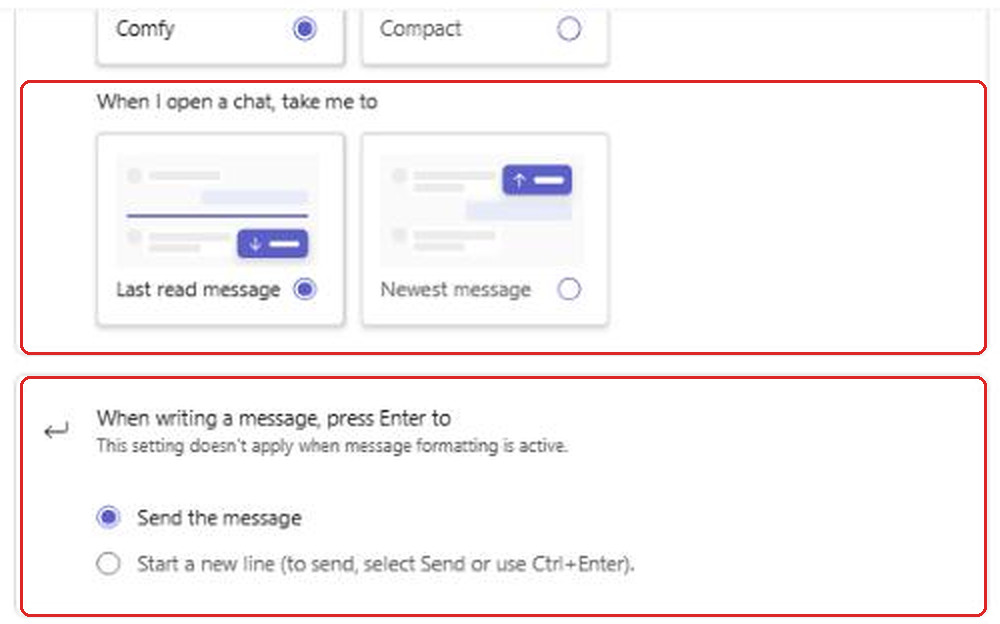
Turn Off Notifications for Reactions
Every time someone thumbs-up your message, Teams can ping you. In a busy team, that's a steady drip of notifications that never need action.
- In Settings, select Notifications and activity.
- Find Likes and reactions.
- Change it from Show in Activity and banner to Show in Activity, or to Off.
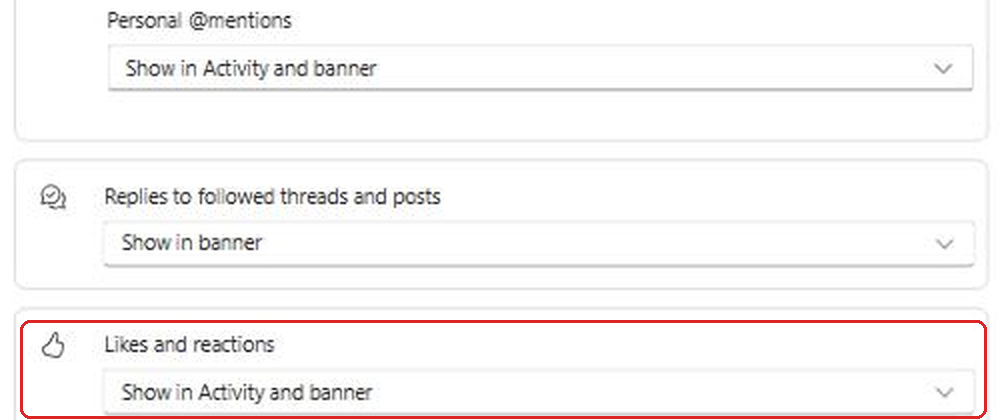
Show in Activity is a good middle ground. You can still see who reacted if you go looking, but nothing pops up on your screen.
While you're on that page, two more are worth a look. Meeting chat notifications for meetings marked as tentative or no response can be set to Mute until I join or send a message, which stops chats from meetings you didn't even accept from buzzing at you. And Missed activity emails controls how often Teams emails you about things you missed. If those emails are cluttering your inbox, my post on turning off Teams notifications in Outlook covers that in more detail.
Jump Straight to a Chat Instead of Scrolling
Once you know the name of the chat or channel you want, don't scroll for it. Teams has a "go to" shortcut that opens a quick search just for chats and channels. In the desktop app it's Ctrl+G on Windows or Cmd+G on a Mac. In Teams on the web, the search box told me to use Ctrl+Alt+G. Type a few letters, press Enter, and you're there.
It sounds small, but it's the habit that makes a long chat list stop mattering.
A Five-Minute Weekly Reset
Setup gets you most of the way. A tiny weekly habit keeps it working. Every Friday, I do this:
- Select the Unread filter and clear out anything left over.
- Look through my "Needs my reply" section and answer or move each item out.
- Hide any meeting chats from meetings that are over.
- Mute any channel that annoyed me that week.
That's it. Five minutes, and Monday starts with a list that actually means something.
Frequently Asked Questions
Can other people see my custom sections in Teams?
No. Sections, favorites, filters and hidden chats are personal. They only change how your own list looks.
What happens when I hide a chat?
It disappears from your list until someone posts a new message. Then it comes back automatically. Nothing is deleted, and the other people in the chat don't know you hid it.
If I mute a chat or channel, will I still get @mentions?
Yes. Muting stops general notifications, but you're still notified when someone mentions you by name or replies in a thread you follow.
I don't see New section. Why?
Custom sections are part of the new chat and channels experience. If you don't see the option, update Teams, or check with your IT team, since some organizations roll out new Teams features gradually.
Does marking everything as read on my computer clear my phone too?
Yes. Read status syncs to your account, so anything you mark as read on one device shows as read everywhere.
Final Thoughts
A cluttered Teams list isn't a sign that you're bad at Teams. It's a sign that you're still using the default setup, which treats every conversation as equally important. A handful of sections built around what you need to do, sensible notification levels for each channel, and two or three settings changes are enough to flip that around.
Start with the "Needs my reply" section and the Unread filter today. Those two alone will change how Teams feels. If your status is also misbehaving while you're getting organized, my post on why Teams shows you as Away explains what's going on.
Sources: The new chat and channels experience in Microsoft Teams, Teams new chat and channels user guide.