How to Get a Microsoft Teams Meeting Transcript
If you were in a Teams meeting and now you cannot find the transcript, you are not alone. This is one of the most frequently asked questions in the Microsoft Teams community, and the confusion makes sense. Transcripts in Teams do not work the way most people expect them to. They are not automatically generated for every meeting, they are not stored in an obvious place, and the default permissions mean that even participants who were in the meeting cannot always download them. This guide covers how transcription works, where to find the transcript after a meeting, and what to do if you cannot get access to it.
Does Every Teams Meeting Get a Transcript?
No. In most organizations transcription is allowed, but it is not started by default. For a transcript to exist, someone with permission has to start transcription during the meeting, or the organizer has to set the meeting to record and transcribe automatically before it starts. If neither happened, there is no transcript to find.
This is the most common reason people cannot find a transcript after a meeting. If no one started it, it does not exist. There is no way to generate a transcript retroactively from a meeting that has already ended, even if the meeting was recorded.
How to Start Transcription During a Meeting
If you are in a meeting and want to start transcription, here is how to do it:
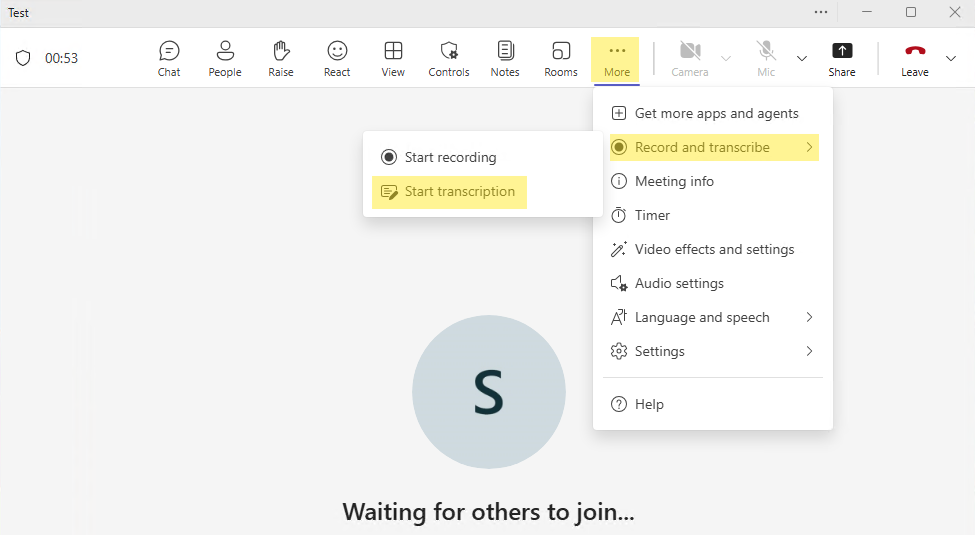
- In the meeting controls at the top of the screen, click the More button (three dots).
- Select Record and transcribe.
- Choose Start transcription.
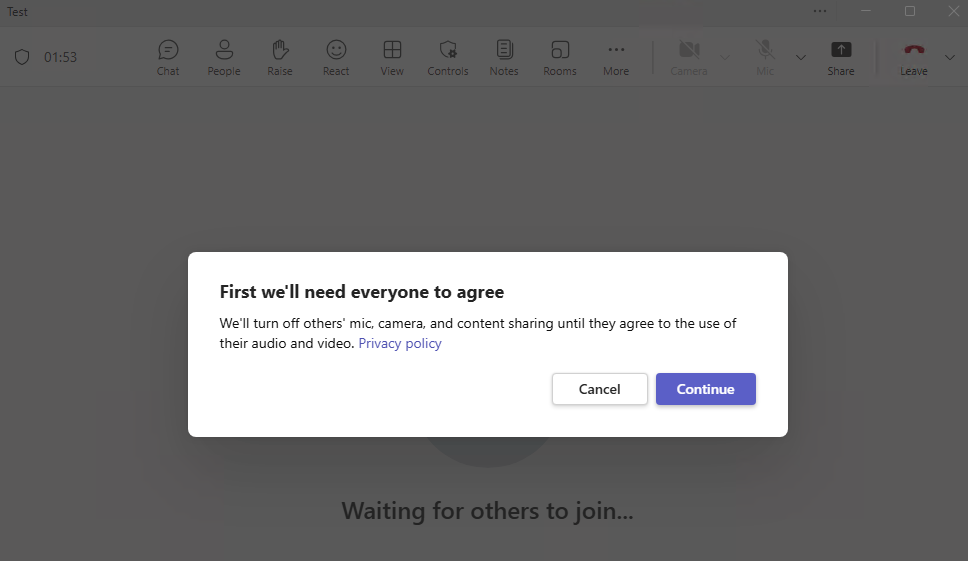
- A notification will appear for everyone in the meeting letting them know transcription has started.
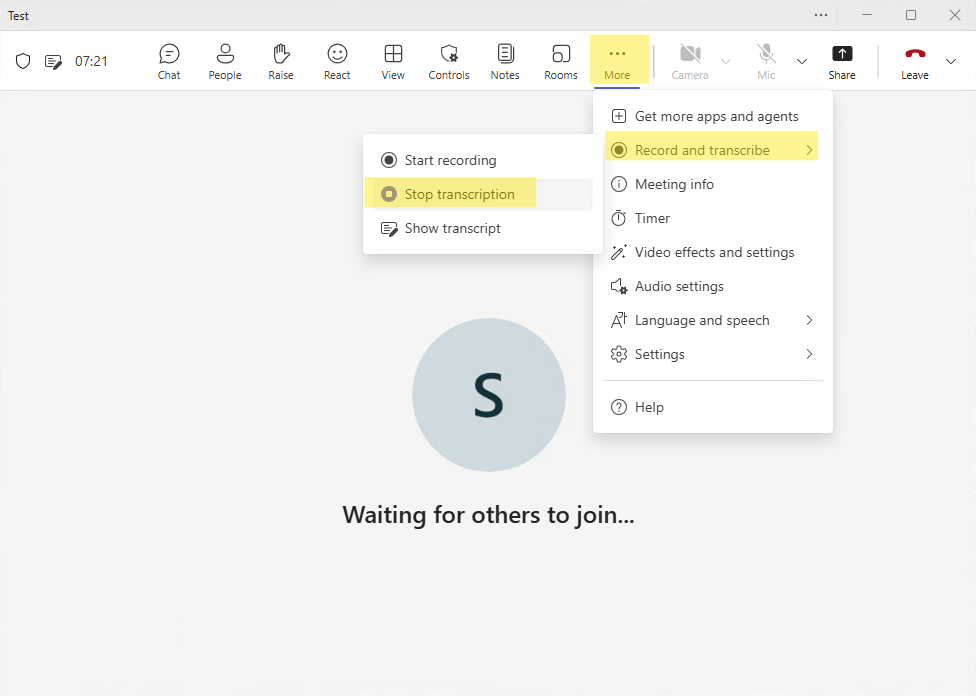
- You can stop it at any time through the same menu by choosing Stop transcription.
Note that you need to have permission to start transcription. In some organizations, only organizers and co-organizers can do this. If you do not see the transcription option in the menu, your IT admin may have restricted who can start it, or the feature may not be enabled on your account at all.
How to Have Transcription Start Automatically
If you want transcription to start automatically for every meeting without having to remember to turn it on during the meeting, you can do this as the organizer:
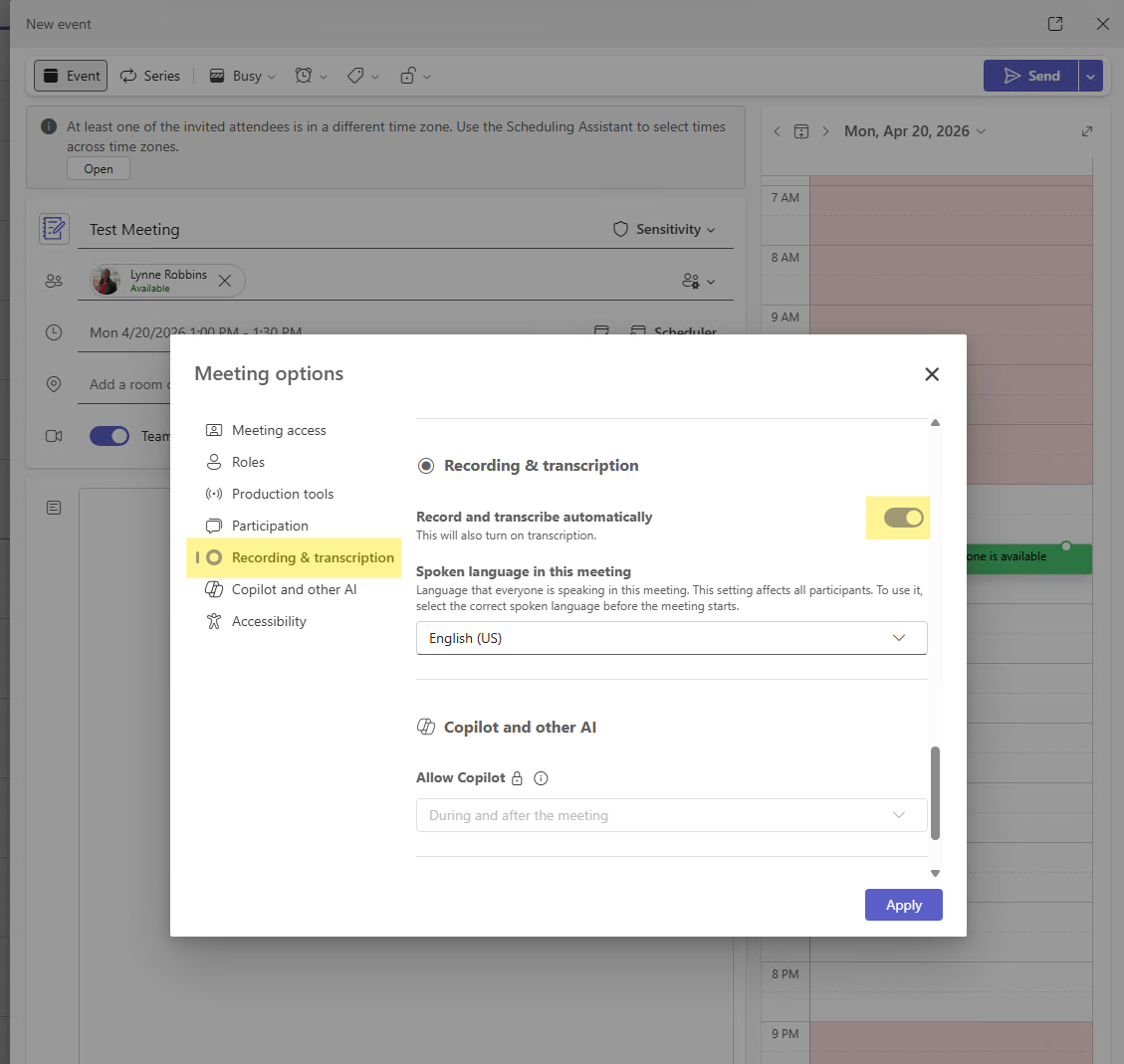
- When scheduling a meeting, open Meeting options before sending the invite.
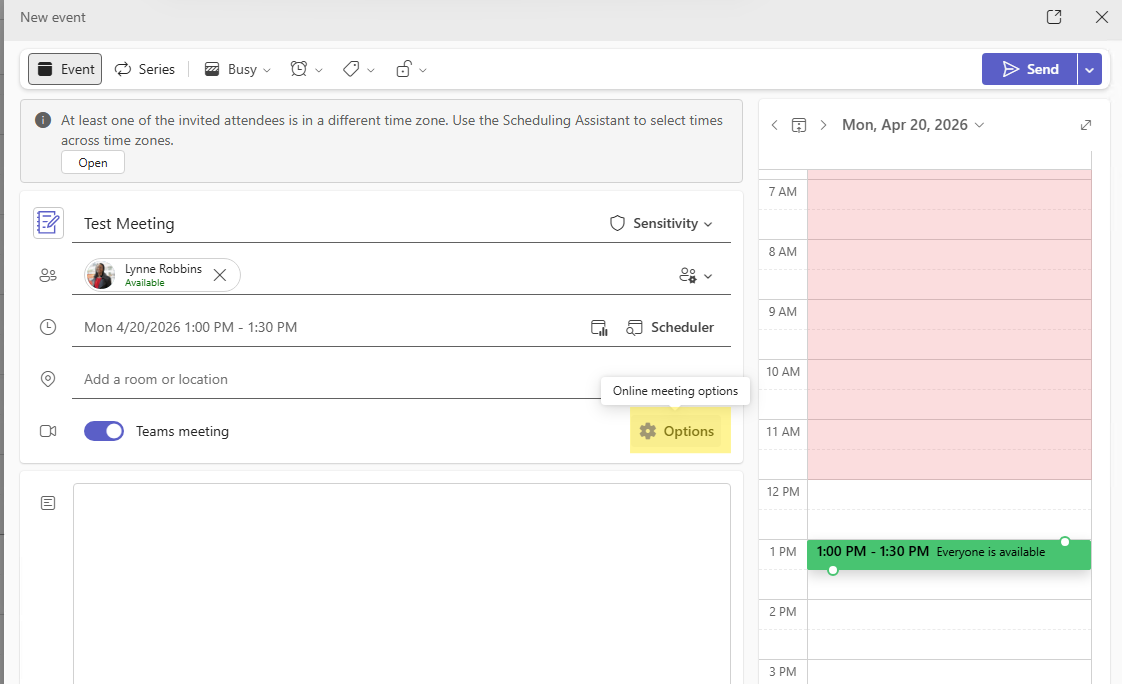
- Look for the recording and transcription settings and turn on Record automatically or Transcribe automatically if that option is available. This applies to that specific meeting only.
How to Enable Transcription and Recording as an IT admin
Microsoft Teams lets M365 Teams admins control whether users can record meetings and use transcription through meeting policies in the Teams admin center. Admins can turn these features on for specific users by editing a custom policy, or enable them organization-wide by updating the Global policy. Meeting recording and transcription are separate settings, so both should be reviewed if you want users to have access to both features.
While you are in the Teams admin center reviewing transcription policies, it is also a good time to check your broader Copilot governance settings. There are a few switches that organizations often overlook when rolling out AI features. This post on Copilot admin settings to check for better governance covers the ones worth reviewing first.
- Admins can go to the Teams admin center
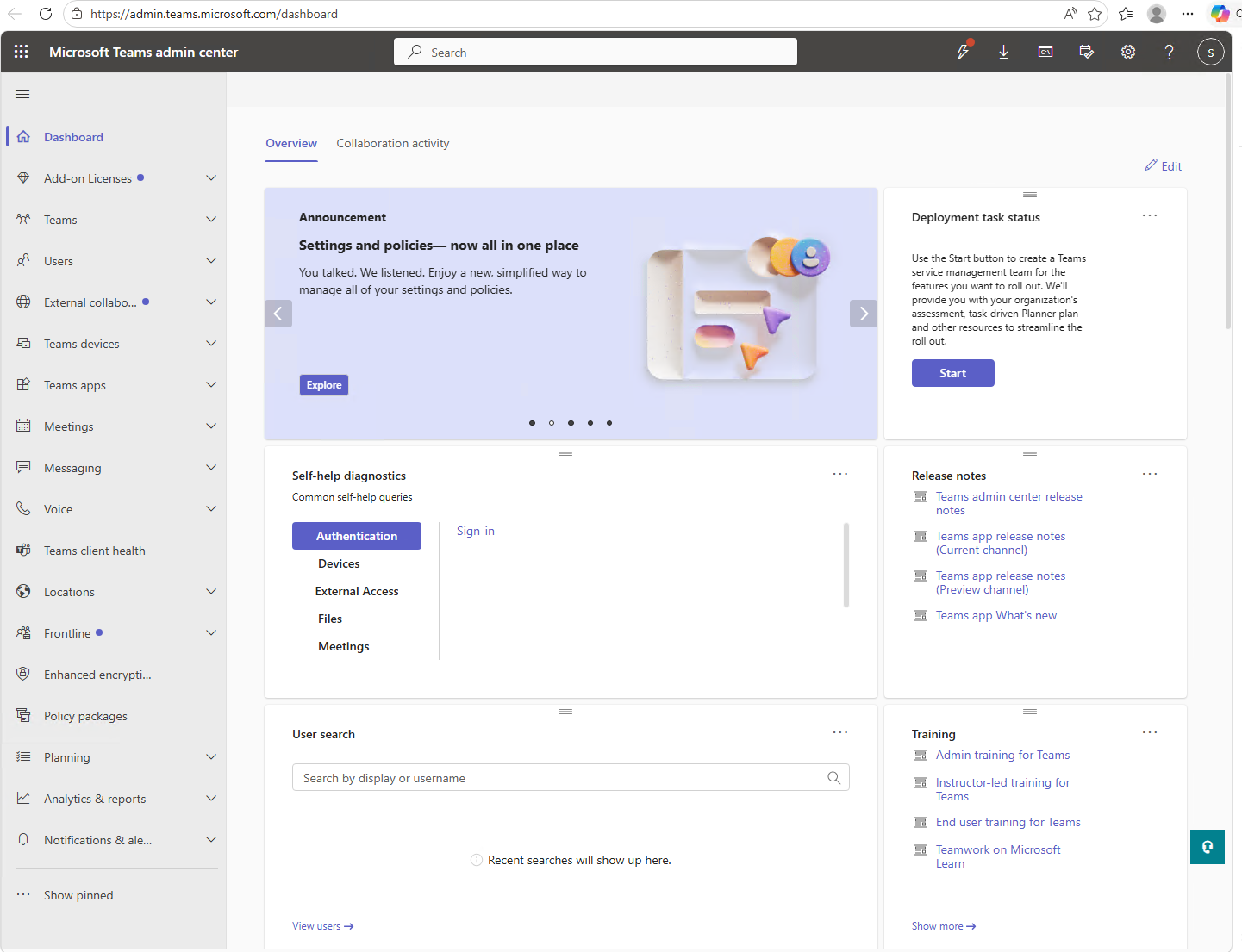
- Navigate to Meetings, and open Meeting policies. Select the policy you would like to change.
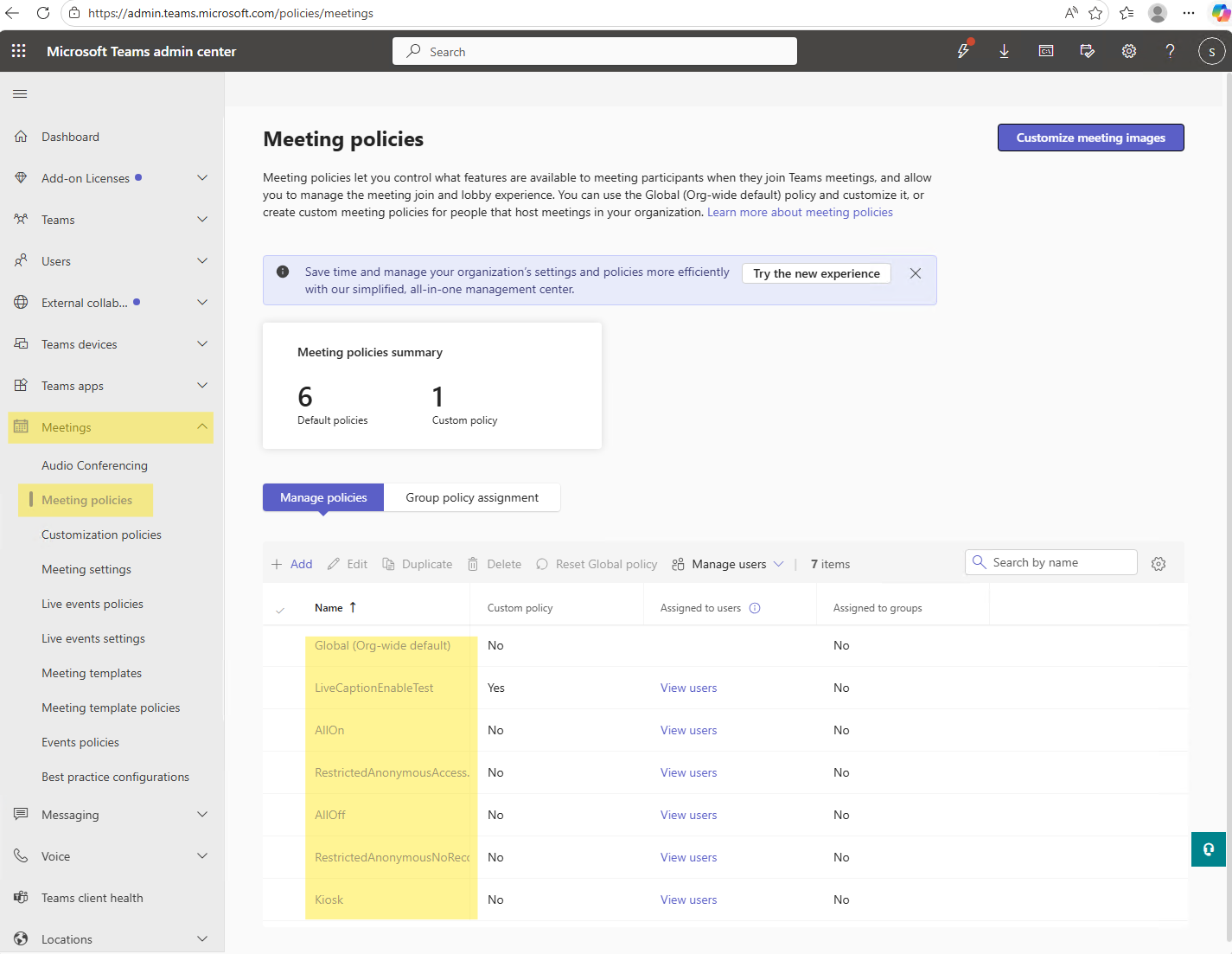
- Inside the policy, the Transcription setting controls whether users assigned that policy can transcribe meetings. It is On by default for new policies, and both the organizer and the person who starts transcription need it turned on. This setting does not start transcription automatically. There is no admin policy that auto-transcribes every meeting. The AutoRecording setting, managed in PowerShell, only controls whether organizers see the Record and transcribe automatically option in Meeting options. To enforce automatic recording and transcription for certain meetings, admins can use a custom meeting template or a sensitivity label, which are Teams Premium features.
Where to Find the Transcript After the Meeting
Once a meeting ends and transcription was running, the transcript shows up in a few places.
The most common place people check first is the meeting chat.
- Open Teams, go to Chat
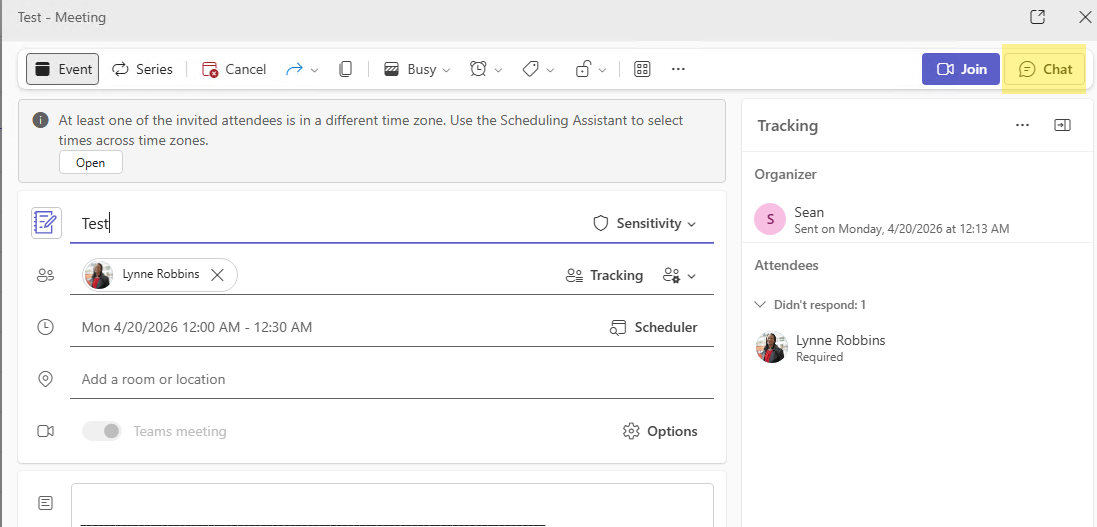
- Find the meeting conversation. Scroll to the bottom and you should see a recap section with a link to the transcript. This works well for recent meetings but can be harder to find if the meeting was a while ago.
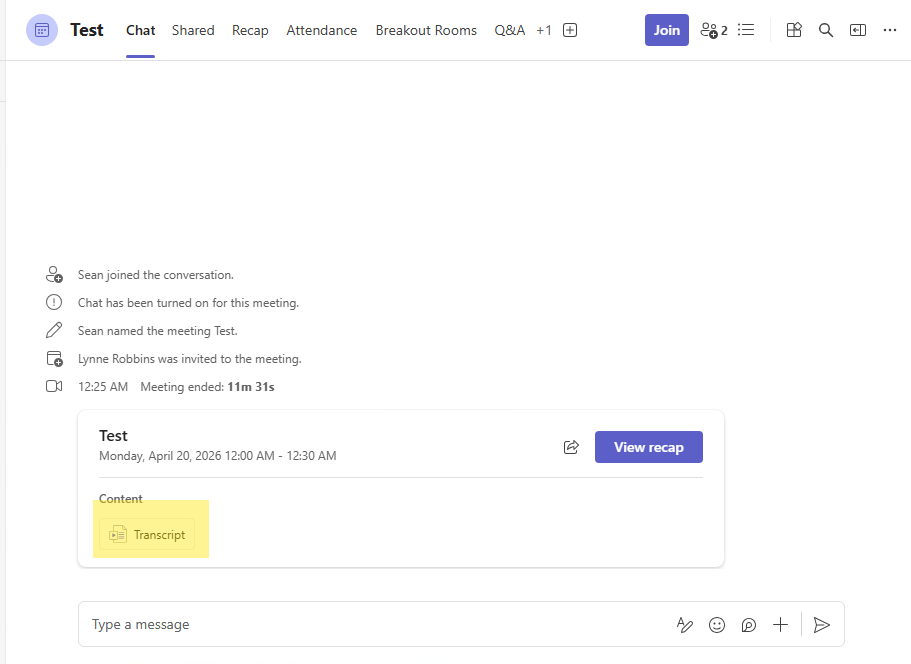
The more reliable place to find it is through the Teams calendar. Here is how:
- Open Calendar in Teams.
- Click on the meeting event.
- Look for the Recap tab at the top of the meeting details panel.
- The transcript, any recording, and AI-generated notes will all be here if they were created.
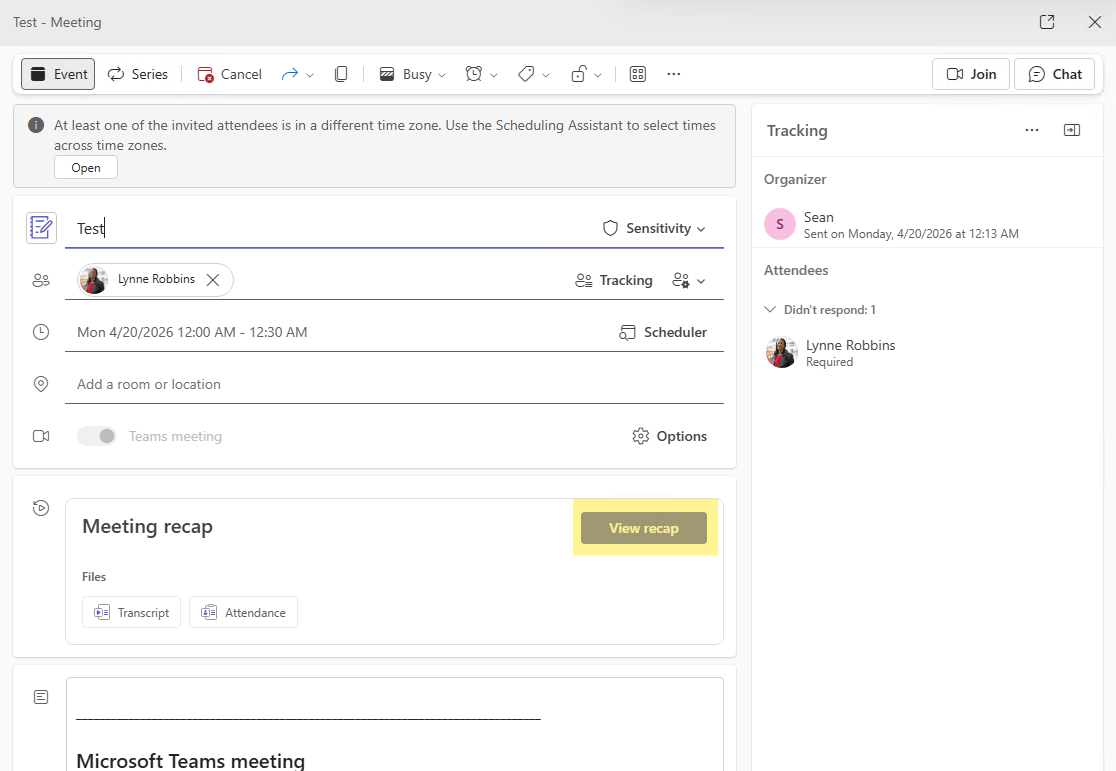
If the meeting was a recurring one, make sure you are clicking on the specific occurrence that happened, not just the recurring event template.
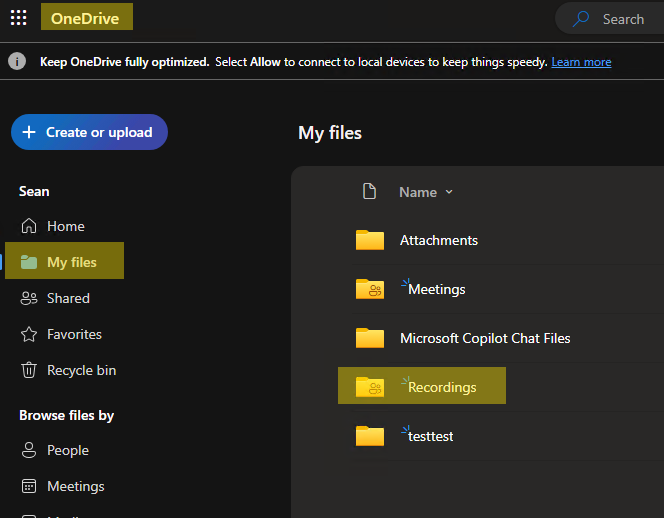
You can also find transcripts through OneDrive. Open OneDrive for Business, navigate to the Recordings folder, and look for the meeting. The transcript file will be stored there alongside the recording if one was made.
How to Download the Teams Transcript
If you are the meeting organizer, downloading the transcript is straightforward:
- Open your Teams calendar and click on the meeting.
- Go to the Recap tab and click on Transcript
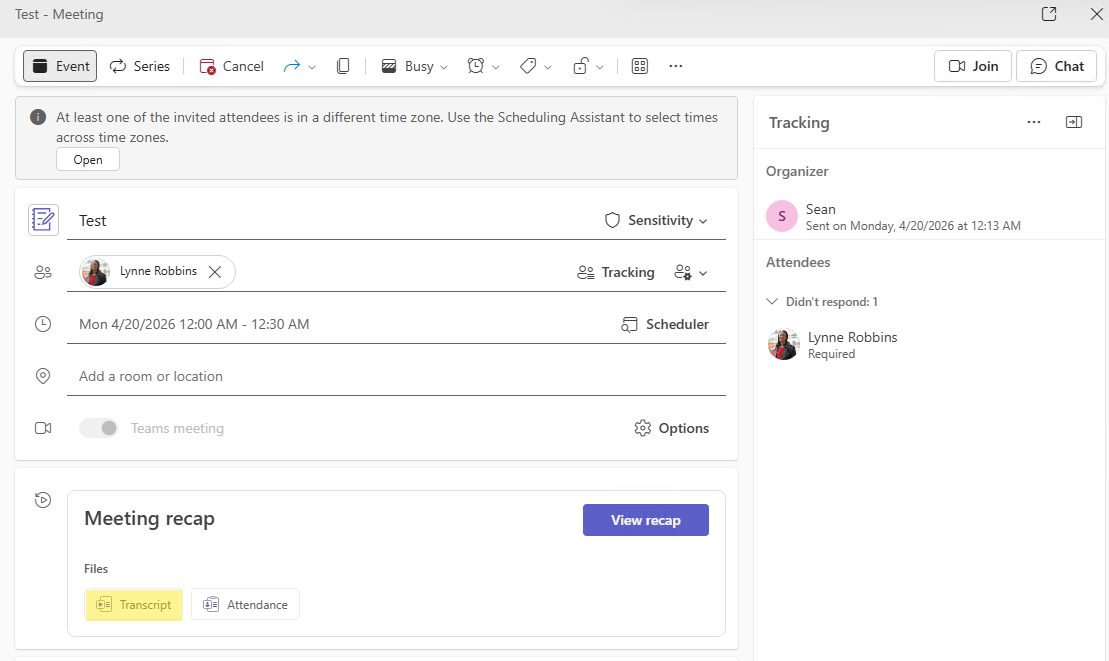
- Find the transcript and click the download icon.
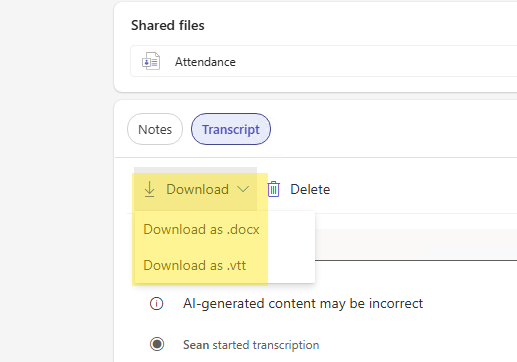
- Choose your format: .docx for a Word document or .vtt for a timed caption file.
The .docx format is the most useful for most people. It includes timestamps and speaker names alongside the text, formatted as a readable document. The .vtt format is better if you need to use the transcript with video editing software or caption tools.
Why You Cannot Download the Transcript as a Participant
This is the question that comes up most often, and the answer usually depends on meeting access settings. In Teams, people may be able to view a meeting transcript in Recap, but downloading it depends on who has access to the recording and transcript, along with any file-sharing permissions applied afterward. Standard transcript and recording access is part of Teams, but some advanced access controls are only available with Teams Premium or Microsoft 365 Copilot.
If you need to download a transcript and you are not the organizer, the easiest option is to ask the organizer to either download it and share it with you or update the meeting’s access settings. In organizations with Teams Premium or Microsoft 365 Copilot:
- Organizers can open the meeting and go to Meeting options > Recording & transcription to control who has access to the recording, transcript, and AI recap.
- There, they can choose Everyone, Organizers and co-organizers, or Specific people. The default setting is Everyone.
If you want to set this up before the meeting starts, open the meeting from the Teams calendar, select Meeting options, and then open Recording & transcription. Choose the access level you want so the right people can download the transcript after the meeting ends. This access-setting control is one of the features that requires Teams Premium or Microsoft 365 Copilot. If you change it during an active meeting, the meeting must be ended and restarted for the new setting to take effect.
If you need to manage access after the meeting at the file level, organizers can also open the transcript or recording from Teams and then manage sharing permissions in OneDrive, SharePoint, or Stream, depending on where the file opens. That file-level sharing step is separate from the Teams Premium meeting access options above.
If your organization also uses AI-generated recap features, those are not part of standard Teams recording/transcription. Intelligent recap features are available with Teams Premium and are also included with Microsoft 365 Copilot.
Transcripts vs Recordings vs AI Notes
People often mix these three things up, so it is worth being clear on what each one is.
A transcript is a text file that captures what was said during the meeting, attributed by speaker. It is generated in real time as the meeting happens. It is searchable and can be downloaded as a Word document or caption file. Transcription does not require recording to be on.
A recording is a video file of the meeting. It is stored in OneDrive or SharePoint depending on the meeting type. Having a recording does not automatically mean you have a transcript. They are started and stopped independently.
AI-generated notes (sometimes called Copilot notes or Intelligent Recap) are a summary that Microsoft 365 Copilot creates based on the transcript. These are not a verbatim record but a structured summary of key points, action items, and follow-ups. You need a Copilot license to use this feature, and you need transcription running for Copilot to work from.
If someone says "did you see the transcript," they usually mean the verbatim text record. If they say "the meeting notes," they might mean either the AI summary or notes someone typed manually. Worth clarifying which one you actually need.
If you want to go further with AI-assisted meeting intelligence, take a look at Microsoft Teams Facilitator, which builds on meeting transcripts to give you real-time AI support during calls, including suggested responses, task capture, and meeting summaries.
What to Do If the Transcript Is Missing
If the meeting happened but you cannot find the transcript anywhere, work through this list:
- Confirm transcription was actually started. Check with the organizer or another attendee. If no one started it, there is no transcript.
- Check the Recap tab in the Teams calendar, not just the chat. The chat recap section does not always show everything.
- Give it time. Transcripts can take 30 minutes to a few hours to process after the meeting ends for longer meetings. If you are checking right after the meeting, wait and check again.
- Check OneDrive. Go to OneDrive for Business and look in the Recordings folder. Sometimes the file is there before it shows up in Teams.
- Check your permissions. You may be able to view but not download. The transcript might exist but your access level only allows a read view without a download option.
- Contact your IT admin. If transcription was supposed to be running but you cannot find it, your admin can check whether the feature is enabled on your account and whether the file was stored correctly.
Frequently Asked Questions
Why is the Start Transcription option grayed out or missing?
There are a few possible reasons. Your IT admin may have disabled transcription for your account or limited it to certain roles. You may be joining from a device or client where the feature is not supported. Or the meeting may be set up in a way that does not support transcription, such as a channel meeting in certain configurations. Check with your IT admin if you consistently cannot access the option.
How long are transcripts kept before they are deleted?
By default, Teams meeting recordings and transcripts expire and are deleted after 120 days. Teams admins can change the default expiration time, or turn automatic expiration off, in the Teams admin center. Expiration exists to save storage space and is not a compliance control. Organizations that must keep meeting content for legal or regulatory reasons use Microsoft Purview retention, which is set up separately. Your IT admin can tell you which settings apply in your tenant.
Can I get a transcript from a meeting I did not organize?
Usually you can view it, but downloading is a separate permission. By default, meeting organizers and co-organizers can download the transcript as a .docx or .vtt file. Other attendees can typically view it in the meeting recap, and whether they can download it depends on your organization's policies and on how the organizer shares the file. In organizations with Teams Premium or Microsoft 365 Copilot, the organizer can also use Meeting options > Recording & transcript > Who has access to the recording and transcript. That option defaults to Everyone and can be changed to Organizers and co-organizers or Specific people. If you need your own copy, ask the organizer to download and share it, or to share the file with you from OneDrive or SharePoint.
Does Teams transcription work in languages other than English?
Yes. Teams transcription supports more than 40 spoken languages. The transcript language has to match the language being spoken, and you set it in the transcript settings during the meeting. Changing it affects everyone in the meeting. Accuracy varies by language and audio quality, so test it before relying on transcripts in a language other than English.
Why do some names in the transcript show as Unknown Speaker?
Teams attributes speaker names by matching audio to the voice profiles of participants who have joined the meeting. If someone joins without being signed into their Microsoft 365 account, calls in by phone, or has not set up their voice profile, Teams cannot match their voice and labels them as Unknown Speaker. Guests and external participants also sometimes appear this way depending on how they joined.
Can I edit the transcript after the meeting?
Yes, if you are the meeting organizer or the organizer has given you edit access. Editing happens on the recording's player page in OneDrive or SharePoint, not in the Teams Recap tab. In Teams, go to OneDrive > My files > Recordings, open the recording in the browser, select Transcript, hover over the line you want to fix, and select Edit. Select Done to save. The Recap tab is where an organizer can delete a transcript.
Does everyone in the meeting know when transcription is running?
Yes. Teams shows a notification to all participants when transcription starts, similar to the notification shown when recording begins. There is no way to run a hidden transcript without participants being notified. This is by design and required for compliance reasons in most jurisdictions. Participants can also see a transcription indicator in the meeting controls while it is running.
The Practical Takeaway
Getting a Teams transcript comes down to two things: making sure transcription was actually started during the meeting, and making sure you have permission to access it afterward. If transcription was running, the transcript will be in the Recap tab of the meeting in your Teams calendar. If you cannot download it, the organizer needs to update the access settings. And if you are tired of remembering to start transcription, turn on automatic recording and transcription in Meeting options when you schedule the meeting. If that option is missing, ask your IT admin whether automatic recording is enabled in your meeting policy.