How to Create and Manage Rules in Outlook
If you spend any meaningful amount of time in Outlook, rules are probably the single most useful thing you are not using. A rule is an automatic action Outlook runs on incoming messages when they match conditions you set. You define it once, and Outlook handles the sorting, flagging, categorizing, or deleting without you doing anything.
This guide covers how to create and manage rules across every version of Outlook, including how to use Microsoft 365 Copilot to build rules with plain-language prompts. For more tips on getting your inbox organized, the Outlook email management tips article is worth reading alongside this one.
What Are Outlook Rules?
An Outlook rule has three parts: a condition, an action, and optionally an exception. The condition is what Outlook looks for, like a specific sender, words in the subject, or messages with attachments. The action is what Outlook does when it finds a match, like moving the message to a folder, applying a category, or deleting it. Exceptions let you say "do this, unless..." so important messages do not get caught up.
Some practical examples: move all emails from your manager into a dedicated folder, file anything with "Invoice" in the subject into an Invoices folder, delete newsletters from a sender you no longer read, categorize client emails automatically, or forward specific messages to a colleague.
Most rules apply to incoming messages. If you want a rule to also work on email already sitting in your inbox, you need to run it manually after setting it up.
What Outlook Rules Can Do
Rules support a wide range of actions: move to folder, copy to folder, delete, mark as read, assign a category, flag for follow-up, forward, redirect, or stop processing additional rules.
Forwarding and redirecting are easy to mix up. When you forward a message, it comes from you. When you redirect it, the original sender's address is preserved so replies go back to them rather than to you.
Where to Find Rules in Each Outlook Version
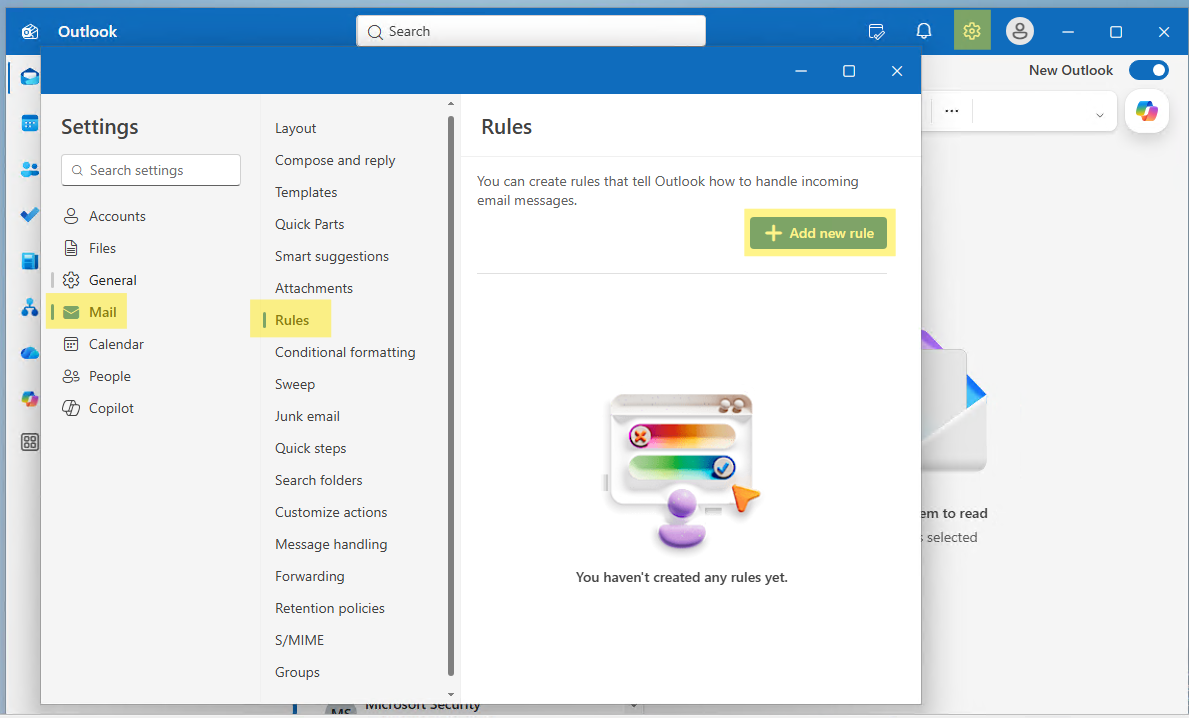
In new Outlook for Windows and Outlook on the web: go to Settings, then Mail, then Rules.
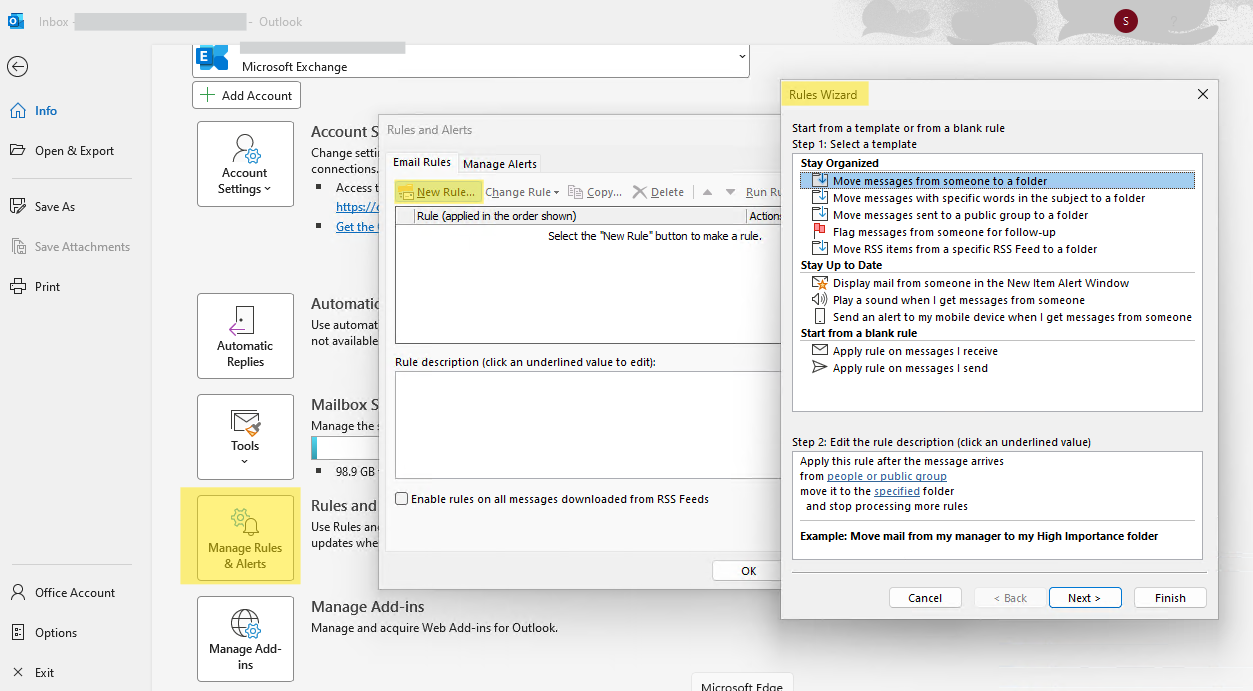
In classic Outlook for Windows: go to File, then Manage Rules & Alerts.
In Outlook for Mac: go to Outlook in the menu bar, then Settings, then under Email, select Rules.
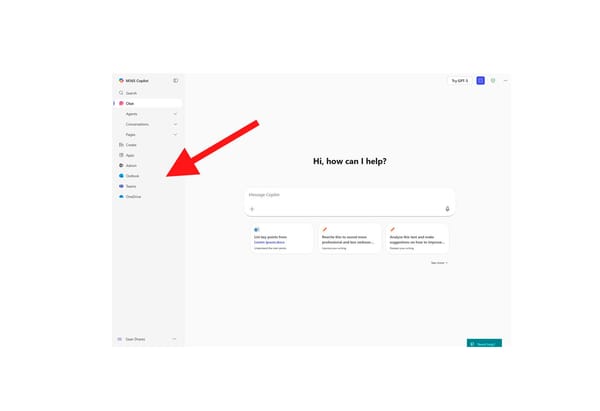
With Microsoft 365 Copilot: describe what you want in plain language and Copilot creates the rule for you.
How to Create a Rule in New Outlook for Windows
Video on how to create rules in new Outlook
The fastest option is to right-click a message, select Rules, then Create rule. Outlook suggests moving messages from that sender to a folder. Select OK and you are done.
For anything more advanced:
- Go to Settings, then Mail, then Rules.
- Select Add new rule.
- Enter a name for the rule.
- Choose a condition, such as the sender or words in the subject.
- Choose an action, such as moving the message to a folder.
- Add exceptions if needed.
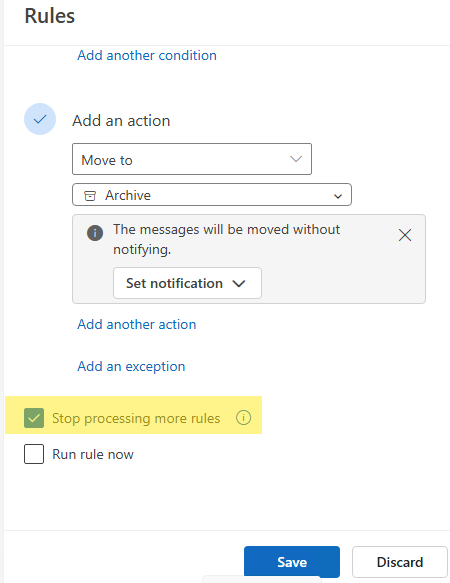
- Decide whether to enable Stop processing more rules.
- Select Save.
How to Create a Rule in Outlook on the Web
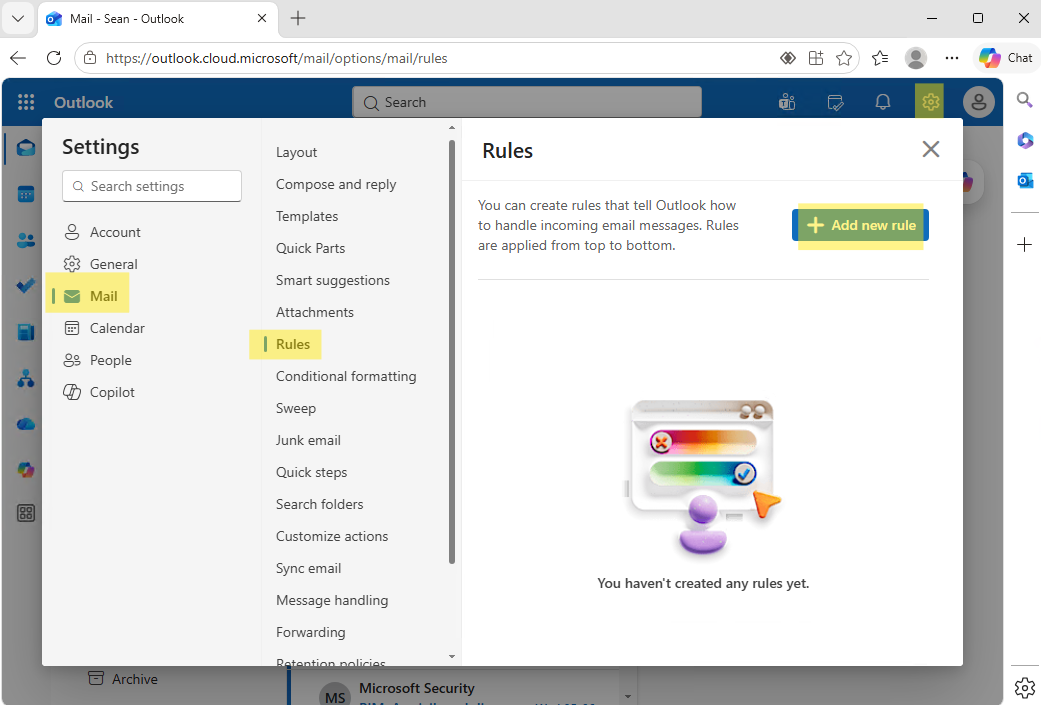
- Open Settings, then Mail, then Rules.
- Select Add new rule.
- Enter a rule name, add a condition and an action, then add any exceptions.
- Select Save.
Quick example: name the rule "Move invoices," set the condition to "Subject includes invoice," set the action to "Move to Invoices folder." Done in under a minute.
How to Create a Rule in Classic Outlook for Windows
Right-click a message, select Rules, then Create Rule. Pick your condition and action, select OK, and optionally run the rule on existing messages in the current folder.
For more control, use the Rules Wizard:
- Select File
- Then Manage Rules & Alerts.
- Select New Rule.
- Choose a template or start from a blank rule.
- Set conditions, actions, and exceptions.
- Name the rule and select Finish.
One thing specific to classic Outlook: some rules are client-side rules that only run when Outlook is open on your computer. Server-side rules run in your mailbox on Microsoft's servers, so they work even when Outlook is closed.
How to Create a Rule in Outlook for Mac
- Select Outlook in the menu bar, then Settings.
- Under Email, select Rules.
- Select Add new rule, enter a name, add conditions, actions, and exceptions, then save.
From the same area you can also edit, delete, enable, disable, reorder, and manually run any rule.
How to Create Outlook Rules with Microsoft 365 Copilot
If you have a Microsoft 365 Copilot license, you can describe a rule in plain language and Copilot sets it up. If you are not yet set up with Copilot in Outlook, the guide to adding Copilot to Outlook explains the license requirements.
Examples of prompts:
- "Create a rule to move emails from Alex to the Read Later folder."
- "Move emails with Invoice in the subject to my Invoices folder."
- "Categorize emails from my manager as Important."
- "Delete newsletters from [email protected]."
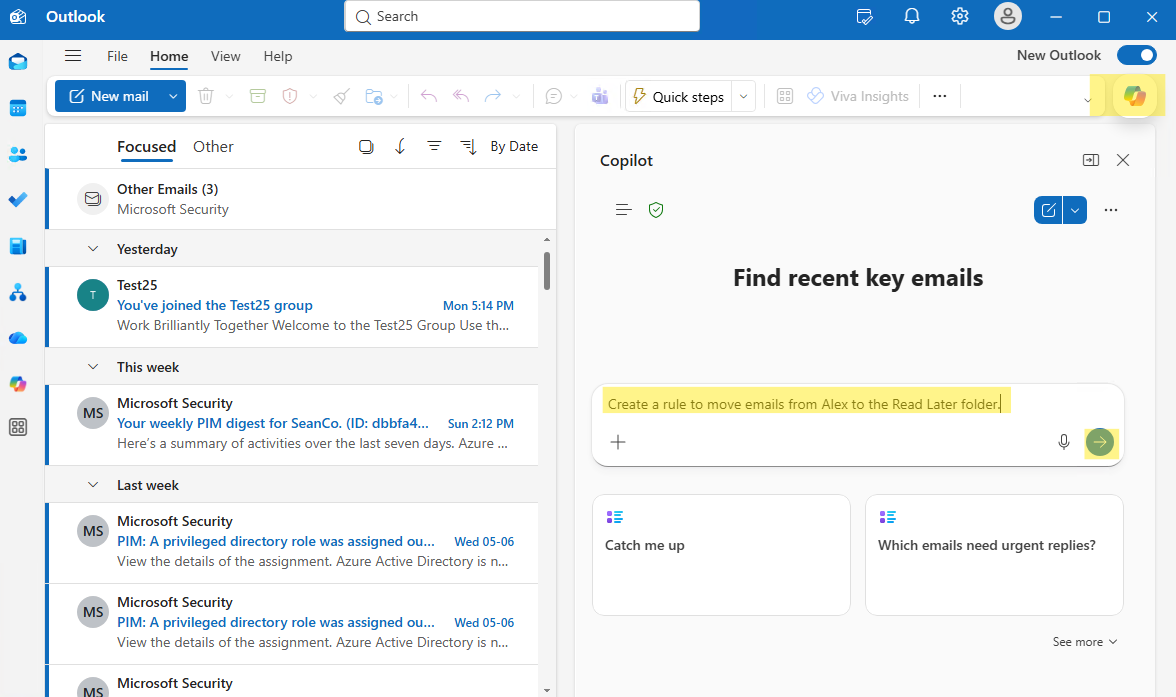
Copilot shows you a summary before creating the rule. You confirm, and it appears in Outlook's regular Rules settings. If the folder or category does not exist yet, Copilot will ask whether to create it first.
You can also ask Copilot to show your existing rules: "Show me my current Outlook rules" or "Do I have any rules that delete emails?" It gives a read-only view of your rules including conditions, actions, and whether they are enabled.
Copilot cannot edit, delete, disable, or reorder rules. For those actions, use Outlook's Rules settings directly.
How to Edit, Disable, and Delete Rules
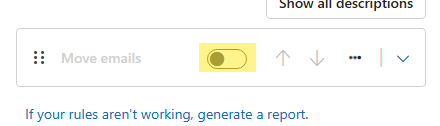
In new Outlook and Outlook on the web, go to Settings, then Mail, then Rules. Select the edit icon to change a rule, use the toggle to pause or resume it, or select the delete icon to remove it permanently.
In classic Outlook, go to File, then Manage Rules & Alerts. Select a rule and choose Change Rule to edit, check or uncheck the box to enable or disable it, or select Delete to remove it.
Tip - Before deleting a rule, consider turning it off instead. Disabling preserves the setup without running it, and you can re-enable it any time.
How to Reorder Rules
Rule order matters. Outlook checks rules from top to bottom. If two rules could apply to the same message, the one higher in the list runs first.
To change the order, use the move-up and move-down controls in the Rules settings page. Put your most specific rules at the top and broader ones below. Check the order every time you add a new rule.
What Does "Stop Processing More Rules" Mean?
This tells Outlook to stop checking the rest of your rules once this one has run. Use it when a rule should be the final word on a message. For example, a rule that moves emails from your CEO to a "Leadership" folder should probably stop processing so no other rule can redirect that message elsewhere.
Do not use it if you want multiple rules to apply to the same message. If the first rule stops processing, any rules below it never fire for that message.
How to Run Rules on Existing Emails
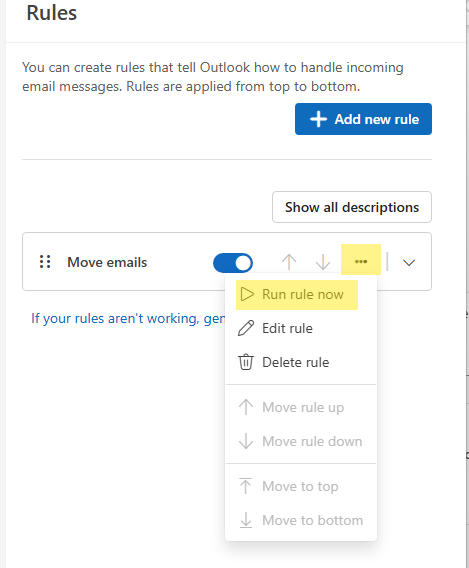
In new Outlook and Outlook on the web, find the rule in Settings and look for a Run rule now option. In classic Outlook, go to File, then Manage Rules & Alerts, then select Run Rules Now, choose the rule and folder, and run it. In Outlook for Mac, select the rule in Rules settings and choose the manual run option.
How to Back Up Rules in Classic Outlook
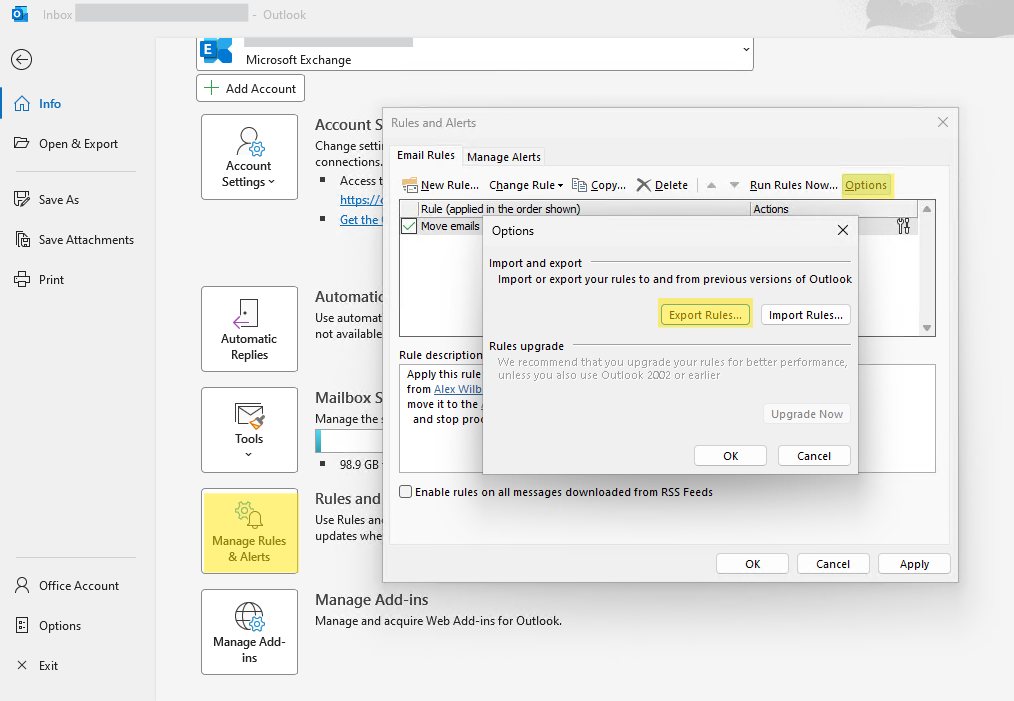
Classic Outlook can export rules to a .rwz file. Go to File, then Manage Rules & Alerts, then Options, then Export Rules. Use Import Rules to restore them. In new Outlook and Outlook on the web, rules are stored in your mailbox and do not need a separate backup.
Why Your Outlook Rule Is Not Working
- The rule is turned off. Check the toggle or checkbox in your rules list.
- Rule order is wrong. Another rule higher in the list may be acting on the same message first. Check for rules that match the same conditions.
- "Stop processing more rules" is interrupting things. If an earlier rule has this enabled, rules below it never fire for the same message.
- The condition is too broad or too narrow. The rule might be matching messages you did not intend, or missing messages because the condition wording does not quite match how emails arrive.
- The rule is client-side only. Some classic Outlook rules only run while Outlook is open. Contact IT if you are unsure.
- External forwarding is blocked. If a rule forwards messages outside your organization and it is not working, IT policy may be blocking that. Contact IT rather than trying to work around it.
- You have hit the rules size limit. If you have many complex rules, delete or simplify older ones you no longer need.
Outlook Rules Best Practices
Give every rule a specific name. Keep conditions precise. Use exceptions to protect messages you always want to see, like anything marked high importance or sent directly to you.
Put specific rules above general ones. Review rule order every time you add a new one. If unsure about a delete rule, move messages to a folder instead. It is much easier to recover a moved message than a deleted one. Turn off rules you are not sure about rather than deleting them right away. Review your rules periodically and clean up ones you no longer need.
When to Contact IT About Rules
Reach out to IT if a forwarding rule does not work and you suspect it is blocked by policy, if a rule appears to be deleting or moving messages unexpectedly, if you see a rule you did not create, if rules went missing after switching Outlook versions, or if you are hitting a rules size limit error.
Frequently Asked Questions
Can I create Outlook rules with Microsoft 365 Copilot?
Yes. Copilot can create simple rules from natural-language prompts and show you your existing rules. You describe what you want, Copilot shows a summary, you confirm, and the rule is created.
Can Copilot edit or delete my rules?
No. Copilot can create and view rules, but editing, deleting, disabling, and reordering must be done in Outlook's Rules settings.
Do rules apply to emails already in my inbox?
Not automatically. Rules apply to new incoming messages. Run a rule manually from the Rules settings page to apply it to existing email.
Why did my email end up in the wrong folder?
Another rule probably ran first. Check your rule order and look for rules that match the same conditions. Also check whether "Stop processing more rules" is on for an earlier rule.
Can I pause a rule without deleting it?
Yes. Turn the rule off using the toggle or checkbox. It stays saved but stops running until you re-enable it.
Do rules work when Outlook is closed?
Server-side rules run in your mailbox and work even when Outlook is not open. Some classic Outlook rules are client-side and only run while Outlook is open. If reliability matters, confirm the rule is server-side.
Can I use rules with Gmail or other non-Microsoft accounts in Outlook?
New Outlook has limitations for rules with third-party accounts. For Gmail, Yahoo, or iCloud accounts, you may need to create rules directly in that provider's settings.
What should I do if a forwarding rule is not working?
If you are forwarding to an address outside your organization and the rule is not firing, your company's IT policy may be blocking external forwarding. Contact IT to find out what is allowed.
Why is my rule catching emails it should not?
The condition is probably too broad. Narrow it by adding the sender's address, using a more specific phrase, or adding an exception for messages where you are in the To line rather than CC.