
Tips in Outlook for Smarter Email Management
Email is still one of the biggest time sinks in the modern workday. Most people spend far more time in Outlook than they would like, and a lot of that time is reactive rather than intentional. The good news is that the new Outlook has several features built specifically to help you take control of your inbox. This post covers some of the most useful ones, from managing timing and attention to keeping your inbox from running the show.
1. Snooze Emails Until You Are Ready to Deal with Them
Snooze is one of those features that sounds simple but genuinely changes how you handle email once you start using it. The idea is straightforward: instead of reading an email and immediately deciding you need to come back to it later, you snooze it. The email disappears from your inbox and reappears at whatever time you choose.
This is different from flagging or marking as unread. Flagged emails sit in your inbox and keep drawing your attention. Snoozed emails are completely out of view until the time you specified, which keeps your inbox cleaner and your focus sharper on what actually needs attention right now.
- To snooze an email, right-click it, select Snooze, and choose a preset time or set a custom date and time. You can snooze to later today, tomorrow morning, this weekend, or any specific date and time you choose. When the snooze expires, the email pops back to the top of your inbox as if it just arrived.
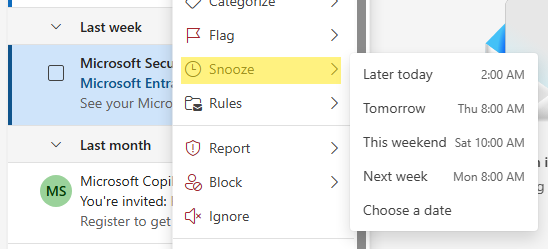
A good way to use this: any email that needs a response but not today gets snoozed to tomorrow morning. Any email you need to follow up on if you do not hear back by Friday gets snoozed to Friday afternoon. This keeps your inbox as a real-time representation of what needs attention now.
2. Schedule Send So Your Emails Arrive at the Right Time
Most people write emails whenever they have a moment and hit Send immediately. But the timing of when an email arrives matters more than people often realize. An email sent at 11pm from you creates an implicit expectation (whether you intend it or not) that you work late and might expect others to respond at odd hours. An email arriving Friday afternoon might sit unread all weekend when a Monday morning arrival would have gotten an immediate response.
Schedule Send solves this cleanly. You write the email when it is convenient for you, but you choose when it actually reaches the recipient.
- After drafting your email, click the dropdown arrow next to the Send button. Select Schedule Send. You can choose preset options (tomorrow morning, Monday morning, and so on) or pick a specific date and time. The email moves to your Outbox and sends automatically at the scheduled time. You can edit or cancel it from the Outbox before it sends if you change your mind.
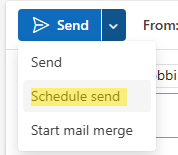
This is also useful when you know someone is in a meeting or a different time zone. Scheduling the send for when they typically start their day increases the likelihood of a quick response.
3. Undo Send Before the Email Leaves
The panic of realizing you made a mistake a split second after hitting Send is a near-universal experience. Outlook's Undo Send feature gives you a short window to pull the email back before it is delivered. This is different from a message recall (which tries to retrieve an already-delivered email and mostly does not work in practice). Undo Send actually delays the send by a few seconds so you have time to catch it.
- To set it up, go to Settings (the gear icon), then Mail, then Compose and reply. Find the Undo Send option and enable the slider. You can choose a delay of 5 or 10 seconds.
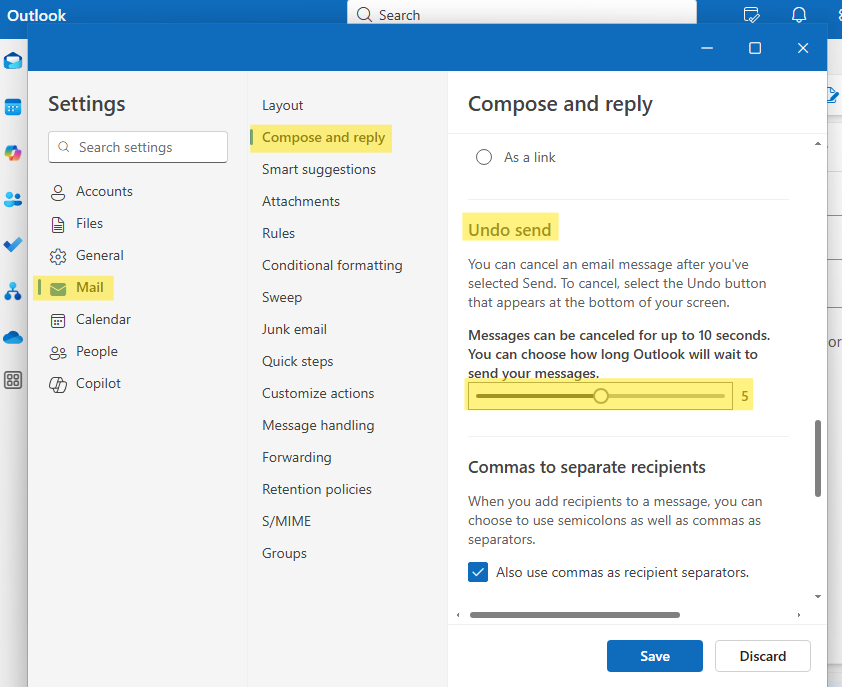
After you click Send, a notification banner appears at the bottom of the screen with an Undo button. Click it within the delay window and the email returns to your Drafts folder ready to edit.
Ten seconds feels short but in practice it is enough to catch most send mistakes, especially when you are looking for the Undo button. The key is to make a habit of glancing at the bottom of the screen after every send..
4. Use Rules to Triage Email Automatically
Rules are one of the most underused Outlook features. They let you automatically sort, flag, categorize, or delete incoming email based on criteria you define, without you touching it. Setting up a few smart rules can dramatically reduce inbox noise.
Some useful rules to consider: automatically move newsletters to a folder you check weekly instead of daily; flag emails from your manager or direct reports as soon as they arrive; move CC'd emails (where you are not the primary recipient) to a lower-priority folder; and auto-delete emails from specific recurring senders you never read but have not unsubscribed from.
To create a rule, right-click any email and select Rules, then Create Rule. Or go to Settings, Mail, Rules to manage them all in one place.
5. Use Categories to Color-Code by Context
Color categories let you tag emails by project, context, or priority with a visual label that makes your inbox scannable at a glance. You might use one color for a specific client, another for anything related to a current project, and another for emails that require a decision from you.
Categories work across email, calendar events, and tasks, so a color you assign to a project can be consistent across every Outlook item related to it. Right-click any email to assign a category. Go to Settings to rename categories from the default color names to something meaningful.
6. Focus Inbox and How to Use It Wisely
Focus Inbox is Outlook's AI-powered filtering system that attempts to separate your most important emails into a Focused tab and moves lower-priority mail to an Other tab. It can be helpful for high-volume inboxes, but it is worth knowing that you can train it over time by moving emails between the tabs. Right-click any email and choose Move to Focused or Move to Other. Outlook learns from these corrections.
If Focus Inbox is not for you, you can turn it off entirely. Go to Settings, Mail, and toggle Focused Inbox off. Your inbox will go back to a single chronological view.
Frequently Asked Questions
Can I snooze an email on mobile and have it reappear on desktop?
Yes. Snooze is synced to your Microsoft 365 account, not your device. A snoozed email will reappear on whichever device you are using when the snooze expires.
What is the maximum delay I can set for Schedule Send?
There is no hard maximum. You can schedule an email to send months in the future if needed, which is occasionally useful for sending annual reminders or planned notifications.
If I enable Undo Send, will my emails feel slower to people?
Recipients experience no delay. The delay is on your end only. From the recipient's perspective, the email arrives normally; they just receive it 5-10 seconds after you clicked Send rather than immediately.
Final Thoughts
These features are all designed around the same idea: giving you control over your email rather than letting email control your attention. Start with whichever one addresses your biggest current frustration. Snooze is the fastest one to start seeing results from, but Schedule Send tends to be the one people stick with longest once they try it. They work even better together.