
Managing Microsoft 365 Copilot Connectors: Synced, Federated, and the Admin Controls You Need to Know
As Copilot adoption spreads across organizations, connector management has quietly become one of the more important governance conversations for Microsoft 365 admins. Connectors determine what external systems Copilot can reason over, cite, and surface to users. Get the setup right and you extend Copilot's value significantly. Get it wrong and you either leave useful data inaccessible or expose content in ways your governance team would not approve.
Microsoft now supports two distinct connector models: synced connectors, which index external content into Microsoft Graph, and federated connectors, which retrieve data live using Model Context Protocol without ever copying it into Microsoft 365. Each model works differently, requires different admin controls, and suits different use cases. This article walks through both, including the newer PowerShell-based toggle that gives admins tenant-wide control over federated connectors.
What Are Microsoft 365 Copilot Connectors?
Copilot connectors allow organizations to bring external data into Microsoft 365 so users can search, reason over, and act on content from systems outside the Microsoft 365 tenant. The connector content can surface in Microsoft 365 Copilot Chat, Microsoft Search, Copilot Search, Teams, Outlook, and other Microsoft 365 intelligent experiences.
If you have been following Microsoft Search for a while, you will recognize this capability. What used to be called Microsoft Graph connectors, and before that Microsoft Search connectors, is now branded as Microsoft 365 Copilot connectors. The underlying technology evolved from powering search results to grounding Copilot answers, providing citations, and supporting multi-turn AI conversations with external content.
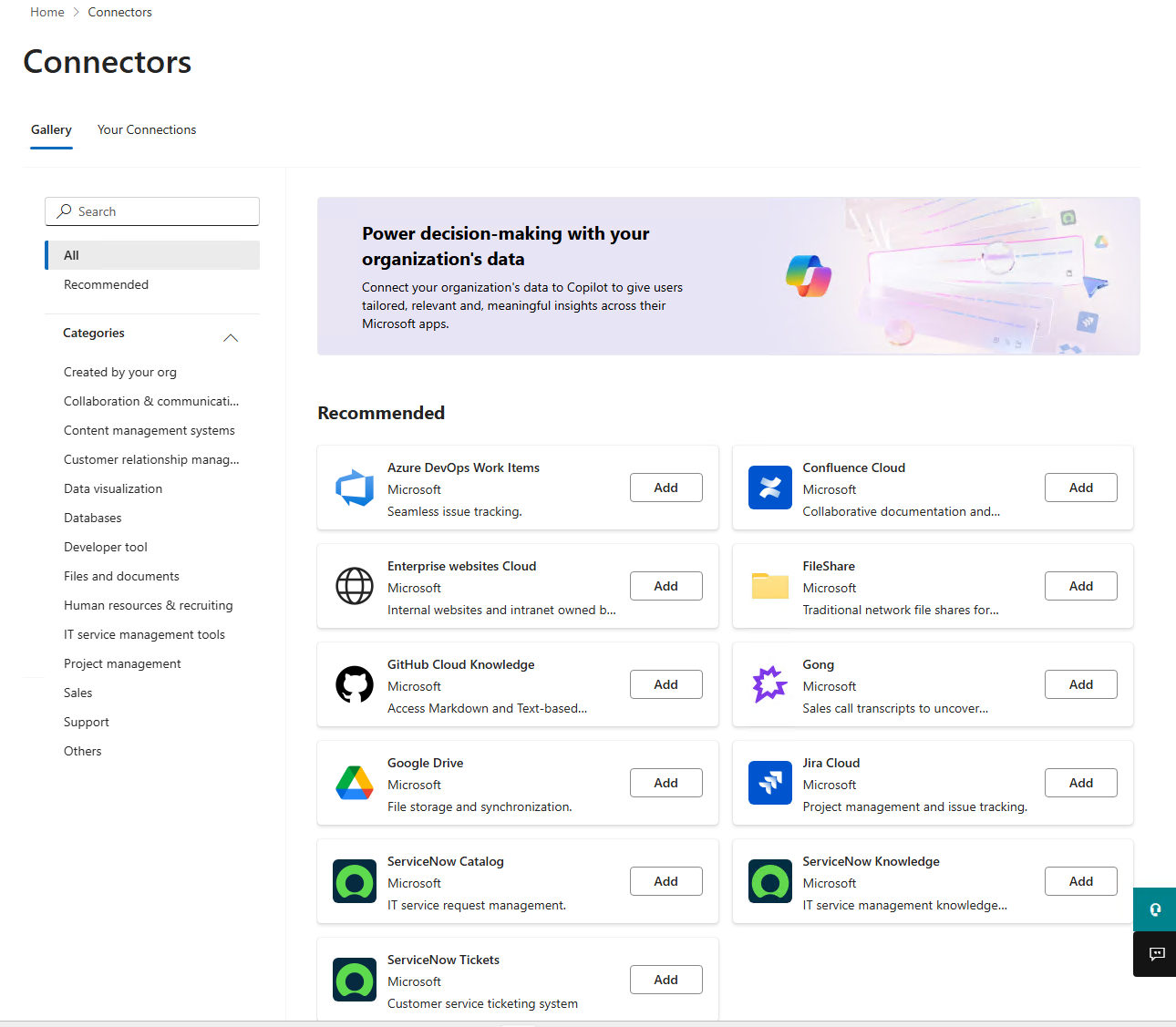
Microsoft's connector gallery includes more than 100 prebuilt connectors for systems like ServiceNow, Salesforce, Confluence, Box, Azure services, and others. Organizations can also build custom connectors using the Microsoft Graph API.
Synced vs. Federated Connectors: The Core Difference
The two connector models are not interchangeable. Understanding the difference is the starting point for any connector governance conversation.
Synced connectors crawl and index external content into Microsoft Graph. Once indexed, that content is available to Copilot and Microsoft Search, and it stays in Microsoft 365 until you remove the connection or the content changes. The admin configures the connector, sets up the crawl schedule, maps the schema, and the indexing runs in the background. Users never need to authenticate to the source system directly.
Federated connectors work the opposite way. They use Model Context Protocol, or MCP, to retrieve content in real time from an external system at the moment a user asks a question. Nothing is indexed into Microsoft Graph. The data stays in the source system, and Copilot fetches only what the user has permission to see, using the user's own credentials. The admin enables the connector and manages availability, but authentication happens at the user level.
Microsoft currently lists federated connectors for Canva, Google Calendar, Google Contacts, HubSpot, Intercom, Linear, LSEG, Moody's, and Notion, with more being added over time. These connectors surface in Microsoft 365 Copilot Chat, Copilot in Excel, and the Researcher agent.
Synced connectors are better suited for knowledge repositories, document stores, wikis, ticketing systems, and CRM data where broad indexed discovery adds value. Federated connectors are better suited for live, dynamic, or regulated data that needs to stay in the source system and where real-time retrieval is more appropriate than indexing.
How Synced Connectors Are Managed
Synced connectors are managed from the Microsoft 365 admin center under Copilot, then Connectors. You need the AI Administrator role to access this area.
Deploying a synced connector with the default configurations:
- From the Microsoft 365 admin center, go to Copilot, then Connectors, then Gallery.
- Select the data source you want to connect and click Add.
- Enter a connection display name, the source URL, and the authentication method.
- Select Create to start the connection and begin indexing.
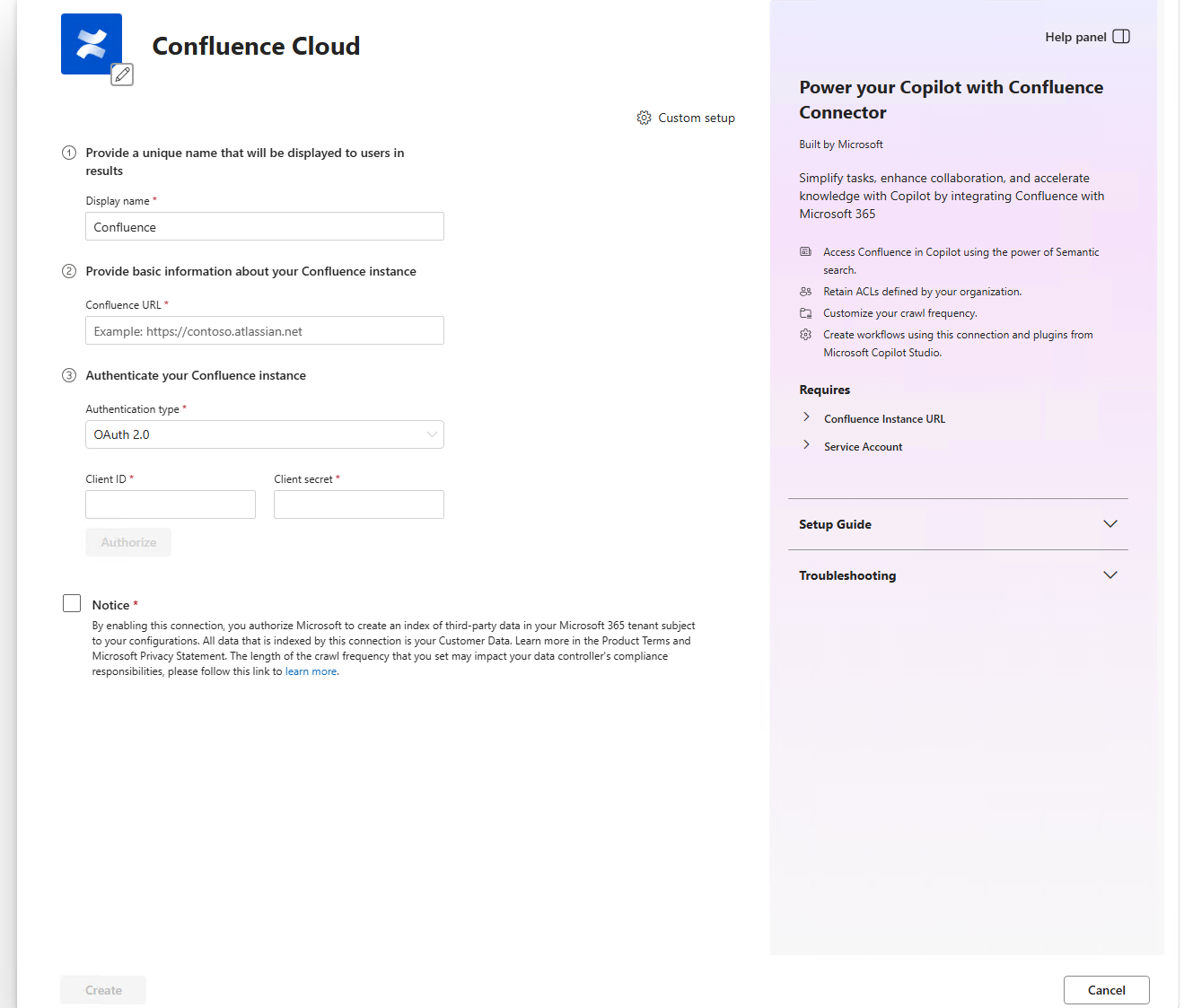
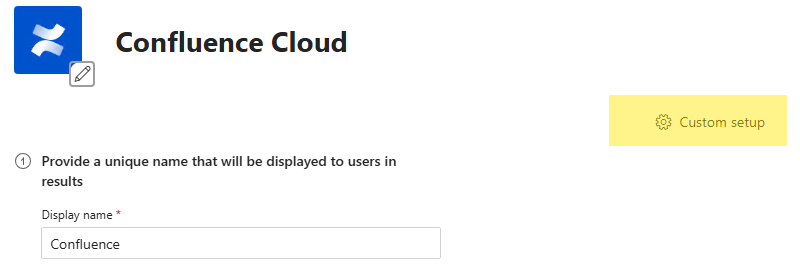
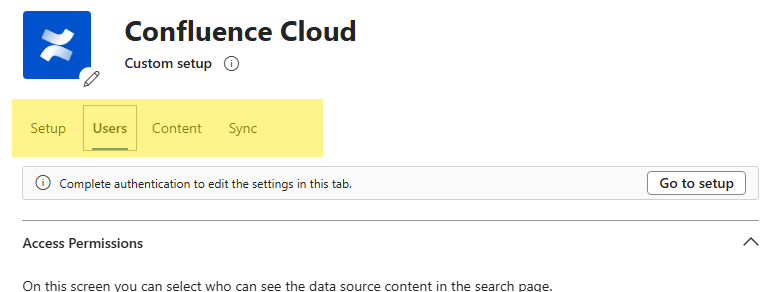
Most connectors use optimized defaults for permissions, schema, and sync frequency. You can also choose custom setup if the defaults do not fit your requirements. Custom setup lets you configure three areas in more detail.
To see the Custom Tabs below, click the Custom Setup button
The Users tab controls who can see indexed content. You can restrict visibility to users who already have access to the content in the source system, or you can make it visible to everyone in the organization. The least-privilege approach is to start with "only users with access to the content" unless there is a clear business reason to open it more broadly. For more on how SharePoint and Microsoft 365 permissions intersect with content access, the SharePoint permissions guide covers useful background on how permission inheritance and access controls work.
The Content tab is where you map schema properties. You can mark properties as searchable, queryable, retrievable, or refinable, assign semantic labels, and choose which property Copilot uses for full-text indexing. Semantic labels like title, url, lastModifiedBy, and lastModifiedDateTime matter more than most admins realize. They help Copilot understand, rank, cite, and attribute content correctly. If your Copilot answers are missing citations or returning generic results, schema mapping is usually where to look first.
The Sync tab controls crawl schedules. You can configure both full and incremental crawl intervals. Incremental crawls sync only new or changed data, which is efficient, but they do not process permission updates. Full crawls are needed periodically to keep permissions and content aligned.
Controlling Copilot Visibility for Synced Connectors
Once the synced connector is setup, one thing admins frequently overlook is you can configure a synced connector to keep crawling without making its data visible in Copilot.
- In the Your Connections tab, click on the recently created connector.
- At the button of the screen, there is a visibility toggle for partner connector data sources that controls whether indexed content appears in Copilot Search and Copilot Chat. If you turn visibility off, the connector continues indexing, but Copilot ignores it. Changes take up to 30 minutes to propagate.
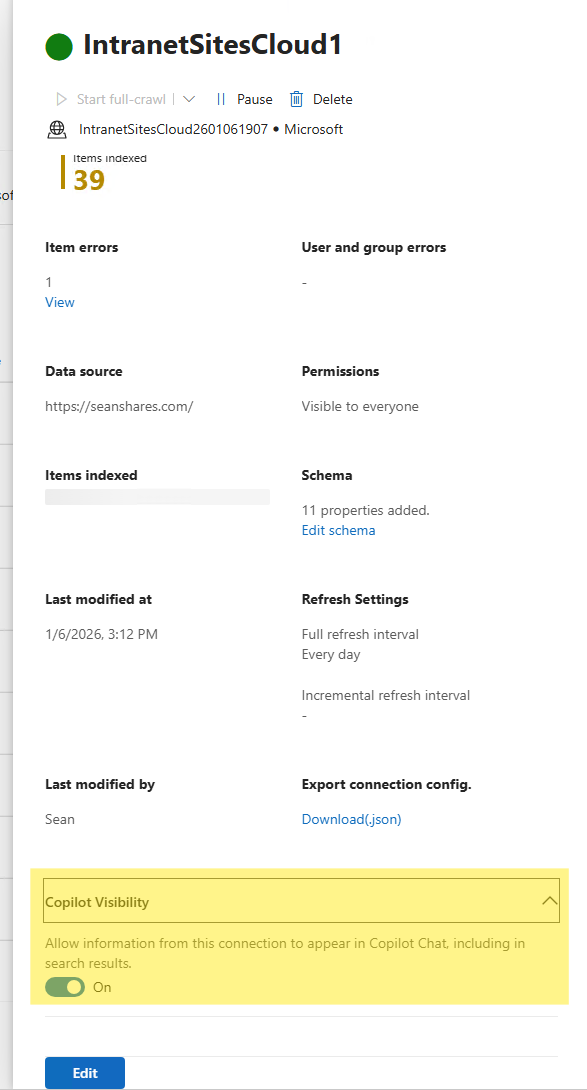
This is useful during testing. You can run a full crawl and validate the indexed content before exposing it to Copilot users.
Managing Synced Connections with PowerShell
Microsoft Graph PowerShell gives admins programmatic access to external connection objects through the Microsoft.Graph.Search module. This is useful for building a connector inventory, checking connection states, or automating governance reporting.
The basic commands for reading connection data look like this:
Import-Module Microsoft.Graph.Search
Connect-MgGraph -Scopes "ExternalConnection.Read.All"

# List all external connections
Get-MgExternalConnection -All | Select-Object Id, Name, Description, State

# Get a specific connection
Get-MgExternalConnection -ExternalConnectionId "<connectionId>"
The connection state field tells you whether a connection is syncing, ready, paused, failed, or in a delete-failed state. The contentCategory property is worth noting too. It tells Microsoft Graph what type of content the connection contains, which helps with relevance ranking and semantic understanding in Copilot responses.
Use read operations freely for reporting and inventory. Write operations like creating, updating, or deleting connections should go through change control, because schema changes and connection deletions directly affect what Copilot and Search can discover.
The required permissions are ExternalConnection.Read.All for read-only access, or ExternalConnection.ReadWrite.All if your automation needs to create or modify connections. Personal Microsoft accounts are not supported.
How Federated Connectors Work
Federated connectors flip the operational model. Instead of crawling and indexing, they use Model Context Protocol to fetch live data from an external system when a user makes a request in Copilot. Nothing is copied into Microsoft 365. The source system stays as the system of record.
When an admin enables a federated connector, it becomes discoverable in the Sources menu in Copilot Chat or in Researcher. The user connects with their own credentials to the external system. From that point, Copilot can retrieve content from that source, but only what the user already has permission to see in the original system. OAuth 2.0 and encrypted communication handle authentication.
Federated connectors are read-only. Copilot can search or fetch content, but it cannot write data back to the source. They are also auditable in Microsoft Purview, which matters for regulated industries.
This model is a good fit for dynamic content, sensitive data where indexing into Microsoft 365 is not acceptable, or systems where the data changes frequently enough that a cached index would quickly become stale.
Managing Federated Connector Availability with PowerShell
The governance challenge with federated connectors is that Microsoft-published ones are enabled by default for a tenant. They appear in the admin center and become available to users without any admin action. For most organizations, that default-on posture deserves a second look.
Microsoft provides a tenant-wide toggle through the Connector.Cmd PowerShell module that lets admins disable all default federated connectors in one operation. The setting also applies automatically to future Microsoft-published federated connectors, so organizations that want a review-first posture do not have to catch each new connector as it arrives.
Prerequisites
- Global Administrator or AI Administrator permissions
- PowerShell running as administrator
- Connector.Cmd module version 2.1 or later
Install the module and run the toggle
Install-Module Connector.Cmd
Set-FederatedConnectorToggle
When you run Set-FederatedConnectorToggle, it prompts you to authenticate with Global Administrator or AI Administrator credentials, asks you to approve the requested permissions, and then asks whether you want to disable or enable federated connectors. Running the command again shows you the current state before asking for any changes.
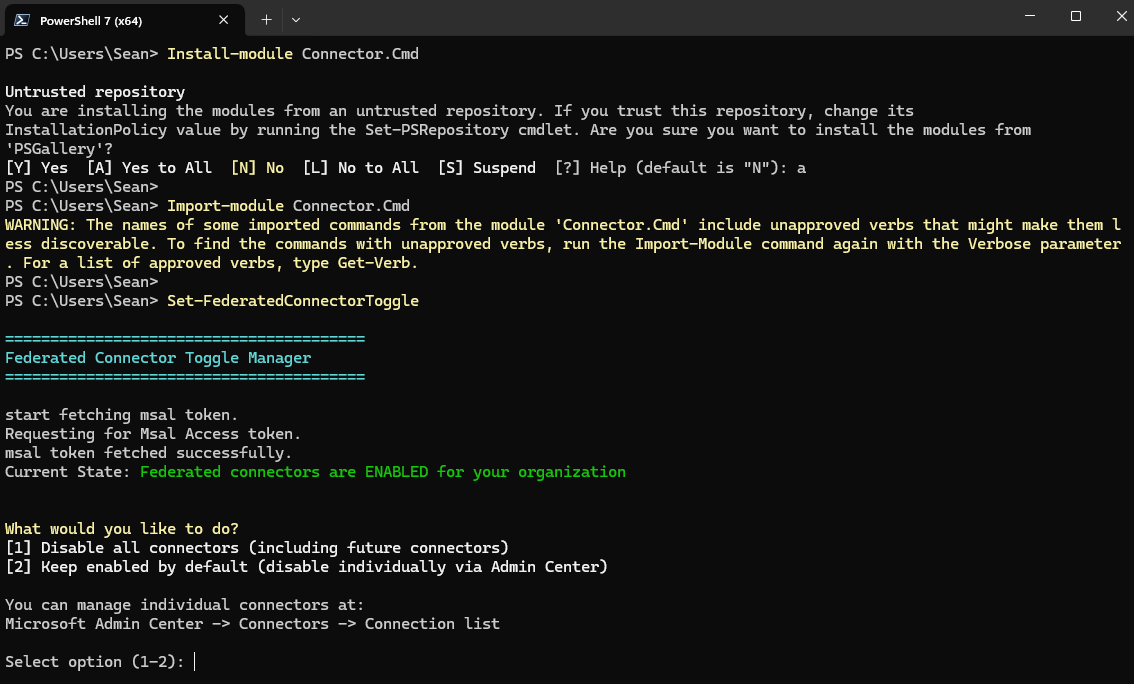
Changes can take up to 10 minutes to propagate across Microsoft 365 experiences. You may need to refresh the admin center, and users may see a brief delay before the change takes effect in Copilot.
Selective enablement after disabling
Disabling federated connectors globally does not prevent you from turning individual ones back on. You can go to Copilot, then Connectors, then Your Connections in the admin center to selectively enable specific connectors even while the global toggle is set to disabled. That gives you an opt-in governance model rather than the default opt-out one.
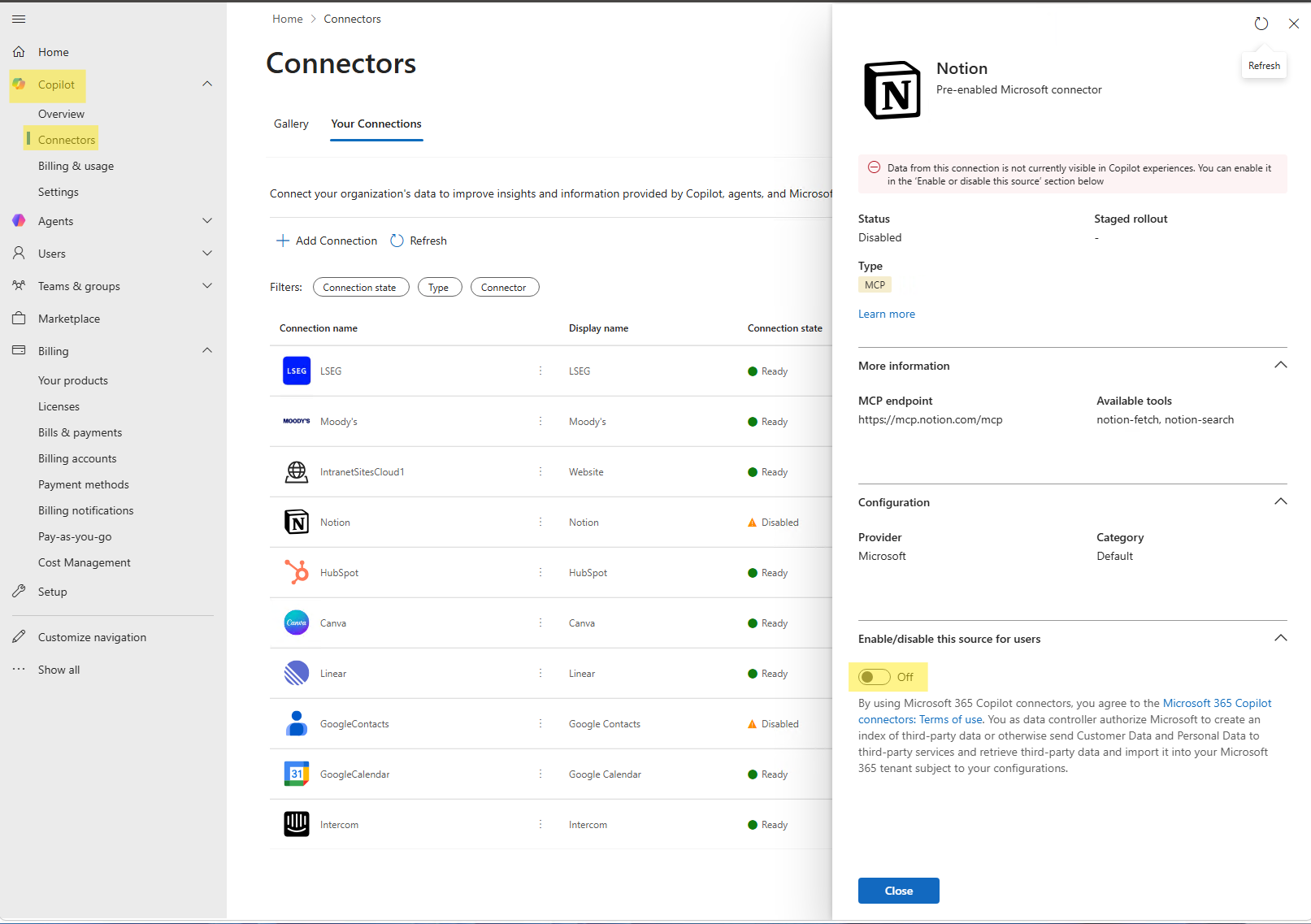
You can also use staged rollout to limit connector availability to specific Microsoft Entra ID groups, which is useful for running a pilot before broader enablement.
The seven-day admin review window
When a new Microsoft-published federated connector first appears in the admin center, it is available only to admins for seven calendar days before it opens up to users. That window exists for exactly this purpose: review it, decide whether to keep it enabled, configure staged rollout, or disable it before users can access it. Build that review window into your change management process so it does not go unnoticed.
Governance and Security Considerations
The governance picture for connectors has gotten more complex now that two fundamentally different data models are in play. Here is how to think through the key areas.
Data movement is the most important distinction. Synced connectors move data into Microsoft Graph. That means your data governance, retention, and compliance policies need to account for external content now living inside Microsoft 365. Federated connectors leave data where it is. For regulated industries, that distinction often determines which model is acceptable.
Permission enforcement works differently across both models. Synced connectors index content with access control lists so Copilot only shows items to users who have access in the source system. Federated connectors enforce permissions at query time using the user's live credentials. Both models respect source-system permissions, but the mechanism and timing are different.
Because Microsoft-published federated connectors are on by default, organizations with strict data governance requirements should consider using the PowerShell toggle to start from a disabled state and selectively enable only approved connectors. The Copilot admin settings and governance article covers related admin controls worth reviewing alongside connector settings. If your organization is also managing which users have access to Copilot at all, the guide to disabling Copilot as a Microsoft 365 admin walks through the license and policy controls that complement connector governance.
Auditing is available for federated connectors through Microsoft Purview. Make sure your audit configuration is capturing connector activity if your compliance requirements call for it.
Common Mistakes To Review
Treating all connectors the same is probably the most common one. Synced and federated connectors have different data movement models, different authentication models, and different governance implications. The word "connector" now covers two very different things.
Assuming a paused synced connector removes data from Copilot is another one. Pausing stops the crawl, but data from the connection stays searchable and visible in Copilot until you delete the connection or turn off visibility in the connector settings.
Relying only on incremental crawls without periodic full crawls creates permission drift. Incremental crawls do not process permission updates. If permissions on source content change, those changes are not reflected in indexed content until a full crawl runs.
Not using the federated connector toggle for governance-sensitive environments leaves the tenant in a default-on state where Microsoft-published connectors appear automatically. For most regulated organizations, a review-first posture is more appropriate.
Poor schema mapping is one that hurts Copilot quality rather than governance directly. If you skip the semantic label configuration, Copilot may return correct content but cite it poorly or fail to attribute it to the right source. Map title, url, lastModifiedBy, and lastModifiedDateTime at minimum.
Admin Checklist for Connector Governance
- Inventory all existing synced connector connections using
Get-MgExternalConnection -All - Identify which external systems should be available to Copilot and classify them by data sensitivity
- Confirm user mapping and permission enforcement for each synced connection
- Review schema labels, particularly title, URL, last modified by, and last modified date/time
- Configure crawl schedules with periodic full crawls alongside incremental crawls
- Decide whether each synced connector's content should be visible in Copilot
- Run
Set-FederatedConnectorToggleif your organization wants a review-first posture for federated connectors - Review each Microsoft-published federated connector during the seven-day admin window
- Selectively enable approved federated connectors and configure staged rollout where appropriate
- Monitor connector health, crawl failures, service health notifications, and user feedback
- Audit federated connector activity in Microsoft Purview if your compliance requirements call for it
Frequently Asked Questions
What is the difference between a synced connector and a federated connector?
A synced connector crawls and indexes external data into Microsoft Graph, making it persistently available to Copilot and Microsoft Search. A federated connector retrieves data in real time from an external system using Model Context Protocol without indexing anything into Microsoft 365. Synced connectors suit broad discovery scenarios; federated connectors suit live, dynamic, or sensitive data that should stay in the source system.
Are federated connectors enabled by default?
Yes. Microsoft-published federated connectors are enabled by default for a tenant. Admins can use Set-FederatedConnectorToggle from the Connector.Cmd PowerShell module to disable them all tenant-wide, then selectively re-enable approved connectors through the Microsoft 365 admin center.
What admin role do I need to manage Copilot connectors?
You need the AI Administrator role to access and manage Microsoft 365 Copilot connectors in the Microsoft 365 admin center. The federated connector PowerShell toggle requires Global Administrator or AI Administrator credentials.
If I pause a synced connector, does data disappear from Copilot?
No. Pausing a connector stops the crawl, but indexed data from that connection remains searchable and visible in Copilot and Microsoft Search. To remove data from Copilot, you need to delete the connection or turn off the Copilot visibility setting for that connector.
Do incremental crawls handle permission changes?
No. Incremental crawls sync new or changed content but do not process permission updates from the source system. Full crawls are needed periodically to keep permissions and indexed content aligned. This is an important detail for any connector that indexes content with access controls.
Can I limit which users see a federated connector?
Yes. Admins can use staged rollout in the Microsoft 365 admin center to restrict federated connector availability to specific Microsoft Entra ID groups before enabling it more broadly.
Is there a review window for new federated connectors?
Yes. When a new Microsoft-published federated connector first appears in the admin center, it is visible only to admins for seven calendar days before becoming available to users. Use that window to review the connector, configure staged rollout, or disable it before general availability.
Can federated connectors write data back to external systems?
No. Federated connectors are read-only. Copilot can search and retrieve content from connected external systems, but it cannot write data back through the federated connector model.
How is federated connector activity audited?
Microsoft states that federated connectors can be audited in Microsoft Purview. Check your Microsoft Purview audit configuration to confirm that connector activity is being captured if your compliance requirements need it.