What Is Microsoft Copilot Cowork and How to Enable It
Updated June 16, 2026: Microsoft Copilot Cowork is now generally available worldwide for Microsoft 365 Copilot customers. This article has been updated to reflect general availability, usage-based billing with Copilot Credits, admin cost controls, new model options, plugins, and updated user access through the Cowork toggle in Microsoft 365 Copilot.

Most Copilot features in Microsoft 365 are reactive. You ask, Copilot answers. You prompt, Copilot drafts. Copilot Cowork is different.
Instead of responding to one prompt at a time, Cowork can take on a larger piece of work and run through the steps needed to complete it. It can work across Microsoft 365 apps, files, messages, meetings, and data. You describe the outcome you want, and Cowork plans the task, works through it, and gives you a completed result rather than just a suggestion.
Microsoft announced on June 16, 2026 that Copilot Cowork is now generally available worldwide for Microsoft 365 Copilot customers. That is a big change from the original preview period. Cowork is no longer just a Frontier preview feature, although some newer capabilities are still tied to Frontier. It is now a generally available Microsoft 365 Copilot experience with usage-based billing, admin controls, and new governance options.
This is a meaningful shift in what AI in Microsoft 365 can do, and it is worth understanding what Cowork is, what changed with general availability, what it can handle, how billing works, and what admins should review before turning it on.
What Is Copilot Cowork?
Copilot Cowork is an agentic system built into Microsoft 365 Copilot. Microsoft describes it as a system that plans, executes, and delivers work across your apps, files, and data. It is powered by Work IQ, which means it can use signals from Microsoft 365 to produce results that are grounded in your work context.
The simplest way to explain it is this:
Standard Copilot helps you create or understand something. Cowork helps you get something done.
If you ask standard Copilot to draft a follow-up email after a meeting, it can write the draft. If you ask Cowork to handle the follow-up, it can work through the broader task, such as finding the right context, drafting the message, preparing supporting content, and asking for approval before taking an action that affects other people.
Cowork is built for longer, multi-step work. It is not just a chat response. Microsoft says Cowork is designed to execute complex, long-running, multi-tool tasks from start to finish and return completed work rather than just a draft or recommendation.
Cowork is still something you supervise. It is not meant to quietly run wild in the background without you knowing what it is doing. Microsoft's description of Cowork emphasizes that it works inside the Microsoft 365 trust boundary and follows existing policies and controls.
What Changed With General Availability?
The original version of this article was written when Cowork was still a Frontier preview feature. That is no longer the main story.
As of June 16, 2026, Copilot Cowork is generally available worldwide to Microsoft 365 Copilot customers. Microsoft says that after three months in Frontier preview, more than half of the Fortune 500 had used Cowork, along with organizations including Accenture, Avanade, Advance Local, Capital Group, Koch, LTM, Ooredoo Qatar, and Zurich Insurance.
There are four big updates admins and users should know about.
- Cowork is generally available. Microsoft Learn says the June 2026 release makes Microsoft 365 Copilot Cowork generally available to all Microsoft 365 Copilot tenants worldwide in tier-1 languages.
- Cowork now uses usage-based billing. It requires a Microsoft 365 Copilot User Subscription License, and Cowork usage is billed separately using Copilot Credits. Microsoft says each task price is calculated from model use, context retrieval, tool calls, and runtime.
- Cowork is off by default. Microsoft says customers decide when Cowork turns on, who gets access, and how much can be spent. Admins can enable Cowork for the tenant and decide who can use it.
- Microsoft added more admin controls. The GA release includes spending limits at tenant, group, and user levels, usage alerts, usage reporting, user-initiated credit requests, and payment options including PayGo and P3. PayGo is priced at $0.01 per Copilot Credit.
That means Cowork has moved from "interesting preview feature" to "real service admins need to govern."
What Can Copilot Cowork Do?
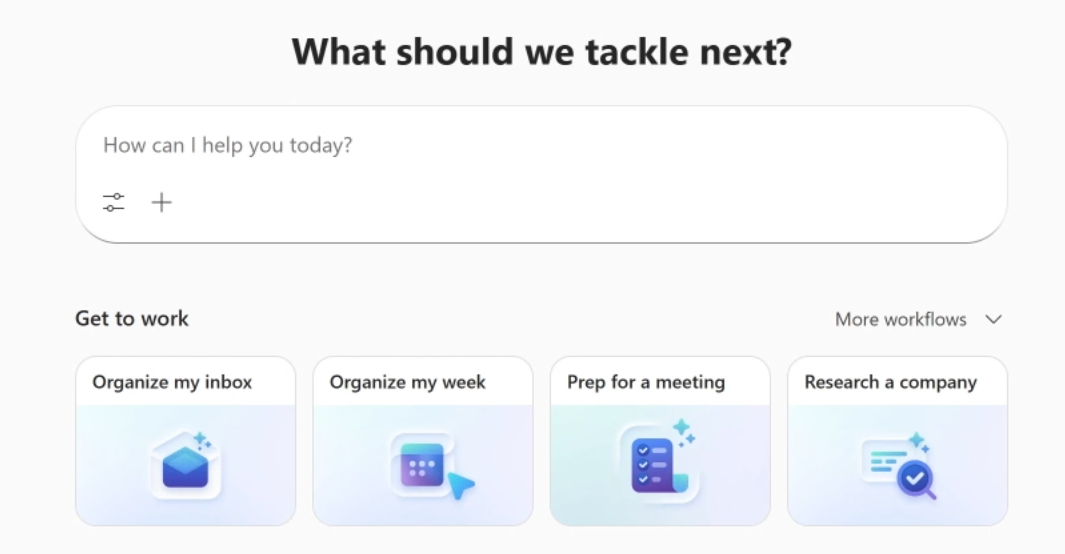
Cowork is designed for work that spans more than one step or more than one Microsoft 365 app.
Microsoft's Adoption page describes Cowork as coordinating long-running, multi-step workflows across apps, files, and data. It also says Cowork is powered by Work IQ and applies task-appropriate models to produce context-aware results.
In practical terms, Cowork is useful when the request is more like a work assignment than a single prompt.
Examples include:
- Preparing a customer meeting by finding relevant emails, notes, files, and previous discussions
- Comparing documents or files across versions
- Creating a report from multiple sources
- Drafting stakeholder communications based on project context
- Building a PowerPoint deck using company brand templates
- Working through recurring business processes that require several steps
- Using plugins to bring other business systems into the workflow
Microsoft shared examples from preview customers, including an engineering team that used Cowork to safely edit batch-job spreadsheets and generate dependency flow charts, a team that compared nearly four thousand files across two product versions, and a sales lead who used Cowork to review a stalled pipeline and find at-risk opportunities.
That does not mean every task should go to Cowork. For quick questions, summaries, or simple drafting, standard Copilot Chat is usually the better place to start. Cowork is for the work that has multiple steps, multiple sources, or a clear outcome that needs more than a single response.
How Cowork Is Different From Copilot Chat
The easiest way to decide whether to use Copilot Chat or Cowork is to look at the shape of the task.
Use Copilot Chat when you want an answer, a summary, a rewrite, or a quick draft.
Use Cowork when you want to hand off a multi-step outcome.
For example, if you want to summarize one email thread, Copilot Chat is fine. If you want to review a project, find open issues, draft a status update, prepare a meeting agenda, and create a document from the results, Cowork is a better fit.
Microsoft's Adoption guidance also frames Cowork as one choice alongside Chat and agents. It is not a replacement for every Copilot experience. It is another tool in the Microsoft 365 Copilot toolbox.
Where Users Find Cowork
If Cowork is turned on for a user, Microsoft says they can select the Cowork toggle in Microsoft 365 Copilot to jump into the full Cowork experience. If the user does not see the toggle, Microsoft's Adoption page tells them to contact their IT admin for access.
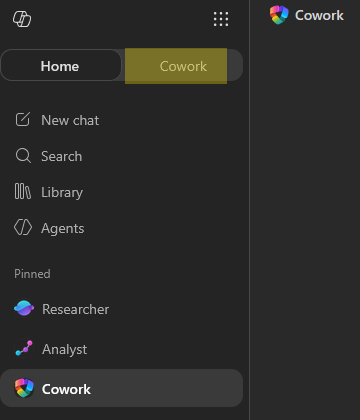
This is a change from the earlier preview flow where users looked for Cowork as an agent in the Agent Store. The new GA experience has a more direct entry point in the Microsoft 365 Copilot app.
The Microsoft 365 Copilot app now includes a toggle that takes users into Cowork's full experience so they can move from chat to action more quickly.
If a user cannot see Cowork, check the basics first:
- They need a Microsoft 365 Copilot license.
- Cowork needs to be enabled by the organization.
- The user needs to be included in the group or policy allowed to use Cowork.
- Billing and spending controls may need to be configured by an admin.
Requirements for Copilot Cowork
The biggest requirement is licensing. Microsoft says Copilot Cowork requires the Microsoft 365 Copilot User Subscription License. Cowork usage is then billed on a usage basis through Copilot Credits.
That means a standard Microsoft 365 license by itself is not enough. Users need Microsoft 365 Copilot, and the organization needs to enable Cowork.
Since Cowork can perform long-running work and generate usage-based charges, admins should review access, spending limits, reporting, and compliance settings before turning it on broadly.
Microsoft says Cowork is off by default and that admins decide when to enable it, who gets access, and how much can be spent.
How Billing Works
This is one of the biggest changes from the preview version of Cowork.
Copilot Cowork is not simply "included at no extra cost" with Microsoft 365 Copilot. The user needs a Microsoft 365 Copilot license, but Cowork itself uses usage-based billing.
Microsoft says Cowork usage is billed in Copilot Credits. The cost of a task is based on four inputs:
- Model use
- Context retrieval
- Tool calls
- Runtime
Microsoft also says PayGo is priced at $0.01 per Copilot Credit. This means a small Cowork task should cost less than a large one. A task that pulls from a few sources and produces one output is different from a task that reasons over many sources, uses multiple tools, and runs for longer.
Microsoft describes light, medium, and heavy task patterns that it observed during Frontier usage. Light tasks use a small number of knowledge sources, apply limited reasoning, and produce one or fewer outputs. Medium tasks draw on multiple sources, apply structured reasoning, and generate two or more outputs. Heavy tasks aggregate broadly, apply deep reasoning, and produce many outputs.
Admins should treat Cowork like any other consumption-based service. Start with a pilot, set spending limits, review reports, and expand access once you understand actual usage.
Cost Management Controls
Microsoft added cost controls because Cowork can perform longer-running agentic work.
The GA announcement groups cost management into three areas: control, visibility, and efficiency.
- For control, admins can decide when Cowork turns on, who gets access, and how much can be spent. Microsoft says Cowork is off by default, supports spending limits at the tenant, group, and user levels, supports customizable usage alerts, and lets users request more credits from inside Cowork when they need additional credits for a task.
- For visibility, admins can see usage reporting at the tenant, group, and user levels. Microsoft says reporting can show usage by user, group, and feature. User-level pricing for each task in credits is listed as coming soon after GA.
- For efficiency, Microsoft says customers can choose PayGo or P3. PayGo provides flexibility, while P3 lets customers commit to a usage volume in advance in exchange for a discount.
If your tenant participated in Frontier between March 30 and June 16, there is one more detail to know. Microsoft says tenants with at least one Frontier user who used Cowork during that period will not be billed for Cowork usage until July 1, 2026, to support the transition.
How to Enable Copilot Cowork as an Admin
Since Cowork is off by default, admins need to make a deliberate decision before users can access it.
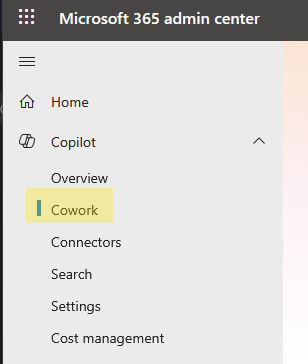
The exact admin center labels may continue to evolve as Microsoft updates the GA experience, so use Microsoft's current admin guidance as the source of truth. At a high level, the enablement process should look like this.
1. Confirm Microsoft 365 Copilot Licensing
Start by confirming that the users you want to pilot with have Microsoft 365 Copilot licenses assigned.
Cowork requires the Microsoft 365 Copilot User Subscription License. Users without that license should not be expected to see or use Cowork.
2. Decide Who Should Get Access First
Do not turn Cowork on for everyone just because it is generally available.
Start with a limited group. Good pilot users are people who already use Copilot regularly and have real multi-step work to test. Examples include project managers, sales operations, executive assistants, analysts, communications teams, and IT staff.
Microsoft says admins decide who gets access to Cowork. That makes it easier to pilot with a controlled group before broad rollout.
3. Configure Spending Limits Before Broad Rollout
This should happen before you invite users to start testing.
Cowork uses usage-based billing, so set spending limits and alerts up front. Microsoft says admins can create scoped billing policies and define budgets at tenant, group, and user levels.
For a pilot, I would start with a small group-level budget and a user-level cap. That gives people room to test without creating a surprise bill.
4. Enable Cowork for the Tenant or Pilot Group
After licensing and budgets are ready, enable Cowork for the users or groups you selected.
Microsoft says Cowork is off by default and admins decide when to enable it.
If you are only piloting it, avoid an all-user rollout at first. Use a group so you can manage access, monitor usage, and collect feedback.
5. Review Model, Plugin, Browser, and Compliance Settings
Microsoft Learn says the GA admin guidance covers model toggles, browser-use controls, consumption visibility, and Purview integration.
That is worth reviewing before rollout. It is also a good time to revisit your wider Copilot setup, including the Copilot admin settings worth checking for better governance.
Cowork now includes model selection, an expanded plugin catalog, local browser use, and new security and compliance capabilities. Some of those features may be appropriate for your organization right away. Others may need more review, especially in regulated environments.
6. Communicate the Change to Users
Do not just turn Cowork on and hope users figure it out.
Tell pilot users what Cowork is for, when to use it instead of Copilot Chat, how billing works at a high level, and what kinds of tasks are appropriate for testing.
Microsoft's Adoption page tells users that if Cowork is turned on, they can select the Cowork toggle in Microsoft 365 Copilot. If they do not see the toggle, they should contact IT.
A simple internal note could say:
Copilot Cowork is now available to our pilot group in Microsoft 365 Copilot. Use it for multi-step work, not quick chat questions. Start with low-risk tasks, review outputs carefully, and do not approve actions unless you are comfortable with the result. Cowork usage is metered, so please use it intentionally during the pilot.
What Is New in Cowork?
The June 2026 GA release adds several important features.
Model Choice
Microsoft Learn says Cowork now has a model picker that lets users select Auto or choose a specific model. The GA lineup includes Claude Opus and Sonnet variants, the Sonnet plus Opus Advisor pairing, and GPT 5.5.
Microsoft's GA blog says Copilot Cowork runs on Anthropic models including Opus 4.8 and Sonnet 4.6 at general availability. It also says Frontier customers can use GPT 5.5, and that Cowork 1 is coming soon. If you want to use the Anthropic models in your tenant, here is how to enable the Claude model in Microsoft Copilot.
Image Generation
Microsoft Learn says Cowork can generate images using Imagen 2. Users can ask for an image in chat, and Cowork saves it to the conversation and OneDrive output folder.
Local Browser Use
Microsoft Learn says Cowork can complete web tasks for users in Microsoft Edge on their device, using existing sign-ins and organizational policies.
Microsoft's GA announcement describes browser use via Edge as available in Frontier, where Cowork can browse the web through a local Edge browser while following enterprise policies.
Customize Page and Skills
Microsoft Learn says the new Customize page brings plugins and skills into one place. Users can browse, install, and share plugins and skills, and can create new skills through a guided conversation.
This is useful because a lot of real work follows repeatable patterns. Skills let you capture how you want a task done so Cowork can apply the same approach again.
Brand Templates
Microsoft Learn says Cowork can apply an organization's brand template, including fonts, colors, logos, and layouts, to PowerPoint decks it creates.
That matters for organizations that want Copilot-created content to look more like company content and less like a generic AI-generated deck.
Plugins
Microsoft's GA announcement lists nine partner plugins available now: Enosix, Harvey, LSEG, Miro, monday.com, Moodys, Morningstar, S&P Global Energy, and TeamsMaestro. Microsoft also says Adobe, Atlassian, Box, Canva, CB Insights, Databricks, MoneyForward, and Templafy are coming soon. Fabric and Dynamics 365 Sales, Customer Service, and ERP apps are also generally available.
Microsoft Learn also says the Microsoft 365 App Store now lists Microsoft and partner plugins for Cowork, including Microsoft plugins such as Dynamics 365 Customer Service, Dynamics 365 Sales, Dynamics 365 ERP, and Fabric IQ, plus partner connectors such as Jira, Salesforce, ServiceNow, SAP ERP, Workday HCM, Zendesk, and more. If you manage data sources for Copilot, it is worth understanding how Microsoft 365 Copilot connectors fit into this picture.
Security and Compliance
Cowork needs extra attention because it does not just generate text. It can work across tools and produce artifacts.
Microsoft says Cowork operates within the Microsoft 365 trust boundary, with protections that align to existing organizational policies and controls.
Microsoft also says Cowork prompts, responses, and generated artifacts flow through existing Microsoft 365 controls and are governed, discoverable, and retained securely. Sensitivity labels are inherited and displayed end to end.
At GA, Microsoft lists audit log, Data Security Posture Management, eDiscovery, and Communication Compliance policies as part of the protected surface. Microsoft says Insider Risk Management, Data Loss Prevention, and Data Lifecycle Management are coming soon.
For regulated organizations, that is the section to read carefully. Cowork is powerful, but the governance model matters just as much as the user experience. If your environment includes Teams, it is also worth reviewing your Microsoft Teams AI policy so your Copilot and Cowork controls stay consistent.
What Cowork Is Not
Cowork is not a replacement for Copilot Chat.
If you want a quick summary, a rewrite, or a fast answer, Copilot Chat is still the right place to start. Cowork is better for work that has a beginning, middle, and end.
Cowork is also not a reason to skip review. Outputs still need human judgment. If Cowork drafts an email, creates a deck, compares files, or prepares a report, review the result before using it.
Cowork is not free unlimited automation. It now uses usage-based billing, and admins should plan for that.
Recommended Rollout Plan
If you are an admin, I would not enable Cowork for everyone on day one.
A better rollout looks like this:
- Pick a small pilot group.
- Confirm Microsoft 365 Copilot licensing.
- Turn on Cowork only for that group.
- Set spending limits before people begin testing.
- Enable usage alerts.
- Review compliance and Purview settings.
- Give users sample tasks and clear guidance.
- Review usage and outcomes after the pilot.
- Expand access once you understand the cost and value.
That may sound cautious, but it is the right approach for an agentic system with usage-based billing. If your organization already uses a phased ring approach like Microsoft 365 Targeted Release, the same mindset applies here. Cowork can create real value, but it should be governed like a real enterprise service.
Frequently Asked Questions
Is Copilot Cowork generally available?
Yes. Microsoft announced on June 16, 2026 that Copilot Cowork is generally available worldwide for Microsoft 365 Copilot customers.
Is Cowork still a Frontier-only preview?
No. The main Cowork experience is now generally available. Some newer capabilities, such as certain model options or browser-use capabilities, may still be associated with Frontier based on Microsoft's GA announcement and Learn documentation.
Do users need a Microsoft 365 Copilot license?
Yes. Microsoft says Copilot Cowork requires the Microsoft 365 Copilot User Subscription License.
Is Copilot Cowork free with Microsoft 365 Copilot?
No, not in the way the preview was commonly understood. Users need a Microsoft 365 Copilot license, and Cowork usage is billed separately on a usage basis through Copilot Credits.
How much does Cowork cost?
Microsoft says Cowork uses Copilot Credits, and PayGo is priced at $0.01 per Copilot Credit. The cost of each task depends on model use, context retrieval, tool calls, and runtime.
Is Cowork turned on by default?
No. Microsoft says Cowork is off by default. Admins decide when to enable it and who gets access.
Where do users find Cowork?
If Cowork is enabled for the user, they can select the Cowork toggle in Microsoft 365 Copilot. If they do not see it, Microsoft says they should contact their IT admin.
Can admins control spending?
Yes. Microsoft says admins can set spending limits at the tenant, group, and user levels, configure usage alerts, and view usage reporting at tenant, group, and user levels.
What models does Cowork use?
Microsoft says that at general availability, Copilot Cowork runs on Anthropic models including Opus 4.8 and Sonnet 4.6. Frontier customers can use GPT 5.5, and Microsoft says Cowork 1 is coming soon.
Microsoft Learn also says the GA model picker includes Claude Opus and Sonnet variants, the Sonnet plus Opus Advisor pairing, and GPT 5.5.
Does Cowork support plugins?
Yes. Microsoft announced partner plugins available now and more coming soon. Microsoft Learn also lists an expanded plugin catalog in the Microsoft 365 App Store.
Can Cowork use Microsoft Edge?
Microsoft Learn says Cowork can complete web tasks in Microsoft Edge on the user's device using existing sign-ins and organizational policies. Microsoft's GA announcement says browser use via Edge is available in Frontier.
Final Thoughts
Copilot Cowork is one of the more important Microsoft 365 Copilot updates so far because it moves Copilot closer to execution.
That does not mean every user should immediately start handing off every task. It means Microsoft 365 Copilot now has a more capable option for long-running, multi-step work.
The key update for admins is that Cowork is no longer just a preview feature to experiment with. It is generally available, it has a usage-based billing model, and it has controls that should be configured before broad rollout.
If you are an admin, start small. Pick a pilot group, set budgets, watch usage, and review the security and compliance settings. If you are a user, start with a low-risk task and pay attention to how Cowork plans the work, what it produces, and where it asks for your input.
Cowork is not just another chat box. It is Microsoft's next step toward AI that can help carry out actual work inside Microsoft 365. That makes it useful, but it also makes governance more important than ever.