What Can Copilot Do in Excel?
Copilot in Excel is not the same tool it was when it launched. The early version was mostly a chat pane that suggested formulas and summarized a table. The version most people are using in 2026 can build and edit workbooks, import data from outside the file, answer questions about your tables, generate and explain formulas, create charts and PivotTables, run Python for deeper analysis, and in some cases create a spreadsheet from a prompt before you have even opened Excel.
That growth is good news, but it also makes the answer to "what can Copilot do in Excel?" more complicated than it used to be. Two people can click the same Copilot button in the same version of Excel and get a different set of options, because what you see depends on your license, your tenant settings, your app version, your region, and whether Microsoft has finished rolling the feature out to you.
This is a guide to what Copilot in Excel does today, who can use which parts of it, and where it is useful versus where you should not trust it. Copilot is not a replacement for knowing Excel. Think of it as an assistant for getting started faster, automating repetitive spreadsheet work, and making data easier to understand. You still need to review what it produces, especially for financial, operational, or executive reporting.
Who Can Access Copilot in Excel?
Here is the cleanest way to think about it. The Copilot button in Excel does not mean every user has the same Copilot experience. Some users get a basic Copilot Chat experience. Users with a paid Microsoft 365 Copilot license get the full work-grounded experience with priority access and deeper integration across Microsoft 365.
For work and school accounts, there are a few experiences that get blurred together:
- Microsoft 365 Copilot Chat is the chat experience that comes with many eligible Microsoft 365 subscriptions. It is useful, but it is not the full in-app Copilot.
- The Microsoft 365 Copilot add-on license is the paid upgrade. This is what unlocks work data grounding, the full in-app experience inside Excel, priority access, and broader agent access.
- You will also see Basic and Premium style labels appear inside the Microsoft 365 apps. The label tells you which tier of Copilot you are working with, and two people on the same team can land on different tiers.
On the consumer side, Microsoft 365 Personal, Family, and Premium subscriptions include their own Copilot experiences that work in the desktop apps. These are separate from the commercial Copilot license and come with their own limits.
Copilot Chat may be available to you without the paid add-on, but the deep Excel features, the work data reasoning, and the agent experiences are different once you have the full Microsoft 365 Copilot license. If you are trying to figure out why a coworker has options you do not, licensing is almost always the reason.
What Changed Recently
If you have not looked at Copilot in Excel in the last several months, here is what is new and why it changes the picture:
- The Copilot entry point in Excel is changing. Instead of only using the Copilot button in the ribbon, Microsoft is rolling out a floating Copilot Dynamic Action Button in Word, Excel, and PowerPoint. In Excel, it appears in the corner of the workbook and opens Copilot in the right-side chat pane.
- Agent Mode is now being described as Editing with Copilot in Excel. The capability is the same idea, but the user-facing language is shifting away from "Agent Mode."
- Copilot can now make direct changes to your workbook instead of only handing you suggestions to apply yourself.
- Python-powered analysis is now part of the Excel Copilot feature set, so Copilot can reach for deeper analysis than ordinary formulas allow.
- The COPILOT function brings AI directly into the grid as a worksheet function you can type into a cell.
- Copilot can import data from the web, SharePoint, OneDrive, documents, emails, meetings, and other organizational information when your license and admin settings allow it.
- Word, Excel, and PowerPoint agents can create files straight from Copilot Chat, with how much they can ground in your work depending on your license.
- Licensing labels inside the apps now matter more than they used to, because the same app can offer two people different Copilot options.
A lot of this rolls out gradually. If a feature in this article is not showing up for you yet, it may simply not have reached your account. It is worth checking whether your organization uses Targeted Release, which is how many of these Copilot features show up early.
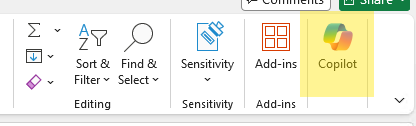
Where Did the Copilot Button Go in Excel?
Instead of relying only on the Copilot button in the ribbon, Microsoft is moving Word, Excel, and PowerPoint to a floating Copilot button called the Copilot Dynamic Action Button.
In Excel, this button appears in the corner of the workbook. Select it, and Copilot opens in the chat pane on the right side of the screen. From there, you can ask a question about your workbook, choose a suggested action, or start editing with Copilot.
The important thing to know is that this change does not mean Copilot’s Excel features changed. Microsoft changed the entry point, not the core capabilities. So if you were used to opening Copilot from the ribbon and now see a floating Copilot icon instead, that is expected.
There are a few useful details to know:
- You can open it by selecting the floating Copilot button in the corner of the workbook.
- On Windows and Excel for the web, Alt + C sets focus on the Copilot button in supported versions.
- On Mac, Cmd + Control + I sets focus on the Copilot button in supported versions.
- F6 can also be used to move focus to the Copilot button.
If the button gets in your way, you can dock it by right-clicking the button and selecting Dock, or by dragging it to the side of the workbook. Microsoft is also adding an option to move it back to the ribbon for users who prefer the older style.
If you do not see the floating Copilot button, it usually comes down to licensing, account type, app version, update channel, region, or privacy settings. The button only appears for users who have access to Copilot through a qualifying Microsoft 365 subscription or Microsoft 365 Copilot license.
Asking Questions About Your Data
One of the most approachable things Copilot does is answer plain-language questions about a table or supported range. You can ask the kinds of questions you might ask a coworker who knows the spreadsheet well:
- "What are the top five products by revenue?"
- "Which regions missed quota?"
- "Summarize the largest changes between Q1 and Q2."
- "Find outliers in the expense column."
Copilot reads the underlying data and comes back with a summary, a chart, a PivotTable, a trend, or a list of outliers, often with a short explanation alongside it. This is great for exploring a dataset and getting your bearings quickly.
The thing to keep in mind is that this is exploration, not final truth. Copilot is helpful for spotting what is interesting in your data, but you should verify any number that is going to end up in a report or a decision. Treat its answers as a strong first pass that you confirm, not as the last word.
Generating and Explaining Formulas
Formula help is still one of Copilot's most broadly useful capabilities, because formulas have always been the wall that casual Excel users hit. Describe the calculation you need in plain language and Copilot writes it. It can add a whole formula column, drop a formula into a single cell, and handle common patterns like:
- IF statements and nested conditions
- XLOOKUP and lookups across sheets
- SUMIF and SUMIFS
- Date calculations
- Text cleanup formulas
- Percentage-of-total formulas
It also works in the other direction. Click a cell with a formula you inherited and do not fully understand, then ask Copilot to explain it. It walks through the logic in plain English, which is useful both for learning and for documenting what a spreadsheet actually does. If you have ever opened a workbook someone else built and had no idea what column H was doing, this alone is worth trying.
The important detail is that formulas Copilot generates are normal Excel formulas. You can click into them, read them, edit them, and maintain them like anything else you wrote yourself. Copilot is speeding up the writing, not hiding the logic in a black box.
Highlighting, Sorting, and Filtering
Copilot can apply formatting, sorting, and filters from plain-language instructions, which is handy for quick review and cleanup. A few examples of what it handles:
- "Highlight the top 10 values."
- "Filter for rows where revenue is greater than $50,000."
- "Sort engagement rate from lowest to highest."
- "Bold the rows where status is overdue."
None of these are hard to do by hand, but describing what you want and letting Copilot apply it is often faster than clicking through menus, especially when you are combining a sort with a filter and some conditional formatting in one pass.
Creating Charts and PivotTables
Copilot can recommend a chart type, create the chart, and build PivotTables from structured data. If you are not sure how to summarize something, it can suggest a sensible visualization based on the shape of your data, and it can help you specify the axes, categories, measures, and summaries you want.
Good prompts here look like:
- "Create a chart showing monthly revenue by region."
- "Create a PivotTable showing sales by product and quarter."
- "Show customer complaints by category."
PivotTables in particular are something a lot of people avoid because the setup feels fiddly. Letting Copilot build the first one and then adjusting it is an easier way in than building it from scratch.
Importing Data With Copilot in Excel
This is one of the bigger shifts from the early version. Copilot can now help bring data into Excel from outside the current workbook, including:
- The web
- Files in SharePoint or OneDrive
- Word documents
- PowerPoint files
- PDFs
- Other Excel workbooks
- Emails, meetings, and organizational information, depending on your license and settings
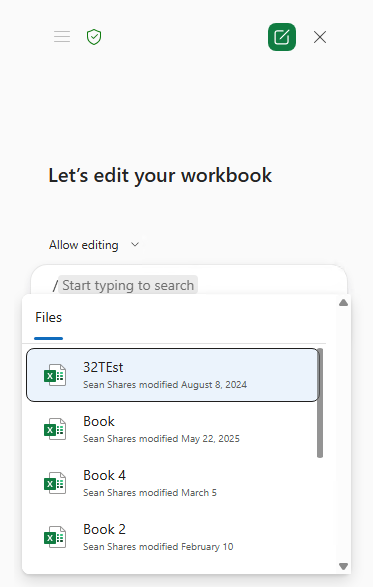
There are real dependencies attached to this. Web Search has to be enabled for Copilot to pull data from the web. Restricted Search settings can affect what it can reach inside your organization. And many of these import scenarios need the right Copilot license to work at all. If your import attempts come back empty, an admin setting is usually the reason rather than a bug.
For pulling from another Excel file, Copilot can use Power Query under the hood, which means the result can be set up to refresh later instead of being a one-time paste. Microsoft does note current limitations here, such as constraints around importing from Excel files that use tables, so it does not handle every layout cleanly yet. When importing depends on organizational data and connectors, it helps to understand how your tenant's Copilot connectors are set up, since that controls what Copilot can actually see.
Editing With Copilot in Excel, Formerly Agent Mode
The capability a lot of people still call Agent Mode is now being described by Microsoft as Editing with Copilot in Excel. You may still hear "Agent Mode" in conversation and in older write-ups, but the user-facing language is moving toward Editing with Copilot.
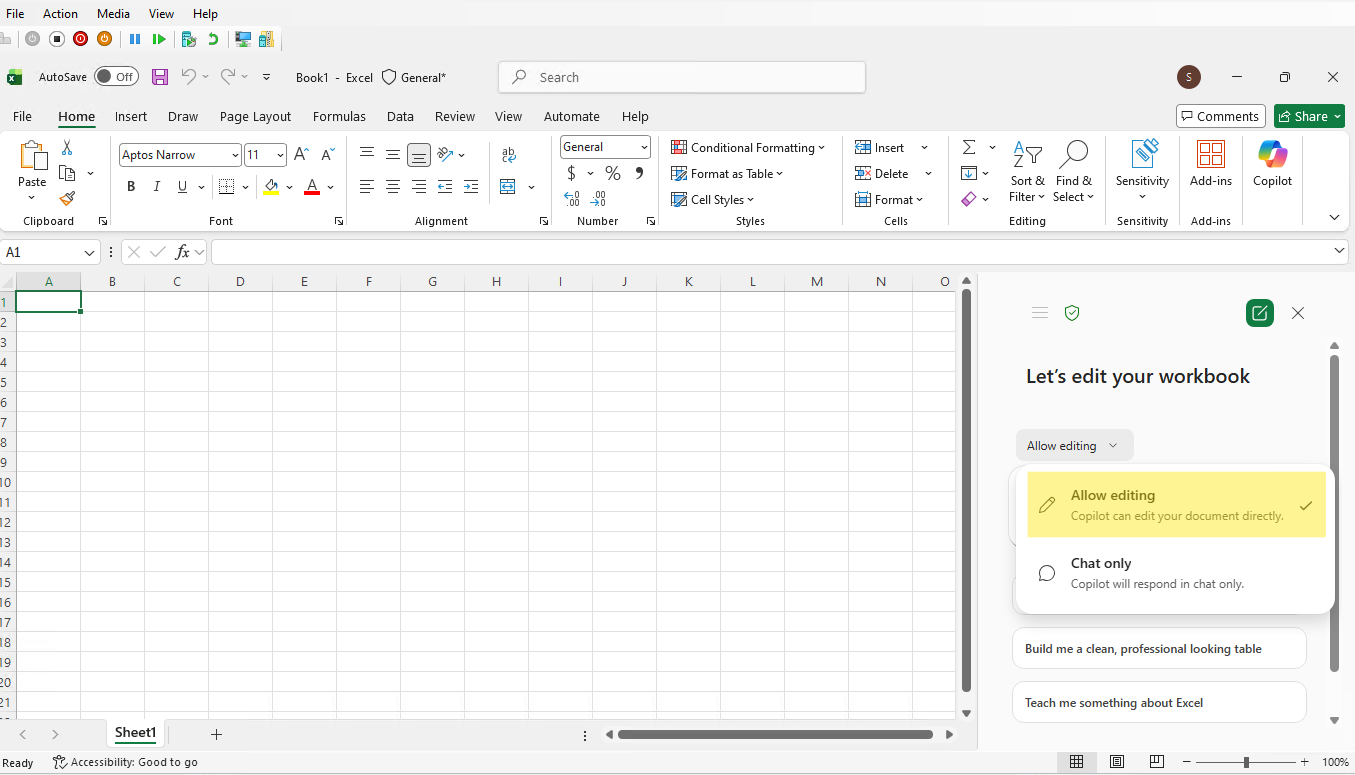
Whatever you call it, the point is that Copilot makes changes directly in the workbook rather than handing you suggestions to apply. After you give it a goal, it analyzes the task, lays out a step-by-step plan, and works through that plan in the sheet. That makes it well suited to multi-step jobs that would normally take several manual passes:
- Reshaping data into a different layout
- Merging sheets together
- Building a report with several pieces
- Creating a budget model
- Adding formulas, charts, and tables together as one task
The thing to understand about this mode is control. Copilot shows what it is doing as it goes, so you can follow the steps and stop it if it heads in the wrong direction. You should review the changes before you rely on them. And because editing with Copilot can save changes automatically, make a copy of any important workbook before you turn it loose on it. For a critical financial model, working on a duplicate is the safe habit.
Using Python With Copilot in Excel
Copilot can now reach for Python-based analysis when a question calls for more than ordinary formulas. This is useful for:
- Trend analysis
- Outlier detection
- Visualizations
- Analyzing across multiple tables
- More advanced analysis than formulas handle well
You do not need to be a Python developer to use this. You ask Copilot for the analysis in plain language, and it can use Python to get there. The code is there if you want to look at it, but you do not have to write it.
For eligible Microsoft 365 Enterprise and Business users, Python in Excel is generally available on supported Windows channels, Excel for the web, and supported Mac versions. Standard compute is included with qualifying Microsoft 365 subscriptions, while faster premium compute and additional calculation modes require the Python in Excel add-on license. Family, Personal, and Education users may still see Python in Excel as a preview experience depending on platform and channel. Government cloud availability is also more limited, so admins should check Microsoft’s current service description if they are in GCC, GCC High, or DoD.
The COPILOT Function in Excel
One availability note: at the time of writing, the COPILOT function is still an early-access feature, not something every Excel user will see yet. Microsoft currently lists it as available through the Frontier program and the Microsoft 365 Insider program, with a qualifying Copilot license required. For work or school accounts, that means a Microsoft 365 Copilot add-on license. For individual users, Microsoft says it is available to Microsoft 365 Premium subscribers. Microsoft’s roadmap currently lists general availability for the =COPILOT function as December 2026, but roadmap dates can move. So if you do not see the function yet, it may not be a problem with Excel itself. Your account may simply not be in the right early-access program yet.
The COPILOT function deserves its own section because it is a different thing from the Copilot side pane. It is an actual worksheet function you type into a cell, and it calls an AI model right from the grid.
The syntax looks like this:
=COPILOT(prompt_part1, [context1], [prompt_part2], [context2], ...)
The prompt part is text describing what you want. The optional context is a cell or range reference that gives the function data to work with. You can chain several prompt and context pairs together in one call.
Where it shines is language and classification work that would be painful to do with normal formulas:
- Summarizing customer feedback
- Classifying text into categories
- Tagging rows based on their content
- Generating draft descriptions
- Creating sample data
- Looking up information from the web
Where you should not use it is anything that needs to be exactly right every time:
- Financial calculations
- Deterministic math
- Audit-grade reporting
- Lookups that belong in XLOOKUP or Power Query
The function can return incorrect answers, and Office Watch’s hands-on testing found examples of missing data, wrong facts, and inconsistent results, so it is not something to trust blindly. It has usage limits, currently in the range of 100 calls every 10 minutes and up to 300 per hour. It only sees the prompt, the grid context you reference, and web data, so it cannot pull from the rest of your workbook or other files on its own. It needs an internet connection because the models run in Azure. And it will not calculate in workbooks labeled Confidential or Highly Confidential, where it returns a blocked error instead. If your sensitivity label is set high, that is why the function is not running.
Model Selection and Claude in Excel
When you are editing with Copilot in Excel, some users can now choose which model does the work. There is an Auto option that lets Copilot pick the model for you, and depending on your tenant, you may see specific models to choose from, including Anthropic's Claude.
For enterprise customers, Claude does not just appear automatically. An admin generally needs to enable Anthropic as a Microsoft subprocessor before Claude becomes available for editing with Copilot in Excel. In some regions, including the EU, EFTA, and the UK, the option is off by default and has to be turned on deliberately. If you want Claude as an option and do not see it, the admin side is where to look. I walk through the exact steps in how to enable the Claude model in Microsoft Copilot.
Practical Prompt Examples
If you learn better by example, here are prompts that map to the capabilities above. They are a good starting point to adapt to your own data.
Data cleanup:
- "Clean up this table by standardizing the date format, removing duplicate order IDs, and flagging rows with missing customer names."
- "Find inconsistent values in the Region column and suggest corrections."
Formulas:
- "Add a column that calculates gross margin percentage."
- "Explain the formula in cell H12 in plain English."
- "Create a formula that marks a task overdue if the due date is before today and the status is not complete."
Reporting:
- "Create a PivotTable that summarizes sales by region and quarter."
- "Create a chart showing revenue trends by month."
- "Summarize the biggest changes since the last reporting period."
Importing data:
- "Search the web for a table of current public holidays in Canada and insert it into a new sheet."
- "Find the device costs from my Q3 purchase file and import them into this workbook."
- "List yesterday's important emails in a table with sender, subject, and importance."
Python analysis:
- "Use Python to identify outliers in this sales data."
- "Use Python to create a visualization of monthly revenue trends."
- "Compare these two tables and find the largest differences."
What Copilot in Excel Is Not Good For
Knowing where to stop trusting Copilot is as important as knowing what it can do. A few clear lines:
- Do not trust it blindly for financial reporting. Verify the numbers before they go anywhere.
- Do not let it replace your review of formulas. Read what it wrote.
- Do not treat it as the final source of truth for legal, medical, compliance, or audit decisions.
- Do not use the COPILOT function as a substitute for deterministic formulas.
The rule of thumb is simple. If a task needs repeatable, exact math, use normal Excel formulas, Power Query, PivotTables, or reviewable Python code. Save the AI features for drafting, summarizing, exploring, classifying text, and speeding up the tedious parts, then check the output before you ship it.
Frequently Asked Questions
Does Copilot in Excel require a Microsoft 365 Copilot license?
For the full work experience, yes. The deep in-app features, work data grounding, and priority access come with the paid Microsoft 365 Copilot add-on. Some Copilot Chat and agent experiences are available without the add-on, but the feature set is more limited and grounds in less of your work data. So the real answer is that you can do some things without the license, but the full Copilot in Excel experience needs it.
Is Agent Mode still called Agent Mode?
Microsoft is shifting the language toward Editing with Copilot in Excel. You will still hear people say Agent Mode, and older articles use that name, but the current user-facing wording is moving away from it. The capability itself, where Copilot makes multi-step changes directly in your workbook, is the same idea.
Can Copilot in Excel work with local files?
Sometimes, but be careful with how this is framed. Microsoft has added local file support for certain Editing with Copilot scenarios, which is a genuine improvement. At the same time, Microsoft's standard Copilot in Excel guidance still says many features expect files saved to OneDrive or SharePoint with AutoSave turned on. If a feature is not working on a local file, moving it to OneDrive and enabling AutoSave is the first fix to try.
Can Copilot create formulas?
Yes. It can build whole formula columns, generate single-cell formulas, and explain formulas you already have. The formulas it creates are normal Excel formulas you can read and edit yourself.
Can Copilot analyze data with Python?
Yes. Copilot can use Python-powered analysis for deeper work like trend analysis and outlier detection, and you do not need to know Python to ask for it. Standard compute is available to qualifying Microsoft 365 Enterprise and Business users without an extra license, while faster premium compute requires the Python in Excel add-on.
What is the COPILOT function?
It is an Excel worksheet function that calls AI from inside a cell, using a prompt and optional cell or range references for context. It is good for summarizing, classifying text, tagging rows, generating sample data, and web lookups. It is not built for deterministic calculations, and it will not run in workbooks labeled Confidential or Highly Confidential.
Can Copilot import data from other files?
Yes, with the right license and settings. It can pull from the web, OneDrive, SharePoint, other Excel files, and organizational information depending on the scenario. Importing from another Excel file can use Power Query so the result can refresh later, though Microsoft notes some current limitations around files that use tables.
Can admins control Copilot in Excel?
Yes. Admins control licensing, Copilot Chat access, web search, connected experiences, Anthropic model availability, and the broader Copilot settings. One thing to know is that Editing with Copilot in Excel is tied to the Microsoft 365 Copilot Chat controls rather than managed as a separate Excel-only toggle, so you cannot turn just that feature off by itself.
Final Thoughts
Copilot in Excel has grown from a formula and insight assistant into a much broader spreadsheet assistant. It can create, edit, import, analyze, and explain workbook content, but the experience you get depends heavily on your license, the state of your file, your tenant settings, and which surface you are using, whether that is Copilot Chat, the full Microsoft 365 Copilot, Editing with Copilot, the Excel Agent, Python, or the COPILOT function.
It is at its best when three things line up: your workbook is structured cleanly, you have the right license, and your request is specific. Under those conditions it is strong at building first drafts of analysis, writing formulas, summarizing patterns, importing data, and cutting down repetitive spreadsheet work. What it is still not is something to trust blindly for final numbers. Let it do the heavy lifting, then review the output before it counts.