
SharePoint

Guides for SharePoint Online, covering site management, document libraries, user experience changes, permissions, governance, collaboration, and practical Microsoft 365 admin tips.

  • 10 tips

About these SharePoint tips

SharePoint is the foundation under a lot of Microsoft 365, powering team sites, document libraries and the file storage behind Teams. These tips cover everyday use, permissions, and the admin settings that keep sites tidy and secure.

I have worked with SharePoint since the 2010 days, and I test everything in my own Microsoft 365 test tenants, so the steps come from real use. SharePoint changes often, and I update tips when the product does.

New to these tips? Start with the picks below. Looking for something specific? The tips are split into ones for everyday users and ones for admins.

Start here

New to SharePoint? These are good places to begin.

Latest SharePoint tips

See older SharePoint tips →

Common questions

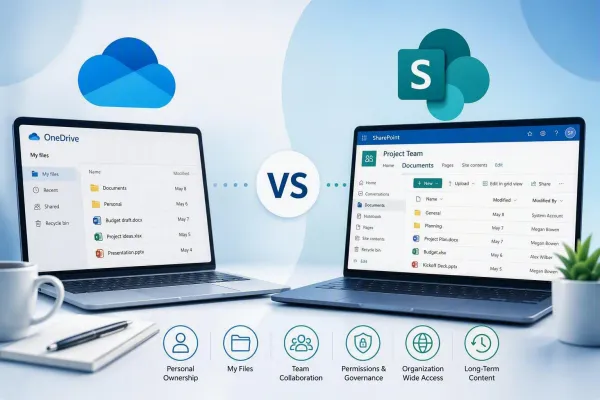
What is the difference between SharePoint and OneDrive?

OneDrive is personal file storage tied to one person. SharePoint is for shared sites and document libraries that a team or organization works in together. OneDrive is built on SharePoint technology, which is why they look and behave so similarly.

What is the difference between a team site and a communication site?

A team site is for collaboration, usually connected to a Microsoft 365 group or a team in Teams, where members create and edit content together. A communication site is for sharing information with a larger audience, such as news or a department homepage, where most people read rather than edit.

How do SharePoint permissions work?

Permissions normally flow down from the site to libraries, folders and files. Breaking that inheritance on a folder or file gives it its own permissions, which is sometimes necessary but gets hard to track as it piles up. Sharing links can also grant access, so it is worth checking both.

Can I get back a file or site I deleted?

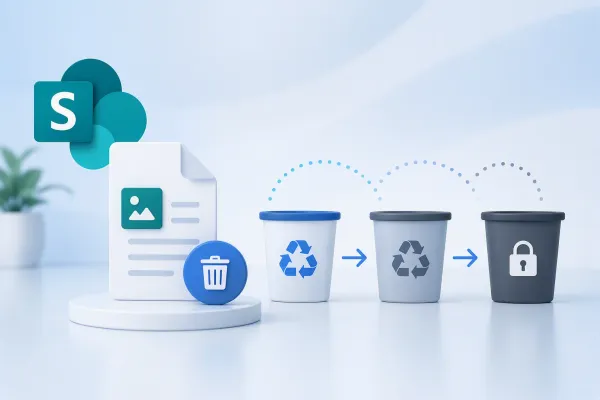
Often, yes. Deleted files go to a recycle bin, and they can usually be restored for 93 days. Deleted sites can also be restored by an admin for a period of time, so act quickly if something disappears.

Where should I start?

Start with the picks near the top of the SharePoint page. Everyday users can head to the user tips, and admins can focus on the admin tips covering sites, permissions and sharing settings.