

OneDrive's New Share Button: What Changed and How to Use It
If you clicked Share on a file in OneDrive or SharePoint lately and thought "wait, where did everything go?", you're not alone. Microsoft rolled out a redesigned Share window this fall, and it works differently than the one most of us were used to. The old version asked you to pick a link type every single time. The new one gives each file one main link and a single setting that controls who it works for.
Once you get it, it's actually easier. But a few of the most useful options moved, and a couple of them are now hidden behind menus that nobody clicks. This post walks through the new Share window piece by piece, with screenshots, and points out the settings that will save you from an "oops, I didn't mean to share that with everyone" moment.
What Actually Changed
The first time you open the new Share window, you'll see a blue banner that says sharing is now simpler and more secure, with two promises: one setting to control who can access your file, and an easier way to manage each person's access.
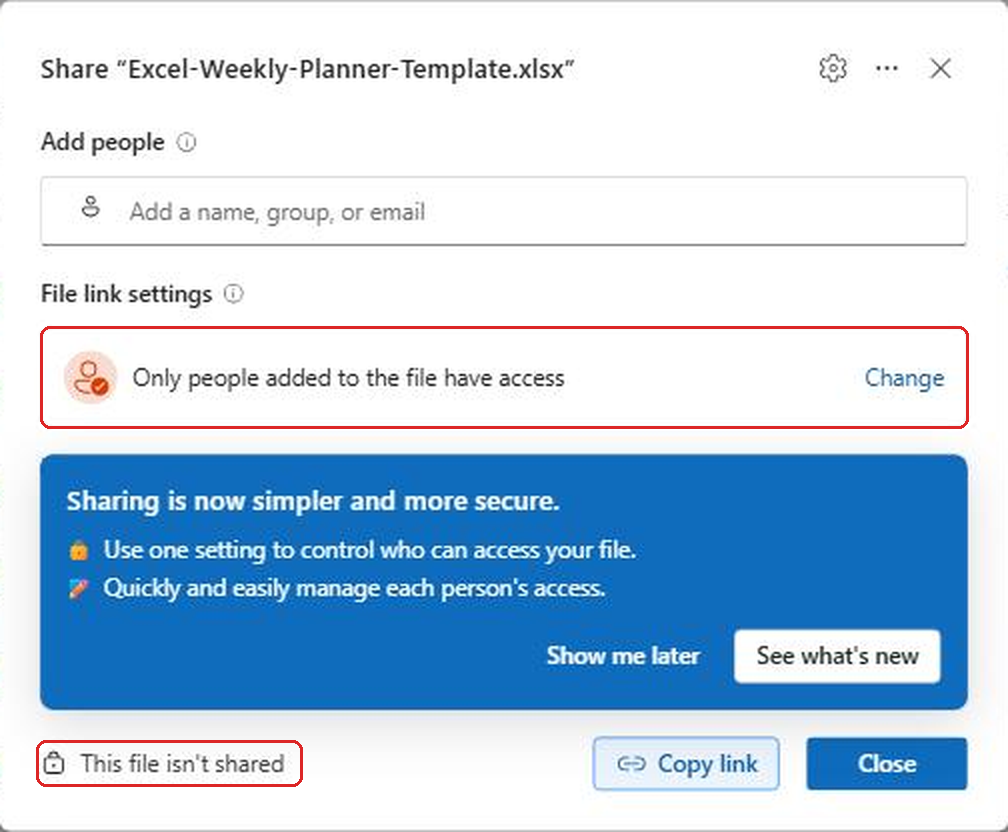
Here's the short version of what's different:
- Every file now has one main link. Microsoft calls it the hero link. You don't make a new link each time you share anymore.
- A single setting called File link settings decides who that link works for.
- The default is "Only people added to the file have access." That means the link by itself doesn't let anyone in. Only people you've specifically added can open it.
- If you change who the link works for, it updates the same link. You don't have to send people a new one.
- Links you made with the old Share window keep working. They show up separately as other links on the file.
Microsoft announced this in its message center as MC1454378, and it rolled out between mid-September and late October 2026. If you're not seeing it yet, your organization may be on a slower release track. I explained how that works in my post on Microsoft 365 Targeted Release.
The One Setting You Need to Understand
File link settings is the heart of the new window. To see your choices:
- Right click a file in OneDrive and choose Share.
- Under File link settings, click Change.
- Pick who the link should work for.
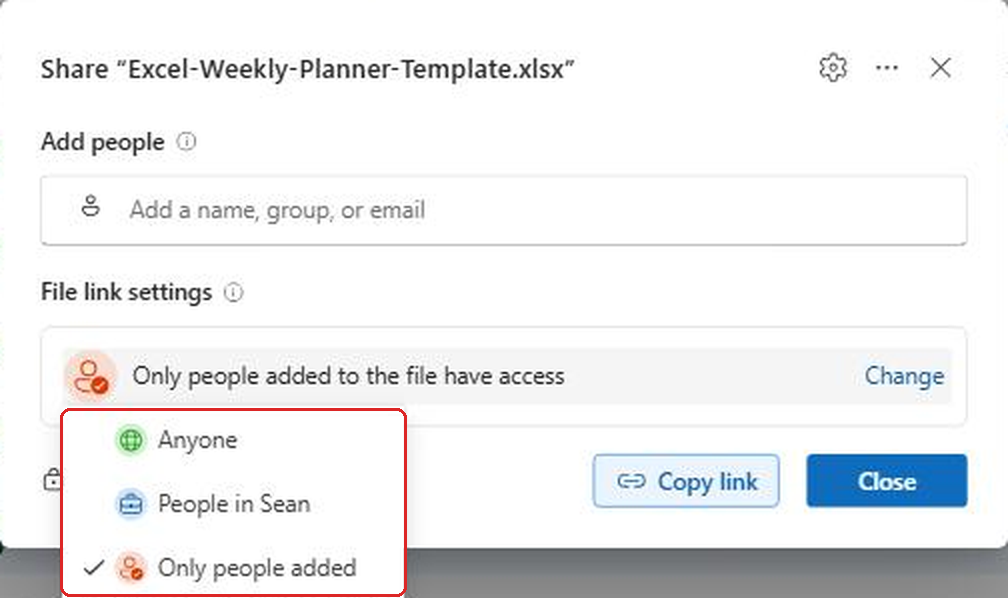
You get three options:
- Anyone. Anyone who has the link can open the file, no sign in needed. Your organization may turn this off, in which case you won't see it.
- People in your organization. Anyone at your company who has the link can open it. It shows your company's name, which is why mine says "People in Sean."
- Only people added. The link only works for people you've added to the file by name or group. This is the default.
Here's the part that trips people up. Because there's one link per file, changing this setting changes it for everybody who has that link. If you set it to People in your organization so a coworker could open it, then later switch it back to Only people added, that coworker loses access through the link unless you also added them directly. That's usually what you want, but it's worth knowing before you flip it back and forth.
And here's the upside. If someone tells you they can't open a file you sent, you don't need to send a new link. Change the setting, tell them to try again, and the link they already have will work.
Copy Link Is Safer Than It Used to Be
The Copy link button copies the file's main link to your clipboard. Who can use it depends entirely on that File link settings choice.
Now for the outside the box part. With the default set to Only people added, Copy link becomes a really safe way to point people at a file. Say you're in a Teams chat and someone asks "where's the budget file?" If they already have access, you can copy the link and paste it right into the chat. It opens for them because they're already allowed in. If someone in that chat doesn't have access, the link won't open for them. Nothing new gets shared by accident.
That's a big change from the old days, when hitting Copy link could quietly create a link that worked for your whole company. Now, with the default left alone, a copied link is more like a signpost than a key.
At the bottom left of the Share window there's also a small line that tells you whether the file is shared at all. "This file isn't shared" is a nice quick check before you send anything sensitive.
Adding People the Right Way
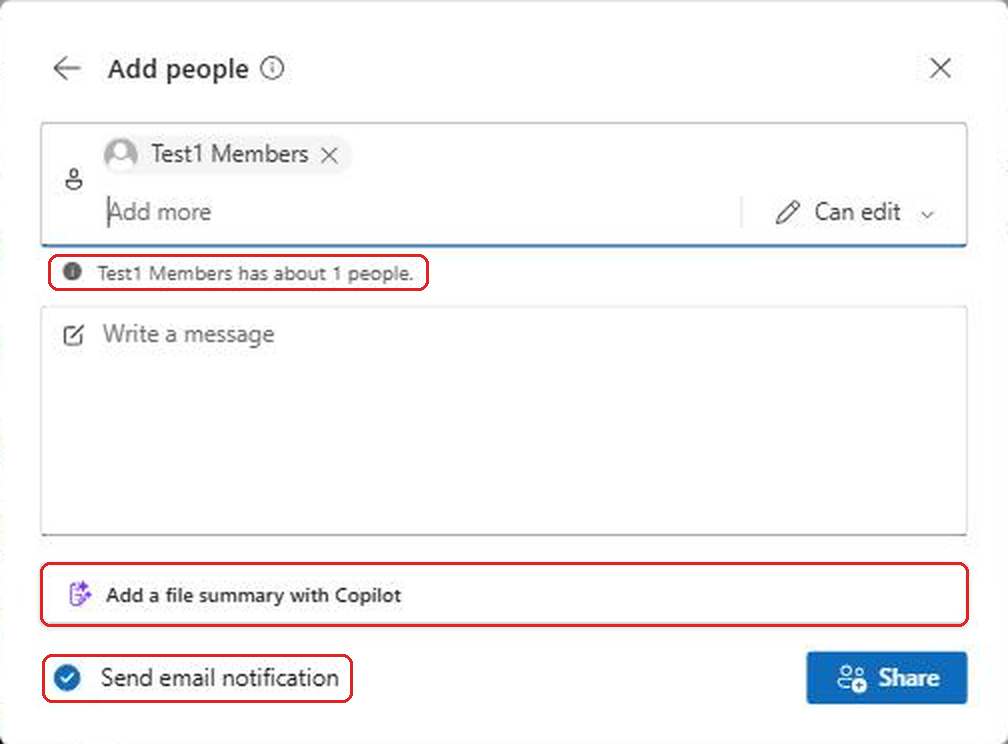
Adding people directly is still the simplest and safest way to share. Type a name, group, or email address in the Add people box, and you'll get a second screen with a few options most people skip right past.
Check the group size before you share
When you add a group instead of a person, OneDrive shows a little note underneath telling you roughly how many people are in it. In my test it said the group had about 1 person. In real life that number can be in the hundreds or thousands.
This is one of the most useful things on the whole screen, and almost nobody reads it. Group names can be misleading. "Marketing" might be your five person team, or it might be every marketing employee in three countries. Glance at that number before you click Share.
Pick the right permission
Next to the names there's a dropdown that starts on Can edit. Click it and you get three choices.
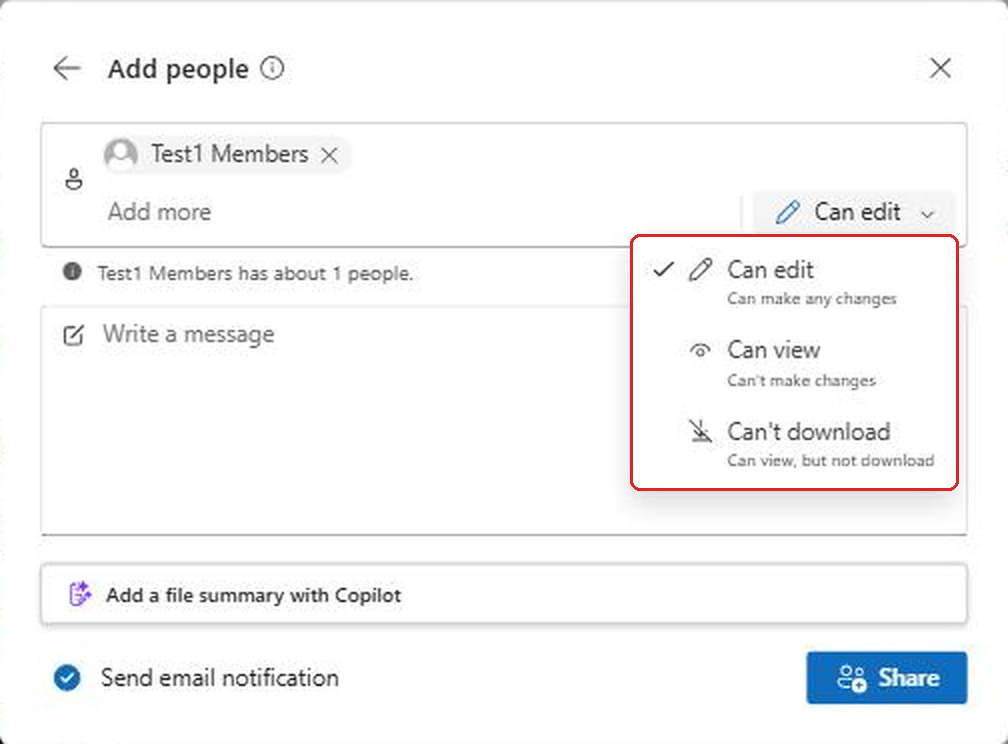
- Can edit lets them make any changes.
- Can view lets them read it but not change it.
- Can't download lets them view it, but they can't download a copy.
Can edit is the default, and I think a lot of people leave it there out of habit. If someone only needs to read a document, switch it to Can view. It takes two seconds and means nobody accidentally types over your numbers.
Can't download is the one to reach for when you're sharing something like a draft contract or a pay scale, where you'd rather people look at it in the browser than save their own copy to their desktop. It won't stop someone who's determined, since they could still take a screenshot, but it does stop casual copies from piling up.
Share without sending an email
At the bottom there's a checkbox called Send email notification. It's on by default, which means the people you add get an email saying you shared something with them.
Sometimes you don't want that. If you're giving your manager access to a folder they'll use later, or adding a teammate to a file you're about to talk about in a meeting anyway, uncheck Send email notification before you click Share. They'll have access, and their inbox stays a little lighter.
There's also an Add a file summary with Copilot button, if your organization has Copilot. It writes a short summary of the file into your message, which helps the person know what they're opening and why.
Stop Editors From Sharing Your File Further
This is the setting I'd tell everyone about if I could only pick one. In the old Share window, anyone you gave edit access to could turn around and share the file with other people. Most people never realized that.
The new window lets you turn that off for each file:
- Open the Share window for the file.
- Click the Settings gear at the top of the window.
- Uncheck People with edit access can reshare.
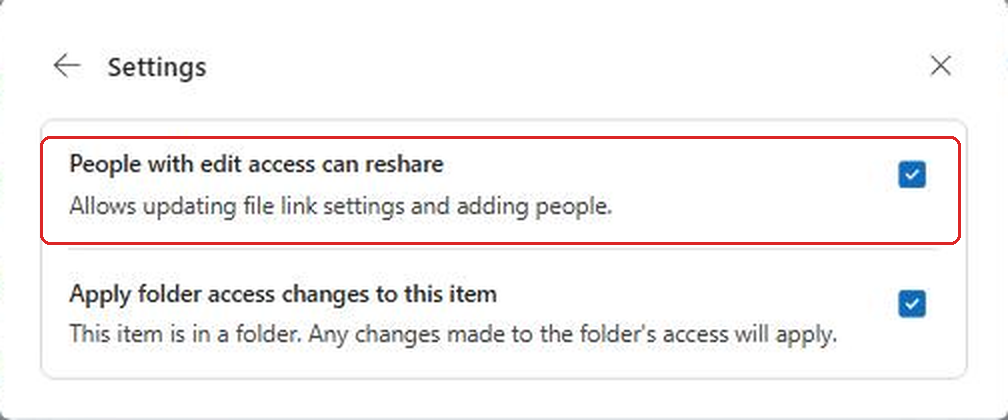
With it unchecked, the people you added can still edit, but they can't change the link settings or add anyone else. You stay in control of who's in.
The other setting in there, Apply folder access changes to this item, matters when the file lives inside a folder you've shared. With it checked, the file follows whatever access the folder has. If you uncheck it, the file keeps its own access even if the folder's sharing changes later. That's useful when one file in a shared folder is more sensitive than the rest.
If you want to understand how folder and file permissions stack together, my post on SharePoint permissions for sites, libraries, and files goes deeper. OneDrive works the same way under the hood.
Where Expiration Dates and Passwords Went
If you used to set expiration dates on links, you probably went looking for that option and couldn't find it. It moved into the three dot menu.
- Open the Share window for the file.
- Click the More options button, the three dots at the top.
- Choose Create new sharing link.
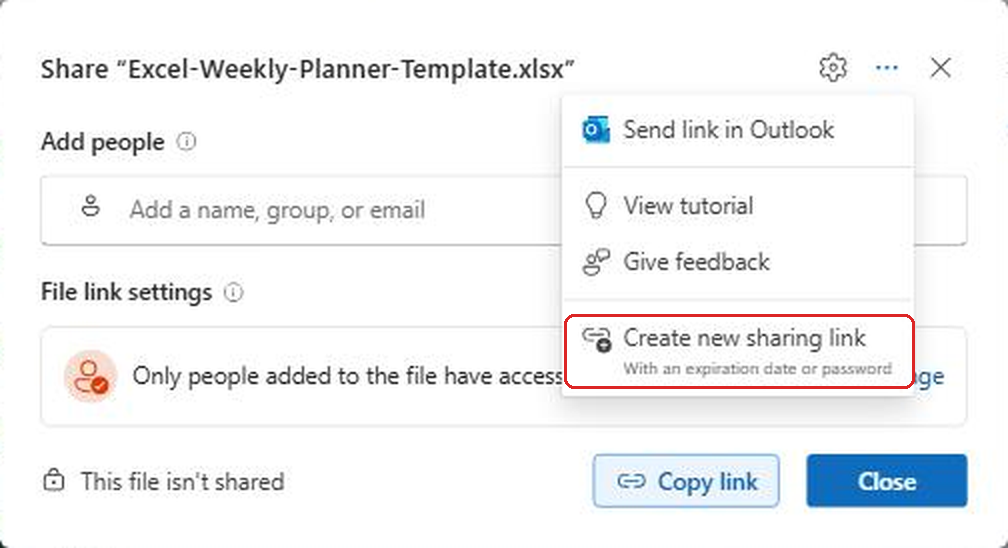
That opens a separate screen for making an extra link, apart from the file's main one.
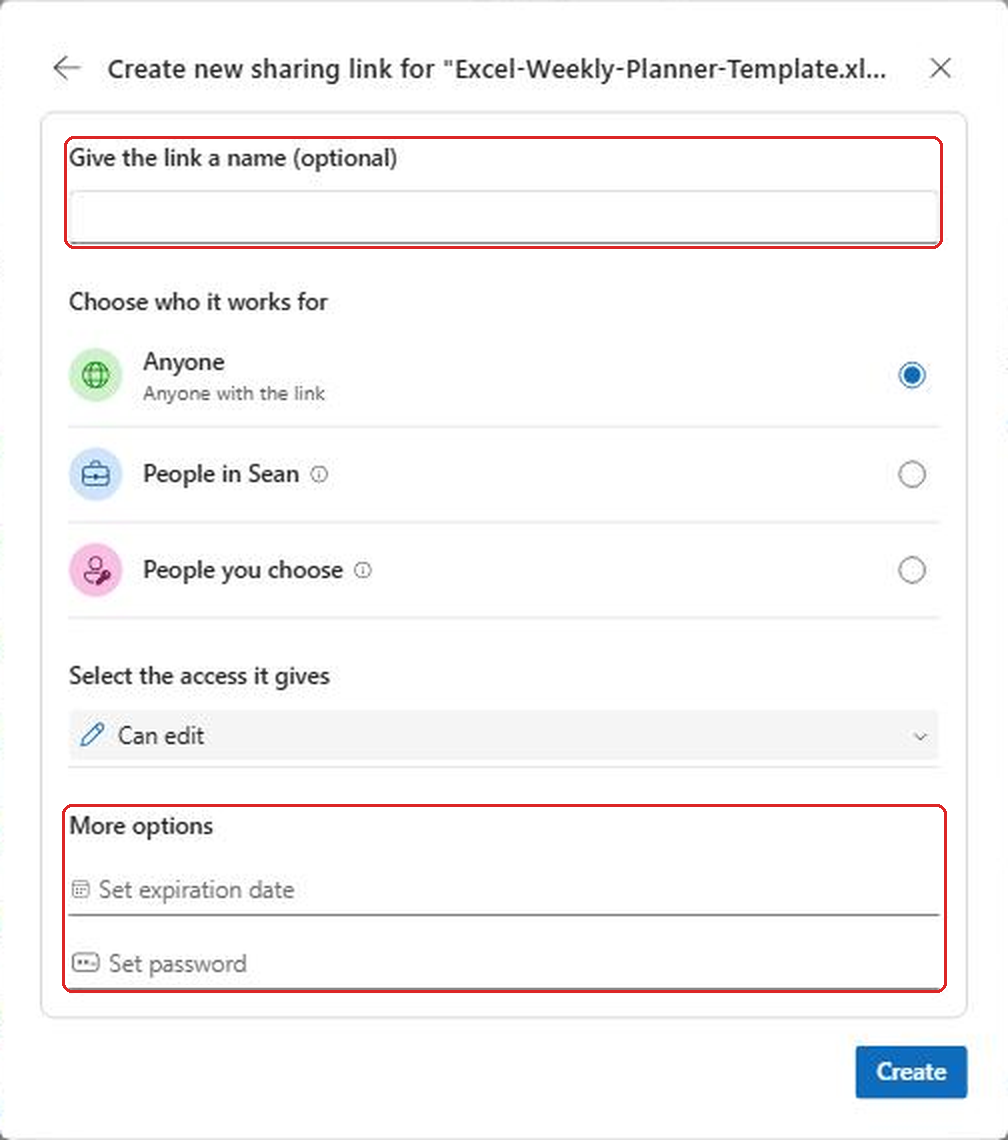
On this screen you can choose who the extra link works for, what access it gives, and under More options, set an expiration date or a password. Password options depend on what your organization allows and are usually limited to Anyone links.
The setting I'd use every time here is the one at the very top: Give the link a name. It's optional, so nobody fills it in, but it's the smartest thing on the page. Name the link after who it's for, like "Acme vendor review" or "Auditor, Q4." Six months from now, when you're looking at a file with several links on it and wondering which one is still out there, the names tell you exactly which link to kill.
Pair a name with an expiration date for anything you share with people outside your company. That way, even if you forget about it, the access shuts itself off.
The same menu also has Send link in Outlook, which drops the link into a new email for you, and View tutorial, which replays Microsoft's walkthrough of the new window if you want to see it again.
A Simple Sharing Habit
If you want a quick routine to follow every time, this is the one I'd suggest:
- Coworker who already has access: just use Copy link and paste it.
- Specific people inside your company: add them by name and pick Can view unless they truly need to edit.
- A group: check the "has about X people" note before you click Share.
- Someone outside your company: create a new sharing link, give it a name, and set an expiration date.
- Something sensitive: turn off resharing in the Settings gear, and consider Can't download.
That covers almost every situation, and it keeps your files from drifting out to people who don't need them.
FAQ
Do my old sharing links still work?
Yes. Links you created before the new Share window rolled out keep working. They show up on the file as other links, separate from the new main link, and you can still remove them if you no longer need them.
Why can't someone open a link I sent them?
Most likely the file link setting is Only people added and you didn't add that person. Either add them by name in the Add people box, or change File link settings so it covers them. Since it's the same link, they don't need a new one. They just need to try again.
Why don't I see the Anyone option?
Your organization controls whether Anyone links are allowed. Many companies turn them off for security. If it's missing, you can still add outside people by email address if your organization allows sharing with guests.
Does Can't download stop people from copying the file?
It stops the download button and most casual ways of saving a copy, but it can't stop someone from taking a screenshot or retyping what they see. Treat it as a speed bump, not a lock.
Is the new Share window the same in SharePoint and Teams?
Yes. The same Share window shows up for files in OneDrive, SharePoint, and the Files area in Teams, since they all store files the same way. If you're not sure where a file should live in the first place, my post on SharePoint vs OneDrive can help.
Final Thoughts
The new Share window feels unfamiliar at first, but the default is actually safer than what we had before. Leave File link settings on Only people added for most things, add people by name, and use Copy link freely for coworkers who already have access.
Then learn the two hidden spots: the Settings gear for turning off resharing, and the three dot menu for named links with expiration dates. Those two are where the real control lives, and they're what separate someone who shares files from someone who shares them well.
Sources: Forthcoming changes to how Share will work in SharePoint and OneDrive, Microsoft Tech Community: Simple, Smart, and Secure, Microsoft Tech Community: The new sharing experience is coming to SharePoint Online. Screenshots taken in OneDrive in a Microsoft 365 test tenant.