
Microsoft 365 Message Center: Cut 720 Posts Down to What Matters
When I opened Message center in my test tenant to take screenshots for this post, the Inbox said 720 items. That's one tenant with one user. A real company gets the same flood, and most admins I know deal with it the same way: they ignore it until a user asks why Outlook suddenly looks different, then go searching for the post that explained it three weeks ago.
Message center doesn't have to be a firehose. With a few filters, the right email settings, and one or two habits, you can get it down to the handful of changes that actually matter for your org this month. None of this changes anything for your users. It's all about how you see the messages.
Everything here comes from my own test tenant. I looked at the settings but didn't save any changes, so the screenshots show the defaults most tenants start with.
Where Message Center Lives
- In the Microsoft 365 admin center, go to Health, then Message center.
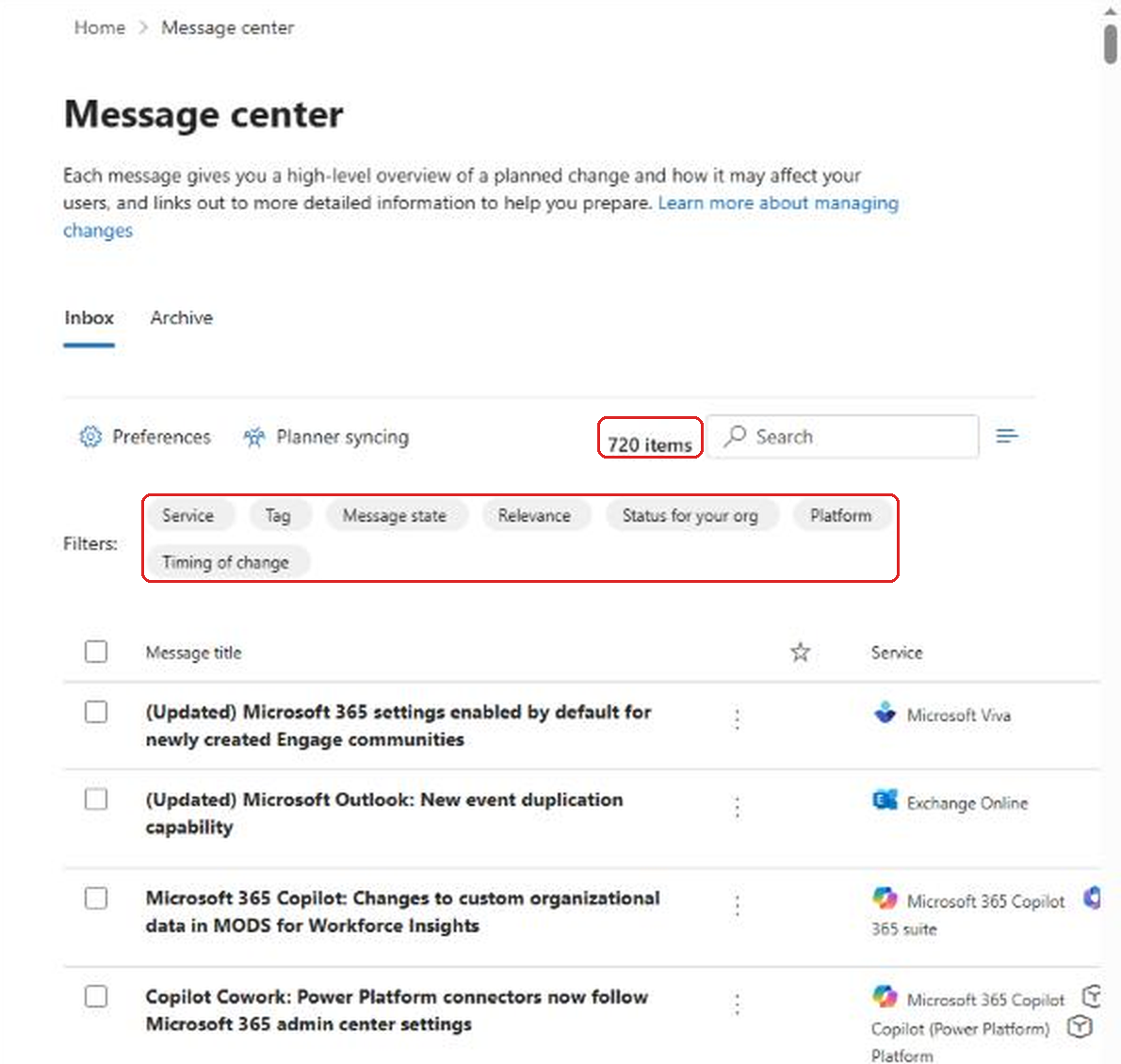
Every post is Microsoft telling you about something it's adding, changing or retiring. Some need you to act. Most don't. The trick is to stop reading top to bottom and start filtering.
Filter by Relevance First
Microsoft now scores each new post for how relevant it is to your tenant. According to Microsoft's docs, the score looks at things like which apps and services your people actually use, and whether the change is a fix, a heads up, or something with bigger impact like a retirement or a data privacy change.
- In the filter row, select Relevance.
- Check High.
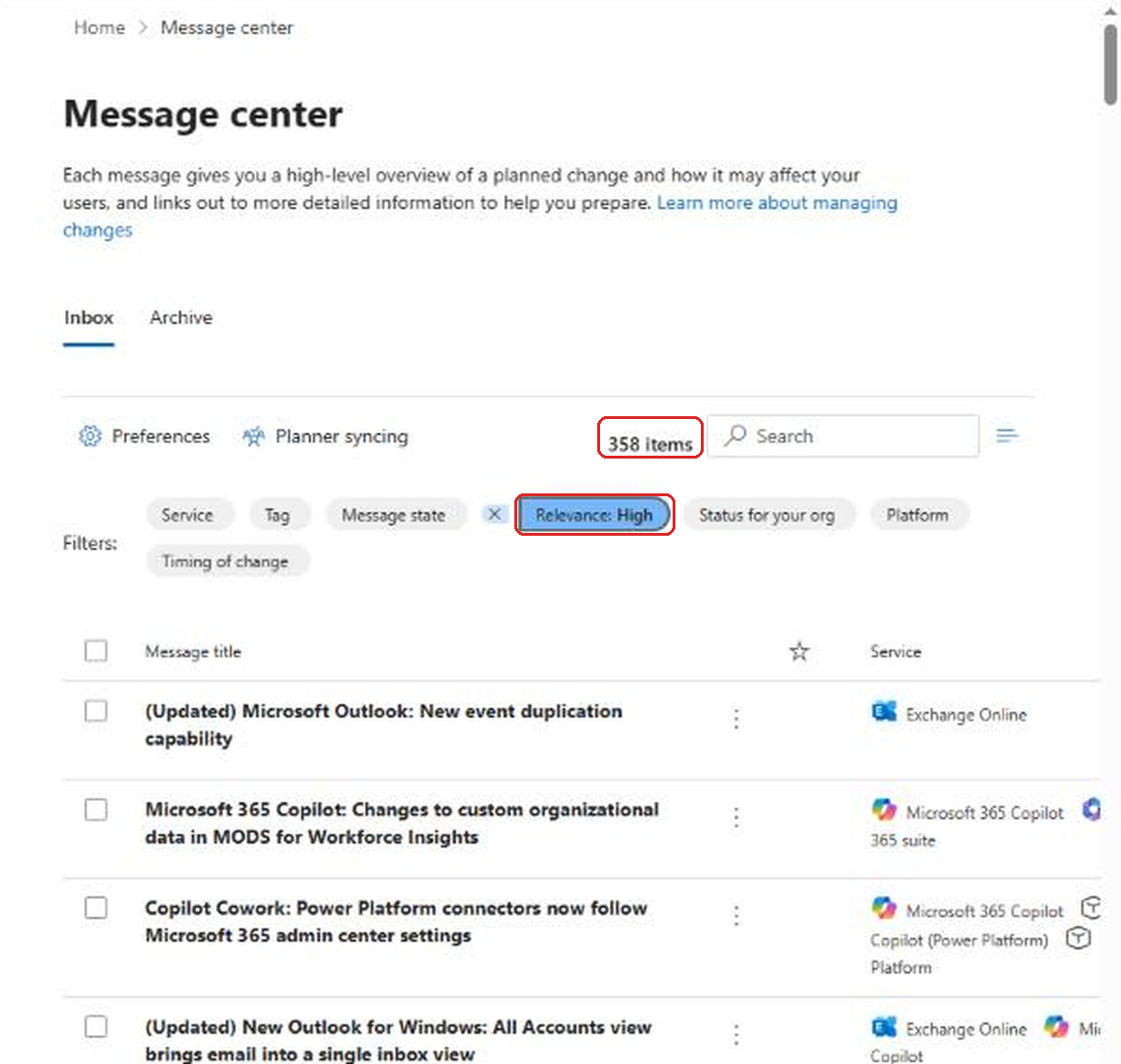
Half is a good start, but 358 messages is still a lot. Here's what each level means, in Microsoft's own terms:
- High: changes that may need action to avoid disruption, or features with big impact on apps your people use heavily.
- Medium: changes that don't need immediate action, like nonbreaking updates or early warnings.
- Low: changes to apps and services your org barely uses.
One catch. Relevance only exists on newer posts. Older messages show up blank, so don't assume something is unimportant just because it doesn't have a score.
Then Filter by When It Happens
This is the filter that turns Message center into a to-do list. Timing of change lets you see what's actually landing soon, instead of everything Microsoft has ever announced.
- Select Timing of change.
- Pick This month or Next month. There's also a Custom option if you want a specific date range.
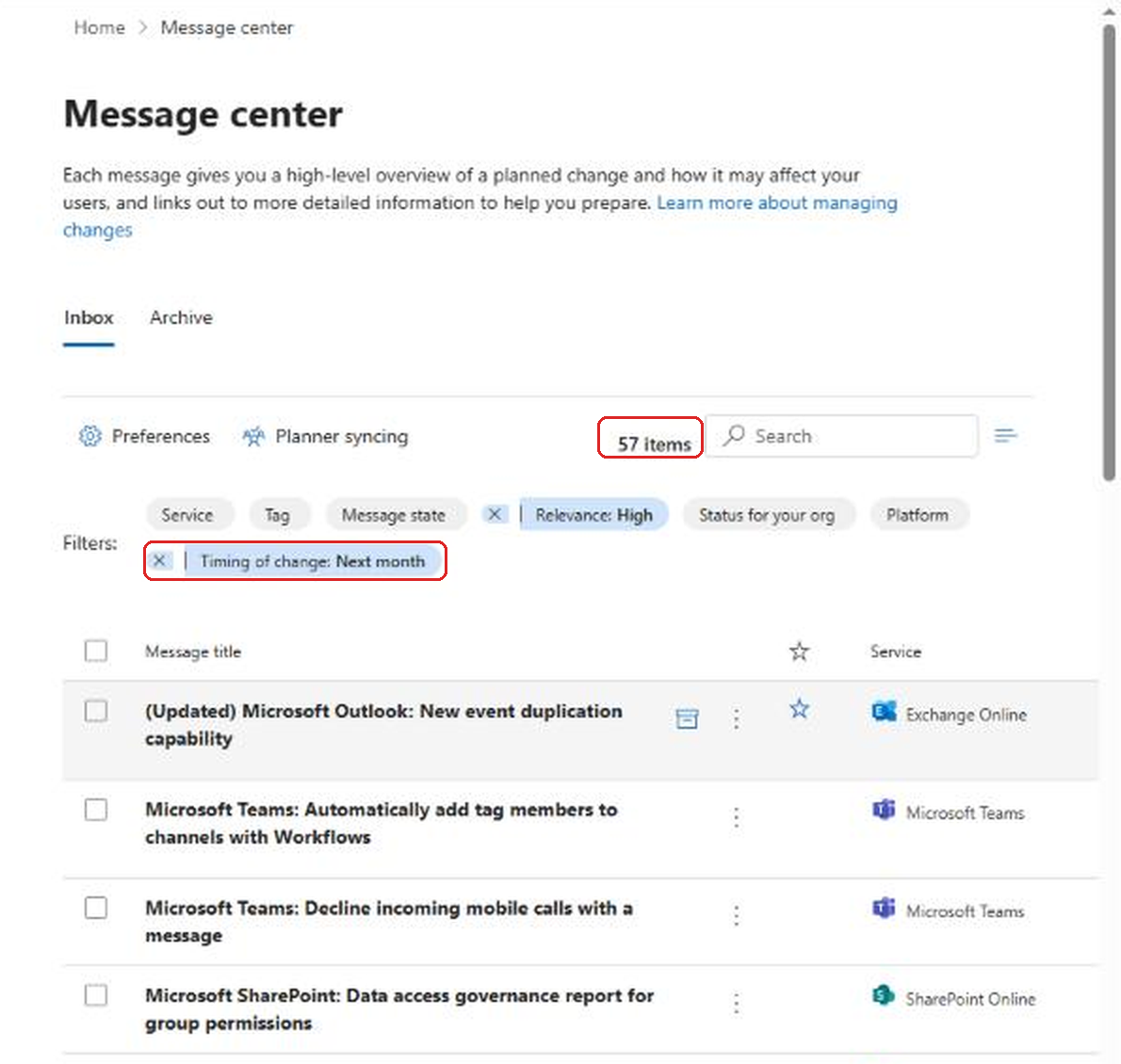
Going from 720 to 57 is the difference between "I'll get to it someday" and "I can skim this over coffee." I'd do this once a week. Monday morning, High plus This month, then a quick look at Next month so nothing sneaks up on you.
Two more filters are worth knowing. Tag lets you pick Major update, which Microsoft uses for changes that are announced at least 30 days ahead and usually involve something your users will notice or something you need to act on. And Status for your org shows whether a feature is Scheduled, Rolling out or Launched in your tenant, which is really handy when a user says "I see the new button but my coworker doesn't."
Read the Right Parts of a Post
When you open a message, don't just read the summary. The right side of the panel has the details that tell you how much to care.
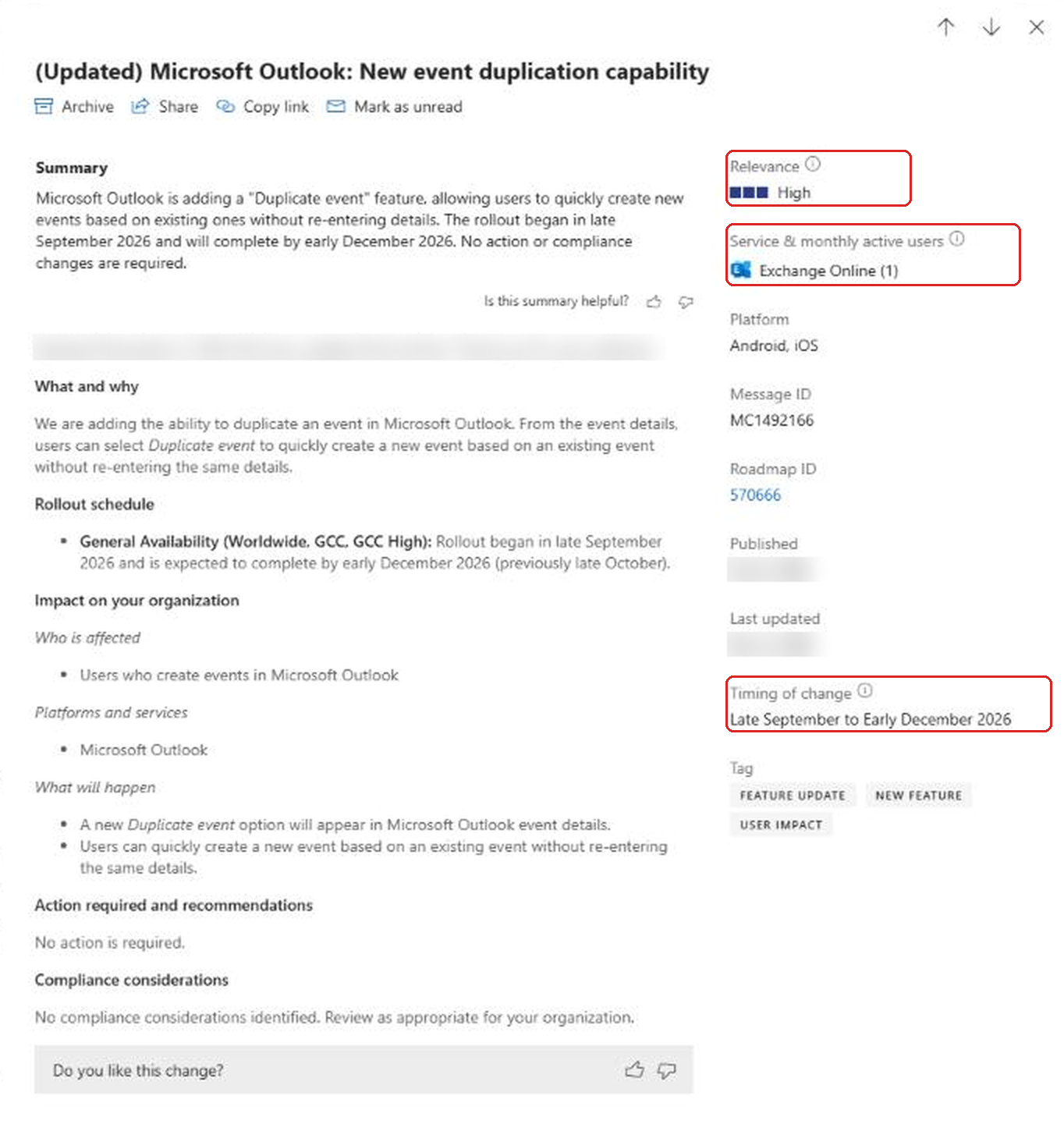
The one I look at first is Service and monthly active users. It shows how many people in your org used that app in the last 28 days. In my test tenant it's 1, because it's just me. In a real tenant, a change to an app with 3,000 active users deserves a heads up to the helpdesk. A change to an app with 4 users probably doesn't.
Also keep an eye on the Act by column in the message list (add it with Choose columns if you don't see it). Microsoft says it rarely fills that column in. If you see a date there, take it seriously, because it means something will break or change if you don't do anything.
When you're done with a post, archive it. The archive is personal to your account, so it won't hide the message from other admins. It just clears it out of your Inbox so the list keeps getting shorter.
Trim the Services You Don't Own
If you only manage part of the tenant, say Exchange and Teams but not Intune or Dynamics, you don't need to see every post. Preferences let each admin hide the services they don't care about.
- Select Preferences at the top of the message list.
- On the Custom View tab, clear the services you don't manage.
- Select Save.
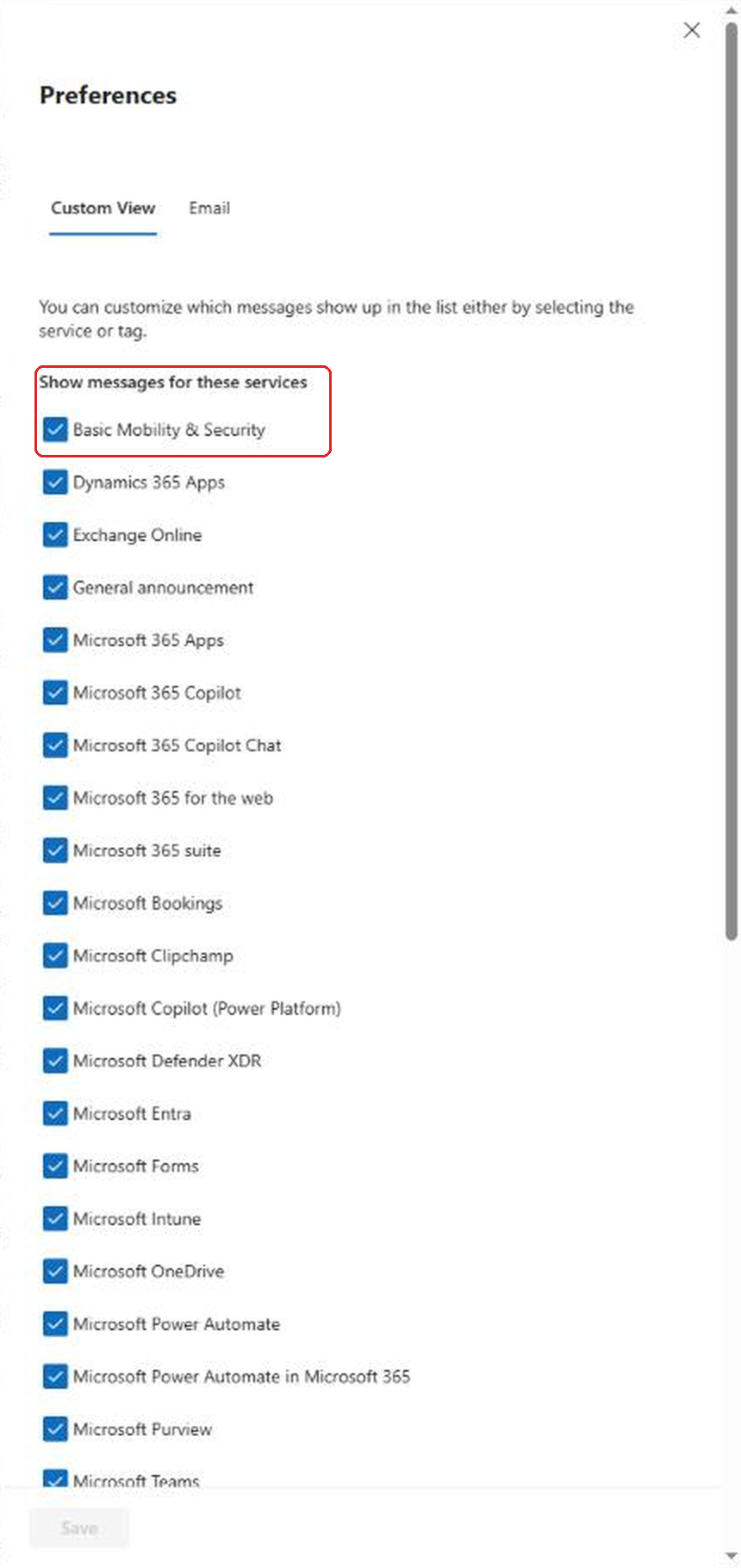
This only changes your own view. The Exchange admin down the hall still sees everything you hid. That's the point. Each admin gets the version of Message center that fits their job.
Fix Your Email Settings
The Email tab in the same Preferences panel is where most admins either get buried or miss things entirely.
- In Preferences, select the Email tab.
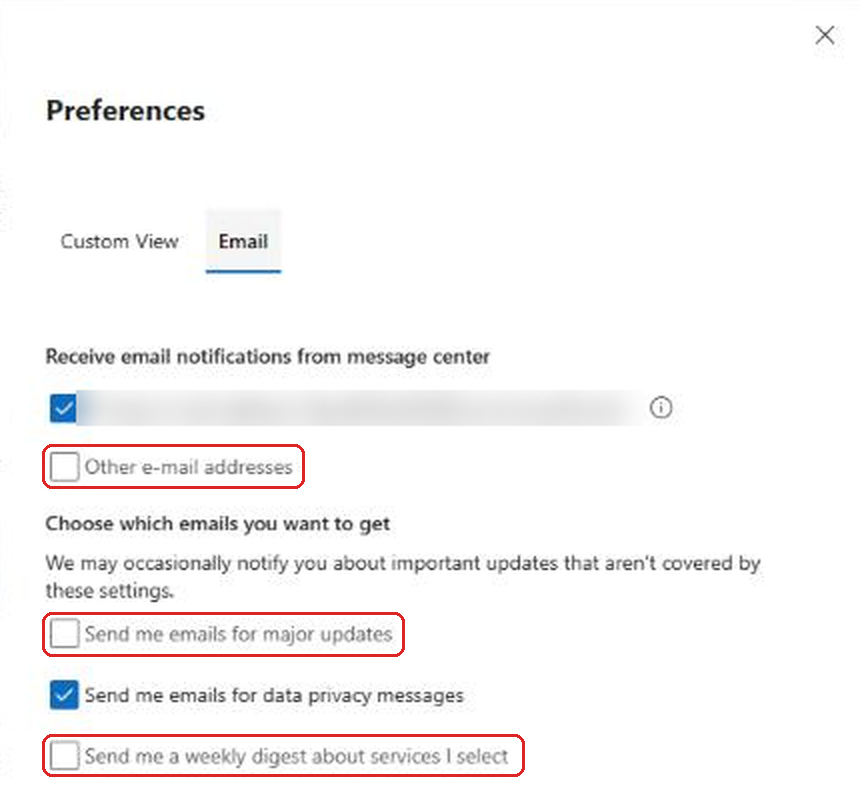
Here's what I'd turn on for most people:
Send me emails for major updates. These are the changes Microsoft announces with at least 30 days' notice because they affect users or need action. If you only get one email from Message center, this should be it.
Send me a weekly digest about services I select. One email a week with everything new for the services you checked in Custom View. Pair it with your trimmed service list and it's actually readable.
Now the outside the box part. Other e-mail addresses lets you add up to two more addresses. Instead of adding your personal work address again, add the email address of a Teams channel your IT team uses. Teams channels can have their own email address (open the channel's More options and choose Get email address), and anything sent to it shows up as a post in the channel. Your Teams admin settings have to allow channel email for this to work. Now major updates land where the whole team sees them, and people can reply in a thread about who's handling what. It's a lot better than one admin forwarding emails to everyone.
A shared mailbox works too, if your team prefers email. Either way, the point is to stop Message center from being one person's inbox problem.
Turn Changes Into Tasks With Planner
If your team needs to actually track who's doing what about a change, Planner syncing is built for that.
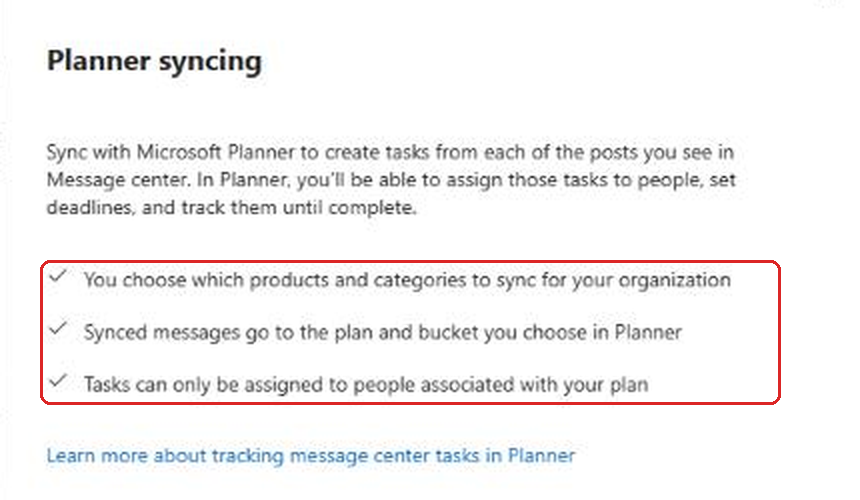
- Select Planner syncing at the top of Message center.
- Select Set up syncing and pick the plan, the bucket, and which products and categories should sync.
I didn't turn this on in my test tenant, but the setup panel spells out how it works. You choose which products and categories sync, the messages go to the plan and bucket you choose, and tasks can only be assigned to people in that plan. I'd keep it narrow. Sync major updates and retirements for the services your team owns, not every post, or the plan becomes Message center all over again.
Search Like You Mean It
The search box at the top of the list is better than people give it credit for. A few searches I keep coming back to:
Search for retire or retirement. Retirements are the changes that bite hardest, because something your users depend on simply stops working. Running this search once a month is a cheap way to make sure nothing gets missed. The Retirement tag in the Tag filter does the same job if you prefer filters.
Search for an app name your users complain about. If the helpdesk is getting calls about Outlook, search Outlook with the This month filter on and you'll usually find the post that explains it in under a minute.
Search by message ID. Every post has an ID that starts with MC, like the MC number in the screenshot above. When Microsoft support, a blog, or another admin mentions one, paste it into search and you're there. When you need to send a post to another admin, use Copy link from the More options menu instead of describing it. They'll need access to Message center to open it.
And if you want this in your pocket, Microsoft's docs point out that the Microsoft 365 Admin mobile app shows Message center too, with push notifications. That's handy for the major updates you don't want to wait until Monday to see.
Let Other People In Without Making Them Admins
Here's one that's easy to overlook. Your helpdesk lead, training team or change manager often needs to know about upcoming changes more than you do, because they're the ones answering "what happened to my Outlook?" calls.
Microsoft has a Message center reader role for exactly this. It lets someone read and share Message center posts without any other admin rights. That's a much better answer than forwarding screenshots or handing out a broader admin role.
One surprise from Microsoft's docs: the Reports reader role doesn't get access to Message center. If someone already has Reports reader for usage reports, they'll still need Message center reader on top of it.
There's also a Share button on every post that emails the full message to whoever you want, with an optional note. For a quick heads up to a department lead, that's faster than writing your own summary.
A Weekly Routine That Takes 15 Minutes
Here's how I'd keep up with it without it taking over your week:
- Set Custom View to only the services you manage.
- Turn on email for major updates and send a copy to your team's Teams channel.
- Once a week, filter High relevance and This month, then glance at Next month.
- Check the active user count on each post to decide who needs a heads up.
- Archive what you've handled so the list keeps shrinking.
If you want to see changes before your users do, set up Targeted release for a couple of admins. Message center tells you what's coming, and Targeted release lets you actually click around in it first. For Copilot changes specifically, which make up a big chunk of Message center lately, these Copilot admin settings are worth reviewing alongside the posts.
FAQ
Does archiving a Message center post hide it from other admins?
No. Archiving only affects your own view. Other admins still see the message in their Inbox.
Can someone read Message center without being an admin?
Yes. Assign the Message center reader role. It lets them read and share posts without any other admin permissions.
Why don't some posts show a Relevance score?
Relevance is only calculated for newer posts. Older messages show blank. If a new post says Processing, check back in a few minutes.
How do I stop the weekly digest emails?
Go to Preferences, select the Email tab, clear the weekly digest option, and select Save. Major update and data privacy emails are separate checkboxes.
What does the Act by column mean?
It's a deadline for changes that need you to do something. Microsoft rarely uses it, so if a date shows up there, put it on your calendar.
Final Thoughts
Message center isn't going to get quieter. Microsoft ships changes constantly, and the list will keep growing. What you can change is how much of it you have to look at. Filter by relevance and timing, trim the services you don't own, and send the important stuff to a place your whole team sees it. Fifteen minutes a week beats finding out about a change from an angry user.
Sources: Microsoft Learn, Track new and changed features in the Microsoft 365 Message center, Track your message center tasks in Planner.