
New Outlook Opt-Out Phase: What Admins Must Do by 2027
Microsoft is going to start switching classic Outlook users to new Outlook for Windows automatically in March 2027. If you run Microsoft 365 for a business, that means your users will open Outlook one morning and land in a different app unless you have already decided how you want this to go.
The good news is that you have control here. You can opt your users out, move them over on your own schedule, or block new Outlook entirely for a while. This guide covers what the opt-out phase actually changes, what your users will see, and the exact policies, registry values and PowerShell you need to stay in charge of the timing.
What the New Outlook Opt-Out Phase Is
Microsoft is moving everyone from classic Outlook to new Outlook for Windows in three stages:
- Opt-in. This is where most tenants are today. New Outlook is off by default and users can try it with the Try the new Outlook toggle in the top right corner of classic Outlook.
- Opt-out. New Outlook becomes the default. Users are moved into it automatically, but they can still switch back to classic Outlook.
- Cutover. Users can no longer switch back. New Outlook is the only Outlook that ships with new Microsoft 365 deployments.
The opt-out stage is the one coming up. Microsoft announced it in Message Center post MC949965 and originally planned it for April 2026. In February 2026 they pushed it back a year, so the opt-out phase now starts in March 2027 for Commercial and GCC tenants. GCC High and DoD dates will be announced separately.
There is no date for cutover yet. Microsoft has committed to giving admins at least 12 months of notice before cutover reaches production, and existing installs of classic Outlook will be supported until at least 2029. So nobody is losing classic Outlook next year. What changes in March 2027 is the default.
What Your Users Will See
When the opt-out phase reaches a user, classic Outlook starts walking them into new Outlook with in-app prompts. They get onboarding in the new app and they can still switch back if something they need is missing.
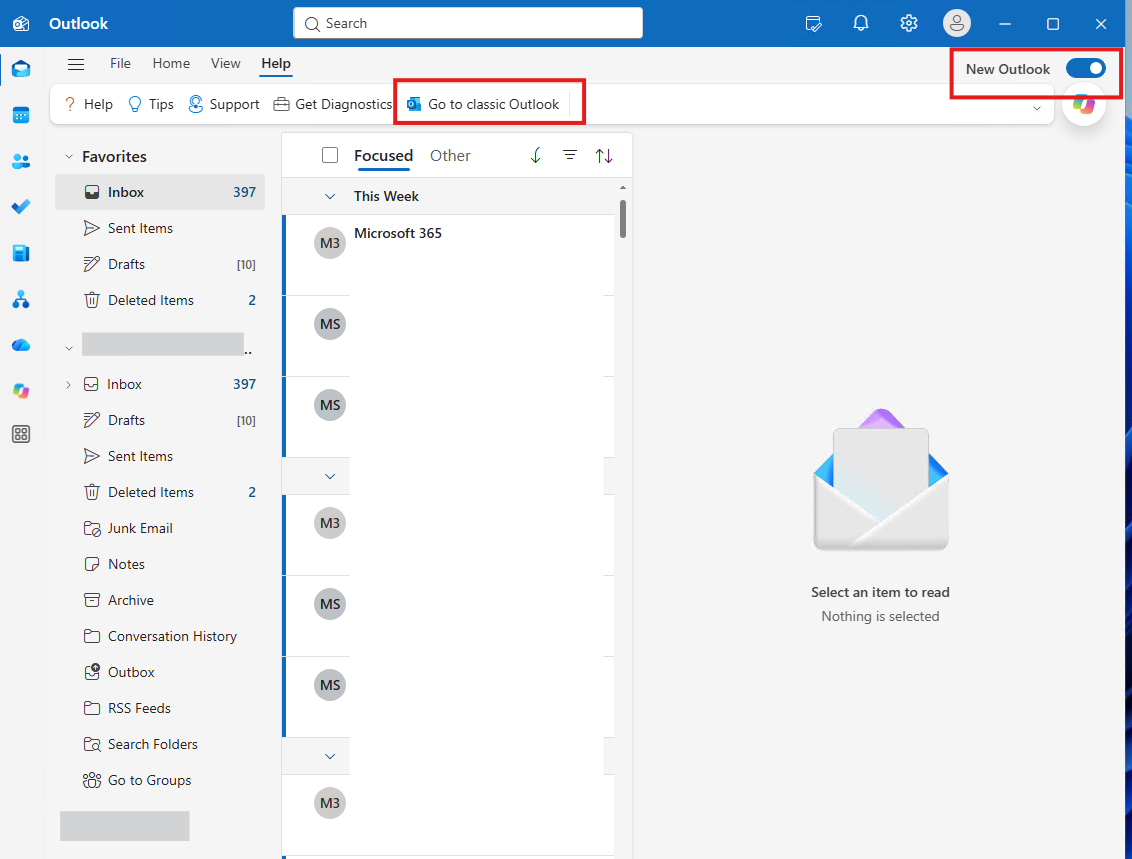
This is one of the most common questions I hear from end users already, so it helps to tell them how to get back before the change hits. In new Outlook, there are two ways back to classic Outlook:
- Turn off the New Outlook toggle in the top right corner of the window.
- Go to Help and select Go to classic Outlook.
Both apps stay installed. If neither option shows up, an admin has usually hidden the switch-back toggle with a mailbox policy, which I cover below.
Who Will Not Be Migrated
According to MC949965, users are skipped by the automatic migration if any of these are true:
- They were opted out with the automatic migration policy.
- The Try the new Outlook toggle is hidden for them by policy.
- They use a perpetual license of Office (like Office 2021 or 2024) instead of a Microsoft 365 subscription.
- Their mailbox is on-premises. New Outlook does not support on-premises mailboxes.
That second point catches people off guard. If you hid the toggle back in 2024 to stop users from experimenting, you have already opted those users out of the automatic move. That might be what you want, but it also means nothing happens for them until you change it.
Your Three Options as an Admin
Every tenant I have looked at lands in one of three places. Pick one on purpose instead of letting March 2027 pick for you.
Option 1: Let Microsoft move users in March 2027
Do nothing and users start moving when the opt-out phase reaches your tenant. That's fine for small organizations with no COM add-ins.
Option 2: Opt out and keep classic Outlook for now
If you have line-of-business COM add-ins, heavy PST use, or a busy season you don't want disrupted, block the automatic migration. You can still move people later on your own schedule.
Option 3: Migrate on your own schedule before March 2027
This is what I recommend for most organizations. Use the Admin-Controlled Migration policy to move pilot groups first, fix what breaks, then widen the rollout. Microsoft suggests starting with new hires and people already using Copilot. Copilot is more complete in new Outlook, so those users have a reason to stay.
The Cloud Policies That Control New Outlook
The easiest place to manage all of this is Cloud Policy in the Microsoft 365 Apps admin center. Cloud Policy applies to users based on their Entra ID group membership, so you can target pilot groups without touching Group Policy or Intune.
- Sign in to the Microsoft 365 Apps admin center.
- Go to Customization and select Policy Management.
- Select Create to build a new policy configuration, or open an existing one.
- On the Policies step, search for new Outlook.
When I tested this in my test tenant, that search returned eight policies. Three of them are important for the opt-out phase:
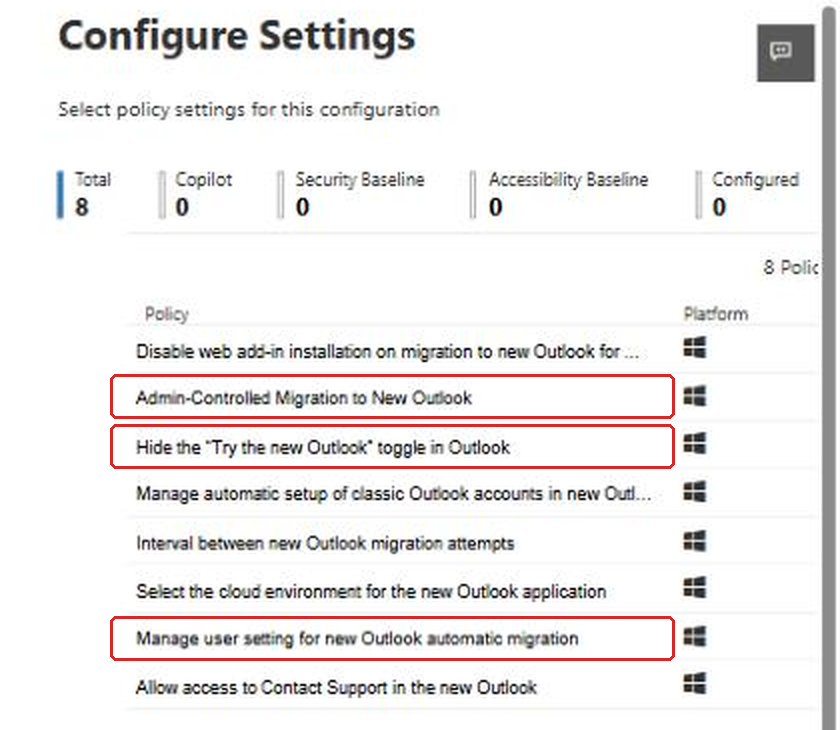
- Manage user setting for new Outlook automatic migration is the opt-out switch for the March 2027 change.
- Admin-Controlled Migration to New Outlook moves users on your schedule.
- Hide the "Try the new Outlook" toggle in Outlook removes the toggle from classic Outlook.
All of these apply to classic Outlook on Windows, which is the app that runs the migration.
How to Opt Out of the Automatic Migration
Open Manage user setting for new Outlook automatic migration and look at the Configuration setting dropdown. It has three values:
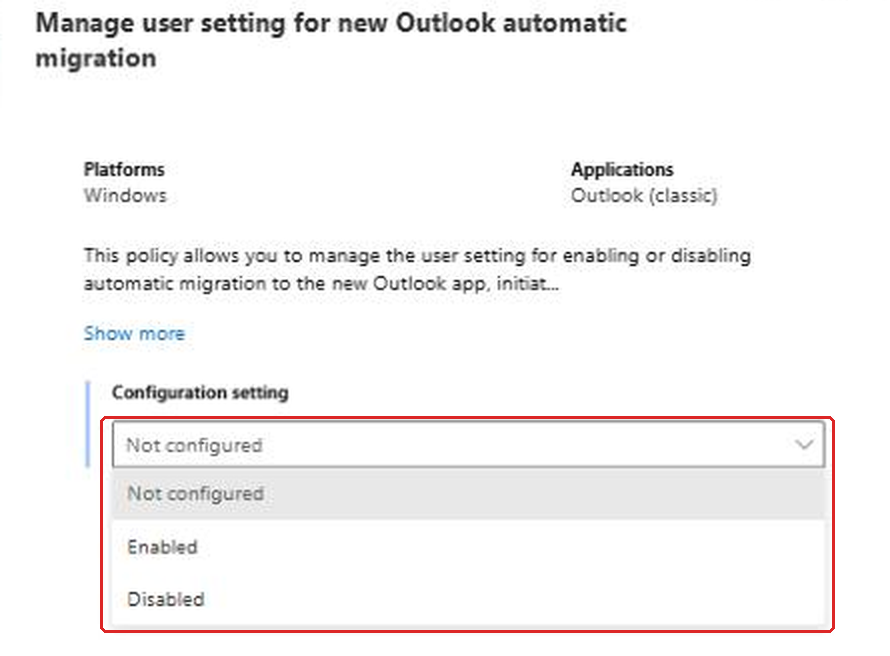
- Not configured (the default): users control the setting themselves, and it starts out turned on, so they will be migrated.
- Enabled: automatic migration is allowed and users can't turn it off.
- Disabled: automatic migration is blocked and users can't turn it back on.
To opt out, set it to Disabled and assign the configuration to the groups you want to keep on classic Outlook. If you manage Office with Group Policy or Intune instead, the same setting is in the Office ADMX templates, and the registry value it writes looks like this:
# Block automatic migration to new Outlook for the current user
# (this is the policy key, so users can't change it themselves)
$path = "HKCU:\Software\Policies\Microsoft\office\16.0\outlook\preferences"
New-Item -Path $path -Force | Out-Null
Set-ItemProperty -Path $path -Name "NewOutlookMigrationUserSetting" -Value 0 -Type DWord

# Set the value to 1 instead to force automatic migration on
One detail that matters: this opt-out only blocks Microsoft's automatic migration. It does not stop migrations you start yourself with the Admin-Controlled Migration policy. That's by design, and it means you can opt the whole tenant out and then pull pilot groups across one at a time.
How to Migrate Users on Your Own Schedule
The Admin-Controlled Migration to New Outlook policy installs new Outlook in the background if it isn't there yet, then moves users over across three launches of classic Outlook:
- A callout invites them to try new Outlook. They can pick Try it or Not now.
- On the next launch, a banner says the organization recommends new Outlook and that they will be moved next time.
- On the launch after that, a prompt appears, and if they close it they are switched automatically the next time they open classic Outlook.
Users can still switch back afterward. If you want them nudged again, pair it with Interval between new Outlook migration attempts. A value of 1 prompts on every launch, which is aggressive. A value like 30 restarts the migration 30 days after someone switches back, which is a much friendlier setting for a pilot.
The registry equivalents, if you deploy these another way:
# Start the admin-controlled migration for this user
$path = "HKCU:\Software\Policies\Microsoft\Office\16.0\Outlook\Options\General"
New-Item -Path $path -Force | Out-Null
Set-ItemProperty -Path $path -Name "DoNewOutlookAutoMigration" -Value 1 -Type DWord

# Restart the migration 30 days after a user switches back to classic Outlook
Set-ItemProperty -Path $path -Name "NewOutlookAutoMigrationRetryIntervals" -Value 30 -Type DWord
There's a prerequisite people miss. The Try the new Outlook toggle has to be visible for the migration prompts to appear. If you hid it earlier, un-hide it for your pilot group first or the policy does nothing.
Showing or Hiding the Toggle
The toggle is controlled by the HideNewOutlookToggle value. A value of 1 hides it and 0 shows it.
# Hide the "Try the new Outlook" toggle in classic Outlook (1 = hide, 0 = show)
$path = "HKCU:\Software\Policies\Microsoft\office\16.0\outlook\options\general"
New-Item -Path $path -Force | Out-Null
Set-ItemProperty -Path $path -Name "HideNewOutlookToggle" -Value 1 -Type DWord
Be careful if you copy this from Microsoft's "Control installing and using new Outlook" article. As of this writing, that page lists the values backwards, showing 0 as the value that hides the toggle. The Exchange Online article on enabling or disabling access to new Outlook has it right: 1 hides, 0 shows.
Blocking or Locking In New Outlook with Exchange Online PowerShell
The registry and Cloud Policy settings control the classic Outlook app. Exchange Online has two mailbox-level settings that control new Outlook itself.
OneWinNativeOutlookEnabled decides whether a mailbox can be opened in new Outlook at all. Set it to $false and the user's work account is blocked in new Outlook no matter how they installed it. That's the hard stop if you need one.
HideClassicOutlookToggleOut is the opposite. It hides the switch-back toggle inside new Outlook, so users who are moved can't return to classic. Only use it once you are sure people have what they need.
# Connect first
Connect-ExchangeOnline

# Check who is currently blocked from new Outlook (True or blank means allowed)
Get-CASMailbox -ResultSize Unlimited -Filter "RecipientTypeDetailsValue -eq 'UserMailbox'" |
    Format-Table DisplayName, OneWinNativeOutlookEnabled

# Block one mailbox from new Outlook
Set-CASMailbox -Identity [email protected] -OneWinNativeOutlookEnabled $false

# Block new Outlook for everyone on the default mailbox policy (current and future mailboxes)
Set-OwaMailboxPolicy -Identity OwaMailboxPolicy-Default -OneWinNativeOutlookEnabled $false

# Remove the "switch back to classic" toggle inside new Outlook
Set-OwaMailboxPolicy -Identity OwaMailboxPolicy-Default -HideClassicOutlookToggleOut $true

# Review the settings on every mailbox policy
Get-OwaMailboxPolicy | Format-Table Name, OneWinNativeOutlookEnabled, HideClassicOutlookToggleOut
Two notes on this. First, access to shared mailboxes and public folders in new Outlook follows the mailbox policy, not the per-user Set-CASMailbox setting. Second, a couple of the examples in Microsoft's own article pipe Get-OwaMailboxPolicy where Set-OwaMailboxPolicy belongs (and the reverse). The commands above use the cmdlets the way the cmdlet reference documents them.
Get Ready Before March 2027
The biggest mistake I see is treating this as an Outlook toggle problem when it is really an add-in and workflow problem. Here's the short list I would work through now:
- Inventory COM add-ins. New Outlook does not run COM or VSTO add-ins at all. In the Microsoft 365 Apps admin center, the Inventory page shows which add-ins are installed across your devices. Anything business critical needs a web add-in replacement or it stays on classic.
- Check the feature comparison. Microsoft keeps a new versus classic feature comparison page, and gaps like PST support and offline features have been closing through 2026. Compare it against what your heavy users actually do.
- Decide your policy per group. Opt out the groups that can't move yet, run admin-controlled migration for pilots, and leave everyone else on the default if you are comfortable with it.
- Re-enable the toggle where you need it. Any group you want to migrate needs the Try the new Outlook toggle visible.
- Tell users how to switch back. A one-paragraph email with the toggle location saves a lot of tickets.
- Watch the feedback. In the Microsoft 365 admin center, go to Health, then Product feedback, and filter to New Outlook for Windows to see why people are switching back.
If you rely on Outlook rules or custom signatures, it's worth checking those during the pilot too. I have a separate guide on creating and managing rules in Outlook. For signatures, back them up first with the script in how to back up and restore Outlook signatures with PowerShell.
What the Opt-Out Phase Does Not Cover
- Cutover. Nothing in the March 2027 change removes classic Outlook. Cutover has no date yet and comes with at least 12 months of notice.
- Sovereign clouds. GCC High and DoD have their own timeline, and new Outlook there is still in preview.
- Hybrid tenants. Only target cloud mailboxes with the migration policy, since on-premises mailboxes aren't supported in new Outlook.
Frequently Asked Questions
When does the new Outlook opt-out phase start?
March 2027 for Commercial and GCC tenants. It was originally April 2026 and Microsoft delayed it by a year. GCC High and DoD will get their own dates later.
Can users go back to classic Outlook after they are moved?
Yes. During the opt-out phase users can switch back with the New Outlook toggle or Help > Go to classic Outlook, unless an admin has set HideClassicOutlookToggleOut to $true.
How do I stop my users from being moved automatically?
Set the Manage user setting for new Outlook automatic migration policy to Disabled in Cloud Policy, Group Policy or Intune. Hiding the Try the new Outlook toggle also keeps users from being migrated.
When does classic Outlook stop being supported?
Microsoft says existing installs of classic Outlook will be supported until at least 2029. There is no announced end date beyond that.
Will my COM add-ins work in new Outlook?
No. New Outlook only supports web add-ins. If a COM add-in has no web version, keep those users on classic Outlook with the opt-out policy until there is a replacement.
Final Thoughts
March 2027 sounds far off, but a pilot, an add-in inventory and a round of user communication eat up months quickly. The policies are all there today, and the opt-out and admin-controlled migration settings work together nicely: block the automatic move tenant-wide, then bring groups across when you know they are ready. That way the switch happens when you decide, not when the rollout reaches you. If you want to test this with a small group first, Targeted Release users are a good place to start since they already expect to see changes early.
Sources: Stages of migration to new Outlook for Windows, Control installing and using new Outlook, Policy for Admin-Controlled Migration to new Outlook for Windows, Enable or disable user access to Outlook for Windows in Exchange Online, Identify COM add-ins in your organization.