What Is Work IQ in Copilot? Where the Work/Web Toggle Went
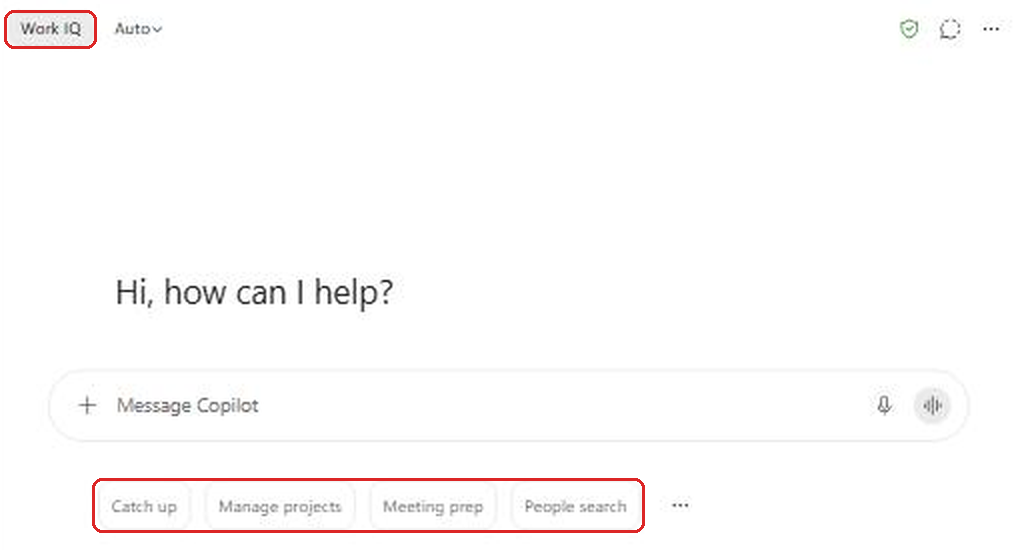
If you open Microsoft Copilot and can't find the old Work and Web toggle at the top of the chat, you're not imagining it. Microsoft replaced it with a single Work IQ button in the top-left corner. When it's on, Copilot can use your work data and the web. When it's off, Copilot works from the web only.
That sounds like a small change, but it changes how you should think about every answer Copilot gives you. Under the old toggle, you picked the source. Now Copilot decides, prompt by prompt, whether to pull from your emails and files, the web, or both. This guide explains what Work IQ actually is, what the button does, how it relates to web search, what you get with and without a Copilot license, and how to steer Copilot when you need a specific kind of answer.
What Changed in Copilot Chat
For a long time, Copilot had two separate modes. Work answered from your Microsoft 365 data: email, meetings, chats and files. Web answered from the public internet. You flipped between them with a toggle at the top of the chat, and a lot of people never noticed it was there.
In 2026, Microsoft folded those two modes into one chat. Microsoft's Copilot release notes describe it as a unified web and work chat with a dedicated Work IQ button in the top left that turns access to work data on or off. Work data is on by default.
The redesign started as an opt-in in June 2026 and rolled out more broadly over the summer. Like most Microsoft 365 changes, it reached tenants at different times, so if your screen still shows the old toggle, the new layout just hasn't reached you yet.
What Is Work IQ?
Work IQ is Microsoft's name for the layer that gives Copilot an understanding of your work. According to Microsoft's Work IQ overview, it draws on your Microsoft 365 data through Microsoft Graph, including email, Teams meetings and chats, and files in SharePoint and OneDrive. It can also include business data from Dynamics 365 and Power Apps, and data from other systems your organization connects through Copilot connectors.
The important part for you as a user is that Work IQ doesn't just search. It uses signals about who you work with, what you've been working on and how content relates to each other, so a question like "What did my manager decide about the budget?" can find the right email, meeting and document even if none of them use the word "budget."
Work IQ also respects your existing permissions. Copilot can only use content you already have access to. It doesn't open up files or mailboxes you couldn't see before.
So when you see the Work IQ button, read it as "let Copilot use my work context." It isn't a separate app or a new license by itself. It's the switch for whether this chat can reach into your Microsoft 365 data.
What the Work IQ Button Does
When Work IQ Is On
This is the default. Copilot reads your prompt and decides what to use: your work data, the web, or both. Ask "What's on my calendar tomorrow?" and it goes to your calendar. Ask "What's the latest version of PowerShell?" and it goes to the web. Ask "Compare our onboarding process to industry best practices" and it may use both.
You'll also see the starter prompts under the message box lean toward work tasks. In my test tenant, they were Catch up, Manage projects, Meeting prep and People search.
When Work IQ Is Off
Select Work IQ to turn it off. The label gets a line through it, and Copilot starts a fresh chat that's grounded in the web instead of your work data. In my test, the starter prompts also changed to general ones: Refine Writing, Draft Content, Summarize and Find Content.
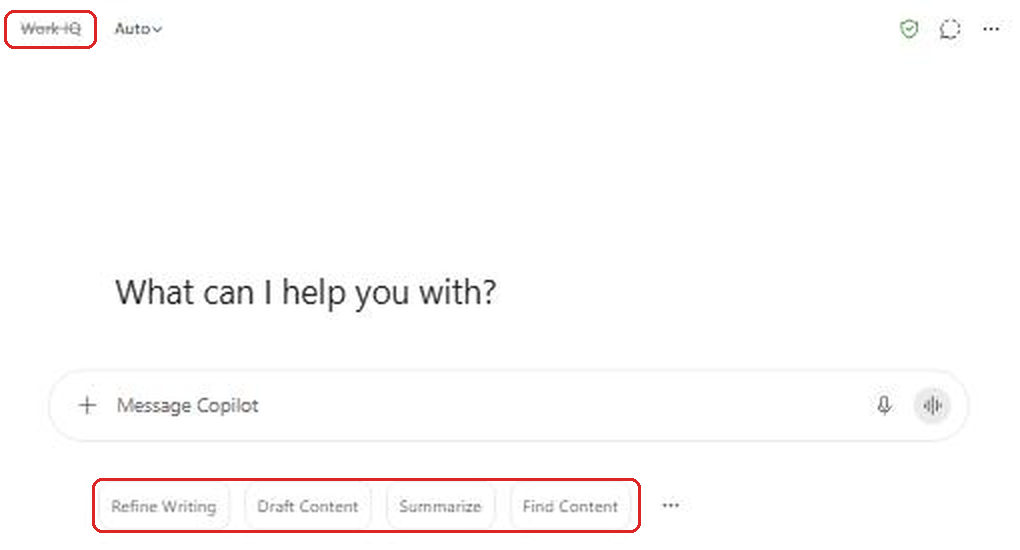
With Work IQ off, Copilot won't go looking through your mailbox, calendar or files to answer. Ask about your inbox and it won't be able to look. You can still paste text in or upload a file yourself, and Copilot will work with what you give it.
One thing to know: switching Work IQ on or off starts a new conversation. You can't flip it halfway through a chat and keep going in the same thread. Decide what kind of answer you need before you start.
When to Turn Work IQ Off
Most of the time, leave it on. Copilot is usually good at picking the right source. But there are a few situations where turning it off makes sense.
- General research. If you're asking how a technology works, what a regulation says or how to write a formula, your work data doesn't add anything. Turning Work IQ off keeps internal content out of the answer entirely.
- Writing for the public. If you're drafting a blog post, a job ad or a public announcement, you don't want Copilot quietly pulling in phrases or details from internal documents.
- Avoiding mixed answers. Sometimes you want to know what the internet says without it being blended with what your company says. Off gives you a clean web-only view.
And when you only want work content, keep Work IQ on and say so in the prompt. Something like "Only use my emails and files, don't search the web" works well. The older Work toggle used to do that for you. Now you ask for it.
Work IQ vs. Web Search: Not the Same Switch
This is where people get confused. The Work IQ button controls work data. Web search has its own separate setting.
To find it, select ... (Settings and more) in the top-right corner, choose Settings, then Personalization, expand Advanced, and look for Web search. If you turn that off, Copilot won't use the web at all, and with Work IQ on it answers only from your work data. Microsoft says your choice carries across sessions and supported Copilot apps.
Putting the two together, you get these combinations:
- Work IQ on, web search on: Copilot can use work data, the web or both. This is the default.
- Work IQ on, web search off: work data only.
- Work IQ off, web search on: web only.
- Work IQ off, web search off: only what you paste or upload into the chat.
If the Web search setting is grayed out, your admin has turned web search off for your organization. More on that in the admin section below.
What You Get With and Without a Copilot License
The Work IQ button only gets you full work grounding if you have a Microsoft 365 Copilot license. Here's how it breaks down, based on Microsoft's Copilot Chat overview:
- With a Microsoft 365 Copilot license, Copilot uses Work IQ and semantic indexing across your Microsoft 365 content. This is the full experience described in this post.
- Without a Copilot license, Copilot Chat in the Copilot app and on the web is primarily grounded in the web. You can still give it work content by pasting text, uploading files or using agents your organization provides, but it won't search across your mailbox and files on its own.
- Copilot Chat in Outlook is the exception. Since mid-2026, unlicensed users can ask Copilot Chat in Outlook about their inbox, calendar, meetings and a limited set of files, even without the Copilot license. It's a narrower set of content than Work IQ, but it's useful.
So if you don't have a license and a coworker shows you Copilot answering questions about their week, that's the difference. If you're not sure which version you have, my post on what changes with a Copilot license walks through how to tell.
How to Tell Where an Answer Came From
Because Copilot now chooses its own sources, checking them matters more than it used to. Every answer that uses outside content shows citations. Select them to see which emails, files, meetings or websites Copilot used.
For web results, Microsoft also shows the exact search queries Copilot sent to Bing, in the citation section of the response. That's a good way to spot when Copilot misunderstood what you were asking. Microsoft notes those web query citations stay available in the chat for 24 hours.
A habit I recommend: for anything you're going to forward, present or act on, open the sources first. If an answer mixes something from an internal document with something from a website, make sure you know which part is which before you share it.
Prompting Tips for the New Setup
- Be explicit about the source when it matters: "Using only my emails from this week," "From my files, not the web," or "Search the web for current guidance."
- Name the thing you're looking for. "The Q3 vendor contract Sarah sent" works much better than "that contract."
- Give a time frame. "In the last two weeks" narrows things down and speeds up the answer.
- Use the + button next to the message box to attach a specific file when you want Copilot to focus on it, instead of hoping it finds the right one.
- Keep Work IQ and the model picker separate in your head. The Auto menu next to Work IQ picks the AI model, such as Claude or GPT, when your organization allows it. It doesn't change what data Copilot can see. My post on enabling Claude in Copilot covers that side.
Common Problems
"Copilot says it can't access my email"
Check the Work IQ button. If it has a line through it, work data is off for that chat. Turn it back on, which starts a new chat, and ask again. If Work IQ is on and it still can't see your mail, you may not have a Microsoft 365 Copilot license.
"I wanted an internal answer and got a web article"
Copilot decided the web was the better source. Ask again and tell it to use only your work data, or turn off Web search in personalization settings if you want that to be the default.
"I still see the old Work and Web toggle"
The new layout hasn't reached your account yet, or you're on an older version of the Copilot app. Update the app, or use Copilot on the web, and check again in a few weeks.
"The Web search setting is grayed out"
Your organization has turned web search off. Only an admin can change that.
For Admins: What You Can and Can't Control
There's no admin setting for the Work IQ button itself. What admins control is the web side and the data side around it.
- Web search. The Allow web search in Copilot policy lives in the Cloud Policy service in the Microsoft 365 Apps admin center, and you can reach it from Copilot > Settings in the Microsoft 365 admin center. It has three options: enabled everywhere, disabled everywhere, or disabled in Copilot work mode while still allowed for web and Copilot Chat. If you disable it, users' Web search setting appears grayed out. Microsoft's web search guidance has the details. In GCC and DoD, web search is off by default until you enable that policy.
- Sensitive data and the web. Microsoft Purview DLP can stop Copilot from running web searches when a prompt contains sensitive information types, while still allowing answers from internal data.
- What Work IQ can find. Work IQ respects permissions, so oversharing is the real risk. If a site is shared with everyone, Copilot can surface it for everyone. Cleaning up permissions and using sensitivity labels matter more than ever. My list of Copilot admin settings to check is a good starting point.
It's also worth updating your user training. If your internal guides still say "use the Work tab for company content," they're out of date. Replace that with "check the Work IQ button and the sources."
What It Doesn't Do
- The Work IQ button doesn't make Copilot ignore the web. Only the Web search setting or your prompt does that.
- It doesn't give unlicensed users full work grounding. Without a Microsoft 365 Copilot license, the button won't unlock your whole mailbox and file history.
- It can't be changed mid-conversation. Every toggle starts a new chat.
- It doesn't expand what you can access. Copilot only sees what your permissions already allow.
Frequently Asked Questions
Where did the Work and Web toggle go in Copilot?
Microsoft replaced it with the Work IQ button in the top-left corner of Copilot Chat. On means Copilot can use your work data and the web. Off means web only.
Is Work IQ on by default?
Yes. Work data access is on by default. You can turn it off for a chat by selecting the Work IQ button, which starts a new conversation.
How do I make Copilot answer only from my work data?
Keep Work IQ on and say so in your prompt, such as "only use my emails and files." To make it the default, turn off Web search under Settings > Personalization > Advanced.
Do I need a Copilot license for Work IQ?
Full Work IQ grounding across your Microsoft 365 data requires a Microsoft 365 Copilot license. Without one, Copilot Chat is mainly web grounded, though Copilot Chat in Outlook can still work with your inbox and calendar.
Can my admin turn off Work IQ?
There's no separate admin switch for the button. Admins control web search with the Allow web search in Copilot policy and control what Copilot can find through permissions, sensitivity labels and DLP.
Final Thoughts
The old Work and Web toggle made you choose. Work IQ lets Copilot choose for you, which is usually what you want, but it means you need to be a little more deliberate about checking sources and saying what you want when it matters. Leave Work IQ on for everyday work, turn it off for public research and writing, and use the Web search setting when you want to keep the internet out of the picture.
If you train other people on Copilot, this is a good moment to refresh your guides. A two-minute explanation of the Work IQ button and the sources panel will save a lot of confused questions later.
Sources: Microsoft 365 Copilot release notes, Work IQ overview, Overview of Microsoft Copilot Chat, Data, privacy, and security for web search in Copilot, Copilot Chat privacy and protections.