

How to Share Your Calendar in Outlook (and Who Sees What)
To share your calendar in Outlook, open Calendar, select Share, type the person's name or email address, pick how much they can see, and select Share. They get an email invitation, and once they accept it, your calendar shows up in their Outlook next to their own.
The steps are the easy part. The part people get wrong is the permission level, because Outlook's default for a single person is to show them everything on your calendar. This guide covers the steps in new Outlook, Outlook on the web and classic Outlook, what each permission level actually shows, how to share outside your organization, and how to fix the most common sharing problems.
Why Calendar Sharing is Important
This is one of the most common things I get asked about in Outlook, usually for one of three reasons. An assistant needs to manage someone's meetings. A team wants to see each other's schedules so they stop double booking. Or a manager wants a quick way to see when people are out.
Everyone in your organization can already see when you are free or busy when they schedule a meeting with you. Sharing goes further. It lets specific people see the titles of your meetings, the full details, or even edit your calendar for you. That's why the permission level you choose matters more than the steps.
How to Share Your Calendar in New Outlook and Outlook on the Web
New Outlook for Windows and Outlook on the web work the same way, so these steps cover both.
- Select the Calendar icon in the left bar.
- Select Share on the Home toolbar. You can also right-click a calendar in the folder list and choose Sharing and permissions.
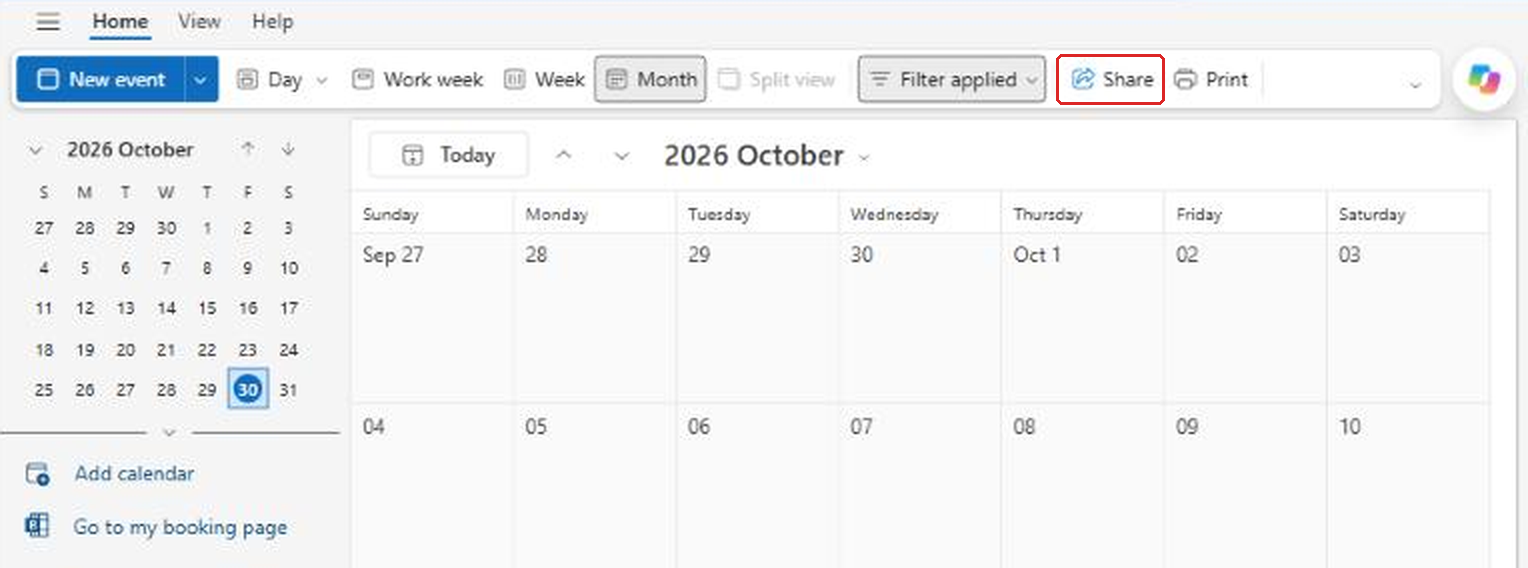
- In the Sharing and permissions window, type a name or email address in the box at the top and select the person.
- Choose the permission level from the dropdown next to their name.
- Select Share.
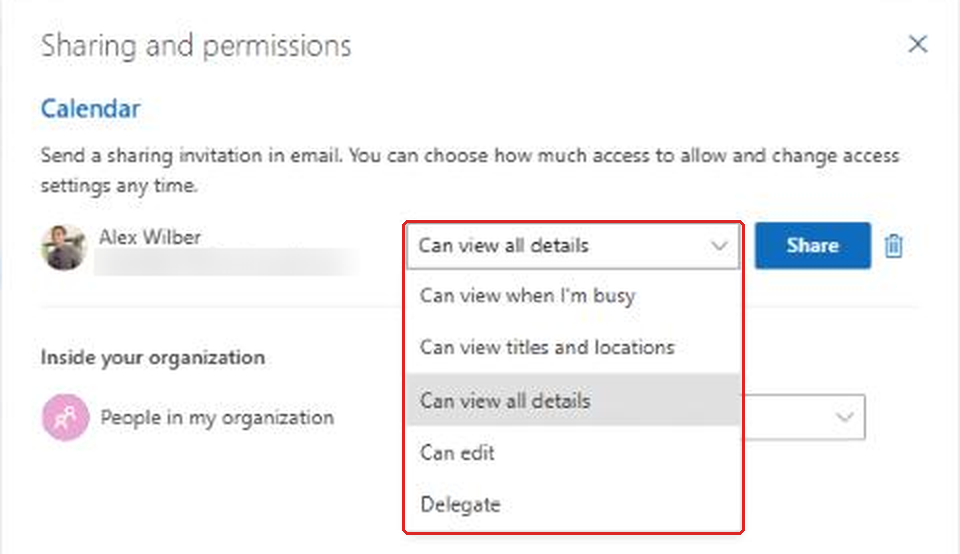
Look closely at that dropdown before you select Share. When I tested this, Outlook defaulted to Can view all details for the person I added. If you only meant to let them see when you are busy, you have to change it yourself.
The person gets an email invitation. Nothing changes on their side until they accept it.
What Each Calendar Permission Level Means
Here's what each option in the dropdown actually gives the other person:
- Can view when I'm busy: they see blocks of time marked busy, tentative or out of office. No titles, no locations, no details.
- Can view titles and locations: they see what each meeting is called and where it is, but not the body, attendees or attachments.
- Can view all details: they see everything on non-private events, including the meeting body and who is invited.
- Can edit: they can see all details and also create, change and delete events on your calendar.
- Delegate: everything Can edit allows, plus they receive your meeting invitations and can accept or decline them for you.
The biggest mistake I see is picking Can edit when someone really needs Delegate, or the other way around. If an assistant needs to respond to meeting requests for you, it has to be Delegate. If a coworker just needs to drop events onto a shared team calendar, Can edit is enough.
What about private events?
Any event you mark as Private shows only as busy time to people with view or edit access, even Can view all details. Delegates don't see private event details by default either. That makes the Private button the easiest way to keep a doctor's appointment or a sensitive meeting to yourself, even on a calendar you share widely.
Changing What Everyone in Your Organization Sees
Below the individual people in the Sharing and permissions window, there's a row called People in my organization. This sets the baseline for everyone you haven't shared with directly.
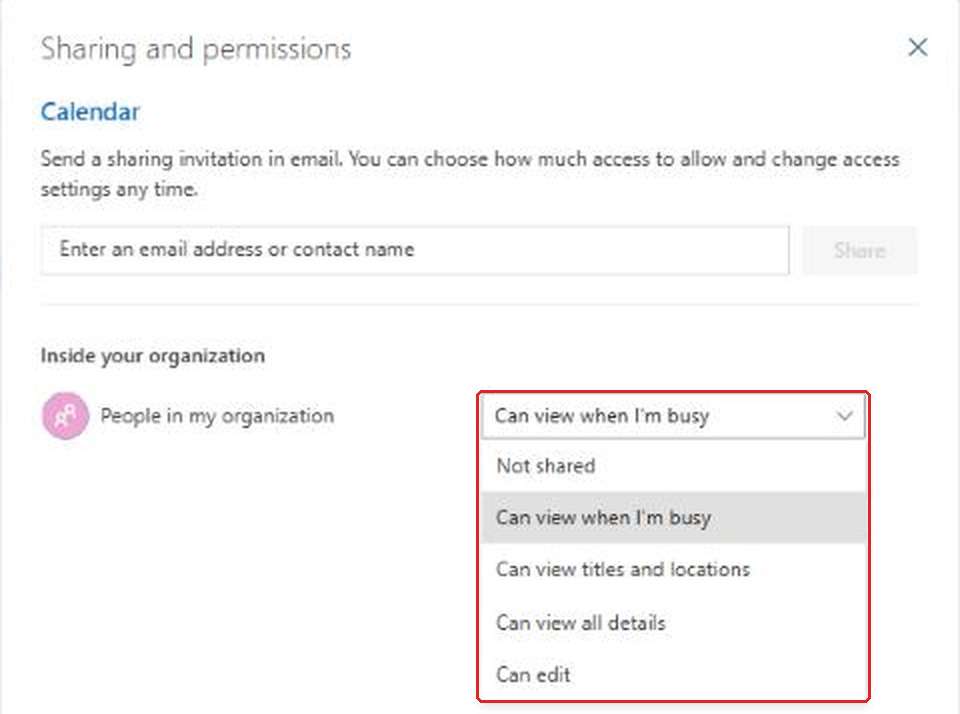
By default it's set to Can view when I'm busy, which is what makes the Scheduling Assistant work when people book meetings with you. The dropdown also offers Not shared, plus the same view and edit levels as above.
My advice: leave this one alone. Raising it to Can view all details exposes every non-private meeting to the whole company, and setting it to Not shared breaks free/busy lookups and makes you hard to schedule with. Share more with the specific people who need it instead.
How to Share Your Calendar in Classic Outlook
If you are still on classic Outlook for Windows, the flow is slightly different:
- Go to Calendar.
- On the Home tab, select Share Calendar and pick the calendar you want to share.
- Select Add, choose the people, select Add again, then OK.
- Select each person's name, choose their permission level, and select OK.
The permission levels are the same as in new Outlook. Classic Outlook also has a separate Delegate Access option under File > Account Settings with more granular delegate controls, such as whether the delegate can see private items.
How to Open a Calendar Someone Shared With You
When someone shares their calendar with you, you get an email. Select Accept in that email and the calendar appears in your calendar list, usually under People's calendars or Shared calendars.
You don't have to wait for an invitation to see a coworker's free/busy time. In new Outlook and Outlook on the web:
- In Calendar, select Add calendar in the folder pane.
- Select Add from directory.
- Type the person's name, select them, and select Add.
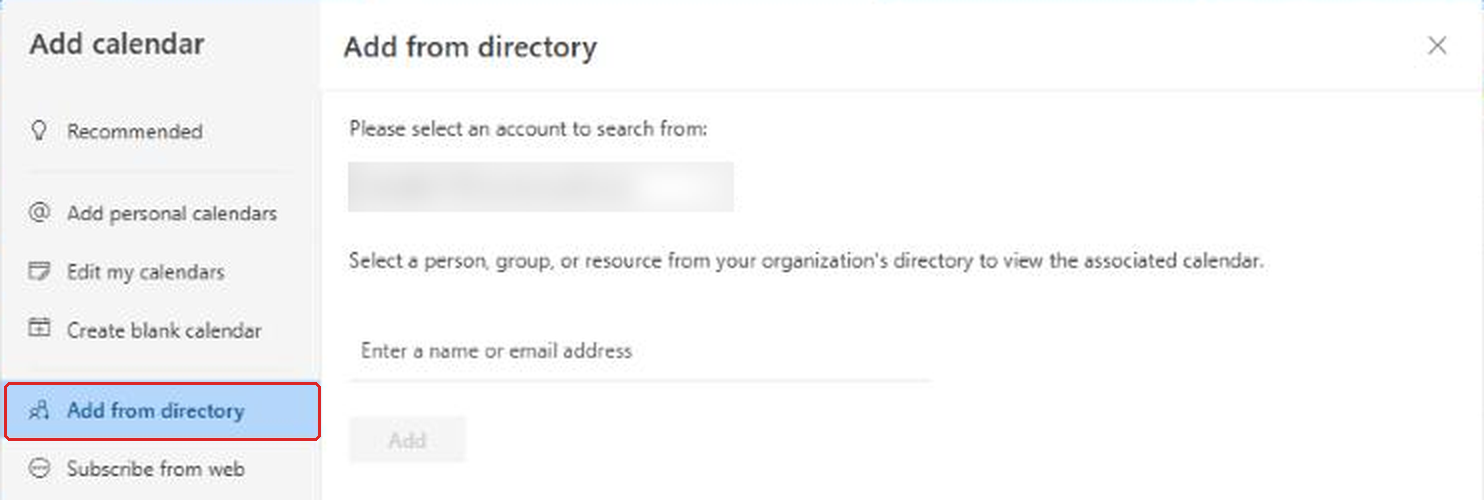
You only see what their permissions allow. For most people that's just busy time, because of the organization default. If you need more, ask them to share their calendar with you directly.
In classic Outlook, accepted calendars show under Shared Calendars. Right-click one and choose Overlay to stack it on top of your own calendar, which makes it much easier to compare schedules.
Sharing Your Calendar With People Outside Your Organization
You can share with someone at another company or with a personal email address, using the same Share steps. There are a few differences:
- View only. External people can usually only get view access. Can edit and Delegate are meant for people in your own organization.
- Your admin decides the limits. Exchange Online sharing policies control which domains you can share with and how much detail they can see. If an option is missing or the share fails, that's usually why.
- The experience varies. People using Outlook can add your calendar like any other. People on other calendar apps typically open it through a link instead.
How to Publish Your Calendar With a Link
Publishing is different from sharing. Instead of inviting specific people, you create a link that anyone can open. It's useful for things like a public office hours calendar or a family schedule.
- Open Settings (the gear icon), then Calendar > Shared calendars.
- Under Publish a calendar, choose the calendar.
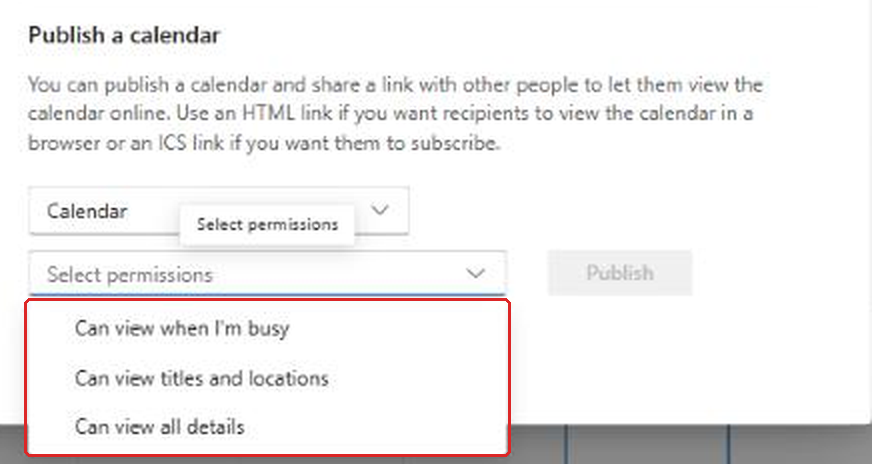
- Choose the permission level and select Publish.
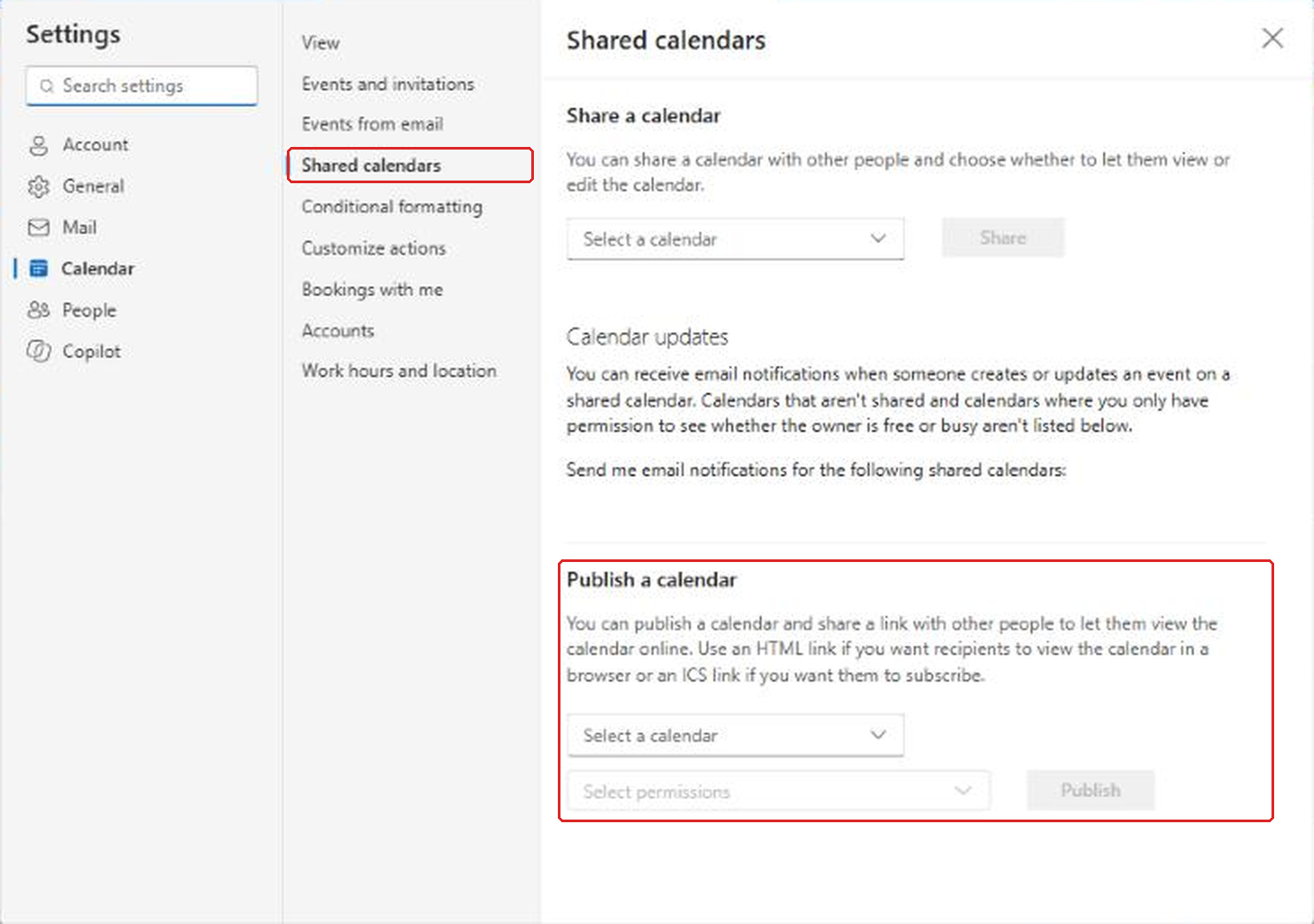
Publishing only offers three levels, all view-only: Can view when I'm busy, Can view titles and locations and Can view all details.
After you publish, Outlook gives you two links. The HTML link opens your calendar in a web browser. The ICS link lets people subscribe from Google Calendar, Apple Calendar or another app, so it updates on its own.
Treat a published link like a public link. Anyone who gets it can see your calendar at the level you picked, and forwarding it is easy. If the link gets out, go back to the same page and unpublish the calendar, then publish it again to get a new link.
Practical Ways to Set Up Calendar Sharing
A few setups that work well in real life:
- Executive and assistant. Make the assistant a Delegate. They can manage invitations, and you still keep private appointments private.
- Small team. Share with each teammate at Can view titles and locations. Everyone can see that you are "In client meeting" without seeing the agenda or attendee list.
- Manager tracking time off. Can view when I'm busy plus marking vacation as Out of office is usually enough. A shared team calendar for time off is often better than sharing personal calendars.
- Personal life. If you want a partner to see your work schedule, publish it at Can view when I'm busy rather than sharing details. Check your organization's policy first, since some don't allow publishing outside the company.
How to Stop Sharing or Change Someone's Access
- Open Calendar and select Share, or right-click the calendar and choose Sharing and permissions.
- Find the person in the list.
- Change their permission in the dropdown, or select the trash can icon to remove them completely.
Changes apply right away on your side. The calendar may linger in the other person's list for a while, but they lose access to the details you removed.
Troubleshooting Calendar Sharing Problems
The shared calendar doesn't show up
First, make sure the invitation was actually accepted. If the person deleted the email, share again to send a fresh invite. Next, compare Outlook on the web with the desktop app. Microsoft's own troubleshooting guidance treats Outlook on the web as the source of truth. If the calendar shows up there but not in the desktop app, update and restart the app, then remove and re-add the calendar.
People can see more than you expected
This one usually comes down to three things. You shared with someone at Can view all details without noticing the default. Someone has Delegate or Can edit access you forgot about. Or the meeting itself wasn't marked Private. Open Sharing and permissions and check every name on the list. If everything looks right and people still see too much, ask your IT team whether someone has broader mailbox access.
The only publish option is "Can view when I'm busy"
That's your organization's sharing policy, not something you are doing wrong. Admins can limit how much detail published and external calendars show. You will need to ask IT if you need more.
You can't share with an outside email address
External sharing may be turned off or limited to certain domains in your organization. The same goes for publishing. Again, that's an admin setting.
For Admins: Checking Calendar Permissions With PowerShell
When a user says their calendar is showing too much, Exchange Online PowerShell tells you exactly who has what. Each permission level in Outlook maps to an access right: Can view when I'm busy is AvailabilityOnly, Can view titles and locations is LimitedDetails, Can view all details is Reviewer, and Can edit is Editor. A delegate is Editor with the Delegate sharing flag.
# Connect to Exchange Online
Connect-ExchangeOnline

# See everyone who has access to a user's calendar
Get-MailboxFolderPermission -Identity "[email protected]:\Calendar"

# Reset the organization-wide baseline back to free/busy only
Set-MailboxFolderPermission -Identity "[email protected]:\Calendar" -User Default -AccessRights AvailabilityOnly

# Remove one person's access
Remove-MailboxFolderPermission -Identity "[email protected]:\Calendar" -User "[email protected]"
Two notes. The folder name follows the mailbox language, so a mailbox set to another language may use a translated name instead of Calendar. And the Default entry is the People in my organization row users see in Outlook, so lowering it below AvailabilityOnly breaks free/busy for that person. For delegates, Microsoft recommends setting them up from Outlook while signed in as the calendar owner, rather than building them only in PowerShell.
Frequently Asked Questions
Can people see my private appointments if I share my calendar?
No. Events marked Private show only as busy time to anyone with view or edit access. Delegates don't see private details unless you specifically allow it.
What's the difference between Can edit and Delegate?
Both let someone change your calendar. Only a Delegate also receives your meeting invitations and can accept or decline them on your behalf.
Can I share my Outlook calendar with a Gmail user?
Usually, yes, at a view-only level, if your organization allows external sharing. Publishing an ICS link is another option that works well with Google Calendar.
Why can't I give someone edit access?
Edit and delegate access are generally only available for people in your own organization. External people are limited to view levels.
How do I know who I have shared my calendar with?
Open Calendar, select Share, and look at the list in the Sharing and permissions window. Everyone with access, and their level, is listed there.
Final Thoughts
Sharing a calendar takes thirty seconds. Choosing the right permission level is the part worth slowing down for, especially since Outlook defaults to showing a person everything. Start with the least access that does the job, mark sensitive meetings as private, and check your sharing list once in a while. If you are tidying up the rest of Outlook too, my posts on creating rules in Outlook, smarter email management and Teams meetings not showing in Outlook are good next reads.
Sources: Share your calendar in Outlook, Understand calendar and delegate permissions in Exchange Online, Sharing policies in Exchange Online, Resolve issues with modern calendar sharing.