How to Turn Off Microsoft Outlook Notifications
Microsoft Outlook notifications can quickly become distracting, especially if you receive a high volume of emails throughout the day. While notifications are helpful for staying updated, they can interrupt focus during work or personal time. Fortunately, Outlook provides several ways to manage or completely turn off notifications, whether you are using the desktop app, Outlook on the web, or the mobile app.
Turn Off Notifications in the Outlook Desktop App
The new Outlook desktop app and classic Outlook both have notification settings, though the menu locations differ slightly depending on which version you are running.
New Outlook (Windows)
- Open Outlook and click the gear icon (Settings) in the top right.
- Select General, then Notifications.
- Toggle Notifications in Outlook to Off to silence everything, or expand the options to customize by notification type.
- You can also control whether to show notifications for email, calendar reminders, and @mentions separately.
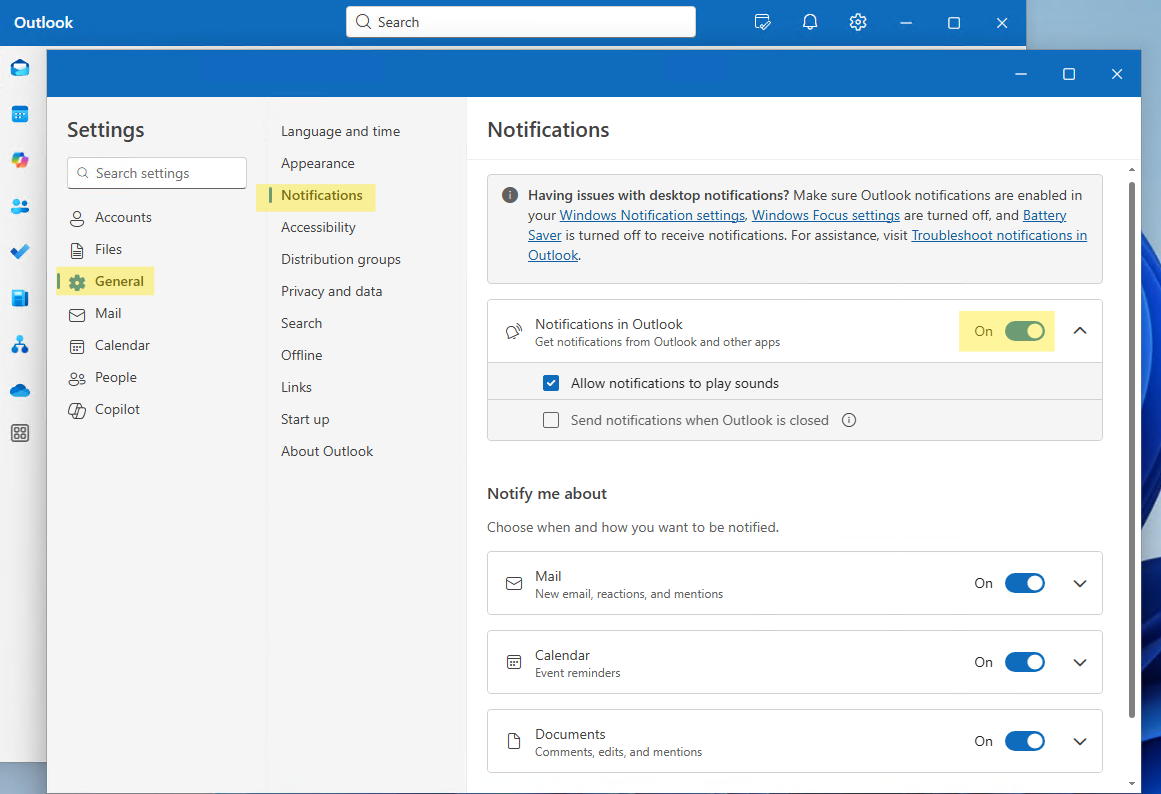
This will stop the desktop alerts and sounds for new messages. You can still check your inbox at your convenience without constant interruptions.
Classic Outlook (Windows)
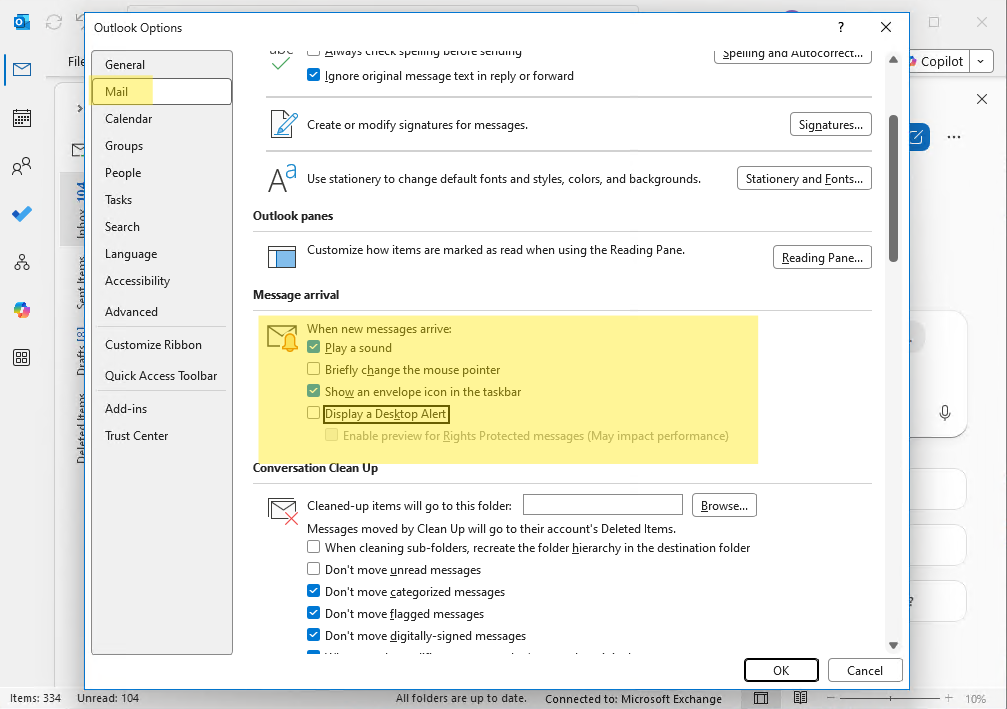
- Open Outlook and go to File, then Options.
- Select Mail from the left pane.
- Scroll to the Message arrival section.
- Uncheck Display a Desktop Alert to stop pop-up notifications, and uncheck Play a sound to stop audio alerts.
- Click OK to save.
If you still want to know when important mail arrives but not every message, you can leave desktop alerts on and use rules to only alert you for specific senders or subject lines.
Manage Windows System Notifications for Outlook
Even after turning off in-app notification settings, Windows system notifications for Outlook may still appear. These come from the Windows notification system and need to be managed separately.
- Open Windows Settings and go to System, then Notifications.
- Scroll down to find Microsoft Outlook in the app list.
- Toggle it Off to block all Outlook notifications at the OS level, or click on it to adjust banners, sounds, and notification center behavior individually.
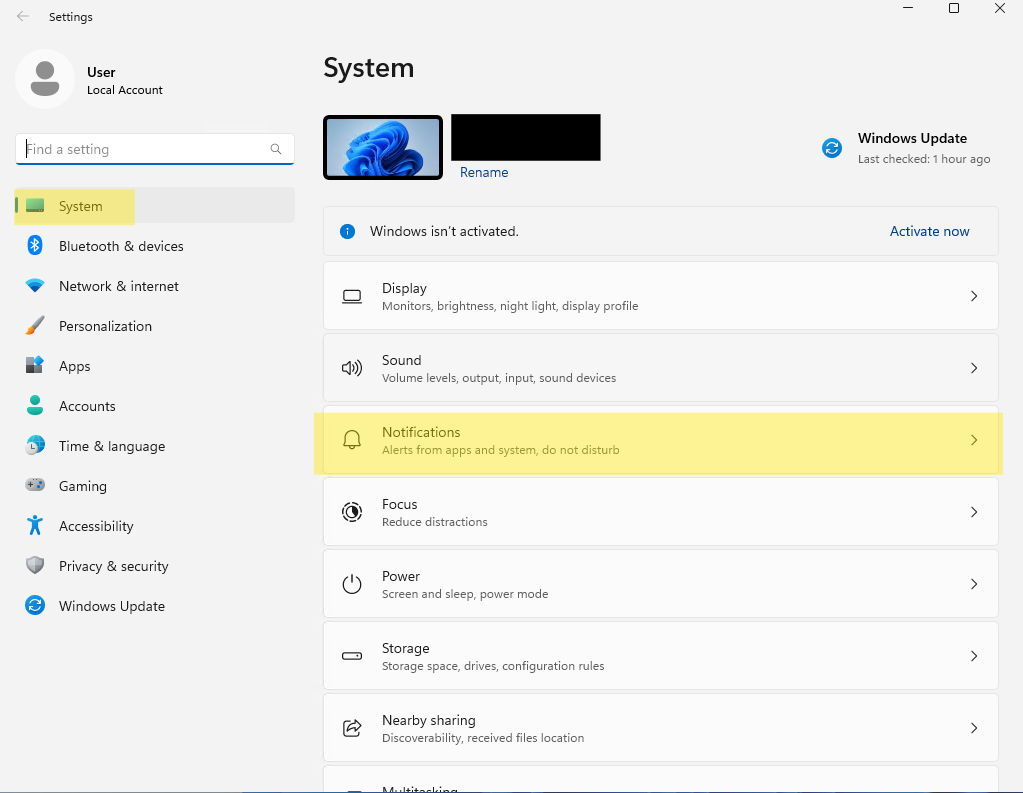
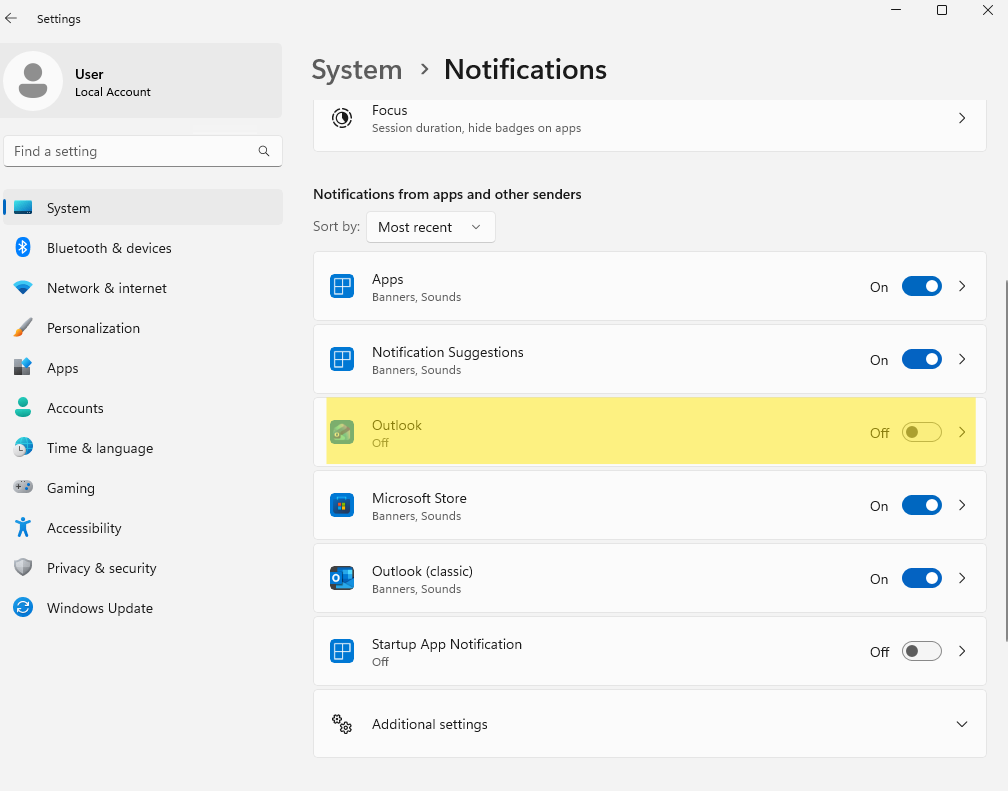
This is also where you can control whether notifications appear when your screen is locked. Turning off lock screen notifications for Outlook keeps email subjects private when your computer is unattended.
Turn Off Notifications in Outlook on the Web
- Sign in to Outlook on the web at outlook.office.com.
- Click the gear icon in the top right to open Settings.
- Navigate to General > Notifications.
- Toggle off the notification options you no longer want, such as sounds, message notifications, or reminders.
- The new settings will save automatically.
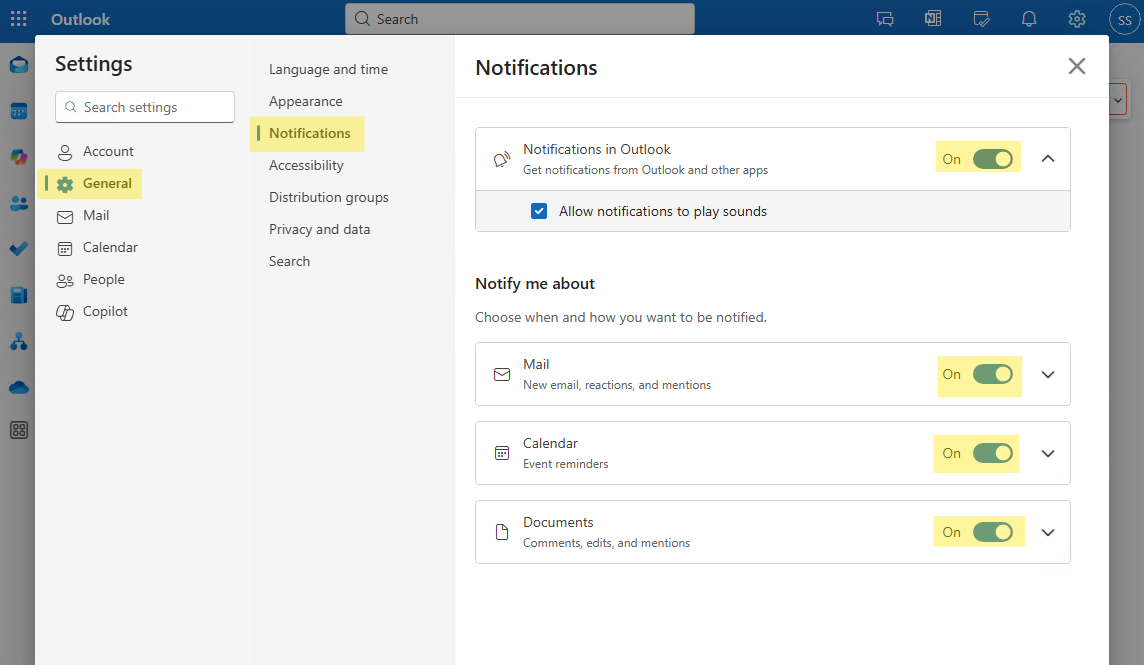
This ensures Outlook will no longer push notifications to your browser.
Turn Off Notifications in the Outlook Mobile App
- Open the Outlook app on your mobile device.
- Tap your profile icon in the top left corner, then select the gear icon for Settings.
- Under Quick Settings, choose Notifications.
- You can toggle the Allow Notifications setting off.
- Alternatively, you can also select the Do not disturb setting to only disable notifications for a set amount of time if you are out of office.
Focus-Specific Notification Control
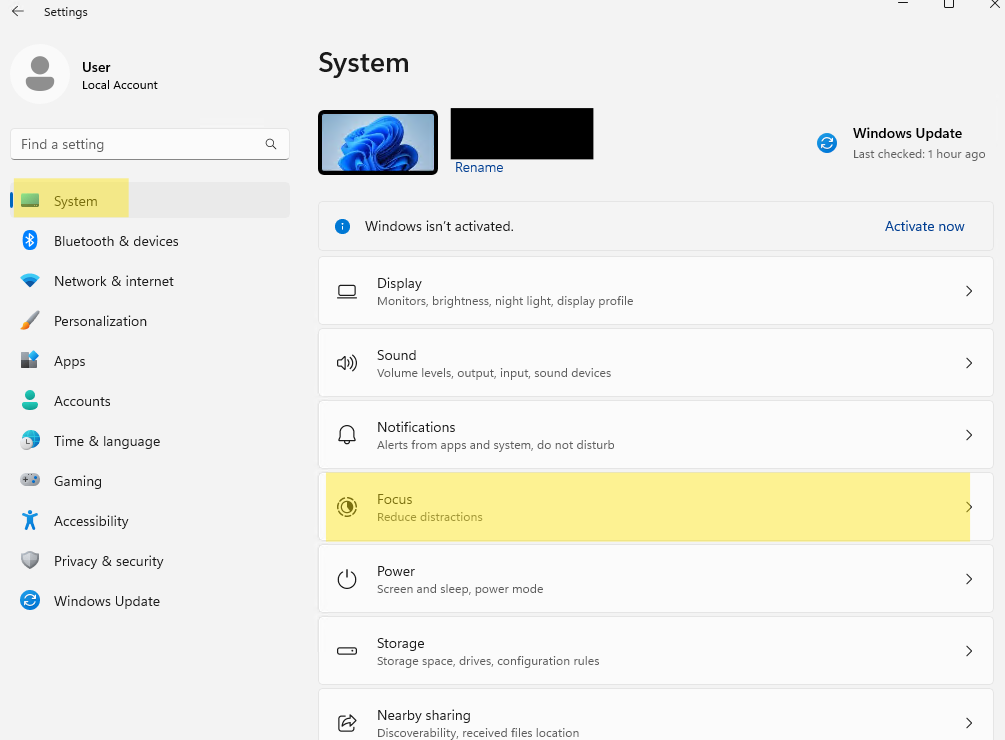
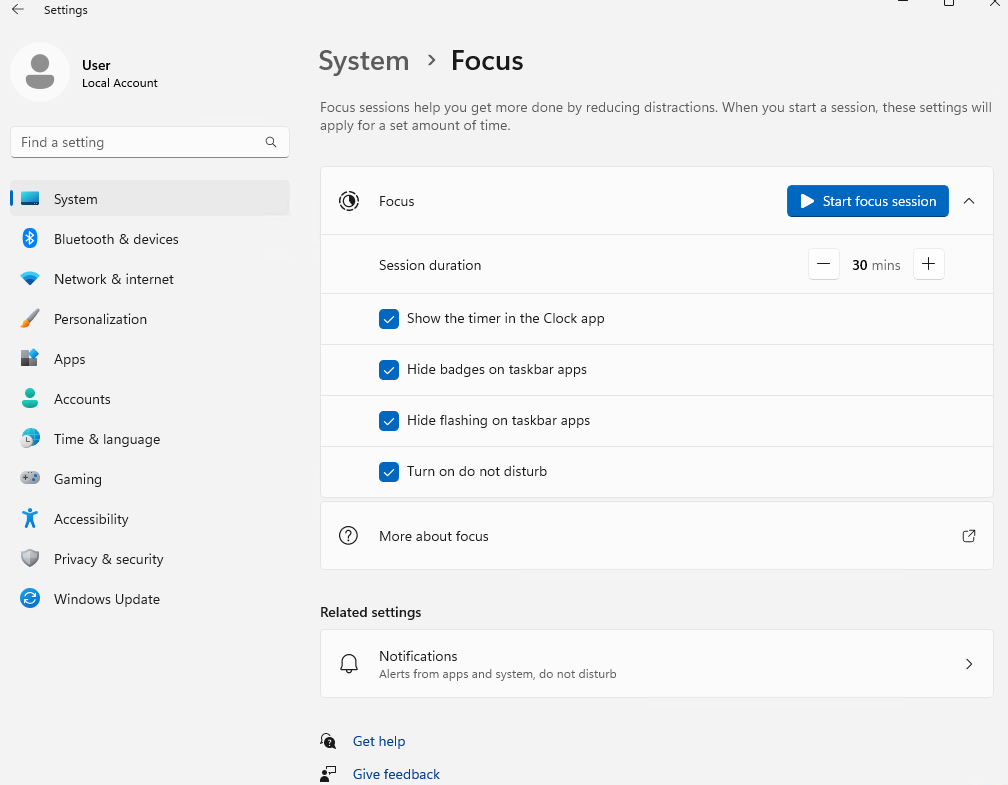
If you do not want to turn off notifications entirely but need stretches of focused work, consider using Windows Focus Assist (or Focus in Windows 11) instead. This lets you mute all non-priority notifications for a set period without changing your Outlook settings permanently.
- Go to Windows Settings, System, Focus (or Focus Assist on Windows 10), and set a duration. Outlook alerts will be silenced while Focus is active. You can also schedule automatic Focus sessions to align with your regular deep work hours.
Notification Rules: A Smarter Middle Ground
Rather than turning off all notifications, you can use Outlook rules to control which emails trigger a notification. This way you still hear about genuinely important messages without being pinged for every newsletter or reply-all.
In classic Outlook, go to File, then Manage Rules and Alerts. Create a new rule for specific senders, subject keywords, or high-importance flags, and set the action to Display a Desktop Alert. Then turn off the default desktop alert in Options, which gives you only rule-triggered notifications for the things you actually care about.
Frequently Asked Questions
Will turning off notifications affect whether I receive emails?
No. Notifications are only about how Outlook tells you an email arrived. Your emails are delivered to your inbox regardless of notification settings.
Can I set quiet hours for Outlook notifications?
In the Outlook mobile app, you can set Do Not Disturb schedules that suppress notifications during specific hours, such as outside your working hours. On desktop, use Windows Focus Assist schedules to achieve the same effect.
I turned off notifications but still hear sounds. What is wrong?
Sounds and visual alerts are controlled separately in some Outlook versions. Make sure you have unchecked both Play a sound and Display a Desktop Alert in the Mail options. Also check whether your computer's own sound settings are overriding Outlook-specific preferences.
Final Thoughts
Managing Outlook notifications is worth taking ten minutes to set up properly. Most people either leave everything on and get overwhelmed, or turn everything off and miss things they should have seen. The sweet spot is usually somewhere in between: turning off general email alerts but keeping calendar reminders and @mention notifications active. That way you stay informed without being constantly interrupted.