
Microsoft Teams AI Policy: How to Control Voice Enrollment, Speaker Attribution, and Copilot Meeting Features
A lot of the AI-powered meeting features in Teams that users notice, cleaner audio, more accurate speaker attribution in rooms, and better Copilot recaps, are improved by voice and face profiles. Voice isolation depends on a user’s voice profile. Speaker attribution in Teams Rooms and BYOD rooms also depends on enrolled profiles and the right room settings. Copilot recaps can still work without enrollment, but they are much more useful when the transcript knows who said what.
This article covers what Teams AI Policy controls, how the different settings interact, how to configure them with PowerShell, and what to think through before Microsoft's Express voice enrollment feature rolls out more broadly in mid-2026.
A Quick Overview for Users: What These Features Do and How to Turn Them On
Before getting into the admin policy, here is the user side of this, because most people running into these features are not admins. They are just trying to get cleaner audio on a call or a useful summary after a meeting. If your tenant has these features enabled, you control most of them yourself from inside Teams, and turning them on takes a couple of minutes.
Here is what each feature actually gives you:
- Voice isolation filters a call down to your voice and cuts out background noise like a TV, a coffee shop, or family in the next room. It works better than standard noise suppression because it is trained on your specific voice.
- Speaker attribution puts your name next to your words in live transcripts and AI meeting notes instead of labeling you "Speaker 2." This is what makes a post-meeting recap actually readable.
- Intelligent recap and Copilot summaries give you a writeup after the meeting with key points, action items, and a speaker timeline you can click to jump to the moment someone spoke.
All of this leans on one thing, a voice profile. Without it, Teams falls back to generic noise suppression and generic "Speaker 1, Speaker 2" labels. Enrolling a voice profile is what unlocks the better version of each feature.
How to enroll your voice profile
If your admin has enabled enrollment, you can set this up yourself in about 30 seconds:
- In the Teams desktop app, click the Settings and more menu, the three dots near your profile picture, and choose Settings.
- Open the Recognition tab.
- Select Create voice profile, pick your microphone, then choose Start voice capture and read the short paragraph it shows you.
- Select Stop voice capture when you are done.
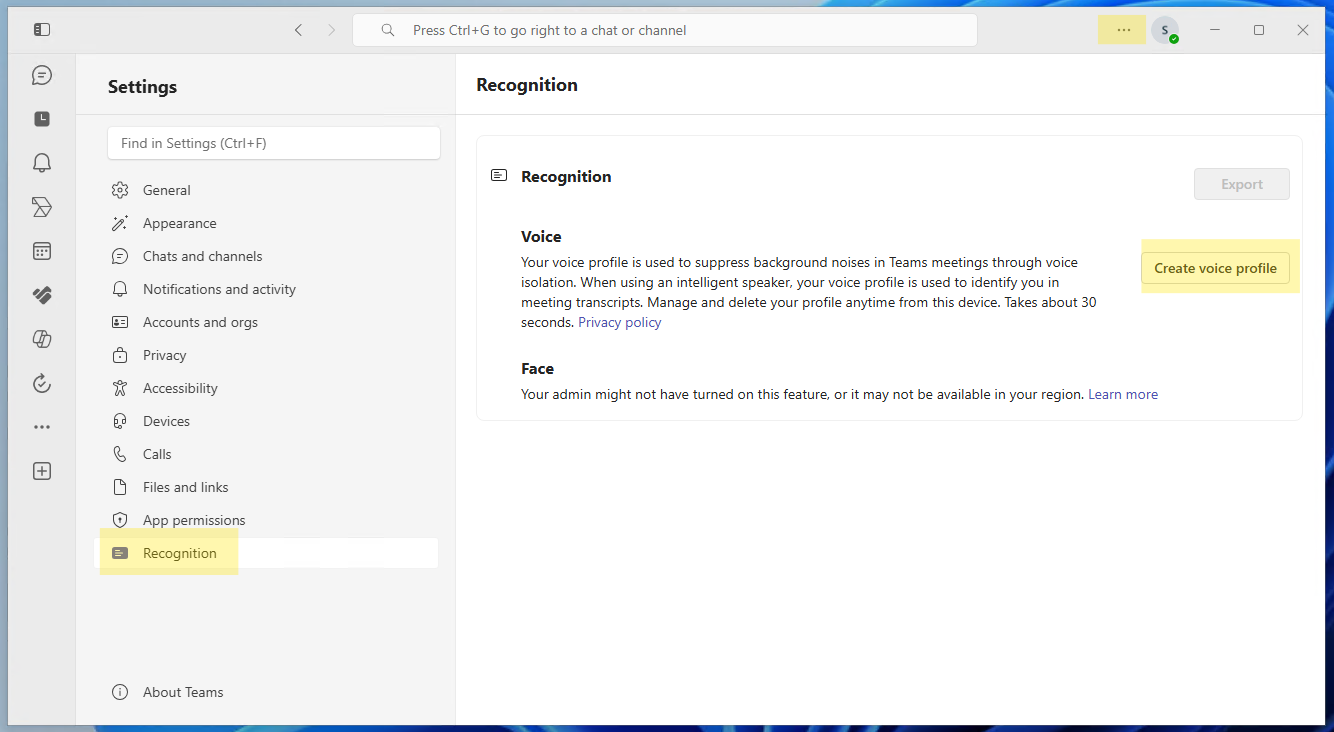
That is the whole process. The same Recognition tab is also where you create a face profile, which is what powers people recognition and accurate attribution in Teams Rooms. Both profiles are opt-in, and you can delete either one from this same screen whenever you want. Even if your organization later changes the policy, you keep control of removing your own profiles.
How to turn on voice isolation
Once you have a voice profile, voice isolation shows up as a noise suppression option. Open your audio settings in Teams, find the noise suppression setting, and choose Voice isolation. You can set it before a call or switch to it in the middle of a meeting if the room around you gets loud. If you never enrolled a voice profile, this option stays unavailable, since Teams has nothing to match your voice against.
Where to find your meeting recap
After a meeting ends, look for the Recap tab on that meeting in your Teams calendar or in the meeting chat. That is where the summary, action items, transcript, and speaker timeline appear. The AI recap experience depends on licensing. Microsoft says intelligent recap is available with Teams Premium or Microsoft 365 Copilot, while audio recap specifically requires Microsoft 365 Copilot. If you do not see a Recap tab, it usually means the feature or the license is not turned on for you, which is the admin side covered in the rest of this article.
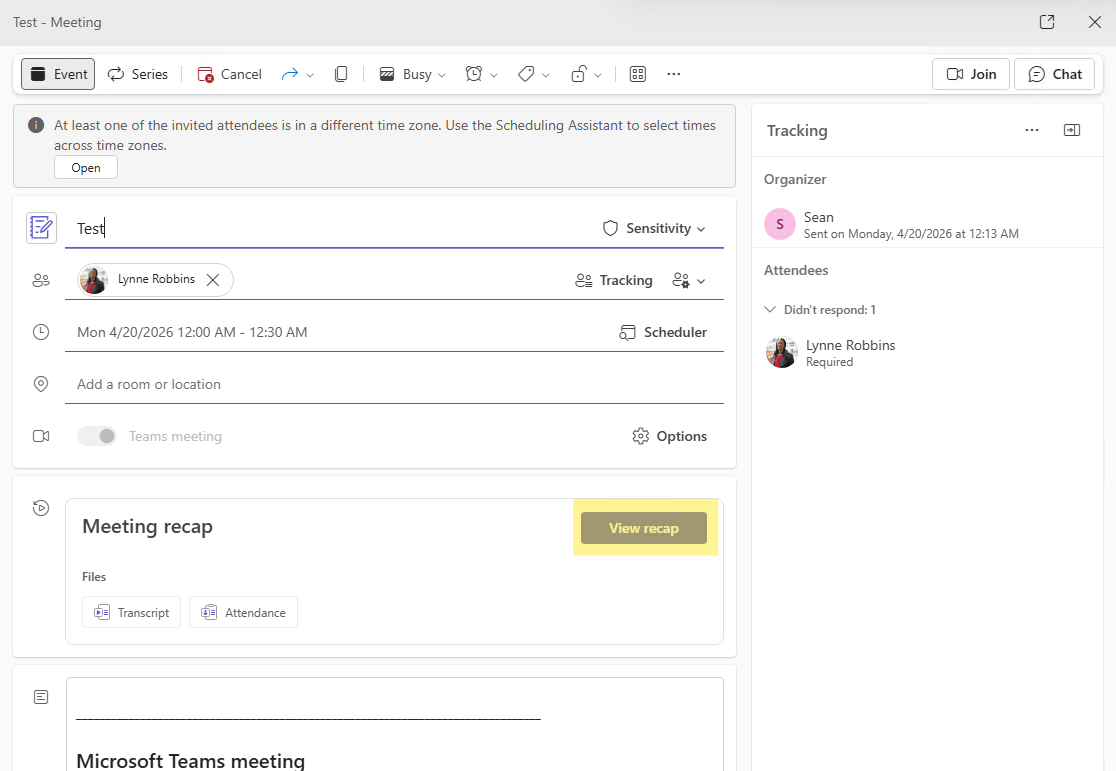
The short version for users is that these features are mostly opt-in and mostly in your hands once the tenant allows them. If something here is missing in your Teams, the rest of this guide explains the policy controls that decide what gets turned on.
What Is CsTeamsAIPolicy?
CsTeamsAIPolicy is the Teams PowerShell policy that controls AI-related capabilities tied to voice and face enrollment. It replaced the older EnrollUserOverride setting that used to live inside CsTeamsMeetingPolicy. Microsoft moved the controls here to give admins more granular control, splitting voice enrollment, face enrollment, Express enrollment, and BYOD speaker attribution into separate settings instead of one broad switch.
The four settings you will spend the most time with are:
- EnrollVoice: controls whether users can manually create a voice profile in Teams Settings
- PassiveVoiceEnrollment: controls Express voice enrollment, where Teams builds a voice profile automatically from in-meeting speech when a user opts in
- EnrollFace: controls whether users can create a face profile for Teams Rooms people recognition
- SpeakerAttributionBYOD: controls whether speaker attribution is available in Bring Your Own Device room scenarios
These settings are not about whether Copilot or transcription is on. They are specifically about whether users can register the biometric profiles that power speaker recognition, voice isolation, and room identification features. If those profiles do not exist, some AI meeting experiences either do not work or work with noticeably reduced accuracy.
What These Settings Affect
It helps to understand what each feature does before deciding how to configure the policy.
Voice isolation
Voice isolation uses a personalized AI model to separate a user's voice from background noise and other voices in calls and meetings. It requires voice enrollment. A user working from home with family members talking nearby can use voice isolation to keep their audio clean without needing a dedicated office. Without a voice profile, Teams uses a generic noise suppression model that is less effective at targeting a specific person's voice.
Speaker attribution in transcripts
How well this works depends on how people join the meeting. When someone joins from their own device, Teams already labels their speech by name in live transcriptions and AI-generated notes, using their sign-in identity, with no voice profile required. Voice profiles matter most for shared devices, meaning Teams Rooms and BYOD rooms where several people talk through one microphone. Without enrolled profiles in those rooms, Teams cannot tell the speakers apart and falls back to labels like "Speaker 1" and "Speaker 2," which makes Copilot's post-meeting recaps significantly less useful. If you rely on Teams transcripts for meeting follow-up or compliance records, accurate in-room attribution is the difference between a transcript that is genuinely useful and one that requires manual cleanup.
Teams Rooms intelligent speaker and people recognition
In Teams Rooms with intelligent speaker hardware or supported cameras, enrolled users can be identified by name in live transcription and AI notes. Without enrollment, in-room contributions are attributed to the room rather than the individual. This matters in hybrid meetings where the quality of the Copilot recap depends on knowing who in the room said what, not just who was on video.
BYOD room speaker attribution
In bring-your-own-device room setups, users who select room audio in pre-join can be attributed by name in transcription and AI notes if they have voice recognition set up and SpeakerAttributionBYOD is enabled. This extends the Teams Rooms-style experience to rooms that are not running full Teams Rooms hardware.
There are also licensing and room requirements here. For Teams Rooms, the room resource account needs a Teams Rooms Pro license. For BYOD rooms, Microsoft says the room host needs either Teams Premium or a Copilot license. Users who should be identified also need to be invited to the scheduled meeting and have a voice profile enrolled.
Copilot meeting summaries and intelligent recap
Copilot's post-meeting outputs, including AI notes, recommended tasks, and personalized timeline markers, are significantly more useful when the underlying transcript correctly identifies speakers. A recap that says "Priya committed to sending the budget update by Friday" is actionable. One that says "Speaker 2 said something about a deadline" is not. Voice enrollment is what makes that attribution possible.
Manual Enrollment vs. Express Enrollment
There are now two distinct paths for voice enrollment, and they are controlled by separate settings. This is the most important thing to understand about the current policy structure.
Manual enrollment is controlled by EnrollVoice. A user goes to Teams Settings, then Recognition, then Create voice profile. They select a microphone, start the capture, and read the provided text aloud. Microsoft recommends doing this in a quiet location with a good microphone. The profile is built from that session and is available immediately.
Express voice enrollment, controlled by PassiveVoiceEnrollment, is a newer approach. Instead of asking users to navigate settings and read a script, Teams prompts users during a meeting to opt in, and then builds the voice profile passively from their normal speech over the course of a couple of meetings. Microsoft is rolling this out to commercial tenants (excluding Education) through mid-2026, and it is enabled by default for most enterprise tenants.
The key administrative nuance: these two settings are independent. Disabling EnrollVoice does not disable Express enrollment, and disabling PassiveVoiceEnrollment does not prevent manual enrollment. If you want to block voice enrollment entirely, you need to disable both. This is something admins who set EnrollVoice to Disabled months ago may not have accounted for, because Express enrollment was not part of the picture at the time.
How to Configure Teams AI Policy with PowerShell
Getting started
You need the Microsoft Teams PowerShell module. If it is not installed:
Install-Module -Name MicrosoftTeams -Force -AllowClobber
Connect-MicrosoftTeams
Review your current settings
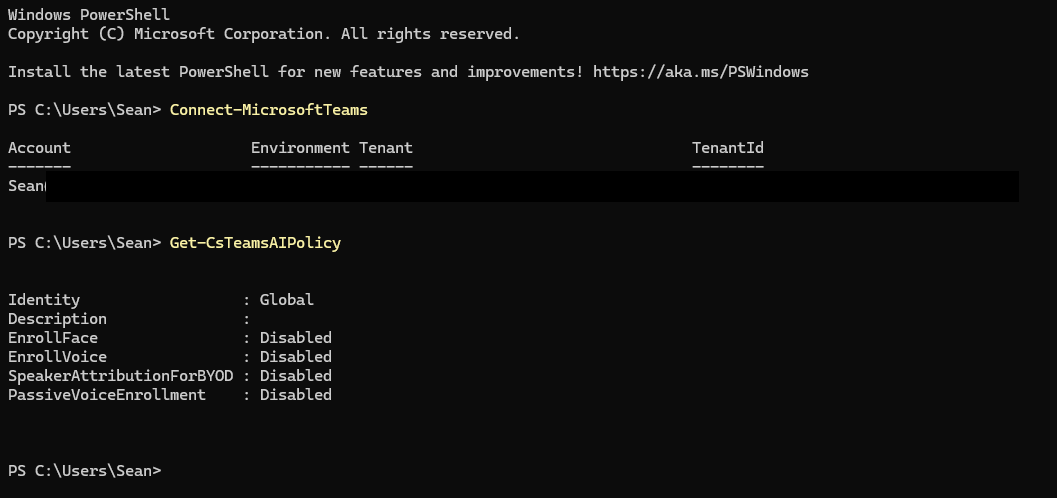
Before making any changes, check what the Global policy currently looks like:
Get-CsTeamsAIPolicy
Get-CsTeamsAIPolicy -Identity Global
This shows you the current values for EnrollFace, EnrollVoice, PassiveVoiceEnrollment, and SpeakerAttributionBYOD. If you have never touched this policy, expect all settings to be enabled by default in most commercial tenants.
Disable only Express voice enrollment
If you want to allow manual enrollment but prevent Teams from building profiles passively from meeting speech:
Set-CsTeamsAIPolicy -Identity Global -PassiveVoiceEnrollment DisabledDisable all voice enrollment
If your organization wants to block voice profiles entirely, both settings must be off:
Set-CsTeamsAIPolicy -Identity Global -EnrollVoice Disabled -PassiveVoiceEnrollment DisabledDisable face enrollment
Set-CsTeamsAIPolicy -Identity Global -EnrollFace DisabledDisable BYOD speaker attribution
Set-CsTeamsAIPolicy -Identity Global -SpeakerAttributionBYOD DisabledCreate a custom policy for specific user groups
If you want different settings for different parts of the organization, create a named policy and assign it:
New-CsTeamsAIPolicy -Identity "RestrictedEnrollment" -EnrollVoice Enabled -EnrollFace Enabled -SpeakerAttributionBYOD Enabled
Set-CsTeamsAIPolicy -Identity "RestrictedEnrollment" -PassiveVoiceEnrollment Disabled
Grant-CsTeamsAIPolicy -PolicyName "RestrictedEnrollment" -Identity [email protected]
Grant-CsTeamsAIPolicy -PolicyName "RestrictedEnrollment" -Group "group-object-id" -Rank 1
Group-based assignment is the cleanest approach for larger organizations, especially if you are restricting enrollment for a regulated department while keeping it open for everyone else.
Do Not Confuse This With Copilot Policy or Transcription Policy
CsTeamsAIPolicy is about biometric enrollment and speaker attribution. It is not the policy that controls whether Copilot runs in meetings.
Copilot availability in meetings is managed through CsTeamsMeetingPolicy using the -Copilot parameter:
Set-CsTeamsMeetingPolicy -Identity <policy> -Copilot Enabled
Set-CsTeamsMeetingPolicy -Identity <policy> -Copilot EnabledWithTranscriptDefaultOn
Set-CsTeamsMeetingPolicy -Identity <policy> -Copilot Disabled
Voice isolation lives in CsTeamsMeetingPolicy too, even though it depends on voice enrollment from CsTeamsAIPolicy. If you want the full voice isolation experience, you need both policies configured:
Set-CsTeamsAIPolicy -Identity <policy> -EnrollVoice Enabled
Set-CsTeamsAIPolicy -Identity <policy> -PassiveVoiceEnrollment Enabled
Set-CsTeamsMeetingPolicy -Identity <policy> -VoiceIsolation Enabled
For a broader look at Copilot admin controls across Microsoft 365, the Copilot admin settings governance article covers additional policy areas that overlap with these meeting features.
Data Handling and Privacy Points for Admins
Because voice and face profiles are biometric data, admins need to be able to answer questions from users, HR, legal, and compliance teams about how that data is handled.
Users remain in control of their profiles. They can delete their voice and face profiles at any time from the Teams desktop app, even if enrollment is later disabled at the policy level. Deletion is under end-user control, not just admin control.
Retention follows a predictable pattern. Microsoft removes profiles immediately when a user unenrolls, within 90 days after the organization deletes the user's Teams account, and automatically after one year of inactivity.
There is a difference in export behavior between manual and Express enrollment. With manual enrollment, users can export an audio recording from Settings, then Recognition. With Express enrollment, no recording is retained because the process is continuous and passive, so the export option is not available. That distinction matters if your users or legal team ask about data portability.
Admins can view enrollment status and delete enrollment data for users in the Teams Admin Center. Admins cannot export that data. Export stays with the end user.
Voice isolation also stores a local encrypted copy of the voice profile on the user's device. That copy expires after 14 days and is replaced automatically when the user participates in meetings.
What to Do Before the Express Enrollment Rollout
Microsoft says Express voice enrollment begins rolling out to Targeted Release tenants in early June 2026 and is expected to reach general availability by late June 2026. It is on by default for commercial tenants, excluding Education. Microsoft's Message Center post MC1197146 covers the specific rollout timeline and admin actions for this change.
Before that rollout reaches your users, there are a few things worth checking.
Run Get-CsTeamsAIPolicy -Identity Global and confirm the current state of EnrollVoice and PassiveVoiceEnrollment. If you previously disabled EnrollVoice, Microsoft says that state will be duplicated to PassiveVoiceEnrollment for consistency, but it is good to verify here.
Decide whether Express enrollment fits your organization's posture. Keeping it enabled means broader adoption of speaker attribution and improved Copilot recaps with minimal friction for users. Disabling it while keeping manual enrollment available is a middle ground for organizations that want enrollment to be a deliberate user action rather than an in-meeting opt-in prompt.
Update your help desk documentation. The most common questions to expect: "Why did I see a prompt to enroll my voice during a meeting?", "How do I delete my voice profile?", "Why does the transcript say Speaker 1 instead of my name?", and "Why is voice isolation not available for me?"
If your organization is going to allow enrollment, consider running a pilot first. Frequent meeting hosts, Teams Rooms-heavy departments, and executives who rely on Copilot recaps are good candidates to start with. Once the experience is validated there, broader rollout goes more smoothly.
Frequently Asked Questions
Is CsTeamsAIPolicy the same as the Copilot policy for meetings?
No. CsTeamsAIPolicy controls voice and face enrollment and speaker attribution settings. Copilot availability in Teams meetings is managed through CsTeamsMeetingPolicy using the -Copilot parameter. You may need to configure both depending on what you are trying to control.
Does enabling Express enrollment mean users are automatically enrolled?
No. Even when PassiveVoiceEnrollment is enabled, users are prompted to opt in and must actively agree before Teams starts building their voice profile. Enrollment does not happen silently.
How do I disable only Express enrollment but keep manual enrollment available?
Set PassiveVoiceEnrollment to Disabled while leaving EnrollVoice enabled: Set-CsTeamsAIPolicy -Identity Global -PassiveVoiceEnrollment Disabled
How do I disable voice enrollment completely?
Both settings must be off: Set-CsTeamsAIPolicy -Identity Global -EnrollVoice Disabled -PassiveVoiceEnrollment Disabled. Disabling only one leaves the other enrollment path still available to users.
Can users delete their voice or face profiles?
Yes. Users can delete their profiles at any time from the Teams desktop app under Settings, then Recognition. This remains under user control even if enrollment is later disabled by policy.
Can admins export user voice or face enrollment data?
No. Admins can view enrollment status and delete enrollment data in the Teams Admin Center, but they cannot export it. The export capability belongs to the end user.
What happens to Copilot recaps if voice enrollment is disabled?
Copilot still produces meeting summaries either way, so disabling enrollment does not switch recaps off. What changes is in-room attribution. For people who join from their own device, Teams labels their speech by name from their account, so disabling voice enrollment does not affect how they show up. The impact lands on shared-device meetings, like a Teams Room or a BYOD room where several people share one microphone. Without voice profiles there, Teams cannot tell those speakers apart and labels them generically, like "Speaker 1," which weakens AI-generated tasks and follow-ups because the AI cannot tell who committed to what.
Does voice isolation require voice enrollment?
Yes. Voice isolation uses a personalized AI model built from the user's voice profile. Without an enrolled voice profile, Teams falls back to a generic noise suppression model. Admins also need to enable VoiceIsolation in CsTeamsMeetingPolicy separately from the enrollment settings in CsTeamsAIPolicy.
Does Express enrollment apply to Education tenants?
No. The Express voice enrollment rollout currently excludes Education tenants. Education tenants have separate Teams policies and some features roll out differently or not at all depending on the license type.