How to Pin Outlook, Teams, and More in the New Microsoft 365 Copilot Interface
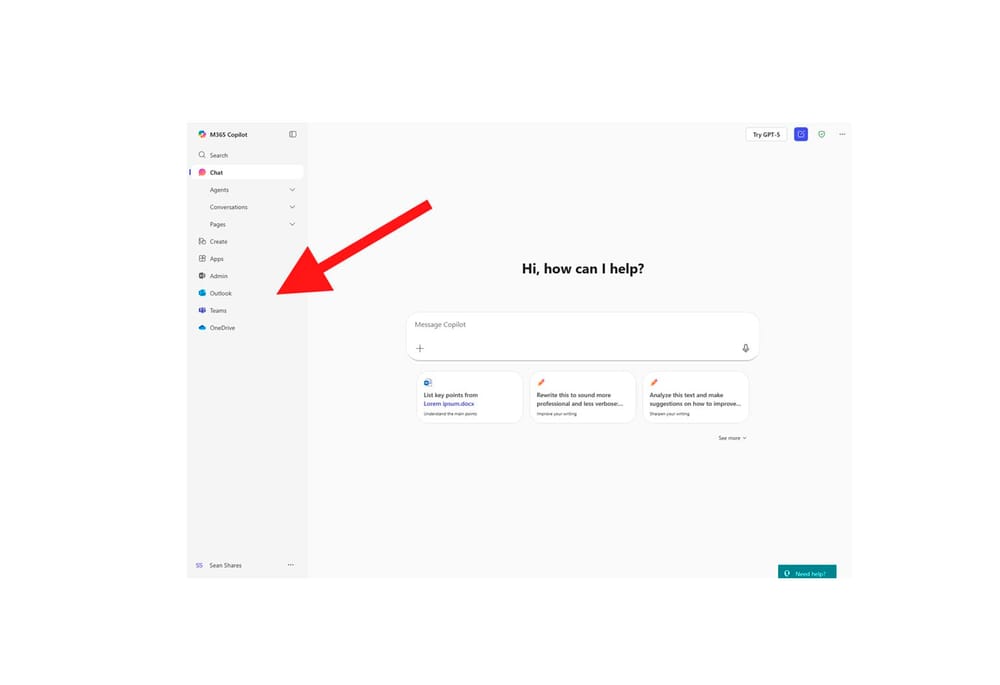
Microsoft has redesigned the Microsoft 365 home experience to center around Copilot. If you recently noticed that the interface looks different and your go-to apps like Outlook, Teams, and OneDrive are not immediately visible, you are not imagining things. The new design puts Copilot front and center, with other apps accessible through the left sidebar. The good news is that you can pin any app you use regularly to that sidebar so it is always one click away.
What Changed in the Microsoft 365 Interface
The previous Microsoft 365 home page at office.com displayed a grid of app icons that made it easy to jump directly to any app. The new interface, now anchored at m365.cloud.microsoft, replaces that grid with a Copilot-first design where the sidebar becomes the primary navigation for apps.
For people who live in Outlook and Teams all day, the change initially feels disruptive because those apps are no longer front and center. Pinning them to the sidebar restores that quick-access experience and takes about thirty seconds to set up.
Note: Copilot Chat is permanently pinned to the navigation and cannot be unpinned. All other apps can be pinned and unpinned freely.
Pin apps from inside the Copilot app
- Open the Microsoft 365 Copilot app at m365.cloud.microsoft and sign in with your tenant account.
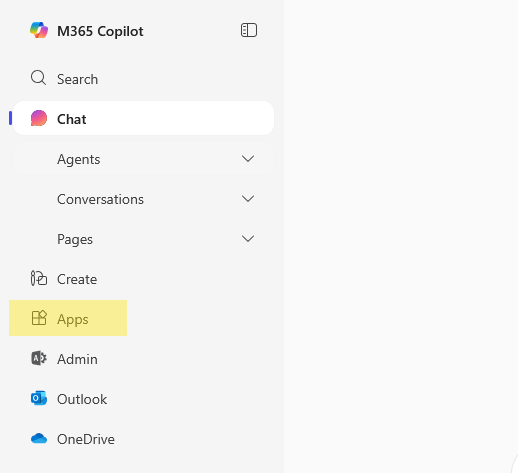
- In the left sidebar, click Apps.
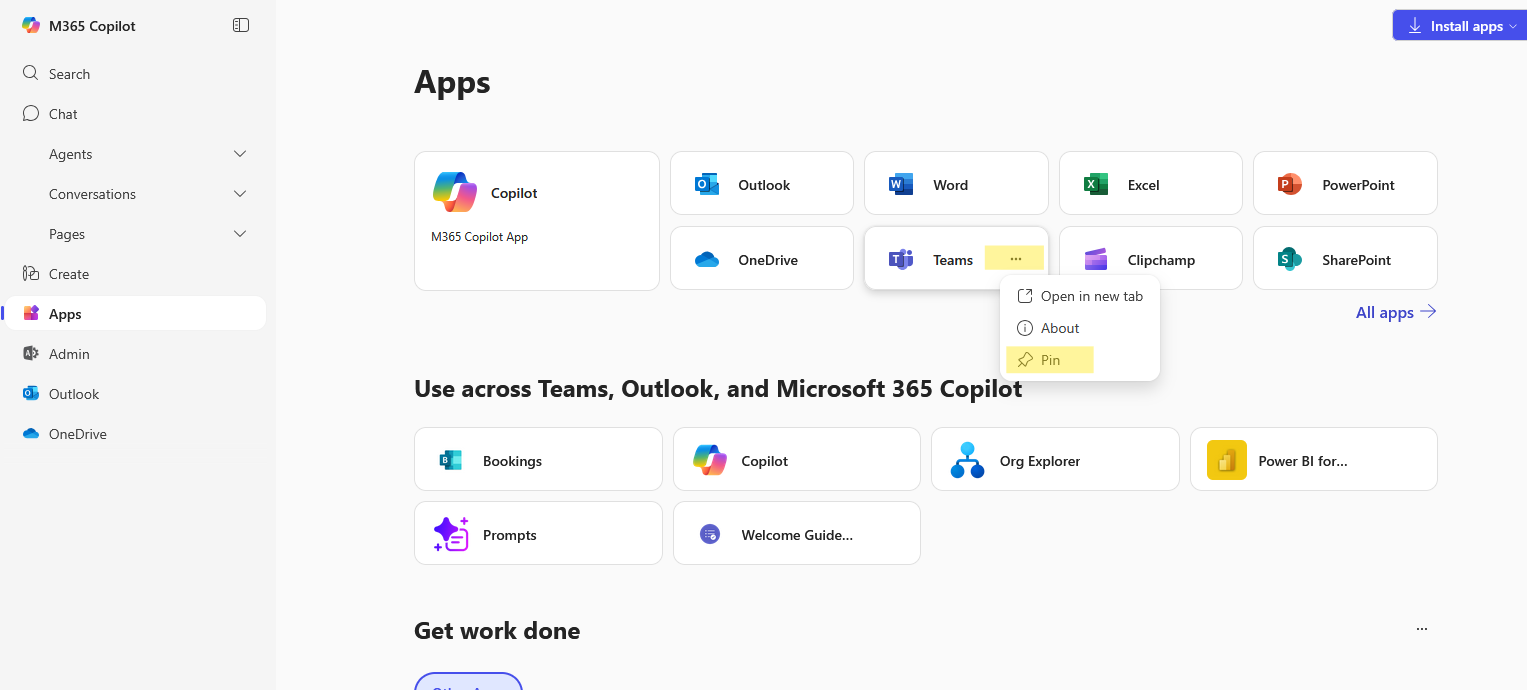
- Hover over the desired app (e.g., Outlook or Teams), click the 3 dots (⋯) icon, then select Pin.
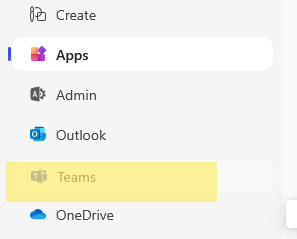
- The M365 app will now appear in the left hand navigation for easy access.
Apps You Can Pin
Nearly any Microsoft 365 app is available to pin. The most commonly pinned ones are:
- Outlook for email and calendar
- Teams for chat and meetings
- OneDrive for file access
- SharePoint for intranet and document libraries
- Word, Excel, and PowerPoint for direct document creation
- OneNote for notes
- Planner for task management
- Forms, Whiteboard, Stream, and other Microsoft 365 apps
If an app you need is not appearing in the list, check whether it is included in your Microsoft 365 license. Some apps require additional licensing before they appear.
How to Reorder Your Pinned Apps
Once you have pinned a few apps, you may want to arrange them in an order that matches how often you use them. To rearrange, click and hold on an app icon in the sidebar and drag it up or down to a new position. Release when it is where you want it. The order you set persists between sessions, so you only need to do this once.
A good approach is to put your most-used apps at the top of the sidebar, closest to Copilot itself, and less frequently used apps further down.
How to Unpin an App
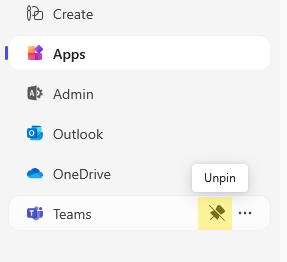
Changing your mind about a pinned app is easy. Hover over the app icon in the sidebar and select the unpin option that appears. The app is removed from the sidebar but still exists and is accessible through the full apps list.
Admin Controls for Pinned Apps
As a Microsoft 365 administrator, you have some control over the default app layout that users see when they first open the Copilot interface. Through the Microsoft 365 admin center you can configure which apps are pinned by default for users in your organization. This is useful for standardizing the experience, especially during onboarding when new employees might not know which apps they need.
Individual users can override admin-configured pins unless you lock the configuration. In most cases, letting users personalize their sidebar is fine since it improves their day-to-day experience.
Note: As of January 2026, the setting that previously governed whether Copilot Chat could be pinned or unpinned has been retired. Copilot Chat is now permanently pinned for all users worldwide and cannot be removed from the navigation.
Keyboard Shortcuts for Pinned Apps
Once apps are pinned in the sidebar, you can navigate to them quickly using keyboard shortcuts. Press Alt+1 through Alt+9 to jump to apps by their position in the sidebar. This is particularly useful if you switch between Outlook and Teams dozens of times a day.
Opening Pinned Apps in a New Window
If you prefer to have Outlook or Teams open in a separate dedicated window rather than inside the Copilot interface, right-click the pinned app icon in the sidebar and look for the option to open it in a new window or tab. This is especially handy for keeping Outlook open all day while using Copilot in the main window for other work.
Frequently Asked Questions
My pinned apps disappeared after a browser update. What happened?
Pinned app preferences are stored in your Microsoft 365 profile, so they should persist across devices and browsers. If they disappeared, try signing out and signing back in to resync your preferences.
What is the URL for the new Microsoft 365 Copilot interface?
The current URL is m365.cloud.microsoft. The previous m365copilot.com address redirects there automatically, but updating any bookmarks to the new URL is a good idea.
Why do some apps not appear in the pin list?
Apps only appear in the list if they are licensed for your account. If you cannot find an app, check with your IT admin about whether your account includes that service.
Final Thoughts
The Microsoft 365 Copilot interface is a real shift from what most people are used to, but pinning your key apps to the sidebar takes thirty seconds and restores most of the quick-access feel from the old design. Once you have Outlook, Teams, and OneDrive pinned and arranged the way you want them, the new interface works quite well. Give the drag-to-reorder feature a try once you have a few apps pinned.