

How to Clear the Office Document Cache in Windows with PowerShell
A file is stuck in the Upload Center, or a document shows "read-only" no matter what you do, or an Office add-in just stopped loading one morning. Nine times out of ten, the fix has nothing to do with the file itself. It is the local Office cache, and it needs to be cleared.
This shows up as a range of problems that look different on the surface but trace back to the same root cause: a spreadsheet that will not sync to SharePoint no matter how many times Excel is closed and reopened, a Word add-in that suddenly throws errors on launch, Outlook attachments that refuse to save. In each case, clearing the Office Document Cache and the web add-in cache resolves it. Recognizing that pattern is what this script automates: a one-click cleanup instead of hunting for one-off explanations each time.
The reason this works is that Office keeps a local copy of files you have opened from OneDrive or SharePoint, plus a separate cache for web-based add-ins, and both of these can get corrupted or stuck without any obvious symptom pointing back to them. Office rebuilds the document cache automatically the next time it needs it, so clearing it is not a risky operation. It is closer to restarting a stuck process than deleting anything that matters.
The manual alternative is a short list of steps: close Office, browse to a buried AppData path, delete the contents of two folders, reopen Office. It works, but it depends on finding a hidden folder and not getting nervous about deleting things you do not fully understand. Wrapping it in a GUI with a plain-English button removes that friction, so anyone can run it without following each step by hand.
Prerequisites
This is another one built to run without any special setup.
- Windows PowerShell 5.1, already present on Windows 10 and 11
- Office installed under the standard 16.0 path (Microsoft 365 Apps, Office 2016 through 2021, and Office 2024 all use this version number internally)
- No admin rights required, since the cache lives entirely inside the current user's AppData folder
- No PowerShell modules and no connection to your tenant
Because nothing here touches the registry outside the current user's hive or requires elevation, this is safe to hand to end users directly, the same way you would hand them a link to restart a stuck app. It also does not matter which update channel Office is on, Current Channel, Monthly Enterprise, or Semi-Annual Enterprise, since the cache folder structure has stayed consistent across all of them for years.
The Script
<#
.SYNOPSIS
    Clear-OfficeCache - GUI tool to clear the Office Document Cache and add-in cache.
.DESCRIPTION
    Fixes "file stuck in Upload Center", documents that won't save to the cloud,
    read-only/locked files, and broken Office add-ins by clearing:

      - Office Document Cache   (%LOCALAPPDATA%\Microsoft\Office\16.0\OfficeFileCache)
      - Web add-in (WEF) cache  (%LOCALAPPDATA%\Microsoft\Office\16.0\WEF)

    Deleting the document cache is safe - Office rebuilds it automatically and
    re-uploads any pending changes. No admin rights required.
.NOTES
    Run: right-click > Run with PowerShell.
#>

if ([System.Threading.Thread]::CurrentThread.ApartmentState -ne 'STA') {
    Start-Process powershell.exe -ArgumentList @('-NoProfile','-ExecutionPolicy','Bypass','-STA','-File',"`"$PSCommandPath`"")
    return
}
Add-Type -AssemblyName System.Windows.Forms; Add-Type -AssemblyName System.Drawing
[System.Windows.Forms.Application]::EnableVisualStyles()

$officeRoot = Join-Path $env:LOCALAPPDATA 'Microsoft\Office\16.0'
$docCache   = Join-Path $officeRoot 'OfficeFileCache'
$wefCache   = Join-Path $officeRoot 'WEF'
$officeProcs= @('OUTLOOK','WINWORD','EXCEL','POWERPNT','ONENOTE','MSACCESS','MSPUB','MSOSYNC','msoia')

function Get-SizeMB { param($p) if(-not(Test-Path -LiteralPath $p)){return 0}; try{$b=(Get-ChildItem -LiteralPath $p -Recurse -Force -ErrorAction SilentlyContinue|Measure-Object Length -Sum).Sum; if(-not $b){return 0}; return [math]::Round($b/1MB,1)}catch{return 0} }

$form=New-Object System.Windows.Forms.Form
$form.Text='Office Document Cache Cleaner'; $form.Size=New-Object System.Drawing.Size(540,440)
$form.StartPosition='CenterScreen'; $form.FormBorderStyle='FixedSingle'; $form.MaximizeBox=$false
$form.Font=New-Object System.Drawing.Font('Segoe UI',9)

$lbl=New-Object System.Windows.Forms.Label; $lbl.Text='Office Document Cache Cleaner'
$lbl.Font=New-Object System.Drawing.Font('Segoe UI',13,[System.Drawing.FontStyle]::Bold)
$lbl.Location=New-Object System.Drawing.Point(15,12); $lbl.Size=New-Object System.Drawing.Size(500,28); $form.Controls.Add($lbl)

$status=New-Object System.Windows.Forms.Label; $status.Location=New-Object System.Drawing.Point(15,44); $status.Size=New-Object System.Drawing.Size(505,34); $form.Controls.Add($status)

$chkWef=New-Object System.Windows.Forms.CheckBox; $chkWef.Text='Also clear web add-in cache (fixes broken add-ins)'; $chkWef.Checked=$true
$chkWef.Location=New-Object System.Drawing.Point(15,84); $chkWef.Size=New-Object System.Drawing.Size(460,22); $form.Controls.Add($chkWef)

$txt=New-Object System.Windows.Forms.TextBox; $txt.Multiline=$true; $txt.ScrollBars='Vertical'; $txt.ReadOnly=$true
$txt.Location=New-Object System.Drawing.Point(15,114); $txt.Size=New-Object System.Drawing.Size(505,210)
$txt.Font=New-Object System.Drawing.Font('Consolas',9); $txt.BackColor=[System.Drawing.Color]::White; $form.Controls.Add($txt)

$bar=New-Object System.Windows.Forms.ProgressBar; $bar.Location=New-Object System.Drawing.Point(15,332); $bar.Size=New-Object System.Drawing.Size(505,18); $form.Controls.Add($bar)

$btnGo=New-Object System.Windows.Forms.Button; $btnGo.Text='Clear Cache'; $btnGo.Location=New-Object System.Drawing.Point(300,360); $btnGo.Size=New-Object System.Drawing.Size(110,34)
$btnGo.BackColor=[System.Drawing.Color]::FromArgb(15,108,189); $btnGo.ForeColor=[System.Drawing.Color]::White; $btnGo.FlatStyle='Flat'; $form.Controls.Add($btnGo)
$btnClose=New-Object System.Windows.Forms.Button; $btnClose.Text='Close'; $btnClose.Location=New-Object System.Drawing.Point(415,360); $btnClose.Size=New-Object System.Drawing.Size(105,34); $btnClose.FlatStyle='Flat'
$btnClose.Add_Click({ $form.Close() }); $form.Controls.Add($btnClose)

$Log={ param($m) $txt.AppendText(("{0}  {1}{2}" -f (Get-Date -Format 'HH:mm:ss'),$m,[Environment]::NewLine)); [System.Windows.Forms.Application]::DoEvents() }

function Refresh-Status {
    if (Test-Path -LiteralPath $docCache) { $status.ForeColor=[System.Drawing.Color]::FromArgb(0,110,0); $status.Text="Document cache found: $(Get-SizeMB $docCache) MB"; $btnGo.Enabled=$true }
    else { $status.ForeColor=[System.Drawing.Color]::FromArgb(170,0,0); $status.Text='No Office document cache found for this user.'; $btnGo.Enabled=$false }
}
Refresh-Status

$btnGo.Add_Click({
    $btnGo.Enabled=$false; $bar.Value=0; $txt.Clear()
    & $Log 'Closing Office apps and sync process...'
    foreach ($p in $officeProcs) { Get-Process -Name $p -ErrorAction SilentlyContinue | Stop-Process -Force -ErrorAction SilentlyContinue }
    Start-Sleep -Seconds 3; $bar.Value=30

    & $Log 'Clearing Office document cache...'
    if (Test-Path -LiteralPath $docCache) {
        Get-ChildItem -LiteralPath $docCache -Force -ErrorAction SilentlyContinue | ForEach-Object {
            try { Remove-Item -LiteralPath $_.FullName -Recurse -Force -ErrorAction Stop } catch { & $Log "  Skipped $($_.Name) (in use)" }
        }
        & $Log '  Document cache cleared.'
    }
    $bar.Value=70

    if ($chkWef.Checked -and (Test-Path -LiteralPath $wefCache)) {
        & $Log 'Clearing web add-in (WEF) cache...'
        Get-ChildItem -LiteralPath $wefCache -Force -ErrorAction SilentlyContinue | ForEach-Object {
            try { Remove-Item -LiteralPath $_.FullName -Recurse -Force -ErrorAction Stop } catch {}
        }
        & $Log '  Add-in cache cleared.'
    }
    $bar.Value=100; & $Log 'Done. Office will rebuild the cache on next launch.'
    Refresh-Status
    [System.Windows.Forms.MessageBox]::Show('Office cache cleared successfully.','Complete','OK','Information')|Out-Null
    $btnGo.Enabled=$true
})

[void]$form.ShowDialog(); $form.Dispose()
How It Works
The script targets two folders under %LOCALAPPDATA%\Microsoft\Office\16.0: OfficeFileCache, which is the document cache, and WEF, which holds cached data for web-based add-ins. Both are rebuilt automatically by Office, which is what makes clearing them low risk.
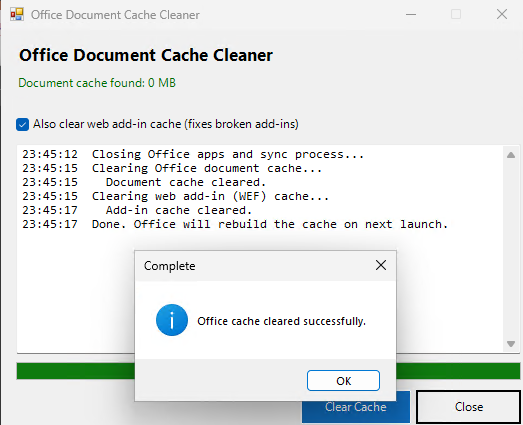
Before touching anything, the tool closes the common Office processes: Outlook, Word, Excel, PowerPoint, OneNote, Access, Publisher, and the Office sync process. This matters because Windows will not let you delete a file that is currently open, so leaving Outlook running while you try to clear its cache just produces a string of "skipped, in use" messages. The script stops these processes with Stop-Process -Force and gives everything three seconds to fully release its file handles before moving on.
From there it walks the document cache folder and deletes everything inside it, one item at a time, wrapped in a try/catch so a single locked file does not stop the whole cleanup. Anything it cannot delete gets logged as skipped rather than throwing an error and halting. The Also clear web add-in cache checkbox, checked by default, does the same thing to the WEF folder. This is left as an option instead of forced because some environments run custom Office add-ins that are slower to reload from a cold cache, and giving people the choice avoids surprising them.
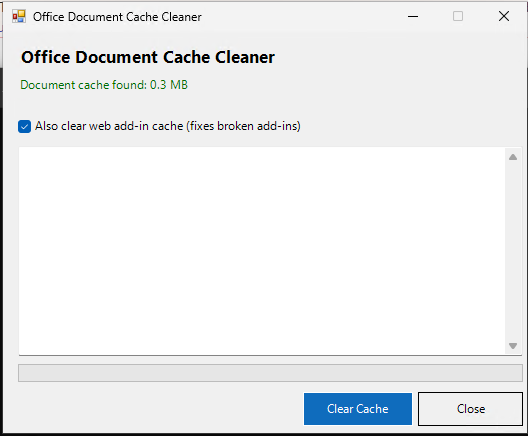
A progress bar ticks through 30, 70, and 100 percent as each stage completes, and the status label at the top refreshes at the end to show whether a document cache still exists and how large it is. That before-and-after size check is a nice way to prove to a user, or to yourself, that something actually happened.
One small detail worth calling out is the Get-SizeMB helper function near the top. It calculates folder size by recursing through every file and summing the length property, wrapped in a try/catch so a permissions error on a single file does not crash the whole calculation. This is the same pattern used throughout the script: do the work, catch anything that fails, keep moving, and log it instead of stopping. That approach is what makes a tool safe to hand to someone with no PowerShell background. Nothing throws a red error message they will not know how to interpret.
Sample Output
Why Not Just Repair Office Instead?
This question comes up a lot, so it is worth addressing directly. The Office repair tool in Windows Settings is a heavier fix. It re-registers Office components, checks installed files against Microsoft's servers, and in the case of an online repair, redownloads and reinstalls the whole suite. That takes anywhere from five to twenty minutes depending on your connection, and it does not actually touch the document cache or WEF folder at all, because those are user data, not application files.
Clearing the cache with this script takes seconds and targets the actual folders responsible for the symptoms described earlier: stuck uploads, read-only files, and broken add-ins. Cache clearing is worth trying first, with Office repair as the next step if clearing the cache does not resolve the issue. Cache clearing solves it more often than not, which means most of the time you never need a full repair.
Gotchas & Safety
There is no -WhatIf switch here because, again, this is a GUI tool rather than a cmdlet built around PowerShell's approved verb pipeline. The closest equivalent is the status label itself, which tells you the current cache size before you click anything, so you are never clearing a cache blind.
The one thing worth flagging: closing Office processes with Stop-Process -Force does not prompt anyone to save unsaved work first. If someone has an unsaved document open in Word when you run this, that document closes and those changes are gone. In practice this script is almost always run when Office is already closed or crashed, but if you are scripting this into a wider deployment, add a check for unsaved documents or at least warn the user before the process kill happens.
Test this on a spare machine first if you are planning to push it out to a group rather than running it interactively. The Office document cache and WEF folder are both safe to delete on every version of Office back to 2016, but if your organization runs an older Click-to-Run build or a heavily customized deployment, confirm the folder paths still match before trusting it at scale.
Because the script only touches the current user's AppData folder and never asks for elevation, the blast radius stays contained to one person's Office cache. There is no path here that reaches another user's profile or a system-level setting.
If you are deploying something like this across an organization through Intune or a similar tool rather than running it interactively, treat the process kill as the part that needs the most caution. Running it during business hours against active users risks losing unsaved work in whatever document someone happens to have open. Schedule it for after-hours maintenance windows, or better, have it check for active documents with unsaved changes and skip the process kill if it finds any, prompting the user to close Office manually first instead.
FAQ & Variations
Will this delete my actual documents?
No. The document cache is a local copy of files Office has synced from OneDrive or SharePoint, not the source files themselves. Your actual documents live in the cloud, and Office re-downloads what it needs the next time you open them. Deleting the cache just clears out the local staging area.
How do I run this without closing Office first?
You can uncheck nothing here, since the process kill is not optional in this version, but you can comment out the foreach ($p in $officeProcs) block if you want a version that only clears files Office is not currently holding open. Just know that any file still in use will be skipped and logged rather than force-deleted.
How do I scope this to just one Office app, like only Outlook?
The document cache is shared across all Office apps, so there is no clean way to clear "only Outlook's" portion of it. If the goal is specifically fixing an Outlook sync issue, this script is still the right tool. It just happens to also refresh the cache for Word, Excel, and the rest at the same time.
What is the WEF cache, specifically?
WEF stands for Web Extension Framework. It is where Office stores local data for add-ins built on the web add-in model, the kind that show up in a task pane inside Word, Excel, or Outlook. If a web add-in is stuck showing an old version, throwing a blank pane, or failing to load at all, clearing this folder is usually the fix, and it is exactly what the checkbox in this script does.
Does this work the same way on Office 2016, 2019, and Microsoft 365 Apps?
Yes. All three use the same "16.0" version folder under the Click-to-Run path, which is why the script hardcodes that segment. If you are still supporting Office 2013 somewhere, the path uses "15.0" instead and you would need to adjust the $officeRoot variable accordingly.
Can I run this automatically on a schedule instead of on demand?
Yes, though caution is warranted about how often. Wrap the core logic, minus the Windows Forms parts, in a script and register it as a scheduled task that runs at login or weekly. The risk with running it too often is that Office has to rebuild the cache from scratch every time, which briefly slows down the next file open. This should not run more than once a week for a proactive maintenance job.
What if the document cache folder does not exist at all?
That is normal for a new profile or a machine where Office has never synced a cloud-based file. The script detects this on load and disables the Clear Cache button with a message saying there is nothing to clear yet. There is no error state here, just an accurate reflection of what is actually on the machine.