SharePoint Online Permissions Explained: Sites, Libraries, and Files
SharePoint Online permissions confuse a lot of people, and the confusion usually comes from the same place: SharePoint has three layers where permissions can be set, and each layer can either inherit from the one above it or break that inheritance and go its own way. Once you understand how inheritance works, the rest of the permission system starts to make sense.
This guide walks through how SharePoint Online permissions are structured, what the default permission levels mean, when to use unique permissions versus inherited ones, and the most common mistakes admins and site owners make.
The Three Layers of SharePoint Permissions
SharePoint Online has three levels where permissions can be set: the site, the library or list, and the individual item or file.
By default, everything below the site inherits the site's permissions. That means if you add someone to the site with Read access, they can read every document in every library and every item in every list on that site. When you break inheritance at a lower level, that library or file stops following the site's rules and follows its own instead.
Most sites work best when you keep things simple and manage permissions at the site level. The more places you set unique permissions, the harder the environment becomes to manage and troubleshoot. That said, there are legitimate reasons to break inheritance, and this guide covers when that makes sense.
SharePoint Permission Levels
SharePoint Online comes with a set of built-in permission levels that you assign to users or groups. The ones you will use most often are:
- Full Control gives the user complete administrative access to the site. They can manage permissions, create and delete libraries, and change site settings. Reserve this for site owners.
- Design allows users to create and edit pages, apply themes, and work with style sheets. Used less commonly in most business environments.
- Edit allows users to add, edit, and delete items and documents. They can also create and manage lists and libraries. This is a broad level that gives more power than most regular users need.
- Contribute allows users to add, edit, and delete items in existing libraries and lists. They cannot create new libraries. This is typically the right level for regular team members.
- Read gives view-only access. Users can open and download documents but cannot edit anything.
- View Only is similar to Read but prevents downloading in some document types. Mainly used in specific sensitive document scenarios.
SharePoint Groups vs. Direct Permissions
You can assign permissions to users individually or through SharePoint groups. Using groups is almost always the better approach.
Every SharePoint site comes with three default groups: the site's Owners group (Full Control), Members group (Edit), and Visitors group (Read). Adding users to these groups rather than granting individual permissions makes the site much easier to manage. When someone leaves the team, you remove them from the group. When someone joins, you add them. You do not need to audit every library and item to track down individual permissions.
Direct permissions, where you share something with a specific person outside of a group, tend to multiply quietly over time. Six months later you have no clean picture of who has access to what. Stick to groups where possible.
How Inheritance Works in Practice
When you first create a SharePoint site, all libraries and lists inherit permissions from the site. If you add a new document library, it automatically gives access to everyone who has access to the site. This is expected behavior and usually what you want.
Breaking inheritance makes sense in two main scenarios. The first is when a library or list contains sensitive content that should only be visible to a subset of site members. An HR documents library on a general team site is a good example. You break inheritance on that library, remove the regular site members, and add only the people who should have access.
The second scenario is item-level permissions, where a specific document needs to be shared with someone outside the site without giving them full site access. This works but creates complexity quickly. If you find yourself setting item-level permissions regularly, it is usually a sign that the information architecture needs rethinking, perhaps a separate site or library would be cleaner.
How to Check What Permissions Someone Has
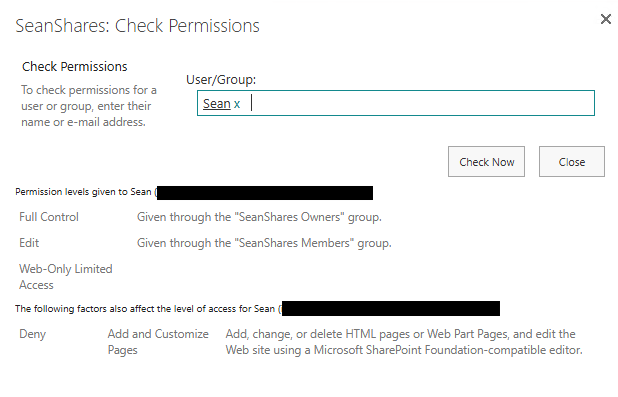
One of the most useful things to know as a SharePoint admin is how to check effective permissions for a user. This tells you exactly what someone can and cannot do on a given site, library, or item, taking all group memberships and inheritance into account.
- Go to the site, library, or item you want to check.
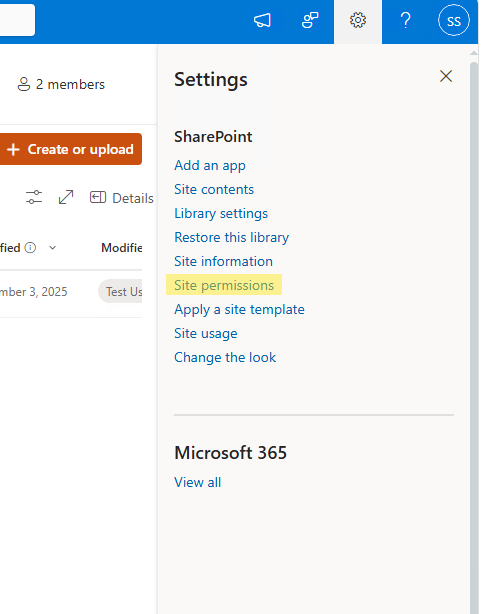
- Select the gear icon, then Site permissions (for site level).
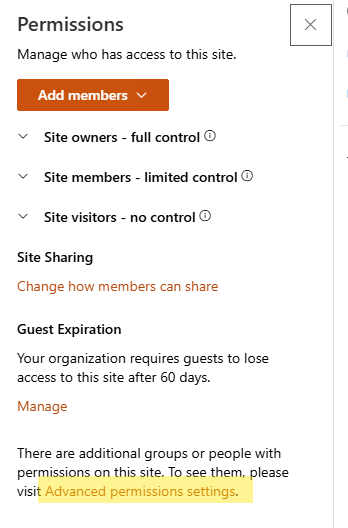
- Click Advanced permissions settings
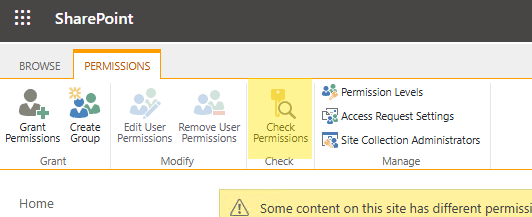
- In the permissions page, select Check Permissions in the ribbon.
- Type the name or email address of the user and select Check Now.
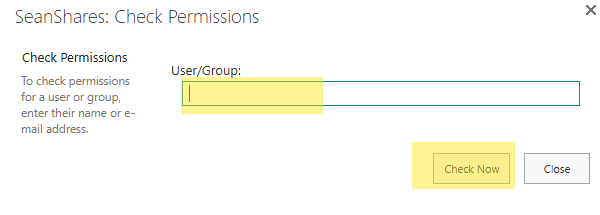
SharePoint returns the exact permission level that user has and which group or direct assignment is responsible for it. This is the fastest way to answer the question "why can this person see this?" or "why can't this person edit that?"
Sharing Links and How They Interact with Permissions
SharePoint Online has a sharing model that operates alongside the traditional permissions system. When someone selects Share on a file and sends a link, SharePoint creates an access grant for that specific file independent of site membership.
There are four link types to understand:
- Anyone links let anyone open the file without signing in. These are controlled by your organization's external sharing settings and can be disabled at the tenant or site level.
- People in your organization links require the recipient to be signed into a Microsoft 365 account in your tenant.
- People with existing access links do not grant new access. They generate a URL that only works for people who already have permission.
- Specific people links grant access to named individuals inside or outside your organization.
Sharing links are convenient but they can pile up and become hard to audit. Regularly reviewing shared links on sensitive sites is worth building into your governance routine. You can see active links on a file by selecting it, choosing the information panel, and looking at the access section.
External Sharing: What Admins Need to Know
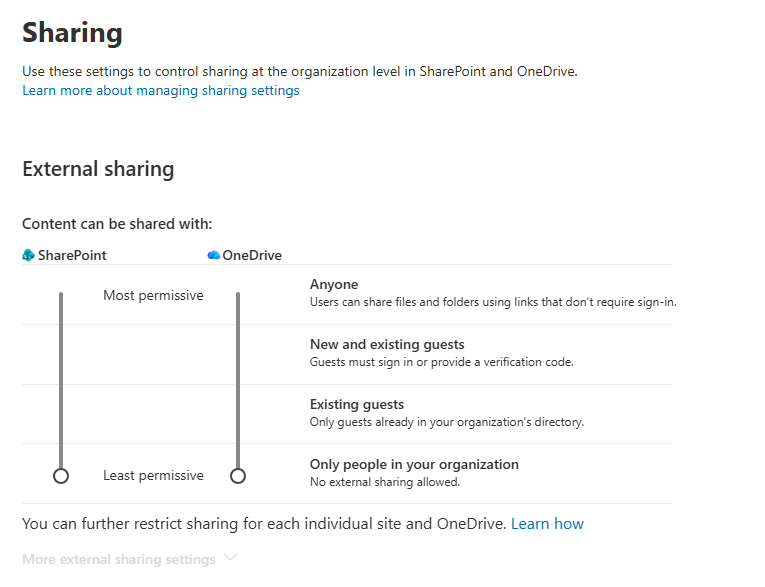
External sharing in SharePoint Online is controlled at two levels: the tenant level (set by a global or SharePoint admin in the admin center) and the individual site level. The site cannot be more permissive than the tenant. If the tenant is set to allow sharing only within the organization, you cannot override that on a specific site.
The tenant-level setting has four options, ranging from most to least permissive: Anyone, New and existing guests, Existing guests only, and Only people in your organization. Most business environments run on New and existing guests or Existing guests only, which require external users to authenticate before accessing content.
When a guest is invited to a SharePoint site, they are added to Azure Active Directory as a guest user. They only have access to what they are explicitly given. They cannot browse other sites or see the organization's directory unless that is explicitly permitted in your Entra ID settings.
Common Permission Mistakes to Avoid
The most common issue I see in SharePoint environments is permission sprawl from overusing sharing links and direct permissions instead of managing access through groups. It starts with one quick share and compounds over years until nobody has a clear picture of who has access to what.
The second most common issue is over-privileged users. Giving everyone Contribute or Edit when most people only need Read access creates unnecessary risk. Default to the least permissive level that lets people do their job.
The third is breaking inheritance without documenting it. When a library has unique permissions, the only way to know that is to check its permissions page directly. There is no site-level view that shows all locations with broken inheritance. Keep a record of where you have set unique permissions and why, or it becomes very hard to troubleshoot access issues later.
If you are seeing users getting prompted for credentials repeatedly on SharePoint sites, permissions misconfiguration or a sync issue is often the cause. Why Does SharePoint Keep Asking for My Credentials covers the most common reasons and how to fix them.
Managing Permissions at Scale with the SharePoint Admin Center
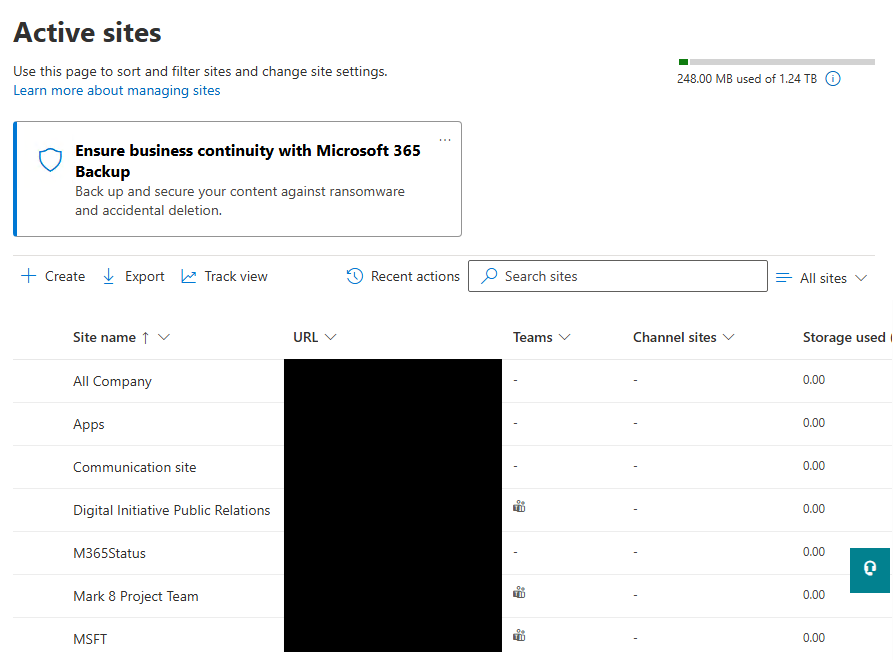
For organizations with many sites, managing permissions site by site in the SharePoint interface gets tedious quickly. The SharePoint admin center gives you a higher-level view. From the admin center at admin.microsoft.com, you can see all sites in your tenant, their sharing settings, storage usage, and primary owners.
For bulk permission changes or reporting across sites, PowerShell with the PnP module is the most efficient approach. PnP PowerShell lets you script common tasks like adding a user to a group across multiple sites, reporting on all unique permissions in a site collection, or auditing sharing links across libraries.
If your organization is also thinking about Copilot and how it interacts with content permissions, this matters more than ever. Copilot surfaces content based on what the signed-in user already has permission to access. Overly broad permissions mean Copilot can surface content users probably should not see. Copilot admin settings to check for governance is worth reading alongside this if you are rolling out Copilot in your environment.
Frequently Asked Questions
What is the difference between site members and site owners?
Site owners have Full Control, which includes the ability to manage permissions, change site settings, and delete the site. Site members typically have Edit access, which lets them work with content but not change site settings or manage who has access. Always limit the number of site owners to people who genuinely need administrative control.
Can I see all files a specific user has access to across SharePoint?
Not easily from the SharePoint interface directly. The Microsoft 365 compliance portal and the SharePoint admin center offer some reporting, and PowerShell with PnP can generate more detailed access reports. There is no single built-in view that shows all content a user can access across all sites, which is one reason keeping permissions clean and group-based matters.
Why does SharePoint say a file was modified by someone who did not touch it?
This is a common source of confusion. Background processes like OneDrive sync, Power Automate flows, and metadata updates can all register as modifications under a user's account. Why Does SharePoint Say I Modified a File explains each cause in detail.
Should I use Microsoft 365 groups or SharePoint groups for permissions?
For modern team sites connected to Microsoft Teams, Microsoft 365 groups manage membership and those group members automatically become the site's members. For communication sites and classic sites, SharePoint groups are the typical approach. In practice, most organizations end up using a mix depending on how the site was created and whether it has a Teams channel attached.
How do I remove someone's access from a SharePoint site?
Go to the site, select the gear icon, then Site permissions, then Advanced permissions settings. Find the group the user belongs to, open the group, and remove the user. If they were given direct access outside of a group, you will see their name listed directly in the permissions page and can remove them from there. Removing someone from site membership does not revoke access granted through sharing links, so check both.