

Microsoft 365 Service Health: Know Before Your Users Call
When Teams starts acting up, checking Microsoft 365 Service health is a useful first step. A published incident or advisory can help you rule out a wider service problem before spending time on local troubleshooting.
Service health is the page that tells you whether a problem is yours or Microsoft's. It's easy to treat it as a page you visit after the fact, but with a few settings and a couple of habits it becomes the first thing your team checks, and sometimes the thing that tells you about a problem before your users do.
Everything below comes from my own test tenant. If you take one thing away from this post, make it the email setting near the middle. It takes a few minutes and pays for itself the first time Exchange has a bad morning.
Start With the Overview
- In the Microsoft 365 admin center, go to Health, then Service health.
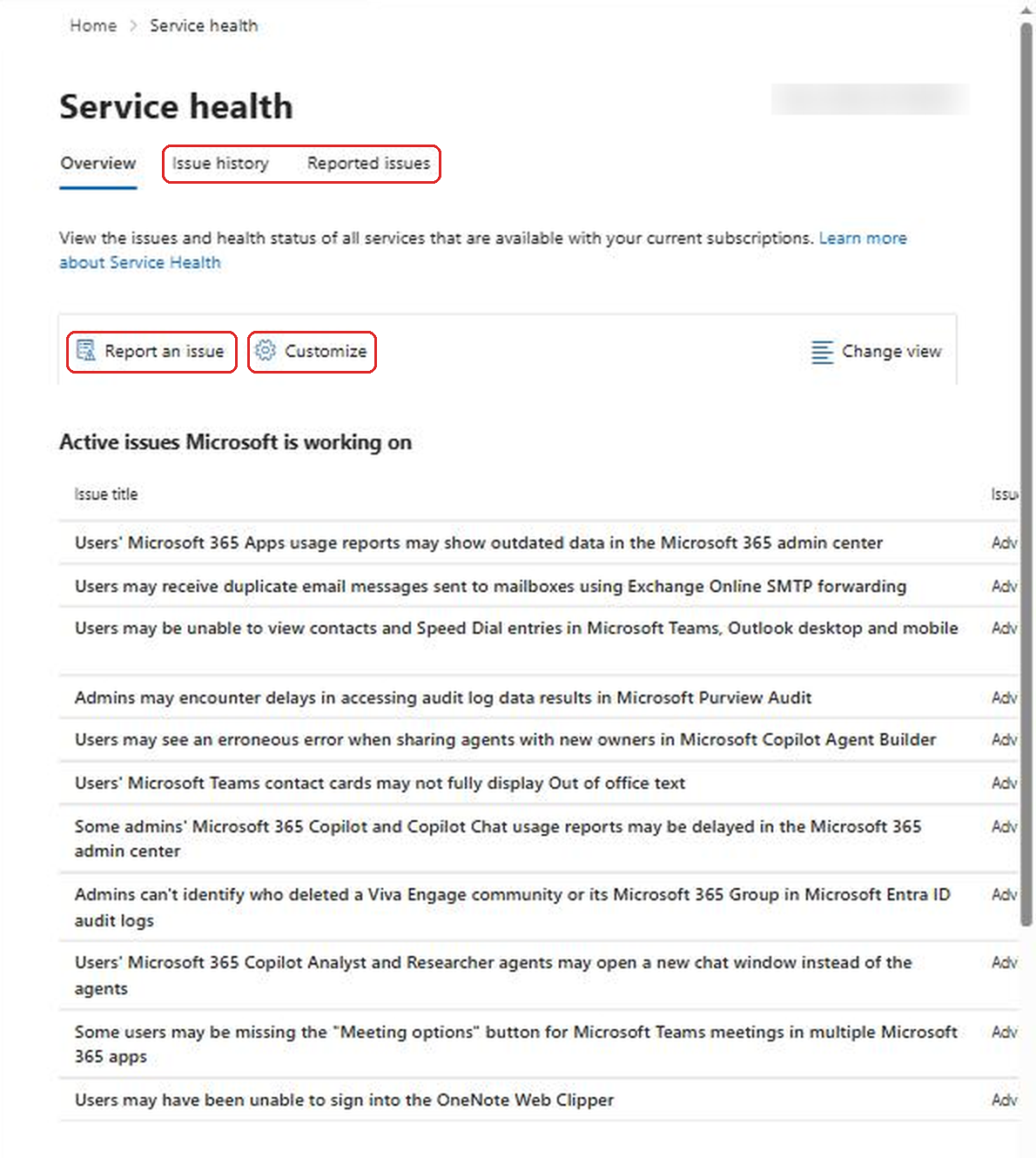
The Overview tab has two lists. Active issues Microsoft is working on shows current incidents and advisories. Below that, Service status shows each service and how many open issues it has. Microsoft's docs also mention an Issues for your organization to act on section, which only shows up when Microsoft detects something in your own environment that you need to fix.
Know the difference between the two issue types, because it changes how worried you should be:
- Advisory: a problem affecting some users, but the service is still available. There's often a workaround.
- Incident: a critical issue where the service or a major feature isn't available, like people can't send email or can't sign in.
Most of what you'll see day to day are advisories. On the morning I took these screenshots there were a dozen active ones in my tenant, mostly small things like reports showing old data or contact cards not displaying correctly.
Read the Issue, Not Just the Title
The titles are vague on purpose. Open one and you get a lot more.
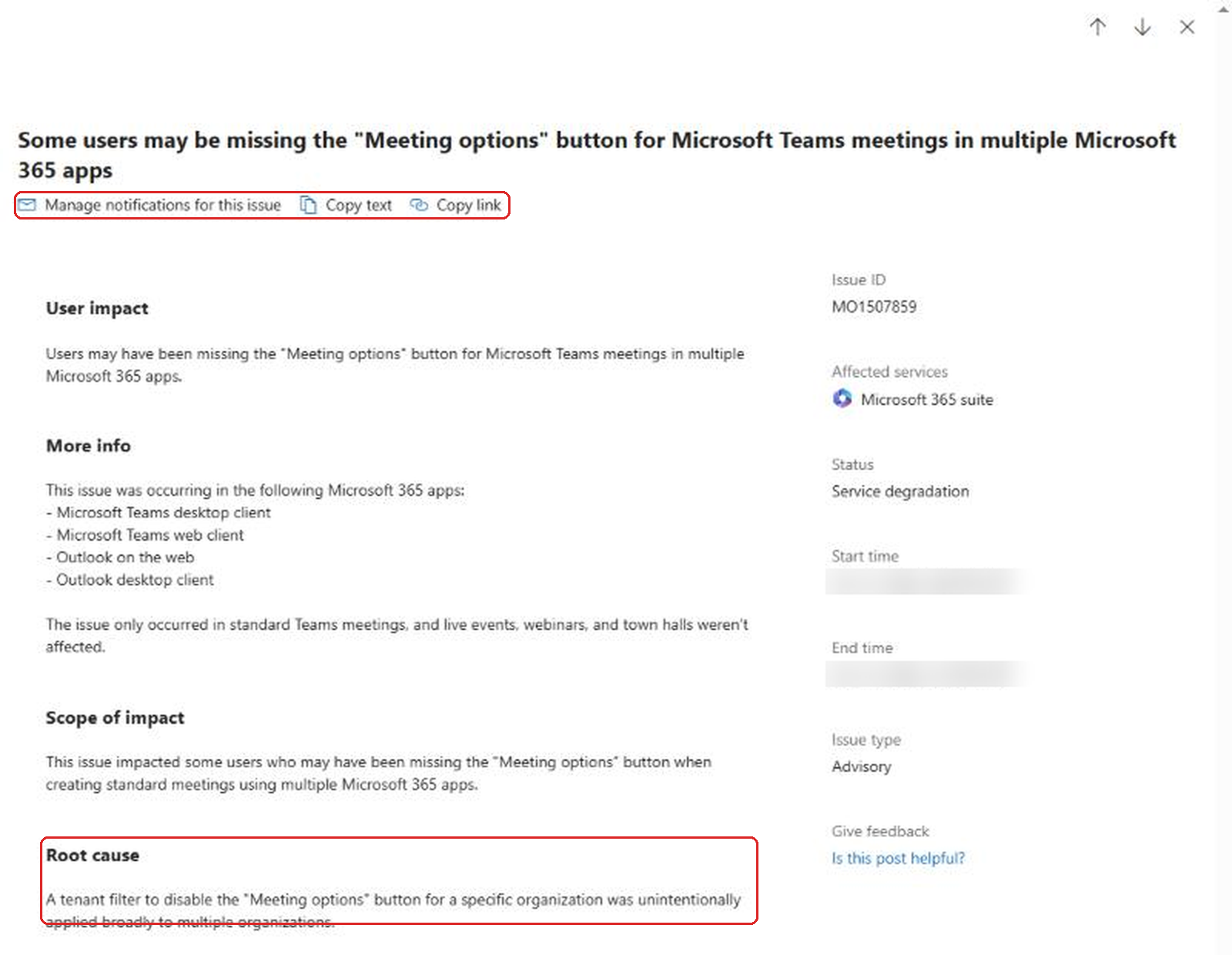
This one was about the Meeting options button disappearing in Teams and Outlook. If you'd had users calling about that, the More info section lists exactly which apps were affected, and the root cause explains what went wrong on Microsoft's side. That's the kind of detail that lets your helpdesk say "it's a known Microsoft issue, here's what's happening" instead of reinstalling Teams on someone's laptop.
Look at the three buttons under the title too:
- Manage notifications for this issue lets you get emails about just this one problem as it's updated.
- Copy text grabs the whole post so you can paste it into a ticket or a message to users.
- Copy link gives you a link to share with another admin.
Copy text is my favorite small feature on this page. When a widespread issue hits, paste the user impact section straight into your ticket system as the standard response. Every agent gives the same accurate answer, and nobody has to write it from scratch.
Learn the Status Words
Each issue has a status, and Microsoft uses them consistently. A few that are worth knowing by heart:
- Investigating: Microsoft knows something might be wrong and is gathering info.
- Service degradation: confirmed problem, but the service is mostly usable.
- Service interruption: users can't access the service. This is the serious one.
- Restoring service: Microsoft knows the fix and is rolling it out.
- Extended recovery: the fix is in progress but will take a while to reach everyone.
- Post-incident report published: there's a write-up with the root cause.
When a user asks "when will it be fixed?", the status is your honest answer. Restoring service usually means the end is in sight. Extended recovery means tell people to use the workaround and be patient.
Get Emailed Before Your Users Call
This is the setting that changes Service health from something you check to something that tells you.
- Select Customize at the top of the Service health page.
- Select the Email tab.
- Check Send me email notifications about service health.
- Choose the issue types and services you care about, then select Save.
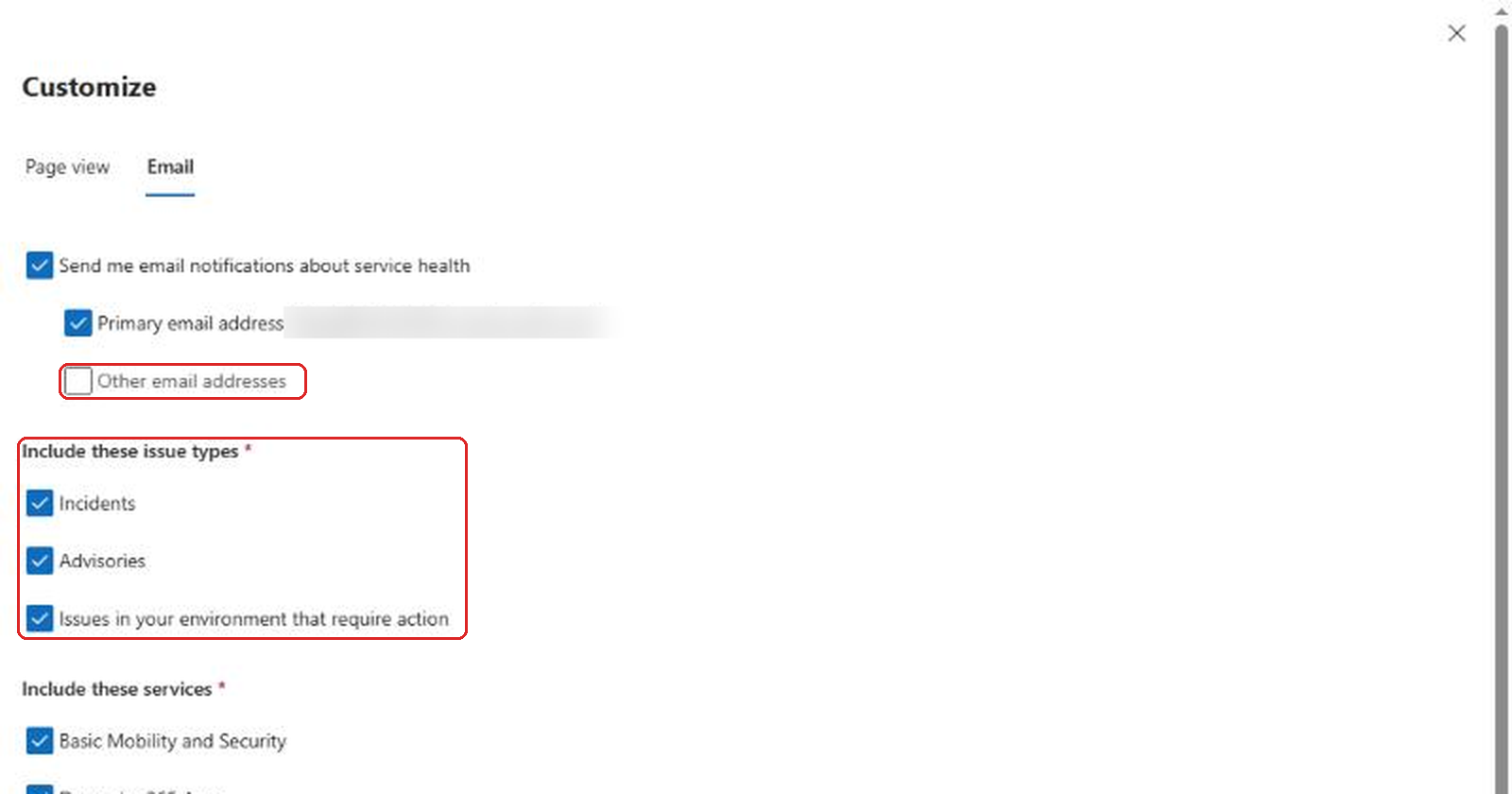
Here's how I'd set it up for most teams. Turn on Incidents and Issues in your environment that require action for every service you support. Those are the ones that cause tickets. Be pickier with Advisories. If you turn them on for everything, you'll get a lot of email about minor problems in services your users barely touch.
Now the outside the box part. Other email addresses lets you add up to two more addresses, and Microsoft notes that limit is per admin. Add the email address of your helpdesk's shared mailbox, or the email address of a Teams channel your support team lives in. When Microsoft posts an incident about Exchange, the people answering the phones see it at the same moment you do, not when you get around to forwarding it.
The Page view tab in the same Customize panel lets you hide services you don't support from the dashboard, which keeps the list readable if your org doesn't use things like Dynamics or Clipchamp.
Use Issue History to Settle Arguments
The Issue history tab shows incidents and advisories that have been resolved in the last 7 or 30 days.
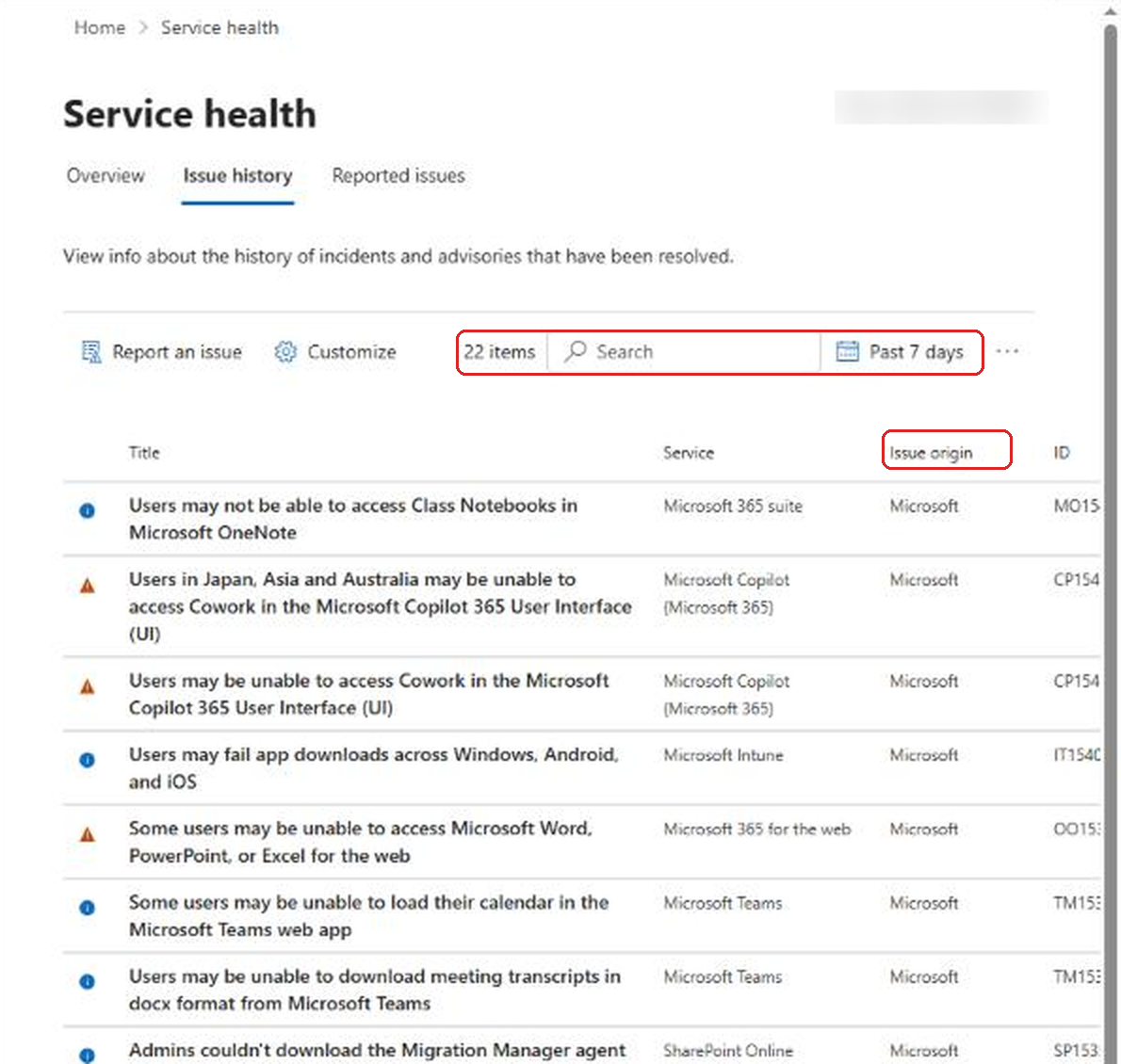
This is more useful than it looks. When a manager asks "was email broken on Tuesday or was it just us?", Issue history answers it. It's also great for spotting patterns. If you see the same service show up over and over in a month, that's worth mentioning in your next review or when users complain that "Teams has been flaky lately."
Pay attention to the Issue origin column. Microsoft's docs say it tells you whether the issue was found at Microsoft or in your own environment. When it's yours, it's yours to fix.
Report Problems Microsoft Hasn't Posted Yet
Sometimes your users are clearly having a problem and Service health shows nothing. That's what Report an issue is for.
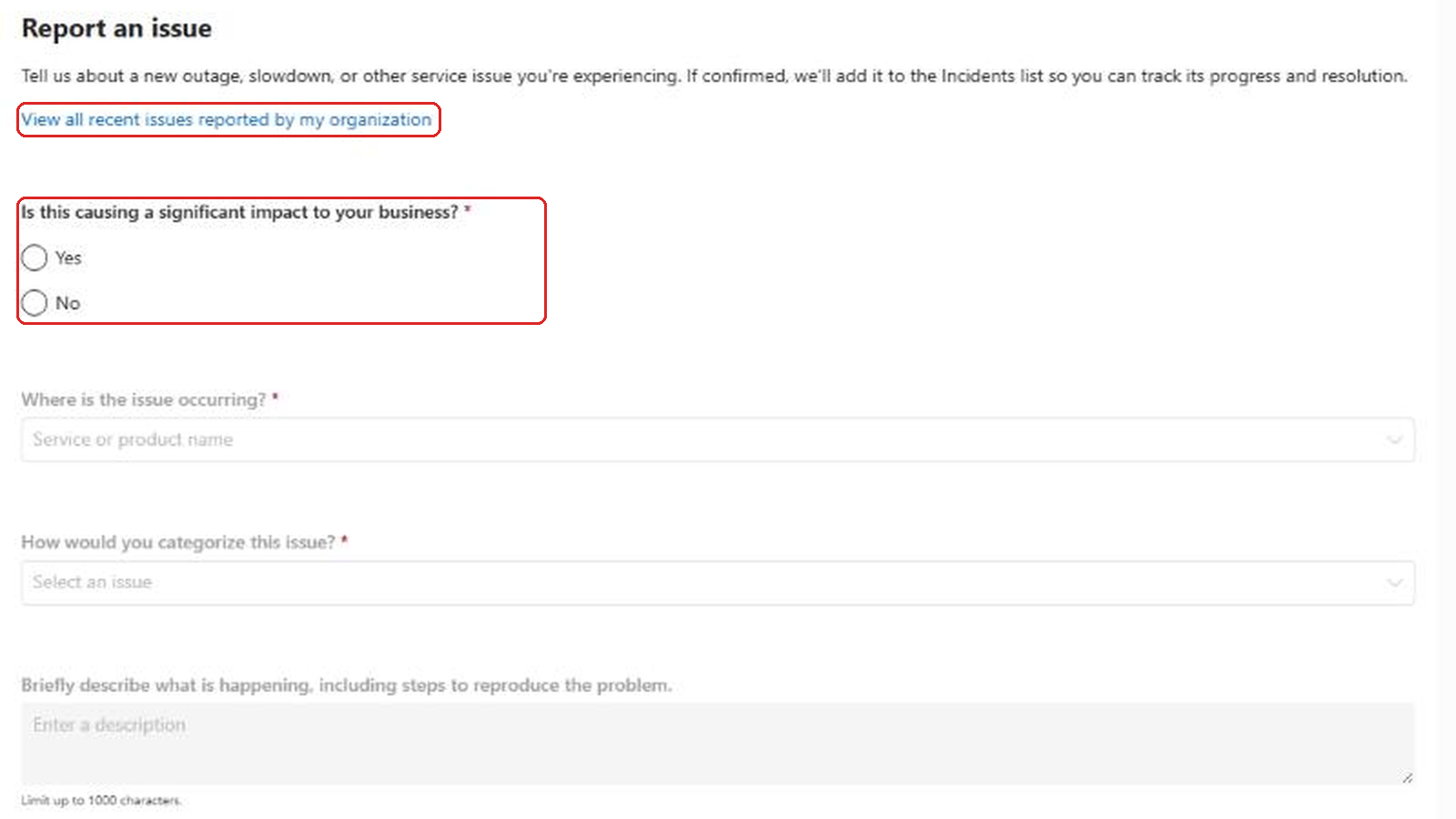
- Select Report an issue.
- Answer whether it's causing significant business impact, pick the service, choose a category, and describe what's happening.
- Select Submit.
According to Microsoft, they look at related data and reports from other organizations to see how widespread it is. If the problem is on their side, they add it to Service health as a new incident or advisory. The Reported issues tab tracks everything your tenant has reported.
Be specific in the description. Which app, which platform, what the user sees, and steps to reproduce. "Teams is broken" doesn't help anyone. "Teams desktop on Windows shows a blank calendar for some users since 8 AM, web works fine" does.
When You Can't Even Sign In
Here's one to bookmark now, before you need it. If the problem is that you can't sign in to the admin center, you obviously can't check Service health there. Microsoft's docs point to a public status page at status.cloud.microsoft for exactly that situation, and to the @MSFT365Status account on X for updates on major events.
Put that link in your team's runbook or pinned in your IT channel. During a big sign-in outage, nobody wants to be searching for it.
Microsoft also mentions the Microsoft 365 Admin mobile app, which shows Service health with push notifications. If you're the person who gets called when things break, it's worth having on your phone.
Two Small Settings Most Admins Miss
If your team works in more than one language, Service health can help. Posts are written in English because Microsoft wants them out fast, but if your preferred language in Microsoft 365 is set to something else, Microsoft's docs say you'll see a toggle on the Service health page to machine translate posts automatically. Each person sets their own preferred language, so an admin in another country can read posts in their language while you read the English original.
The other one is how updates are posted. During a big incident, Microsoft uses short Quick Update posts so you get frequent progress notes. Some tenants that meet certain requirements also get Additional Details posts with deeper technical information. If you've ever wondered why an incident has a dozen short updates instead of one long one, that's why. Read the newest one first. Older updates can be out of date by the time you see them.
And make it a habit to check the end of each resolved issue. Microsoft usually says whether a Post-incident report was published. For anything that hurt your users, that report is what you want in hand when your manager asks what happened and whether it will happen again.
Let the Helpdesk See It Too
You don't need to be a Global Admin to view Service health. Microsoft's docs say people with the Service Support admin and Helpdesk admin roles can view it too. If your first line support doesn't already have one of those roles, they're forced to ask you every time something seems off. Give them access and make Service health the first step in their troubleshooting checklist.
One more thing to know: planned maintenance doesn't show up in Service health. Microsoft posts those in Message center instead. If you only watch one of the two, you'll miss half the story.
A Simple Outage Routine
Here's what I'd put in a runbook for any helpdesk:
- Two or more similar tickets in an hour? Check Service health before troubleshooting.
- If there's a matching issue, use Copy text to give users the official explanation and workaround.
- Turn on Manage notifications for that issue so you know when it's resolved.
- If nothing is posted and it looks widespread, use Report an issue with specific details.
- If you can't sign in at all, check status.cloud.microsoft.
If users are seeing a feature change rather than an outage, it's probably a rollout rather than a bug. Targeted release is how you see those changes before everyone else. And some "outages" are really just how Teams behaves. Why Teams shows you as Away and why a Teams meeting isn't showing in Outlook cover two of the most common ones.
FAQ
What's the difference between an incident and an advisory in Service health?
An advisory affects some users but the service is still available, often with a workaround. An incident is critical, where the service or a major feature isn't available.
How far back does Service health history go?
The Issue history tab shows resolved incidents and advisories from the last 7 or 30 days.
Can the helpdesk see Service health without being a Global Admin?
Yes. Microsoft says the Service Support admin and Helpdesk admin roles can view Service health.
How do I check Microsoft 365 status if I can't sign in?
Use the public status page at status.cloud.microsoft, and follow @MSFT365Status on X for major events.
Why isn't planned maintenance listed in Service health?
Microsoft posts planned maintenance and upcoming changes in Message center, not Service health. Check both.
Final Thoughts
Service health won't stop Microsoft from having bad days, but it can stop your team from wasting an hour troubleshooting something that isn't yours to fix. Turn on email for incidents, send a copy to where your helpdesk actually works, and make checking it the first step instead of the last. Your Friday mornings will thank you.
Sources: Microsoft Learn, How to check Microsoft 365 service health.