
What Happened to Planner Task Comments? - Microsoft Planner 2026 Updates
If you opened a Planner task recently and couldn't find the comments box, you're not alone. This is a common question I've been seeing from Microsoft 365 Planner users. The short answer: comments haven't been deleted, but they have been replaced. Microsoft swapped the legacy comments experience in basic plan tasks for something called Task chat, and the two are not the same thing.
Here's what changed, where your old comments went, and what your team needs to do differently going forward.
Microsoft Planner Is in the Middle of a Major Overhaul
To understand why comments changed, you have to understand what Microsoft has been doing with Planner over the past year. Microsoft has been consolidating its work management tools, pulling together capabilities that used to live in Planner, To Do, and Project for the web into a single unified Planner experience. Project for the web, along with the Project and Roadmap apps in Teams, were retired starting August 1, 2025, and users were moved to Microsoft Planner.
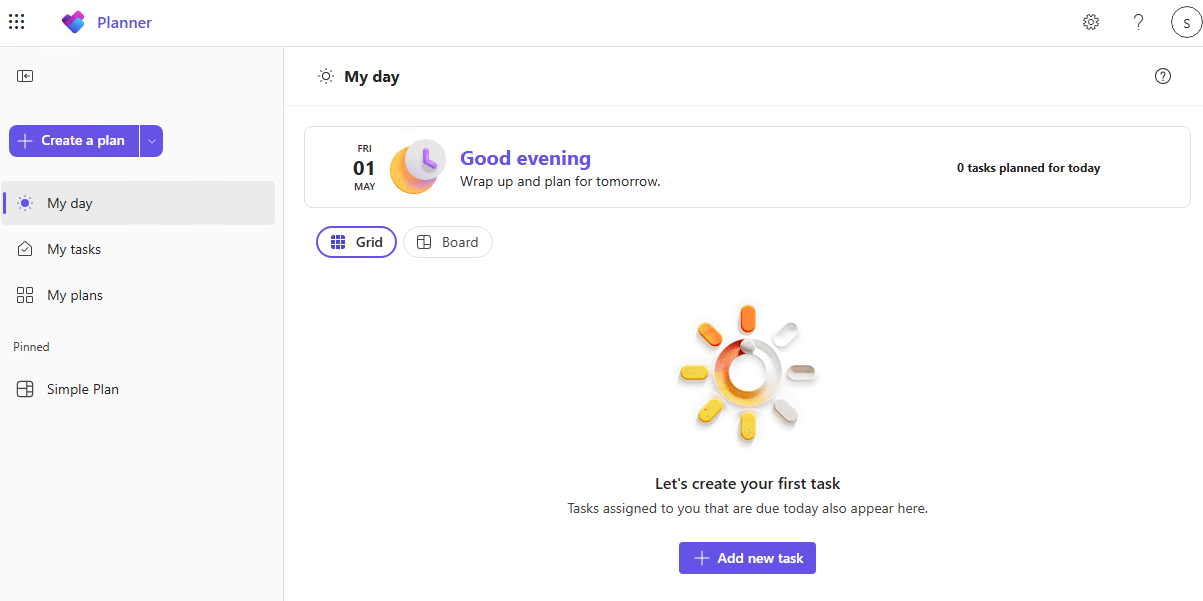
That's a big shift, and the comments change is part of the same modernization push. A few of the key updates along the way:
- June 2025: Bulk editing landed in basic plans' Grid view, letting you update assignees, priority, progress, and dates across multiple tasks at once.
- August 2025: The Project Manager agent expanded into shared premium plans and Planner for the web, gaining web search and a floating AI chat entry point.
- February 2026: MC1193421 - Microsoft rolled out a refreshed Planner design, Task chat, and Goals view for basic plans.
- March 2026: MC1250279- The Project Manager agent was renamed Planner Agent, and AI features started expanding to basic plans for users with Microsoft 365 Copilot licenses.
- April 2026: MC1256306 - Planner Agent arrived in Microsoft 365 Copilot through the Frontier program, letting eligible users create tasks from emails and meetings, ask questions across task sources, and draft structured plans.
The February 2026 rollout is where the comment situation starts. Microsoft began pushing the refreshed interface, Task chat, and Goals view to basic plans in Planner in Teams and Planner for the web on February 23, 2026, continuing in waves over the following weeks.
The Big Change: Task Chat Replaces Legacy Comments
Legacy Planner comments were tied to the plan's Microsoft 365 Group conversation. When someone left a comment on a task, it was sent to the plan's group mailbox and visible in Outlook. It was basically email masquerading as task discussion. That model had real limitations: you couldn't @mention anyone, you couldn't edit or delete a comment once posted, and notifications went broadly to anyone who had already commented on the task.
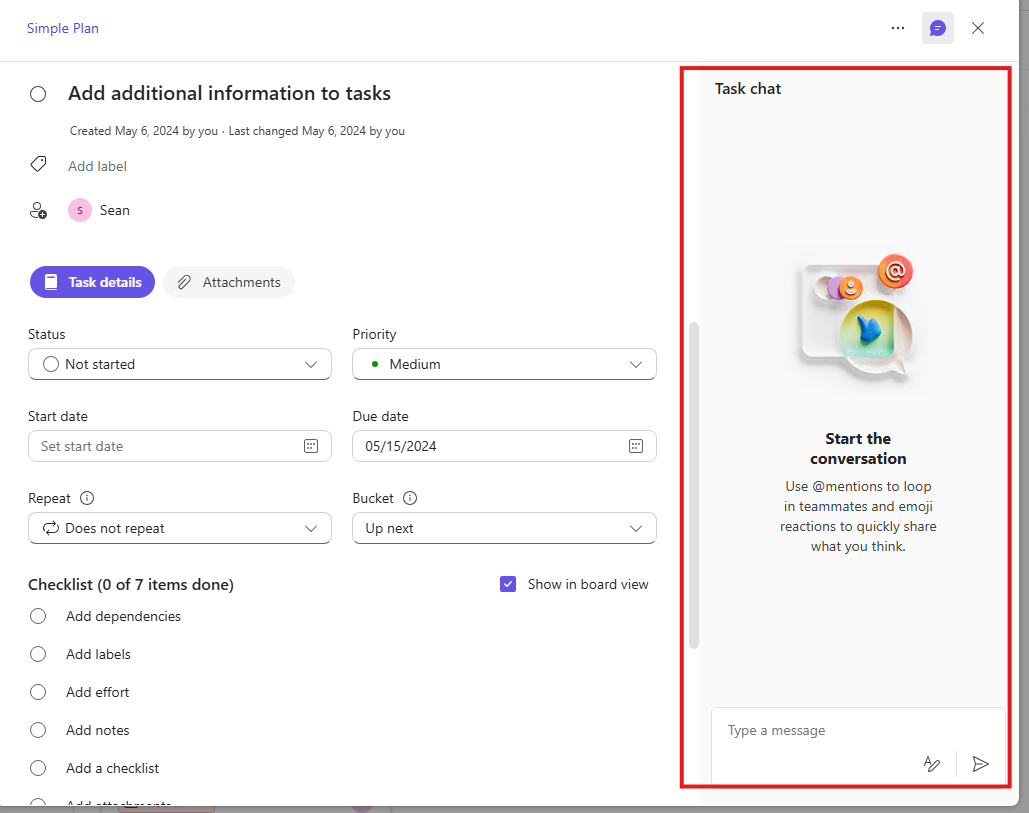
Task chat replaces that entirely for basic plan tasks. It's a proper in-task messaging thread, and it works the way most people expected Planner to work all along. Here's what Task chat gives you:
- Each task has a single chat thread. If no chat exists yet, the first message starts it.
- Messages appear in chronological order.
- You can @mention anyone who has access to the plan, and they get both an email and a Teams notification.
- If you're not @mentioned, you don't get a notification. That's intentional, and it's a big behavioral change from the old model.
- You can edit or delete messages you wrote. Edits are marked, and deleted messages leave a placeholder.
- Task chat supports rich text formatting and emoji reactions.
Microsoft called @mentions in tasks "one of your most requested features" when announcing this change. That tracks. The old comments model was frustrating precisely because you couldn't target a specific person.
One thing worth knowing: Task chat does not travel with a task if you move it to another plan. The chat stays behind. Keep that in mind if you're reorganizing plans.
Also, Task chat is currently only available in basic plans. If your organization uses premium plans, those continue with the existing task conversation experience for now. Microsoft says premium plans will converge into the new experience later. Users in GCC, GCC High, or DoD environments may also still be on the legacy experience.
So Did Microsoft Actually Delete Your Old Comments?
No, at least not by design. Microsoft's position is that legacy comment threads remain accessible. They just live somewhere different now.
The old comments experience is no longer directly visible inside the task pane the way it used to be. Instead, the task details pane shows a link to open the comment thread in Outlook, where the original group conversation lives. New messages go into Task chat. Existing threads stay where they are so you don't lose the history.
The important thing to understand: old comments do not automatically convert into Task chat messages. They're two separate experiences that coexist. If you or someone on your team posted something in the old comments months ago, that content is not in Task chat. It's in the legacy thread, accessible through Outlook or the link in the task pane.
User reports from Microsoft Q&A during the April 2026 rollout period show that some people found old comments through a Comments tab that appeared in their task, while others had to hunt for them in Outlook. A few couldn't find them at all and needed admin support to locate the group conversation. The experience during rollout was inconsistent, which makes sense because Microsoft pushes these updates in waves. Two people in the same org can temporarily be on different versions of Planner.
Where to Find Old Planner Comments
If you're looking for comments that existed before Task chat rolled out to your tenant, here's where to look:
- Open the task in Planner and look for a legacy comments link or a Comments tab in the task details pane.
- Open the associated Microsoft 365 Group in Outlook. Go to the Groups section of your Outlook sidebar, find the group the plan belongs to, and look through the group conversations.
- Search the group mailbox for the task name or keywords you remember from the comment thread.
- If the Outlook link isn't showing up in the task, your tenant may still be mid-rollout. Check back in a few days.
- If you still can't find them after the above, ask your Microsoft 365 admin to open a support request with Microsoft.
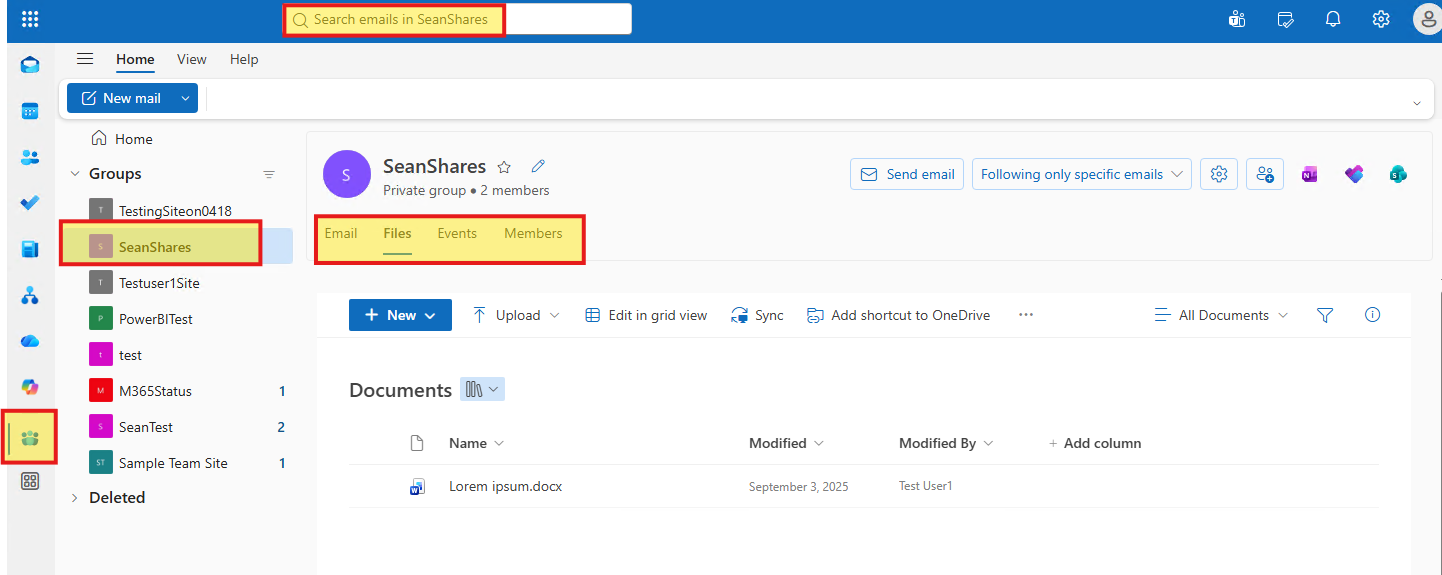
The most common failure point I hear about is people not knowing that Planner plans are backed by Microsoft 365 Groups at all. If that's news to you, the group is what holds the group mailbox, shared calendar, and shared files associated with the plan. The old comments lived there, not inside Planner itself.
Why Notifications Feel Different Now
With the old comments model, posting a comment sent a notification to the plan's Microsoft 365 Group and to anyone who had already commented on the task. It was a broad notification. Not targeted, not opt-in, just... broad. If you were watching an Outlook group conversation for task updates, you'd see everything.
Task chat works the opposite way. Notifications go only to users you explicitly @mention. If someone posts an update and doesn't mention anyone, nobody gets a notification. The task owner doesn't automatically get notified. The person it's assigned to doesn't automatically get notified. Only the people tagged get pinged.
Microsoft says this was done in response to customer feedback that the old model generated too many notifications. That's fair. But the trade-off is that teams who used Planner comments as a passive status log in Outlook will now miss updates unless they establish new habits. If you need to manage how notifications flow more broadly, the article on controlling Teams notifications in Outlook has some useful context on how the notification stack works across Microsoft 365.
The practical rule your team needs to agree on: always @mention the task owner and any relevant reviewers when you post an update that requires attention. Don't assume someone will see it because they own the task.
What Admins Should Tell Users
The biggest change management risk here is users panicking that their comments are gone when they're actually just relocated. Getting ahead of that with a simple internal message goes a long way.
Something like this works: "Planner task comments are changing. New task messages now appear in Task chat inside each task. Older comments remain accessible through Outlook or a link in the task pane, but they won't show up in Task chat automatically. New Task chat notifications only go to people you @mention."
Beyond the announcement, there are a few things worth updating:
- Train users on @mentions. The new model only works if people use @mentions deliberately. Run a quick demo in a team meeting or drop a note in your Teams channel with the new expectation: @mention the owner for anything requiring action, @mention reviewers when a decision is needed, and don't assume assignees are watching the chat thread passively.
- Update any documentation or SOPs that reference Planner comments. If your team has a guide that says "add a comment to notify the team" or "check Outlook group conversations for task updates," those need to be revised. Replace them with "use Task chat for discussion" and "use @mentions for notifications."
- Review your retention and compliance posture. Old comments lived in Microsoft 365 Group conversations, which are subject to your organization's existing retention policies. Task chat may behave differently depending on how your tenant is configured. If your organization has specific requirements around records retention or eDiscovery, this is worth a review with your compliance team. For a broader look at Copilot and Microsoft 365 governance, the Copilot admin settings governance article covers some of the overlapping admin considerations.
- Update your help desk scripts. When users call in saying their comments are gone, the answer is: they probably aren't. Microsoft replaced the comments box with Task chat. Old comments are in Outlook or accessible through a link in the task pane. New notifications only go to @mentioned users.
Other Planner Updates in 2026 To Know About
The Task chat change didn't land alone. Several other things changed or were retired as part of the same update.
- The refreshed Planner interface has a cleaner layout with reduced visual clutter and better spacing. It's not a dramatic redesign, but it's noticeably more organized than the previous version.
- Goals view is now available in basic plans, letting teams define objectives, connect tasks to shared goals, and track progress. Access requires a Planner premium license or a Microsoft 365 Copilot license.
- Planner Agent, which was called Project Manager Agent until March 2026, is now generally available for users with Microsoft 365 Copilot licenses in both basic and premium plans. It can generate status reports and take action on tasks. In April 2026, it became available through Frontier in Microsoft 365 Copilot, adding the ability to ask questions across task sources, create tasks from emails and meetings, and draft structured plans. If you manage Copilot access for your organization, you'll want to check whether Planner Agent is scoped appropriately for your users.
A few things were retired alongside the new features:
- The Whiteboard tab in premium plans is gone. Existing whiteboard content is still accessible in the Whiteboard app, but the tab and the ability to create tasks from whiteboards are retired.
- The Planner component in Loop pages was retired. Existing components now show the plan URL, and tasks remain in Planner.
- The Planner integration with Viva Goals was retired, which tracks with Viva Goals itself retiring on December 31, 2025.
- The iCalendar feed integration was retired. You can no longer create new iCal feeds, and previously created feeds no longer pull in Planner tasks.
- Converting a basic plan to a premium plan is temporarily unavailable. For now, you'd need to create a new premium plan and move tasks manually.
If your team was relying on any of those integrations, especially the iCal feed or the Viva Goals connection, now is a good time to set up alternative workflows. For teams managing personal task loads alongside Planner, the Microsoft To Do tips article covers how To Do and Planner interact, which is useful context if users are trying to manage their assigned Planner tasks alongside personal task lists.
Best Practices for the New Planner
The changes to comments and notifications mean teams need to be more deliberate about how they use Planner for communication. Here's what works well in the new model:
- Use Task chat for task-level discussion. It's the right place for questions, decisions, and updates tied to a specific piece of work.
- Use @mentions every time you post something that needs a response. Don't leave updates without tagging the right person.
- Use task fields (status, progress, priority, due date) for durable status information. Task chat is for conversation, not for tracking state. If someone needs to know the current status, it should be readable from the task fields, not buried in a chat thread.
- Use task notes and checklists for structured information that doesn't belong in a chat thread, like requirements, acceptance criteria, or step-by-step instructions.
- If your organization has Copilot licenses, use Planner Agent status reports for plan-level updates rather than manually summarizing chat threads.
- When reviewing historical work, remember that old comments live in the Outlook group conversation. Don't assume the absence of Task chat messages means there was no prior discussion.
Microsoft's changes to Planner in 2026 are genuinely improvements, especially the @mentions and the richer formatting in Task chat. The transition is just messier than it needed to be because old comments didn't migrate forward, and the notification model changed in ways that aren't obvious unless someone tells you. Now that you know what actually happened, you can bring your team up to speed and avoid the confusion that's been tripping up a lot of organizations during the rollout.
Frequently Asked Questions
Are Microsoft Planner comments gone?
No, not by design. Microsoft says existing legacy comment threads remain accessible through a link in the task pane or through the Outlook group conversation for the plan. The comments box inside the task has been replaced by Task chat, but old threads aren't supposed to be deleted.
Why can't I add new comments to the old thread?
New messages are only added through Task chat. The legacy comment thread is read-only at this point. If you need to continue a conversation that started in old comments, you'll need to start it in Task chat and reference the old thread if necessary.
Why didn't my teammate get notified about my Task chat message?
Task chat only sends notifications to users you explicitly @mention. Owning a task does not make you a recipient of notifications automatically. You need to @mention the person for them to get an alert.
Do old comments show up in Task chat?
No. Old comments and Task chat are separate. Legacy comments live in the Outlook group conversation, not in Task chat. They don't migrate, and there's no automatic bridging between the two experiences.
Is Task chat available in premium plans?
Not yet. Microsoft says premium plans continue using the existing task conversation experience and will converge into the new Task chat experience later. Task chat is currently only available in basic plans.
Can users edit or delete their Task chat messages?
Yes. You can edit or delete messages you wrote. Edited messages are marked so others can see they were changed. Deleted messages leave a placeholder rather than disappearing entirely.
What happened to the iCalendar feed in Planner?
Microsoft retired the iCalendar feed integration as part of the 2026 Planner update. You can no longer create new iCal feeds, and feeds that were previously created no longer pull in Planner tasks.