How do I turn off Teams notifications in Outlook?
Microsoft Teams and Outlook are tightly connected, which is mostly a good thing. But one side effect of that integration is that Teams can send email notifications directly to your Outlook inbox. Things like missed activity summaries, meeting recording notifications, channel digests, and more can add up quickly if you have not configured them. Here is how to control exactly which Teams notifications reach your Outlook inbox and how to turn off the ones you do not need.
The Two Types of Teams Emails That Go to Outlook
Before diving into the settings, it is worth understanding the difference between the two main categories of Teams emails that land in Outlook.
The first is missed activity emails. These are summary messages Teams sends when you were not active in Teams and someone mentioned you, replied to your message, or sent you a direct message. They are useful if you step away from Teams, but they become noise if you check Teams regularly.
The second category is notification emails from specific features: meeting recording availability notices, channel digest emails, subscription updates for channels you are following, and policy notification emails from your admin. These come from different settings than the missed activity emails, so they need to be turned off separately.
How to Turn Off Missed Activity Emails
This is the most common type of Teams notification that ends up in Outlook inboxes. Here is how to disable it.
- Open Microsoft Teams on desktop or web.
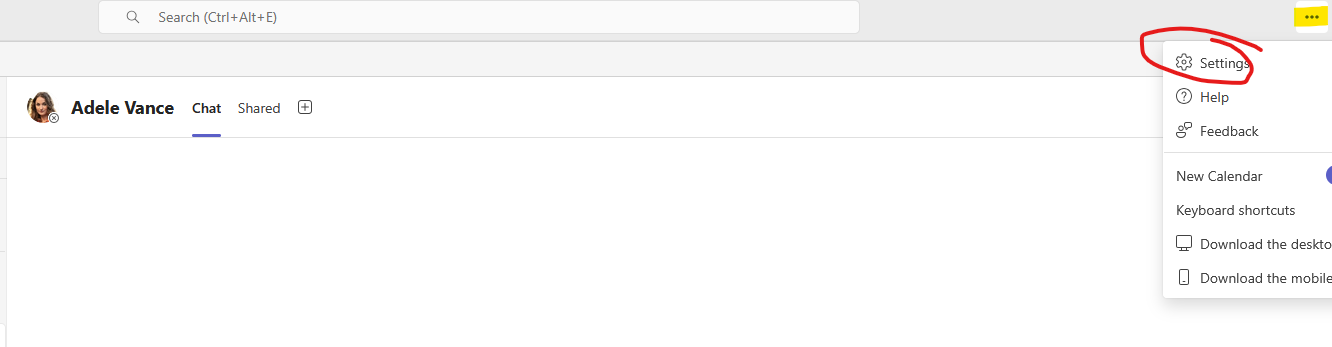
- Click the three dots next to your profile picture in the top right corner.
- Select Settings
- Go to Notifications in the left menu.
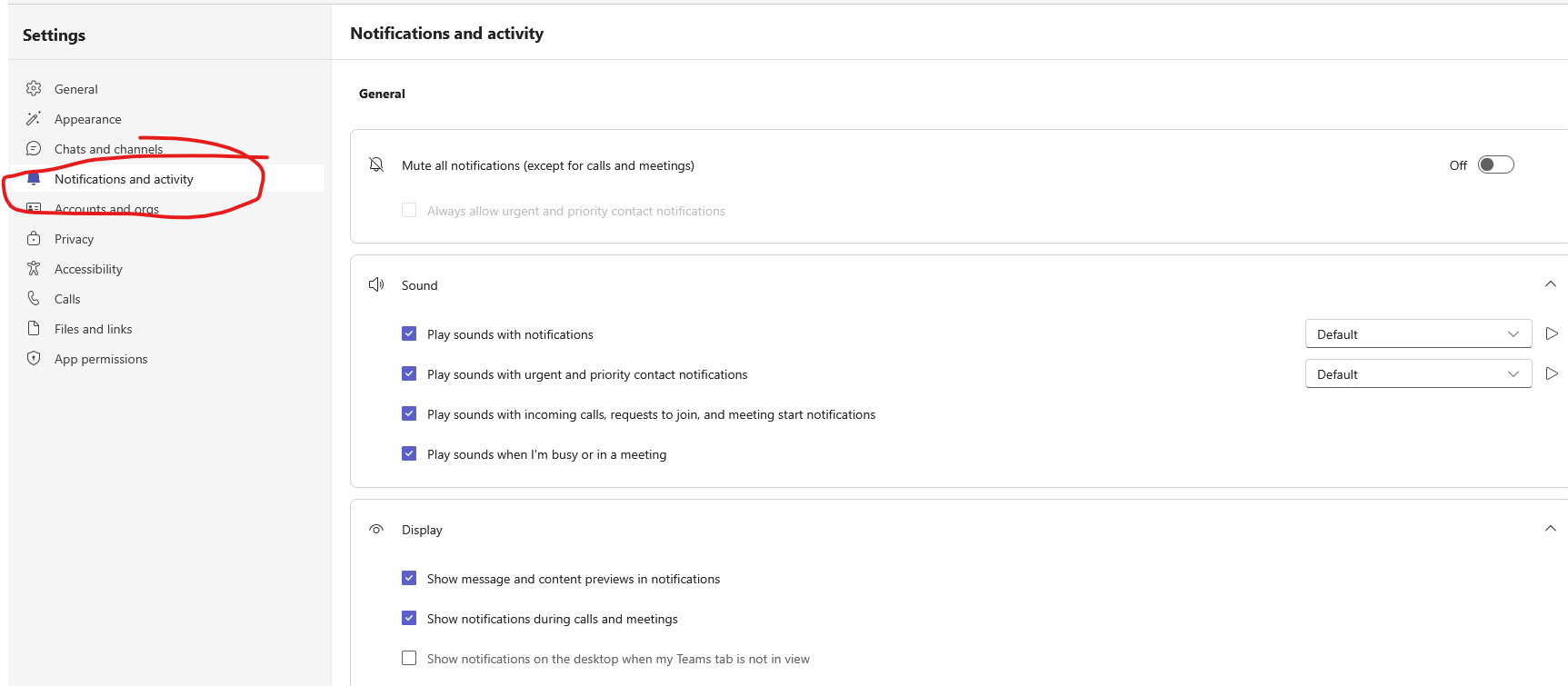
- Scroll down to the Missed activity emails section.
- Click the dropdown (which defaults to As soon as possible) and change it to Off.
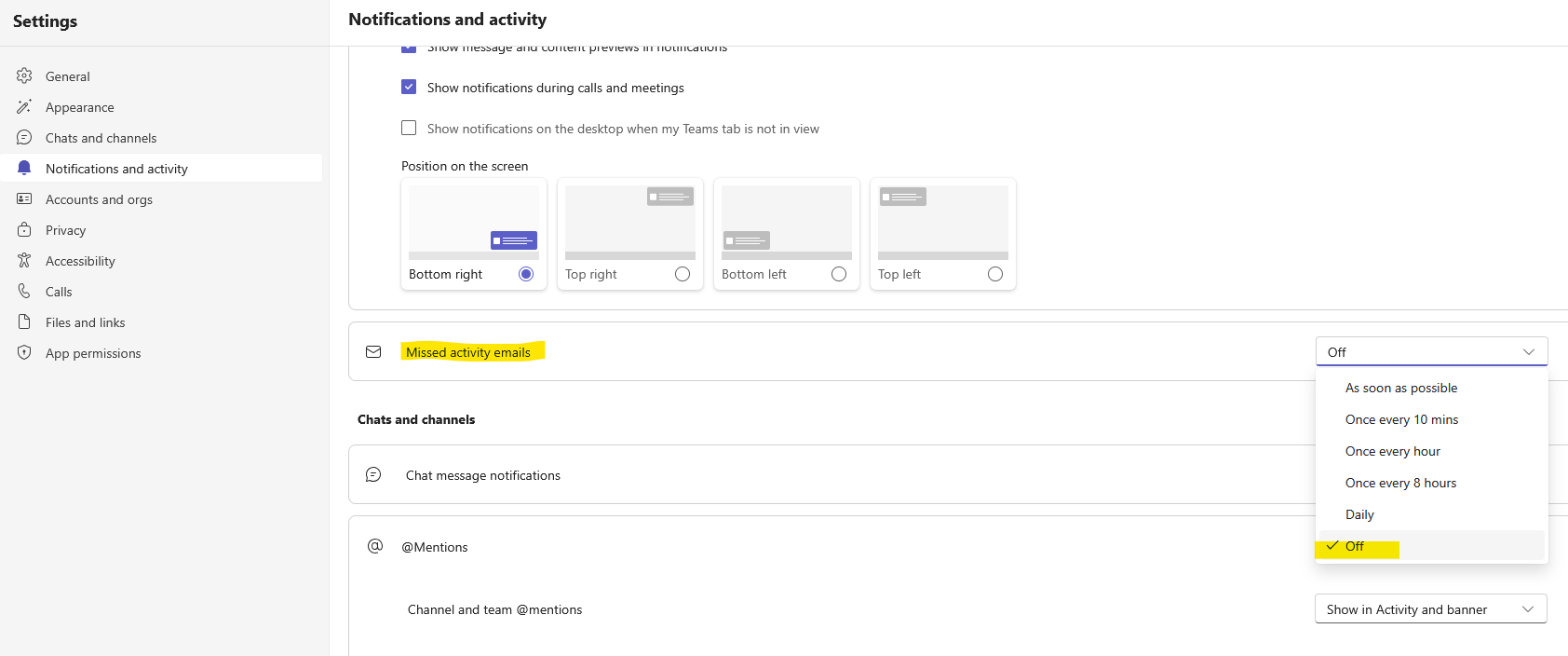
Once set to Off, Teams will stop sending missed activity summary emails entirely. If you want to keep them but reduce the frequency, you can switch the dropdown to Once an hour or Once a day instead of Off. This is a good middle ground if you want the safety net of catching missed @mentions without getting an email for every single one.
How to Turn Off Meeting Recording Notifications
When a Teams meeting recording becomes available, Teams sends an email to meeting participants with a link to the recording. This is helpful but can be redundant if you also get in-app notifications. To disable these emails:
- Go to Teams Settings.
- Open Notifications.
- Scroll to the Meetings section.
- Find the Recording available setting and change the email notification toggle to Off.
You will still see recording availability inside Teams; you just will not get the separate email.
How to Turn Off Channel Subscription Digest Emails
If you follow specific channels in Teams, you may receive periodic digest emails summarizing activity in those channels. To manage these:
- In Teams, go to the channel you are following.
- Click the three dots next to the channel name.
- Select Channel notifications.
- Adjust the email digest setting, or turn off following the channel entirely if you no longer need it.
Channel digests can be genuinely useful for keeping up with active channels without reading every message. The key is to only have them active for channels you actually care about.
How to Manage Teams Notifications at the Outlook Rule Level
If you want to keep receiving Teams emails but not have them clutter your main inbox, Outlook rules are a clean solution. Create a rule that automatically moves emails from the Teams notification address ([email protected] or similar) to a dedicated folder called Teams Notifications. You can then check that folder on your schedule rather than seeing those emails alongside your regular mail.
To create the rule, right-click any Teams notification email in Outlook, select Rules, then Create Rule. Set the condition to match the sender address and the action to move it to a specific folder.
Controlling Teams Email Notifications on Mobile
If you use the Teams mobile app, notification settings are separate from the desktop client. Changes you make in Teams desktop do not automatically apply to mobile. Go to the Teams mobile app, tap your profile picture, go to Notifications, and look for the email notification settings there. Alternatively, manage mobile notifications at the phone OS level through your device's notification settings for the Teams app.
Admin Controls for Teams Email Notifications
As a Teams admin, you can configure notification policies through the Teams admin center or PowerShell. If your users are overwhelmed by Teams emails across the organization, you can set default notification configurations that reduce email traffic while still keeping users informed of critical items.
Go to the Teams admin center at admin.teams.microsoft.com and navigate to Notifications and alerts, or Messaging policies, depending on what you are trying to configure. Email notification defaults can be set at the policy level and pushed to user groups rather than requiring each user to configure their own settings.
Frequently Asked Questions
Will turning off missed activity emails mean I miss important @mentions?
Only if you are not checking Teams regularly. The @mentions will still appear in your Teams activity feed with a notification badge. Missed activity emails are a backup for when you are away from Teams entirely. If you check Teams at least a couple times per day, turning off the emails is safe.
Teams emails are still arriving even after I turned them off. What is wrong?
Allow a few minutes for the setting to sync. If emails continue after an hour, check whether you changed the setting in the correct Teams account. If you have multiple Microsoft accounts (work and personal), settings in one account do not apply to the other.
Can I turn off Teams notifications just for specific channels?
Yes. You can configure notifications per channel in Teams. Click the three dots next to any channel and go to Channel notifications to customize what you hear about from that channel, including whether notifications trigger emails.
Final Thoughts
The combination of missed activity emails, recording notifications, and channel digests can add up to a surprising amount of Teams-related email. Turning off missed activity emails is the single biggest change and takes about thirty seconds. If you want more precision, the per-channel notification settings give you the most control over exactly which Teams activity reaches your inbox. Start with the missed activity setting and adjust from there based on what remains.