How to use GPT-5 in Microsoft Copilot
GPT-5 is now the default model powering Microsoft 365 Copilot, and the experience has evolved significantly since the initial rollout. There is no longer a "Try GPT-5" button to click. GPT-5 is simply on, and you now have a model selector that lets you choose between different versions and reasoning modes depending on what you are working on. Here is how it all works.
GPT-5 Is Now the Default
When GPT-5 first rolled out in mid-2025, users had to manually enable it per session using a button in the Copilot Chat interface. That phase is over. GPT-5 is now the default model for all Microsoft 365 Copilot licensed users across all surfaces: web, Windows, Mac, iOS, and Android. You do not need to do anything to enable it.
What you do have now is a model selector that lets you pick which version of GPT-5 to use and how deeply it should reason through your request.
Using the Model Selector
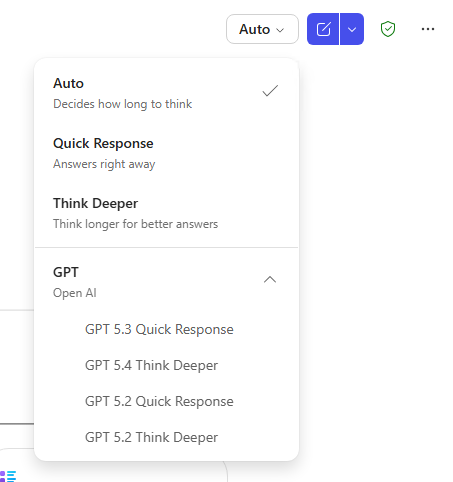
The model selector appears in Copilot Chat at m365.cloud.microsoft. When you open a chat, look for the model dropdown at the top or bottom of the chat input area. Clicking it shows your three options:
- Auto: Copilot picks the right model automatically based on what you ask. This is the default and works well for the majority of everyday tasks.
- Quick Response (GPT-5.3 Instant): Prioritizes speed over depth. Good for simple drafts, short summaries, or when you are iterating quickly.
- Think Deeper (GPT-5.4 Thinking): Takes more time to reason through complex problems before responding. Good for long documents, multi-step analysis, or nuanced tasks where you want the most thorough result possible.
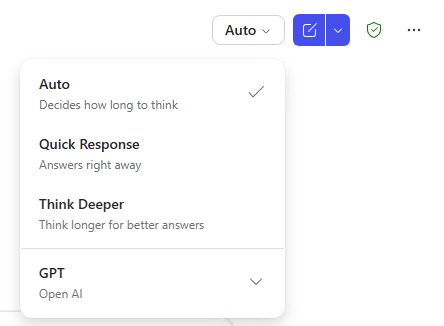
The selection applies to the current conversation. Starting a new chat resets the selector to Auto.
When to Use Each Mode
Auto
Leave it on Auto for most things. Routine email drafts, short summaries, quick formula help in Excel, meeting recap requests, and similar everyday tasks all work well on Auto. Copilot routes the request to the appropriate model without you needing to think about it.
Quick Response
Switch to Quick Response when speed matters more than depth. Good scenarios include rapid iteration on a draft where you want to try multiple versions quickly, simple one-line requests, or any time you are in a meeting and need a fast answer to paste into a chat.
Think Deeper
Use Think Deeper for your most demanding tasks. This mode is noticeably better when:
- You are analyzing a long, complex document and need thorough coverage.
- You are asking Copilot to reason through a multi-step problem with several conditions or constraints.
- You want a more structured and complete output on a complex topic.
- You are building something important, like a detailed report or a proposal, and you want the most careful result.
Think Deeper takes longer to respond because it is doing more reasoning work before replying. You will sometimes see a visible reasoning step in the interface. The wait is usually worth it for complex requests.
How to Access Copilot Chat
- Open your browser and go to m365.cloud.microsoft. Sign in with your Microsoft 365 work account.
- Copilot Chat is the main interface. You can start a new conversation directly from here.
- Click the model selector (look for the model name near the chat input box) to switch between Auto, Quick Response, and Think Deeper.
- Type your prompt and send. The selected mode applies to that conversation.
Copilot Chat is also accessible from within the individual Microsoft 365 apps. In Word, Excel, Outlook, and Teams, the Copilot integration uses the same underlying models, though the model selector is primarily available in the standalone Copilot Chat interface.
Getting Better Results with GPT-5
A better model does not mean you can write worse prompts. GPT-5 is more capable, but it still works best when you give it clear context and a specific goal. A few things that consistently improve results:
- Be specific about format. "Summarize this in three bullet points, each under two sentences" is better than just "summarize this."
- Tell Copilot who the audience is. "Write this for a non-technical manager" produces a different result than "write this for a SharePoint administrator."
- Tell it what to leave out, not just what to include. "Draft a project update without mentioning budget figures" is more useful than a vague request.
- For multi-step tasks, spell out each step. GPT-5 handles chained instructions well, but being explicit still gets better results than a vague high-level request.
- If the first result is not right, iterate. Copilot is designed for back-and-forth. Follow up with adjustments rather than starting over.
GPT-5 in Copilot Studio
If you build custom agents in Copilot Studio, GPT-5 is available as the model for your agents. Agents were automatically upgraded to GPT-5.2, and you can configure the model version in the agent settings.
- Open Copilot Studio and select or open the custom agent you want to configure.
- Navigate to Settings for that agent.
- Find the Model dropdown and select the version you want.
- Save your changes and publish the agent.
Test your agent thoroughly after a model change, particularly if it handles sensitive workflows or produces output that users will act on directly.
Frequently Asked Questions
Where did the "Try GPT-5" button go?
It is gone because GPT-5 is no longer in a trial phase. It is the default model for all licensed Copilot users. The model selector replaced the old button and gives you more granular control than before.
Can I switch back to an older model?
No. The model selector lets you choose between GPT-5 versions and reasoning modes, but you cannot go back to pre-GPT-5 models. If your organization has a specific need to use an older model version, that would be a conversation with your Microsoft account team.
Is the model selector available in Teams and Outlook?
The model selector as a visible control is currently in Copilot Chat (m365.cloud.microsoft). The integrated Copilot experiences in Teams, Outlook, Word, and Excel use GPT-5 automatically but do not expose the same mode selector in those surfaces yet.
Does Think Deeper cost more?
No. All three modes are included in the standard Microsoft 365 Copilot license. There is no additional cost for Think Deeper or GPT-5.4.
How do I know which model Copilot used for a response?
In some interfaces, Copilot shows a small label or indicator with the model name after generating a response. If you do not see it, it is using Auto mode and has chosen the appropriate model internally without surfacing that detail.
Final Thoughts
The model selector is one of the most practical improvements to the Copilot experience since it launched. For the first time, you have a real choice about the quality-versus-speed tradeoff depending on what you are working on. Auto handles most situations well, Think Deeper is genuinely better for complex work, and Quick Response is useful when you need to move fast. Spend a few minutes experimenting with all three on the kinds of tasks you do every day and you will quickly develop an intuition for when each mode earns its keep.