Why Does Teams Show Me as Away?
If Microsoft Teams keeps marking you as Away even when you are sitting at your computer and actively working, you are not alone. This is one of the most common Teams questions I come across. The Away status is automatically managed by Teams based on your activity, and there are a handful of reasons it might not reflect what you are actually doing. Here is a breakdown of why it happens and what you can do about it.
How Teams Determines Your Status
Teams uses a combination of signals to set your status automatically. The primary one is keyboard and mouse activity. If you have not interacted with your computer in a set amount of time, typically around five minutes, Teams switches your status from Available to Away.
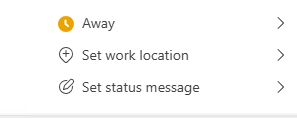
This is intentional behavior. Teams is designed to give colleagues an accurate picture of your availability. If you stepped away from your desk, the Away status is correct. The problem arises when Teams marks you as Away even though you are right there, because you were doing something that did not involve keyboard or mouse input.
Common Reasons Teams Shows You as Away When You Are Not
Reading Without Interacting
If you are reading a long document, reviewing a spreadsheet, or watching a video, you may go several minutes without touching your keyboard or mouse. Teams sees this as inactivity and flips to Away even though you are clearly working. This is probably the most frequent cause.
Teams Running Minimized or in the Background
If the Teams window is minimized or in the background and you are working in another application, Teams may count that as inactivity even if you are typing actively in another program. Teams specifically looks for activity within the Teams client or across your device in general. The sensitivity to background application activity can vary.
Screen Lock or Sleep Mode
If your computer screen locks or goes to sleep, Teams immediately sets your status to Away. This is accurate since you have physically stepped away, but it can cause confusion if your machine locks quickly due to aggressive power settings and you did not actually go anywhere.
Outlook Calendar Integration
Teams reads your Outlook calendar and can automatically update your status based on what is scheduled. If you have a meeting block, focus time, or an out-of-office event on your calendar, Teams may override your manual status setting to reflect it. This is a feature, but it can surprise people who do not realize their calendar is affecting their Teams status.
In a Meeting Without Active Participation
During long meetings where you are listening rather than speaking or typing, Teams can sometimes fall back to Away if your device registers as idle. Using the Teams app directly during a meeting (taking notes, using chat, or opening files) keeps the activity signal alive.
Can You Change the Inactivity Timer?
Individual users cannot change the five-minute inactivity threshold. That setting is baked into the Teams client and is not exposed as a user-configurable option. Microsoft's reasoning is that the timeout is intended to reflect genuine availability.
What you can do is manually override your status. Click your profile picture in the top right of Teams, select your current status, and choose a different one. You can set it to Available, Busy, Do Not Disturb, or Be Right Back. Manual status changes override the automatic detection for a period of time. However, depending on your client version and tenant settings, Teams may revert to the automatically detected status after a while.
Setting a Status Message to Add Context
Even if Teams shows you as Away, you can add a status message that gives colleagues more information. Click your profile picture, then Set status message. Type something like "Working in a long meeting" or "Available by email." This message appears alongside your status indicator when someone hovers over your name, which helps manage expectations even when the status icon is not quite right.
You can also set status messages to expire automatically after a certain duration, which is useful for "Back at 2pm" type messages.
Adjusting Power and Screen Lock Settings
If your screen locks quickly and sets you to Away more often than you would like, the fix is in your Windows power settings rather than Teams. Go to Settings, System, Power and Sleep, and extend the screen timeout to something longer, like 15 or 30 minutes. This gives you more time before the lock screen kicks in and sets Teams to Away.
Keep in mind that locking your screen when you step away is good security practice, so find a balance between a timeout that does not trigger unexpectedly and one that still protects your computer when you are genuinely away.
Admin Considerations
If your organization has deployed Teams through Microsoft 365, some status behaviors can be influenced by admin policies. Global admins and Teams admins can configure certain aspects of presence through PowerShell policies, though the inactivity timeout itself is not adjustable at the policy level either.
If you are running into status issues at scale across your organization, the most common admin-level cause is a configuration issue with presence federation (which controls how users in different tenants see each other's status). That is worth checking if the problem is specifically about external contacts seeing incorrect statuses.
Frequently Asked Questions
Teams shows me as Away even when I am typing. Is this a bug?
If you are actively typing and Teams still shows Away, check whether you are running an older Teams client version. Updating to the latest version often resolves status detection issues. Also verify that your Teams app has not lost connection to the Microsoft 365 service, which can freeze the status at Away regardless of activity.
My colleagues can see me as Away but I can see myself as Available. Which is correct?
What your colleagues see is the status as reported by the server, which may update slightly behind what your local client shows. Give it a minute; they should sync up. If there is a persistent mismatch, signing out and back in to Teams usually resolves it.
Can I stop Teams from using my Outlook calendar to change my status?
Not directly in the Teams user interface. Calendar-based status updates are part of how Teams integrates with Outlook. If your organization has this behavior causing widespread confusion, a Teams admin can investigate policy settings that affect calendar integration.
Final Thoughts
The Away status in Teams is well-intentioned but imperfect. The five-minute inactivity timer is a reasonable default for most situations, but it does not account for every way people actually work. Manual status overrides and status messages are your best tools for managing how you appear to colleagues when the automatic detection is off. If it is a recurring issue, adjusting your screen lock timeout is usually the most practical fix.