
Microsoft Copilot Unable to Verify Link Resolution
If you click a source link inside Microsoft Copilot Chat and get the message "Unable to verify link, the link could not be verified due to an internal error," third-party cookies are the most likely culprit. Your browser is blocking a cookie that Copilot needs to complete the link verification process, and the whole thing falls over before the source ever opens.
This guide covers why it happens, how to fix it in every major browser, how to set it up properly for a whole organization rather than fixing it one machine at a time, and what to know from a privacy standpoint before changing any settings.
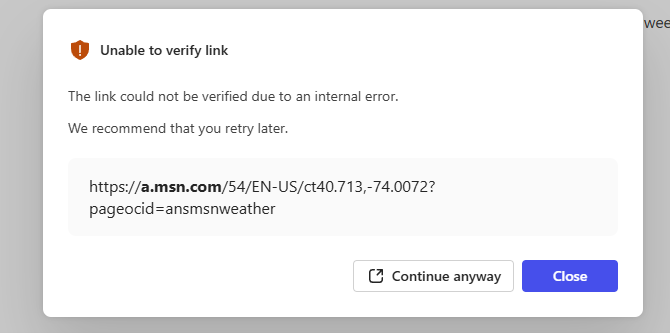
Why This Error Happens
When Copilot returns a response with cited sources, clicking one of those source links triggers a redirect and session verification step. That verification relies on third-party cookies to confirm the active session and safely open the referenced page or document.
As browsers have added stronger default privacy protections over the past few years, many now block third-party cookies by default. Chrome began rolling out default third-party cookie restrictions, Firefox has Enhanced Tracking Protection on by default, and Edge offers optional cookie blocking. When any of those protections are active, the Copilot link verification step fails silently from the user's perspective. All they see is the error message.
Microsoft has confirmed this dependency and acknowledged it is something they need to address on the Copilot side. Until they do, the fix sits with the browser.
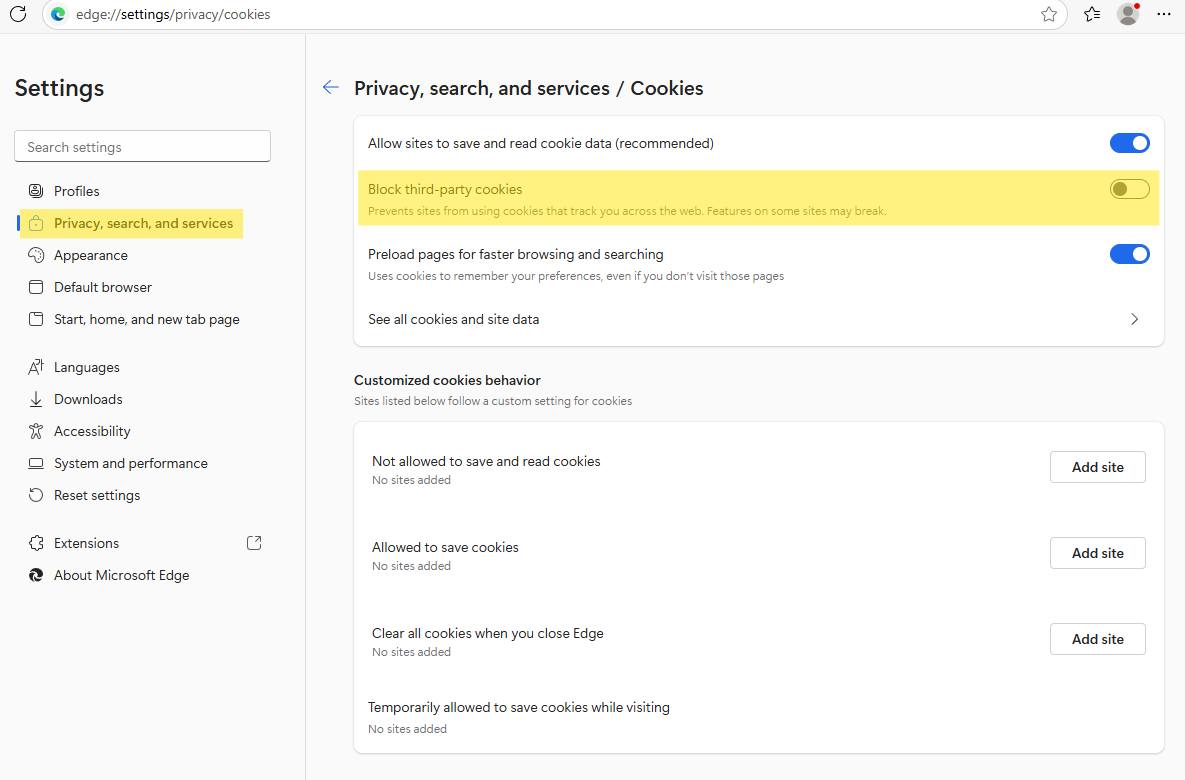
Fix for Microsoft Edge
Edge is the browser Microsoft designs Copilot to work best with, so it is worth checking the cookie settings here first even if Edge is not your primary browser.
- Open Edge and click the three-dot menu in the top‑right.
- Select Settings.
- Go to Privacy, search, and services, then Cookies.
- Toggle Block third-party cookies to Off.
- Alternatively: enter
edge://settings/content/cookiesin the address bar to go straight there, then turn off Block third-party cookies.
- Alternatively: enter
- Restart Edge and check if the Microsoft Copilot unable to verify link error still occurs when clicking on a source link now.
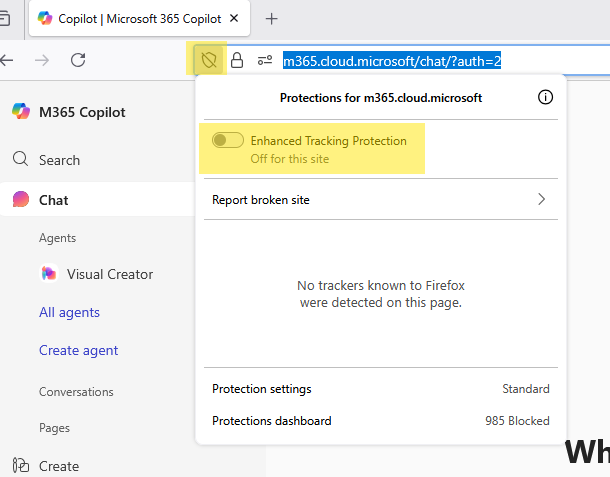
Mozilla Firefox
- Open Firefox and go to Microsoft Copilot (https://m365.cloud.microsoft/chat/?auth=2).
- Now click the Shield icon to the left of the URL
- Toggle Enhanced Tracking Protection switch to Off
- Restart Firefox and click on one of the Microsoft Copilot source links it provides to see if the unable to verify link error is now resolved.
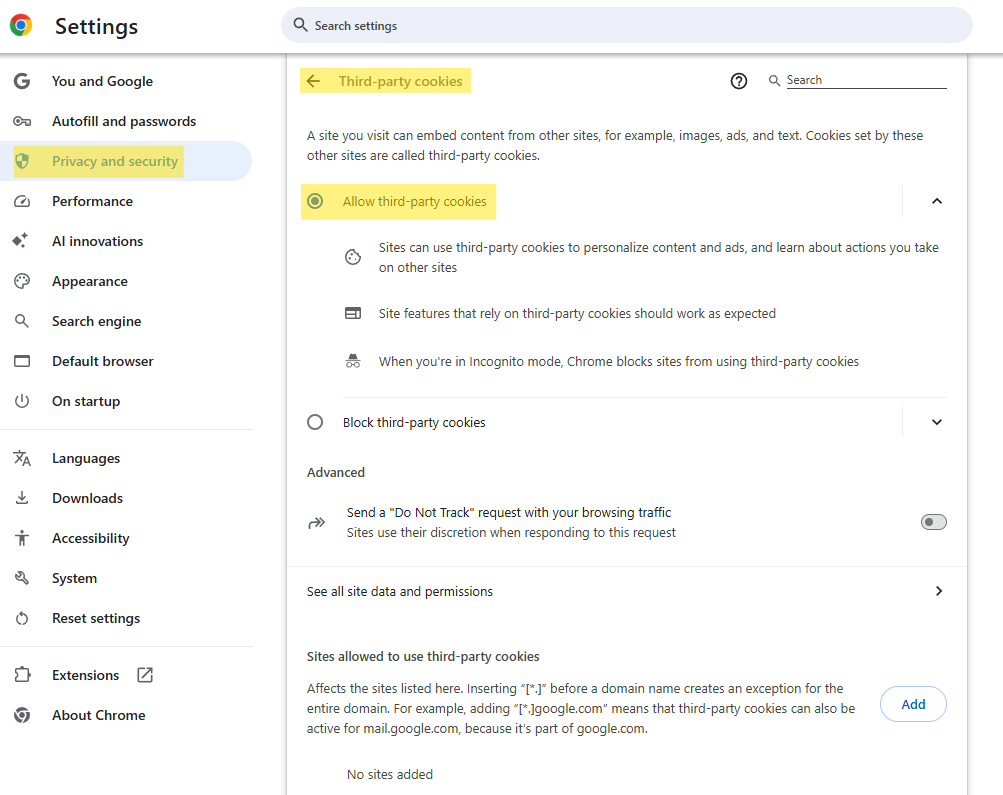
Google Chrome
- Open Chrome, click the three-dot menu → Settings.
- Alternate method, enter
chrome://settings/cookiesin the browser and hit enter
- Alternate method, enter
- Go to Privacy and security -> Third-party cookies.
- Select Allow all third‑party cookies.
- Restart Chrome and go back to Microsoft Copilot to see if the unable to verify link error happens when clicking on a link it provides now.
Fix for Brave Browser
Brave has aggressive tracking protection by default, which commonly triggers this error. The fix is similar to Firefox.
- Navigate to Copilot at m365.cloud.microsoft/chat.
- Click the Brave Shield icon in the address bar (the lion icon).
- Set Trackers and ads blocking to Standard or turn it off entirely for this site.
- Reload the page and test.
Alternatively, go to brave://settings/cookies and add [*.]microsoft.com to the sites that can always use cookies list.
Fix for Safari (Mac)
- Open Safari and go to Preferences, then Privacy.
- Uncheck Prevent cross-site tracking.
Safari's Intelligent Tracking Prevention is effective but breaks the Copilot link verification flow. As with the other browsers, if you want a more targeted fix, you can use Safari's per-site settings to allow cross-site tracking specifically for microsoft.com. Go to Settings for This Website from the Safari menu when you have Copilot open, though the options here are more limited than in other browsers.
The Enterprise Fix: Managing This with Intune or Group Policy
Fixing this browser by browser across a large organization is not practical. If you manage devices through Intune or Group Policy, you can push the cookie exception to all managed devices as a policy setting. This is the right approach for any organization where Copilot is deployed at scale.
Microsoft Edge via Intune or Group Policy
Use the CookiesAllowedForUrls policy to add Microsoft domains to the allowed list. Set the policy value to include [*.]microsoft.com and [*.]microsoftonline.com. Users on managed devices will have the exception applied automatically without needing to touch any browser settings themselves.
In Intune, this is configured under Device Configuration, then Configuration Profiles, then Settings Catalog, searching for CookiesAllowedForUrls under the Microsoft Edge category.
Google Chrome via Intune or Group Policy
Chrome has a matching CookiesAllowedForUrls policy under the Google Chrome administrative template. The same domain entries apply. Push the policy through Intune or your Group Policy infrastructure and it takes effect on next browser restart.
Firefox via Group Policy
Firefox supports Group Policy management through the Firefox ADMX templates available from Mozilla. The Cookies policy can add trusted sites to an exceptions list. This is less commonly deployed than Edge or Chrome management but the mechanism exists if Firefox is a standard in your environment.
Is It Safe to Allow Microsoft Cookies?
This is a reasonable question, especially in environments with strict data handling requirements. Allowing third-party cookies for Microsoft domains specifically is a narrow exception. You are not opening up third-party cookies broadly. You are allowing session cookies from the same vendor whose software you are already authenticated into.
The cookies involved in the Copilot link verification flow are authentication and session tokens. They are not advertising cookies or cross-site tracking mechanisms. The data flowing through them is the same session data that already exists in your authenticated Microsoft 365 session.
For organizations in regulated industries, if your environment has a specific policy against any third-party cookies regardless of source, that is worth reviewing with your security team before making changes. The exception is narrow but it is still a policy change.
When Will Microsoft Fix This?
Microsoft has acknowledged the dependency and it is on their list to address. The likely long-term fix is redesigning the link verification flow to use first-party cookies or a different authentication mechanism that does not depend on third-party cookie support. There is no public timeline, but given how broadly third-party cookie blocking is being adopted across browsers, fixing this is in Microsoft's interest.
In the meantime, the Intune policy approach is the cleanest path for organizations. It is a single configuration push that resolves the issue for all users without requiring any manual browser changes.
If you are managing Copilot across your organization more broadly, Copilot admin settings to check for governance covers the full range of controls available in the Microsoft 365 admin center, including how to manage which users have access to Copilot features and what data it can reference.
For admins who are newer to the Copilot rollout process, How to Enable Claude in Microsoft Copilot also covers the broader Copilot settings landscape including Anthropic model availability and the subprocessor configuration.
Frequently Asked Questions
Does this error affect all source links or just some?
It affects source links that go through the Copilot link verification redirect. That includes most cited sources in Copilot Chat responses. Direct links that Copilot renders without going through the verification step are not affected, but those are less common.
Does the error affect Copilot in Teams or Outlook?
The unable to verify link error is specific to the browser-based Copilot Chat experience at m365.cloud.microsoft. Copilot embedded in Teams and Outlook uses different rendering paths and handles link verification differently. If you are seeing the error in Teams or Outlook specifically, that is a separate issue from the third-party cookie problem described here.
I allowed third-party cookies but the error still appears. What now?
If the error persists after updating cookie settings, try clearing your browser cache and cookies completely, then sign back into Microsoft 365 and test again. Stale session data can interfere with the verification flow even after the cookie policy is corrected. Also confirm you restarted the browser after making the settings change, as some browsers require a full restart for cookie policy changes to take effect.
Can I tell which source links will trigger the error before clicking?
Not reliably. The error appears at the moment of click during the verification step. There is no visual indicator on the link itself that flags it as likely to fail. The fix is to resolve the cookie setting so the verification step succeeds for all links rather than trying to predict which ones will fail.
Will this error go away on its own after a browser update?
Not necessarily. Browser vendors are moving toward more cookie restrictions over time, not fewer. The fix needs to come from the Microsoft side by updating how Copilot handles link verification, or from the browser policy side by maintaining the exception. Waiting for a browser update to resolve this is unlikely to work.