Microsoft Text to Speech for Free with Clipchamp
Clipchamp is Microsoft's free browser-based and Windows-native video editor, and it includes a surprisingly capable text-to-speech feature powered by Microsoft Azure. This guide covers how to use text to speech in Clipchamp, what voices and options are available, tips for getting professional-quality results, limitations you should know about, and how it compares to other options.
What Is Clipchamp and Who Is It For?
Clipchamp is available for free with any Microsoft account and is built into Windows 11. If you have a Microsoft 365 account, you likely already have access to it at clipchamp.com or through the Windows Start menu. It is designed for creating and editing videos without needing professional video software.
The text-to-speech feature specifically is useful for creating training videos, tutorials, product demos, explainer content, and any other video where you need a narration track but do not have a microphone or prefer not to record your own voice. It is also useful for accessibility — adding a read-aloud audio track to written content.
Accessing Clipchamp
You can access Clipchamp in two ways: through the browser at clipchamp.com, or through the Clipchamp desktop app on Windows 11. Both support text-to-speech. Sign in with your Microsoft account to access your projects across both. On Windows 11, search for Clipchamp in the Start menu to open the app directly.
The desktop app generally performs better for export since it can use local processing resources rather than being limited by browser performance.
Step-by-Step Guide to Using Microsoft Text to Speech in Clipchamp
Step 1: Sign Up or Log In
Begin by heading to Clipchamp.com and signing in with your Microsoft account. If you’re using Windows 11, Clipchamp is likely already installed. Just open the app to start.
Step 2: Create a New Project
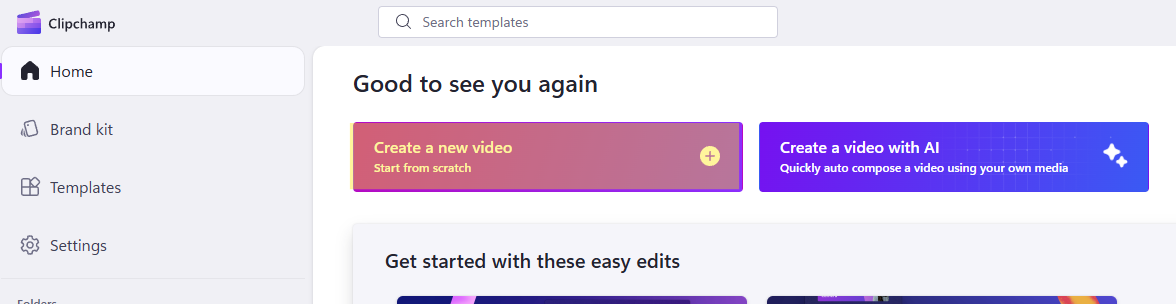
From your dashboard, select “Create a new video” and choose the appropriate video size or aspect ratio based on your needs.
Step 3: Access Text to Speech Feature
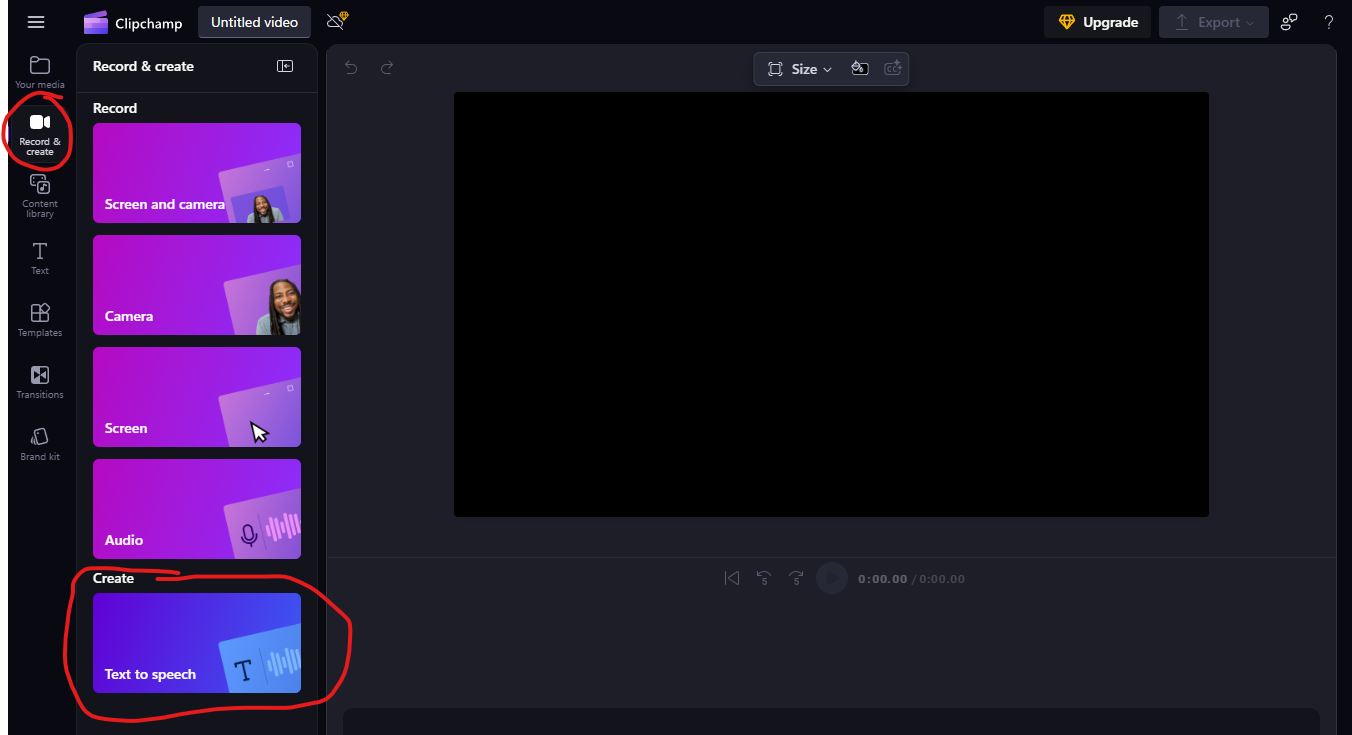
On the left-hand toolbar, click "Record & Create," and then choose "Text to Speech." This will open the text-to-speech interface where you'll manage your voice over.
Step 4: Select a Voice
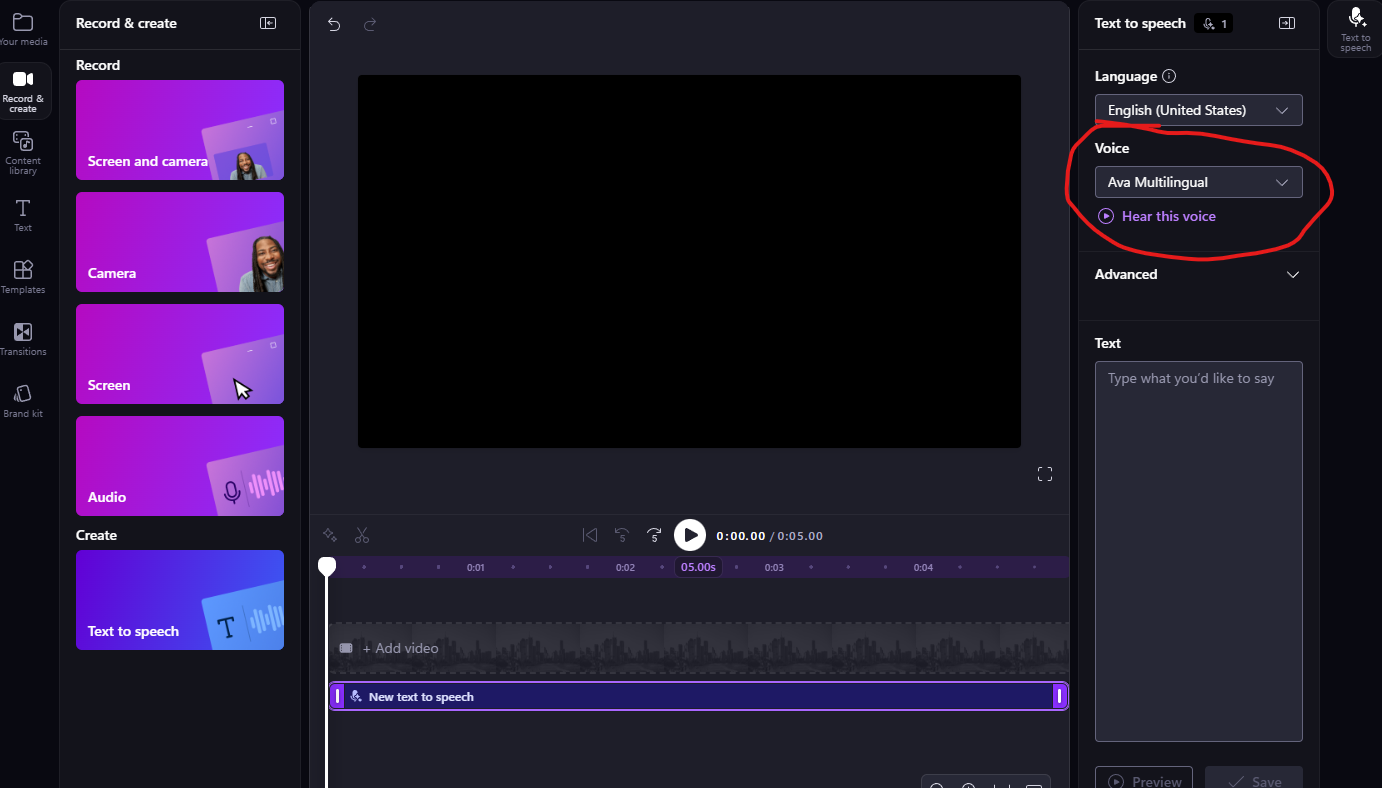
Choose from hundreds of voices spanning numerous languages, accents, genders, and even emotional tones. Preview each voice by clicking the "Hear this voice" button.
Step 5: Enter Your Script
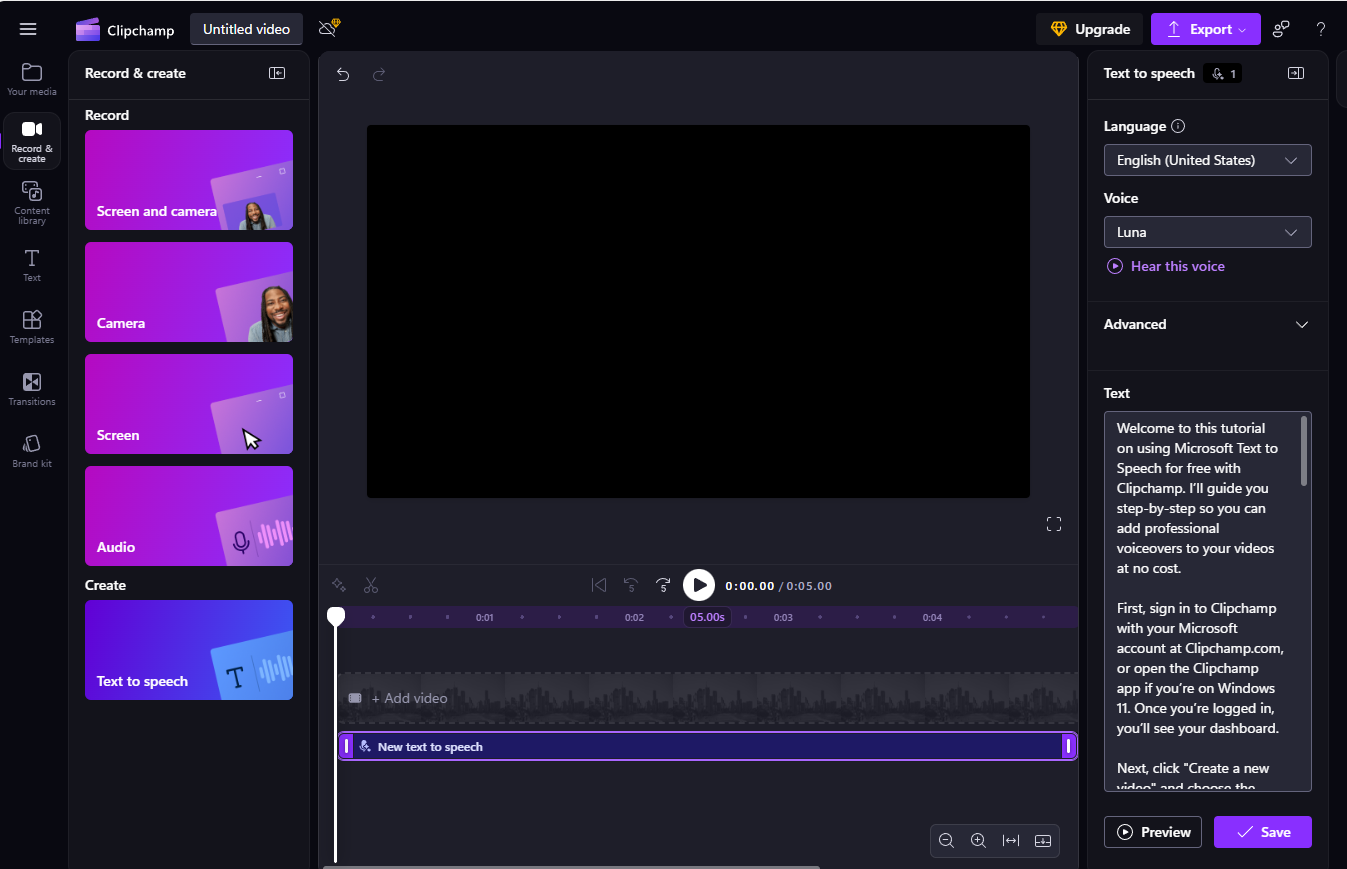
Paste or type your narration into the text field. Each clip supports up to 10 minutes of narration, but you can create multiple clips for longer voice overs.
Step 6: Customize Your Audio (Optional)
Adjust the voice speed, pitch, and intonation under the "Advanced settings" menu to refine your voice over to fit your video style or personal preference.
Step 7: Preview and Save
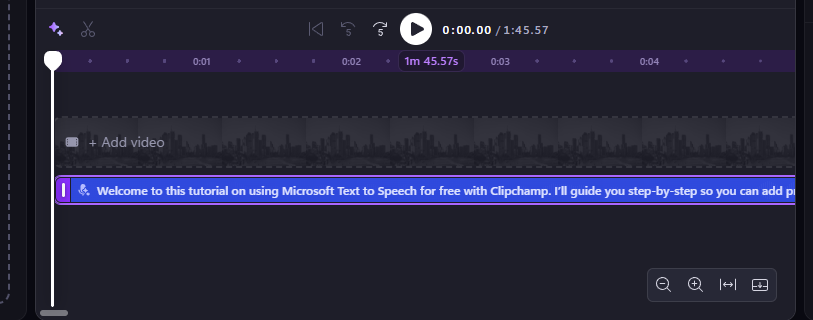
Click "Preview" to listen to your voice over. If satisfied, select "Save" and your voice over will automatically be placed onto your timeline for easy editing.
Step 8: Edit and Export Your Video or mp3
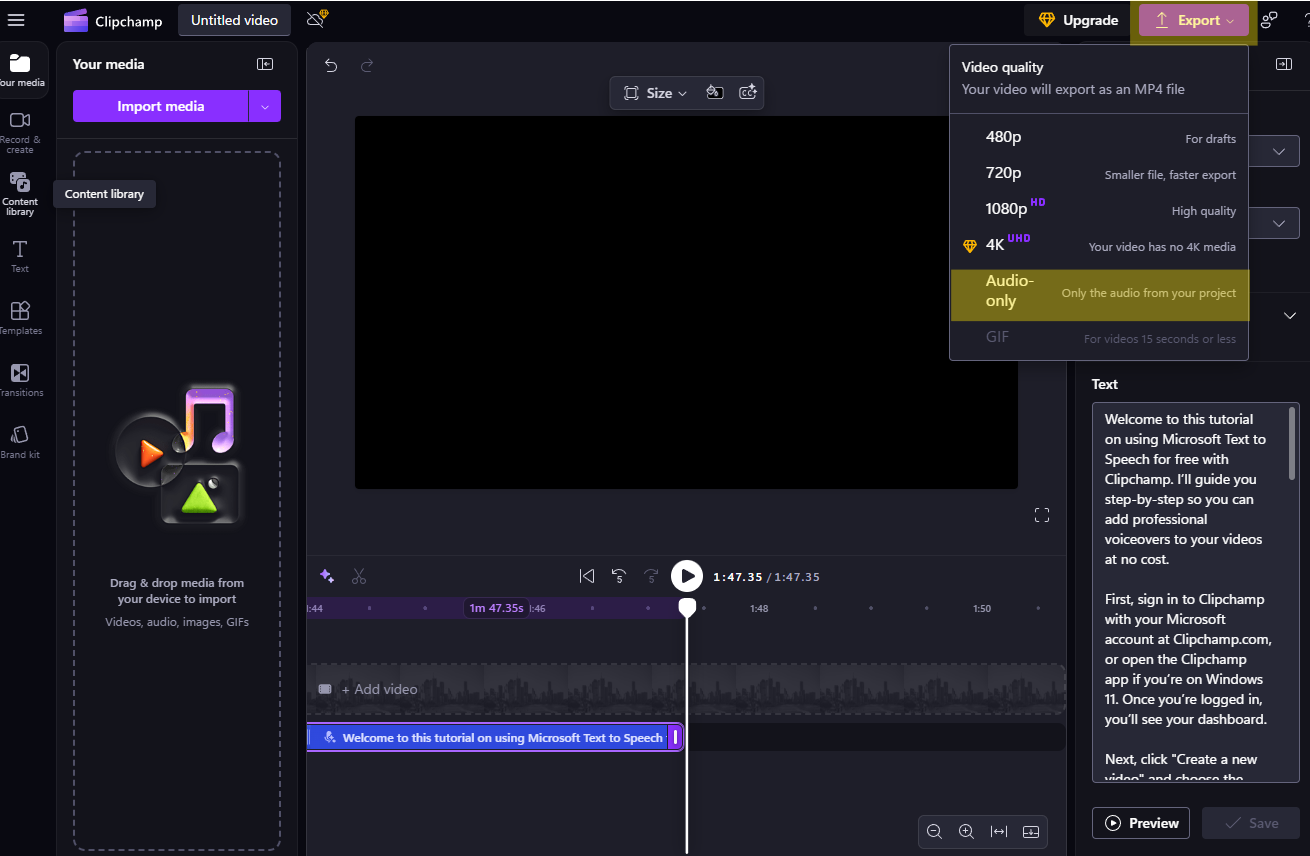
Arrange your audio clip within the timeline by dragging it into position. Once complete, click "Export" and select the format and quality to export as.
Example Microsoft Text to Speech Audio
Here is the result of the audio created for this tutorial.

Choosing the Right Voice
Voice selection makes a significant difference in how professional the result sounds. A few tips:
- Neural voices sound significantly more natural than standard voices. Look for voices labeled "Neural" in the selection panel.
- Voices with an "Emotional" tag allow you to select a speaking style such as cheerful, professional, calm, or newscast. These are useful for presentations and training content.
- If the default speed sounds unnatural, start with the voice at its default settings and then adjust speed in Advanced settings rather than selecting a different voice. Most voices sound best at their default pace.
- For US English, the en-US-JennyNeural and en-US-GuyNeural voices are popular choices that sound natural in most contexts.
Script Tips for Better Results
The quality of AI-generated speech depends heavily on how the script is written. A few practices that improve output quality:
- Use punctuation deliberately. Commas and periods create natural pauses. If you want a longer pause, add an extra period or break the sentence.
- Write out numbers and abbreviations. Text-to-speech engines sometimes mispronounce numbers written as digits (especially large ones) or uncommon abbreviations. Writing "two thousand twenty-five" instead of "2025" or "SharePoint Online" instead of "SPO" avoids unexpected pronunciation.
- For words that are consistently mispronounced, try spelling them phonetically. Some TTS engines respond to this. If phonetic spelling does not help, rephrase the sentence to avoid the problem word.
- Keep sentences reasonably short. Long, complex sentences with multiple clauses can sound awkward in synthesized speech even if they read well on paper.
Exporting Your Audio or Video
Once you are satisfied with the narration and any accompanying visuals, click Export in the top right of the Clipchamp editor. You can export as a video file (MP4 is the default) in resolutions up to 1080p on the free tier.
If you only need the audio track and not a video, there is a workaround: create a blank video with a solid color background, add your text-to-speech audio to the timeline, and export. You can then extract the audio from the resulting MP4 using any free audio conversion tool. Clipchamp does not export standalone MP3 or WAV files directly.
Clipchamp Text to Speech vs. Other Options
Clipchamp's text to speech is built on Microsoft Azure Cognitive Services Speech, the same engine that powers enterprise-grade voice applications. This means the quality is comparable to paid standalone TTS tools. The main differences from dedicated TTS tools:
- Clipchamp is integrated with video editing, so the workflow is smoother if you are creating video content.
- Dedicated TTS tools like Murf, ElevenLabs, or Azure Speech Studio give you more fine-grained control over pronunciation, emphasis, and voice cloning.
- For pure audio exports without video editing, Azure Speech Studio (also free up to a usage limit) or the Microsoft Immersive Reader TTS are easier workflows.
- Clipchamp free tier has an export limit (up to 1080p, no watermark for Microsoft account users). The premium features like 4K export require a Microsoft 365 subscription.
Licensing and Microsoft 365
The free version of Clipchamp available with any Microsoft account includes full text-to-speech functionality with no watermark on exports. A Microsoft 365 personal, family, or business subscription adds premium export options (4K, premium filter effects) but the text-to-speech feature itself is not locked behind a paywall.
For organizations deploying Clipchamp as part of Microsoft 365, the text-to-speech feature is available to all licensed Microsoft 365 users. Admins can manage Clipchamp availability through the Microsoft 365 admin center under Apps if needed.
Frequently Asked Questions
Can I use Clipchamp text to speech for commercial projects?
Yes. Content created with Microsoft Clipchamp, including audio generated through its text-to-speech feature, can be used for commercial purposes under Microsoft's standard terms of service. Review the current Microsoft Services Agreement if you have specific requirements for your use case.
How many voices are available?
Clipchamp provides access to hundreds of voices across more than 70 languages, powered by Azure Neural TTS. The selection continues to expand as Microsoft adds new voices and languages.
Does Clipchamp work on Mac?
Clipchamp is accessible through any modern browser, including Safari and Chrome on Mac, at clipchamp.com. The desktop app is Windows-only. Browser performance varies, but the core text-to-speech feature works cross-platform.
Is there a character or length limit?
Each individual text-to-speech clip supports up to 10 minutes of narration. For longer projects, create multiple clips and arrange them sequentially on the timeline. There is no hard limit on the total number of clips in a project.