How to Install Microsoft Copilot as an App using Microsoft Edge
If you use Microsoft 365 Copilot regularly throughout your workday, having it open as a dedicated app rather than digging through browser tabs is a genuine time saver. Microsoft Edge supports installing any web app as a Progressive Web App (PWA), and Copilot works well as one. This guide walks through exactly how to set it up, what to do if things do not work as expected, and a few tips for managing the app once it is installed.
Why Install Copilot as an App?
Running Copilot as a standalone app rather than a browser tab comes with a few real advantages. First, it gets its own taskbar icon and can be launched directly without opening a browser. Second, it runs in a dedicated window without the full browser chrome, address bar, or other tabs competing for your attention. Third, it behaves more like a native desktop app, which makes it easier to Alt-Tab to quickly when you need it between other tasks.
For anyone who finds themselves switching to Copilot dozens of times per day, these differences add up.
Requirements
This installation method requires Microsoft Edge. It will not work from Chrome, Firefox, or other browsers. If Edge is not your default browser, you can still install Copilot as an app from Edge specifically without changing your default.
You also need to be signed in to Edge with a Microsoft account that has access to Copilot. If you have a Microsoft 365 Copilot license, use your work account.
Step-by-Step Guide to Install Copilot as an App
- Open Microsoft Edge: Begin by launching the Microsoft Edge browser on your computer. For this to work it does need to be done from the Edge browser
- Navigate to Microsoft Copilot: Type
m365copilot.cominto the address bar and press Enter. Ensure you're signed in with your Microsoft account that has access to Copilot.
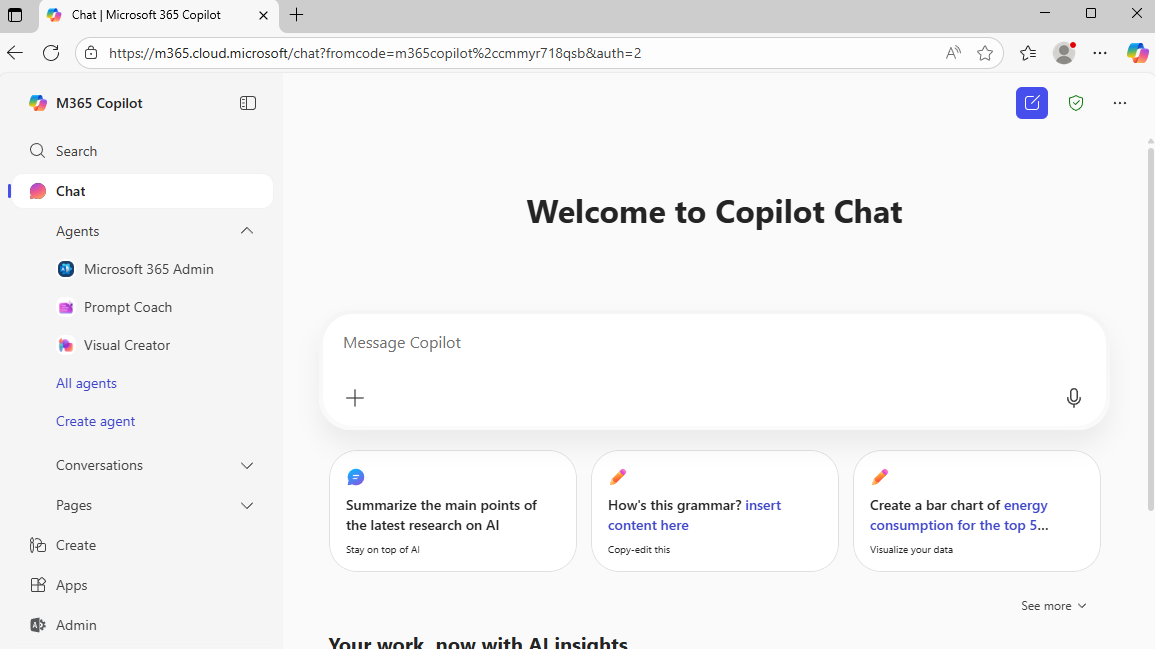
- Install Copilot as an App:
- Look at the top-right corner of the Edge browser and click the three-dot menu (⋯).
- Hover your mouse over the option labeled Apps.
- Select Install this site as an app from the sub menu that appears.

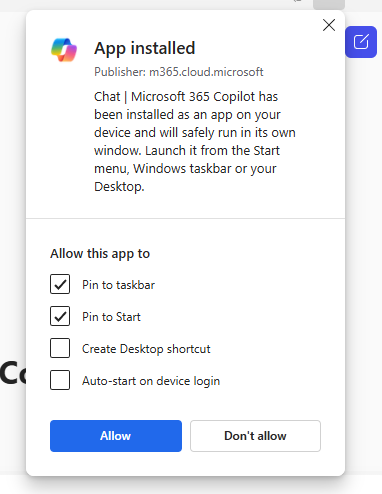
- Confirm Installation: When prompted, click Install. Microsoft Copilot will now open in its own dedicated window.
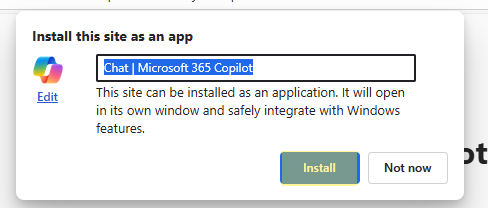
- Pin for Easy Access: For quicker access, right-click on the newly created app icon in the taskbar and choose Pin to taskbar or Pin to Start.
If the Install Option Does Not Appear
If you do not see Apps or Install this site as an app in the Edge menu, a few things might be going on.
First, confirm you are on the right page. The install option only appears when the site supports PWA installation. Make sure you are at m365.cloud.microsoft rather than a Copilot feature page inside another Microsoft 365 app.
Second, check that you are signed in. Some Edge configurations require you to be signed into the site before the install option appears.
Third, some organization IT policies block PWA installation entirely. If the option is consistently missing, check with your IT admin to see whether Edge app installations are restricted in your environment.
Managing the Installed App
Once Copilot is installed as an app, Edge handles updates automatically. Since it is a web app, the content updates whenever Microsoft deploys changes to the Copilot service. You do not need to manually update or reinstall it.
To manage your installed apps in Edge, go to the three-dot menu, then Apps, then Manage apps. This shows you all sites you have installed as apps, lets you uninstall them, and allows you to adjust permissions like notifications or camera access.
Pinning to the Taskbar and Start Menu
Right-clicking the Copilot app icon after installation gives you options to pin it to the taskbar, pin it to the Start menu, or create a desktop shortcut. Any of these makes it faster to open Copilot without needing to navigate to it through a browser.
For keyboard shortcut fans, once Copilot is pinned to the taskbar, you can press Windows+[number] to launch it, where the number corresponds to its position in the taskbar.
Admin Considerations
If you manage devices in your organization and want to either promote or restrict PWA installations, this is controlled through Edge browser policies. The relevant PWA policies in Microsoft Intune or Group Policy determine whether users can install sites as apps.
If you want to deploy Copilot as an app to all managed devices automatically, you can push a PWA installation through Intune without requiring users to install it themselves. This is a good option for standardizing the Copilot experience across your organization.
Frequently Asked Questions
Does the Copilot app work offline?
No. Microsoft 365 Copilot requires an active internet connection to function since it relies on cloud-based AI processing. The app will launch but will not respond to prompts without connectivity.
Can I sign into a different account in the Copilot app vs my browser?
Yes. The PWA app runs in its own Edge profile context. You can configure it to use a different account than your main browser session, which is useful if you want to keep work and personal accounts separated.
Is this the same as the Microsoft Copilot app from the Windows Store?
No. The Windows Store has a separate Copilot app from Microsoft. The PWA method described here installs the Microsoft 365 Copilot web experience (m365.cloud.microsoft) as an app, which includes your organization's Copilot with Graph-grounded capabilities and your Microsoft 365 data. The Store app is the consumer version of Copilot and does not have access to your work data.
What happened to m365copilot.com?
Microsoft moved the Microsoft 365 Copilot experience to m365.cloud.microsoft. The old m365copilot.com address redirects there automatically. If you had the old URL bookmarked or installed as a PWA, update it to m365.cloud.microsoft for a clean experience.
Final Thoughts
Installing Copilot as an app through Edge is a small setup change that makes a real difference if you use it frequently. The dedicated window removes the friction of hunting through browser tabs, and pinning it to your taskbar puts it one click away at all times. Give it a try and see if having it as a standalone app changes how naturally you reach for it throughout the day.