
SharePoint Sync vs Add Shortcut to OneDrive: Which to Use?
If you want SharePoint files to show up in File Explorer on your PC, you have two choices: the Sync button or Add shortcut to OneDrive. They look like they do the same thing, but they work differently, and picking the wrong one is behind a lot of the "my files disappeared" and "it won't let me sync" tickets I see.
The short answer: for most people, Add shortcut to OneDrive is the better choice, and it's what Microsoft recommends too. A shortcut follows you to every device you sign in to, it's lighter on your PC, and it's easier to clean up later. Sync still has a place, but it's no longer the default I'd reach for.
This guide walks through what each option actually does, how to use them, the new Shortcuts folder that showed up in OneDrive this year, and the mistakes that cause most of the headaches.
The Quick Answer
- Use Add shortcut to OneDrive when you want a SharePoint or Teams folder to show up in your OneDrive on every device: your PC, your laptop, the OneDrive web app and the mobile app.
- Use Sync when you need a whole library on one specific computer and a shortcut isn't an option, for example because your organization turned shortcuts off.
- Don't use both on the same library. Microsoft doesn't allow it, and you'll get an error if you try.
What the Sync Button Does
Sync connects a SharePoint library, or a folder in it, directly to the OneDrive app on the computer you're using. The files show up in File Explorer in a separate section named after your organization, outside your own OneDrive folder. Changes you make in File Explorer upload to SharePoint, and changes other people make download to your PC.
The key thing to understand is that sync is tied to that one computer. If you get a new laptop, or sign in on a second PC, the library isn't there until you go back to SharePoint and click Sync again. Nothing about it is stored in your account.
Sync has been around much longer than shortcuts, which is why so many people still use it out of habit. Plenty of older training material and help desk guides still tell people to click Sync, even though Microsoft now steers people toward shortcuts.
What Add Shortcut to OneDrive Does
Add shortcut to OneDrive puts a link to the SharePoint library or folder inside your own OneDrive. It looks like a regular folder with a small arrow on the icon. Because it lives in your OneDrive, it shows up everywhere your OneDrive does:
- In File Explorer or Finder on every computer where the OneDrive app is signed in
- In OneDrive on the web
- In the OneDrive mobile app
The files themselves never move. They stay in the SharePoint site, keep the site's permissions, and count against the site's storage, not yours. You're just looking at them from your OneDrive.
Microsoft's own guidance spells it out. Its SharePoint sync documentation says both options let people work with files in File Explorer or Finder, but shortcuts work across all devices, perform better than the Sync button, and are the recommended choice.
Sync vs. Add Shortcut: Side by Side
- Where it shows up: Sync shows up only on the computer where you clicked it. A shortcut shows up on every device signed in to your OneDrive.
- Where it lives in File Explorer: Synced libraries get their own section named after your organization. Shortcuts appear inside your OneDrive folder.
- New computer: With sync, you have to set it up again. With a shortcut, it's already there once you sign in to OneDrive.
- Mobile and web: Sync does nothing for you there. Shortcuts show up in OneDrive on the web and in the mobile app.
- Performance: Microsoft says shortcuts perform better, especially when you only need one folder instead of the whole library.
- Removing it: Sync is stopped from the OneDrive app's settings on each PC. A shortcut is removed once, from OneDrive, and it disappears everywhere.
For most people, that "every device" difference is what decides it. If you've ever set up a new laptop and had to go hunting for the libraries you used to sync, shortcuts fix that problem for good.
How to Add a Shortcut to OneDrive
You can add a shortcut to a whole library or to a single folder. If you only work in one or two folders, add shortcuts to those folders rather than the entire library. It keeps your OneDrive tidy and keeps the number of synced files down.
Add a Shortcut to a Folder
- Open the SharePoint site, or open the Files tab in a Teams channel and choose to open it in SharePoint.
- Go to the library and find the folder you want.
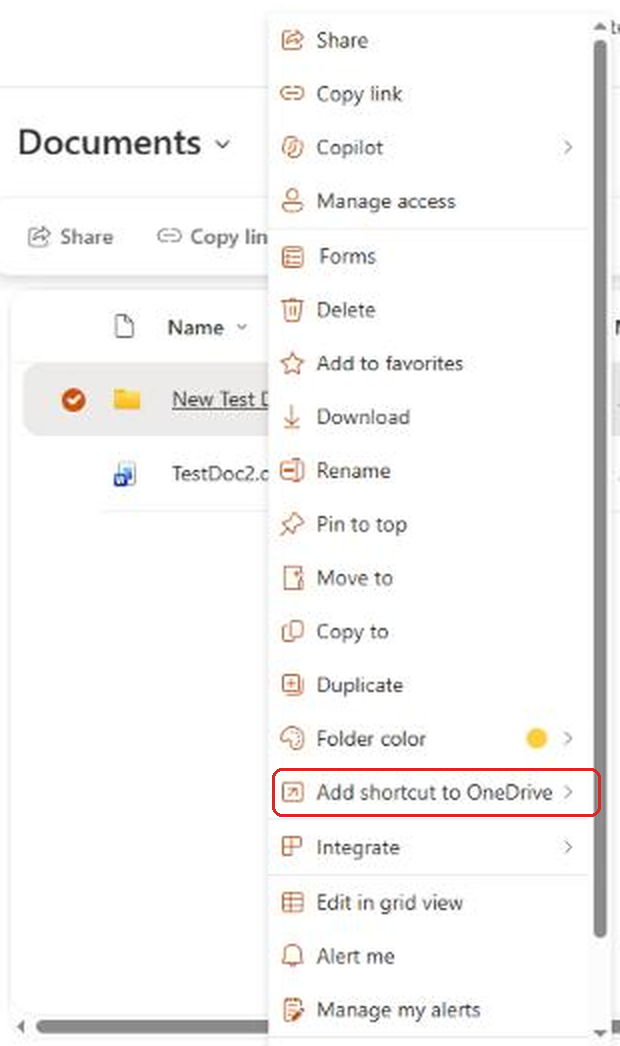
- Right-click the folder, or select it and choose ... (more actions).
- Select Add shortcut to OneDrive.
Add a Shortcut to a Whole Library
- Open the library without selecting any files or folders.
- Select Add shortcut to OneDrive in the toolbar. On a narrower window, it moves into the ... (more options) menu, right above the other library commands.
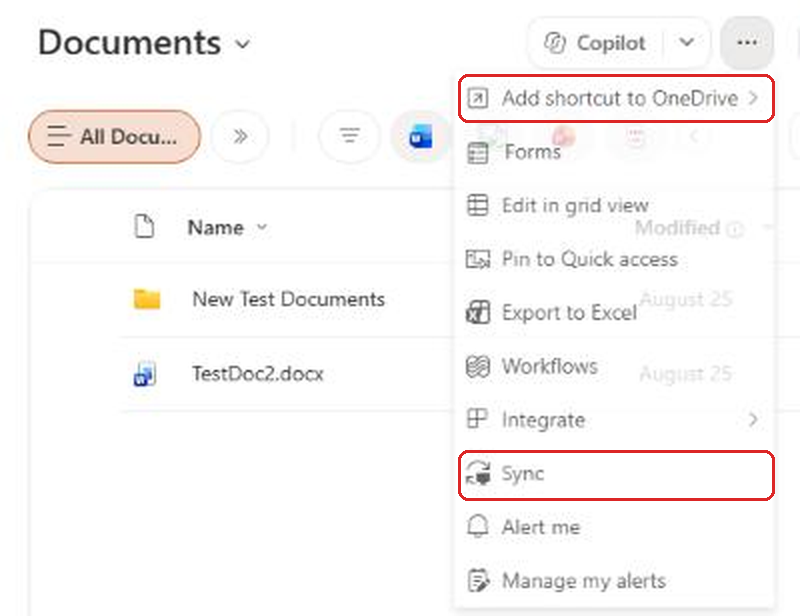
You'll notice Sync sits in the same menu. That's where a lot of people go wrong. Both options are right there, and nothing on screen tells you which one to pick.
Choosing Where the Shortcut Goes
When you select Add shortcut to OneDrive, you can now choose where it lands. Next to the option there's an arrow that opens two choices:
- Shortcuts puts the shortcut in a dedicated Shortcuts folder in your OneDrive.
- My files puts it at the top level of your OneDrive, which is how shortcuts always worked before.
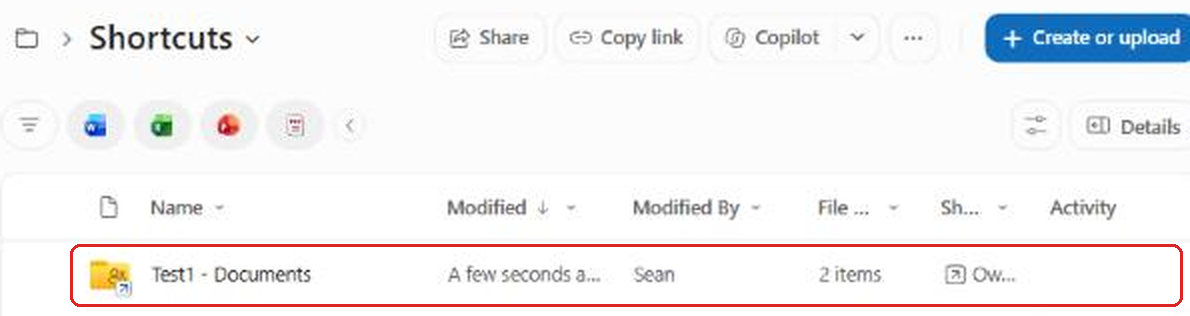
Microsoft added this in July 2026 (Message Center post MC1385585) because shortcuts were cluttering the top of people's OneDrive. The Shortcuts folder is created the first time you use it and has its own blue icon, so it's easy to spot.

Inside it, each shortcut is named after the site and library it points to. When I added a shortcut to the Documents library of a site called Test1, it showed up as Test1 - Documents, with the small arrow on the folder icon that marks it as a shortcut.
I'd use the Shortcuts folder going forward. It keeps your own files and your team's files clearly separated. Shortcuts you added before this change stay where they are. Microsoft doesn't move them for you.
Seeing It on Your PC
As long as the OneDrive app is running and signed in with your work account, the shortcut appears in File Explorer under OneDrive with your organization's name, a few moments after you add it. With Files On-Demand turned on, which is the default, files show a cloud icon and only download when you open them, so a big library won't fill up your drive.
Once it's there, you can save to it straight from Word, Excel or PowerPoint, drag files in from your desktop, and everything uploads back to SharePoint. If you prefer files to open in the desktop apps when you click them in SharePoint, my guide to opening SharePoint files in the desktop app covers that setting.
How to Sync a Library (When You Need To)
If shortcuts aren't available in your organization or you have a specific reason to sync, here's how:
- Open the SharePoint library, or the folder inside it you want.
- Select Sync in the toolbar or the ... menu.
- If your browser asks to open Microsoft OneDrive, allow it.
- The library shows up in File Explorer under your organization's name.
Remember you'll need to repeat this on every computer you use.
Why You Can't Use Both on the Same Library
This is the error that trips people up most. If you already sync a library and then try to add a shortcut to it, or the other way around, OneDrive blocks it. The message Microsoft documents is:
Sorry, we can't sync this folder. You're already syncing a shortcut to a folder from this shared library.
That's by design. For any one library, you have to pick one method. This applies even if the sync and the shortcut point to different folders in the same library.
How to Switch from Sync to Shortcuts
If you've been syncing libraries for years and want to switch, do it in this order so you don't hit that error:
- Make sure everything has finished uploading. The OneDrive icon in your taskbar should show that your files are up to date.
- Select the OneDrive icon, then the gear, then Settings.
- On the Account tab, find the library and select Stop sync.
- Go back to the library in SharePoint and add a shortcut to the library or the folders you actually use.
- Wait for the shortcut to show up in File Explorer before you start working.
Stopping sync doesn't delete anything from SharePoint. It just disconnects your PC. Microsoft notes that local copies stay on your computer unless you delete them, so once the shortcut is working, you can delete that old synced folder to free up space. Delete the old local folder only after you've stopped sync, never before, or OneDrive may treat it as you deleting the files.
Also update any desktop shortcuts, pinned Quick access folders or saved file paths in your apps. The path changes when you switch, because the files now live under your OneDrive folder instead of the organization's sync folder.
Removing a Shortcut the Right Way
This is the most important section in this post, so read it carefully.
To get rid of a shortcut, open OneDrive on the web, right-click the shortcut and choose Remove shortcut. That removes it from your OneDrive and from every PC where you're signed in. The folder and files in SharePoint aren't touched, and nobody else is affected.
What you should never do is open the shortcut and delete the files inside it. Those are the real files in SharePoint. Deleting them deletes them for everyone on the team. Microsoft is clear about this in its shortcut documentation: removing the shortcut only affects you, but deleting the folder deletes it for everyone.
The same goes for File Explorer. If you no longer want a shortcut on your PC, remove it from OneDrive on the web. Don't delete it by hand in File Explorer.
Limits and Things to Know
- Microsoft recommends keeping the total number of items you sync under about 300,000 for good performance, and that guidance applies to shortcuts as well as synced libraries. If you work with a huge library, add shortcuts to the specific folders you need instead of the whole thing.
- You need permission to work with the library or folder. If you only have view access, you may not see the option. My post on SharePoint permissions explains what each level allows.
- A shortcut keeps the permissions of the SharePoint site. Adding one doesn't give anyone new access, and if your access is removed, the shortcut disappears from your OneDrive.
- Shortcuts don't use your OneDrive storage. The files still count against the SharePoint site's storage.
- Renaming a shortcut only changes the name you see. Everyone else still sees the original folder name in SharePoint.
- Your organization can turn either option off. If you don't see Sync or Add shortcut to OneDrive, that's probably why.
Which Should You Use?
Here's how I'd decide in a few common situations.
You Work on More Than One Device
Use a shortcut. This is exactly what shortcuts are built for. Add it once and it's on your desktop, your laptop, your phone and the web.
You Only Need One Folder from a Big Library
Use a shortcut to that folder. You get what you need without pulling down the whole library's file list.
You Just Got a New Computer
If you used shortcuts, sign in to OneDrive and you're done. If you used sync, this is a good moment to switch to shortcuts rather than setting up sync again.
A Shared Computer or a Lab PC
Usually neither. On a computer other people use, work in the browser so your files don't end up stored on that machine. If you're unsure, the browser is always the safe choice. My post on SharePoint vs OneDrive covers where different kinds of files should live.
Your Organization Turned Shortcuts Off
Then sync is your option. Sync only the folders you need, not the whole library, and keep Files On-Demand turned on.
For Admins: Steering People Toward Shortcuts
If you manage SharePoint, you can nudge people toward shortcuts by hiding the Sync button in libraries. It doesn't break existing syncs, it just stops new ones from being started.
# Connect to SharePoint Online first (SharePoint admin or above)
Connect-SPOService -Url https://contoso-admin.sharepoint.com

# Hide the Sync button in SharePoint libraries.
# Existing syncs keep working; new syncs can't be started from the button.
Set-SPOTenant -HideSyncButtonOnTeamSite $true
The opposite switch also exists. Set-SPOTenant -DisableAddShortcutsToOneDrive $true turns off Add shortcut to OneDrive for your organization. I'd leave shortcuts on unless you have a specific reason not to, and tell people about the new Shortcuts folder so they're not surprised when it appears.
Frequently Asked Questions
Is Add shortcut to OneDrive better than Sync?
For most people, yes. Microsoft recommends shortcuts because they work on every device signed in to your OneDrive and perform better. Sync only works on the one computer where you set it up.
Does removing a OneDrive shortcut delete the files?
No. Selecting Remove shortcut only removes it from your OneDrive. The files stay in SharePoint. Deleting files inside the shortcut, though, deletes them for everyone.
Why can't I add a shortcut to a library I already sync?
OneDrive doesn't allow both on the same library. Stop syncing it from the OneDrive app's settings first, then add the shortcut.
What is the new Shortcuts folder in OneDrive?
It's an optional folder Microsoft added in 2026 to hold shortcuts so they don't clutter the top of your OneDrive. When you add a shortcut, you can choose Shortcuts or My files. Older shortcuts aren't moved automatically.
Do shortcuts use my OneDrive storage?
No. The files stay in the SharePoint site and count against that site's storage, not your OneDrive quota.
Final Thoughts
Sync and shortcuts both put SharePoint files in File Explorer, but shortcuts are tied to you instead of to one computer, and that makes them the better default for almost everyone. Add shortcuts to the folders you actually use, keep them in the new Shortcuts folder, and use Sync only when a shortcut isn't an option.
And whichever one you use, remember the one rule that saves the most trouble: remove shortcuts with Remove shortcut, and never delete the files inside them unless you really mean to delete them for the whole team.
Sources: Sync in SharePoint and OneDrive, Recommended sync app configuration, You can't sync a shared folder that's set as a shortcut, Sync SharePoint and Teams files with your computer, SharePoint limits, MC1385585.