
How to Automatically open SharePoint File in Desktop App
By default, SharePoint often opens Word, Excel, and PowerPoint files in the browser, which can be limiting if you prefer the full functionality of the desktop apps. Fortunately, there are several ways to change this behavior. It can be set at the library level, applied across an entire site, or on a file-by-file basis. We’ll cover three methods to make sure your SharePoint files open directly in their desktop applications for a smoother editing experience.
1. Set it at the document library level
If you have full control as a Site Owner over a specific document library:
- Go to your SharePoint site and open the desired document library.
- Click the gear icon (⚙️) and choose Library settings.
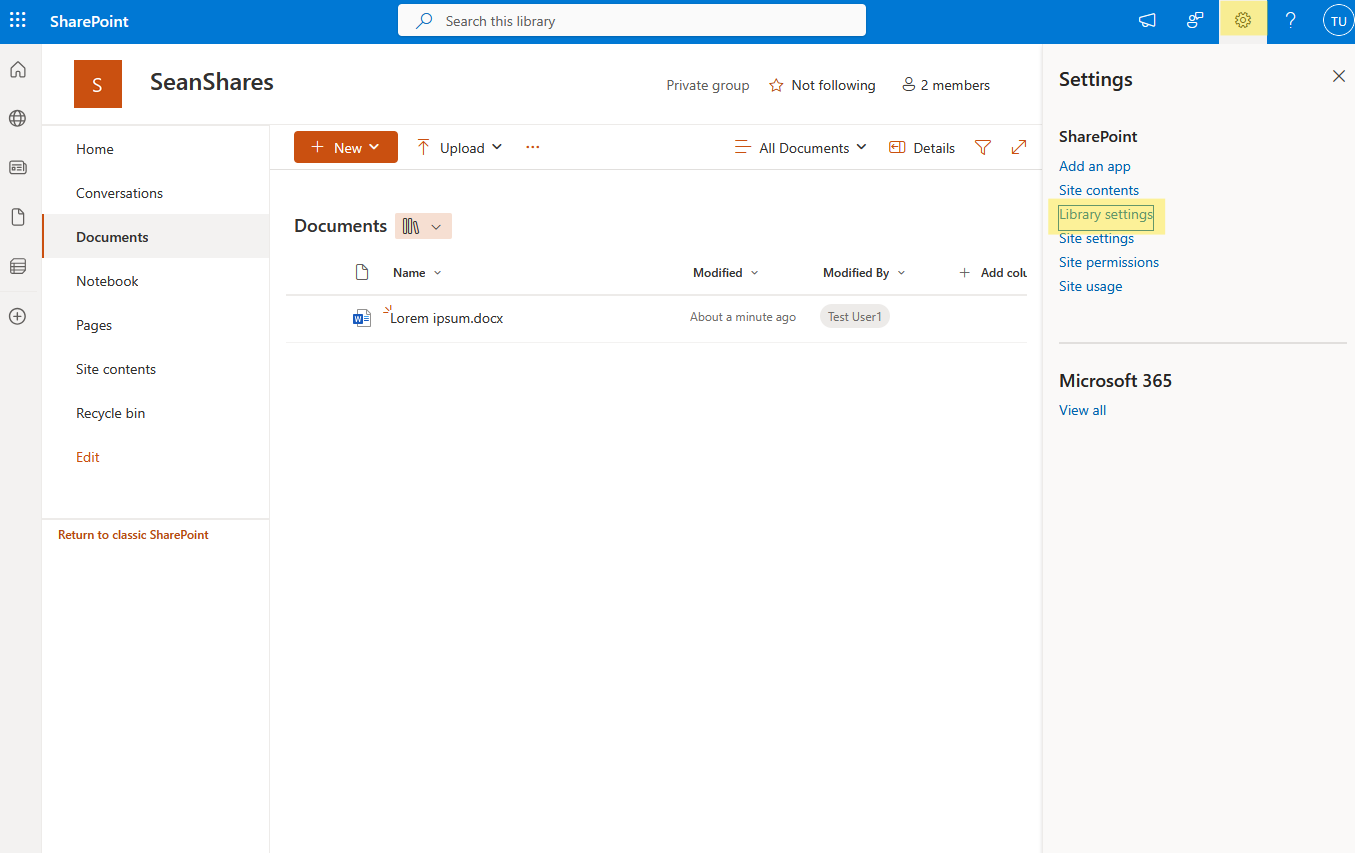
- Select More Library Settings.
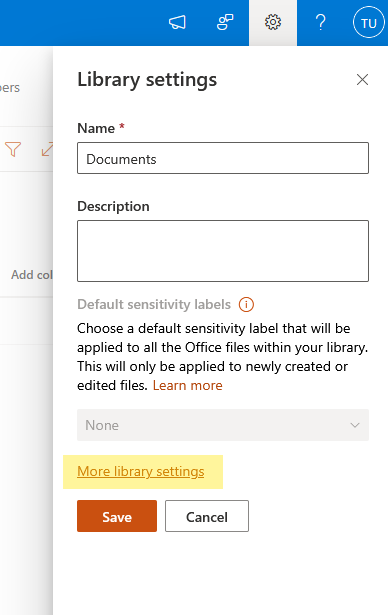
- Select Advanced settings.
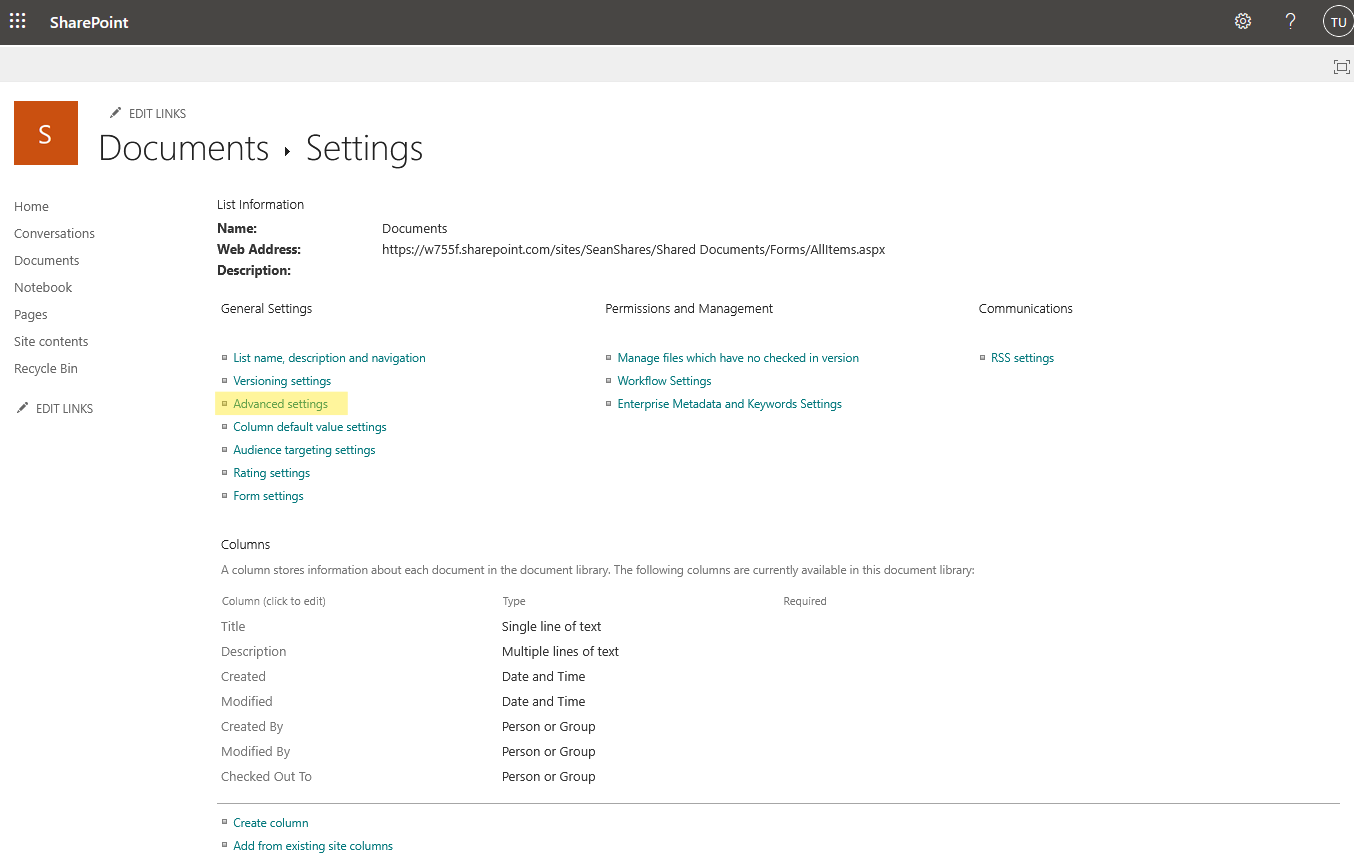
- Under Opening Documents in the Browser, choose Open in the client application.
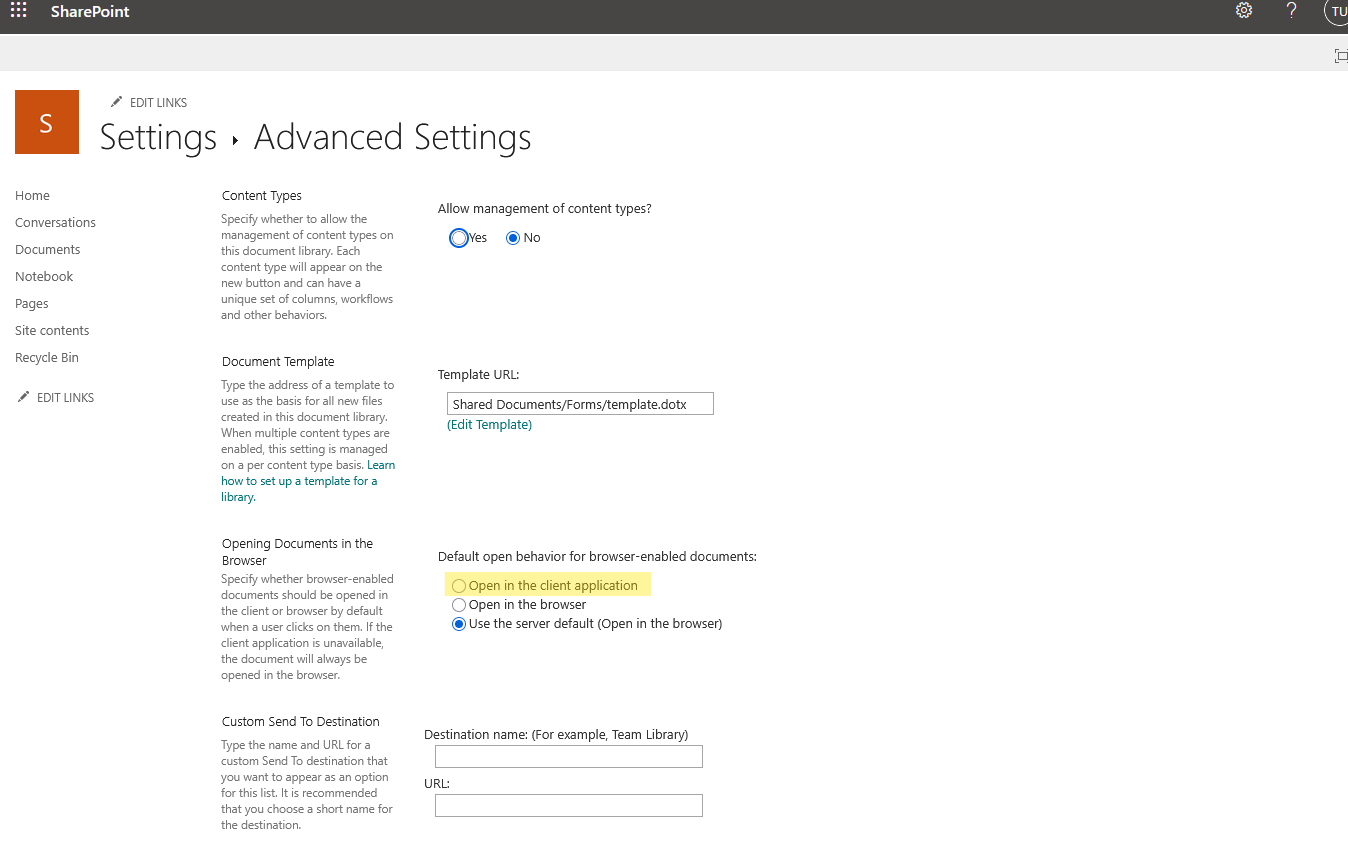
- Scroll to the bottom and click OK to save.
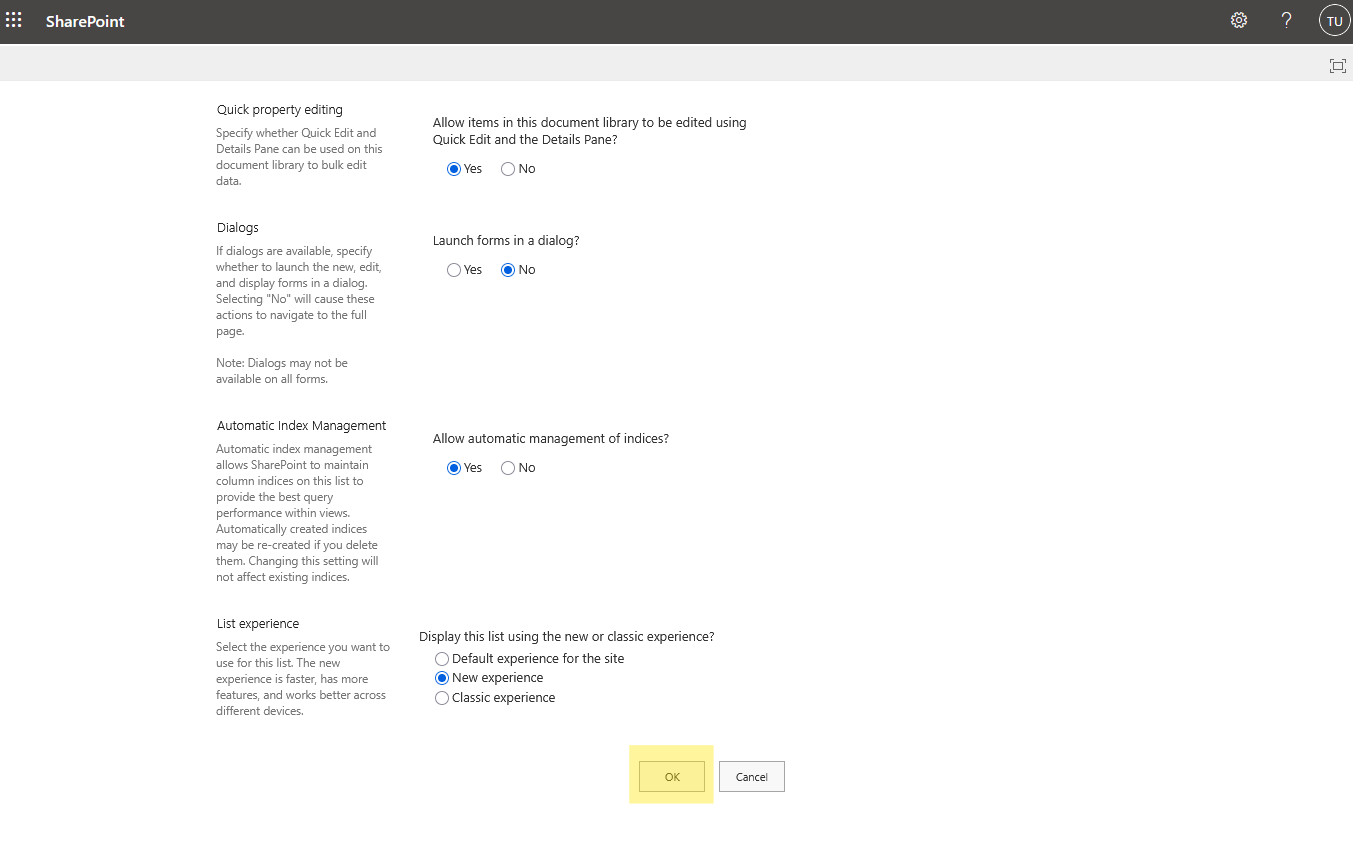
Now, anyone opening Word, Excel or PowerPoint files from that library will have them launch in the desktop app by default.
2. Apply it site‑wide to all libraries
As a site‑collection administrator, you can enforce the setting across an entire site:
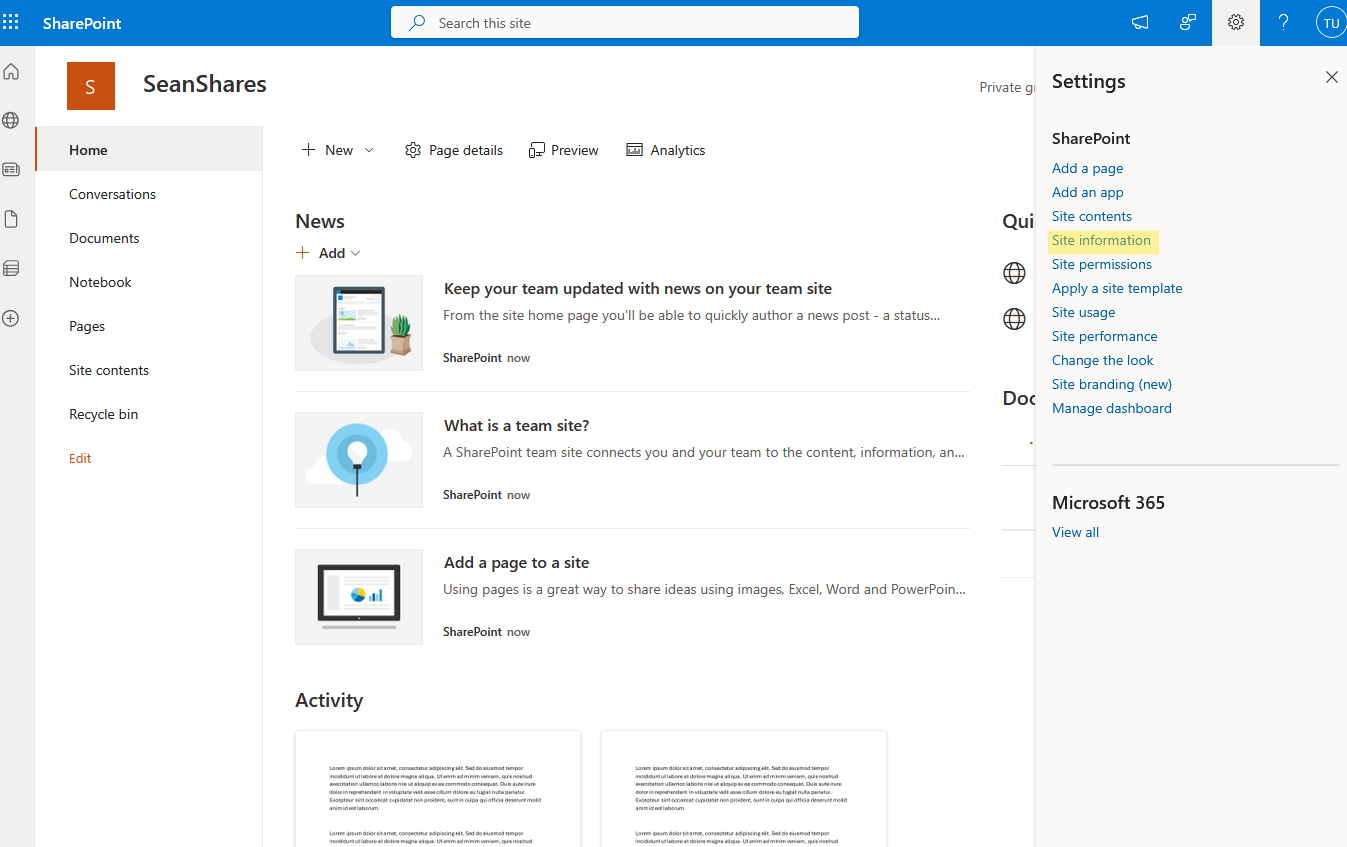
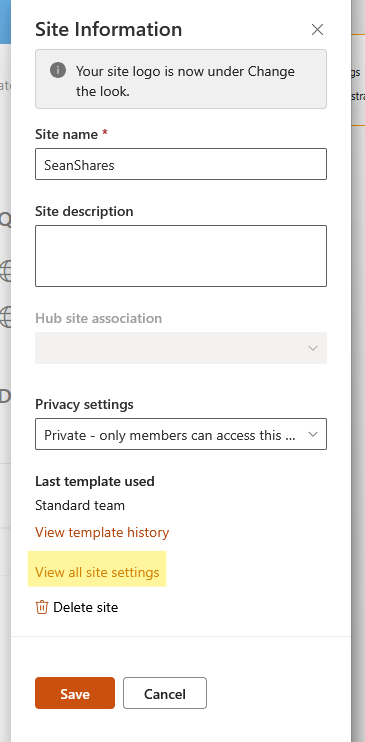
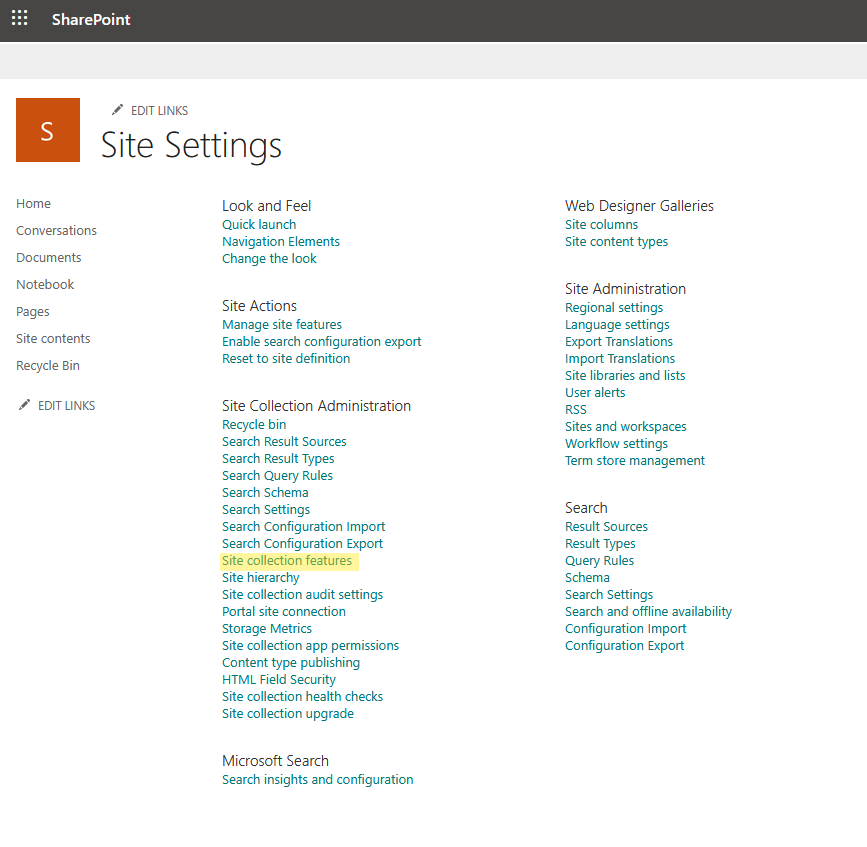
- On the top‑level site, click the gear icon and select Site information, then choose View all site settings.
- Under Site Collection Administration, click Site collection features.
- Find Open Documents in Client Applications by Default and click Activate.
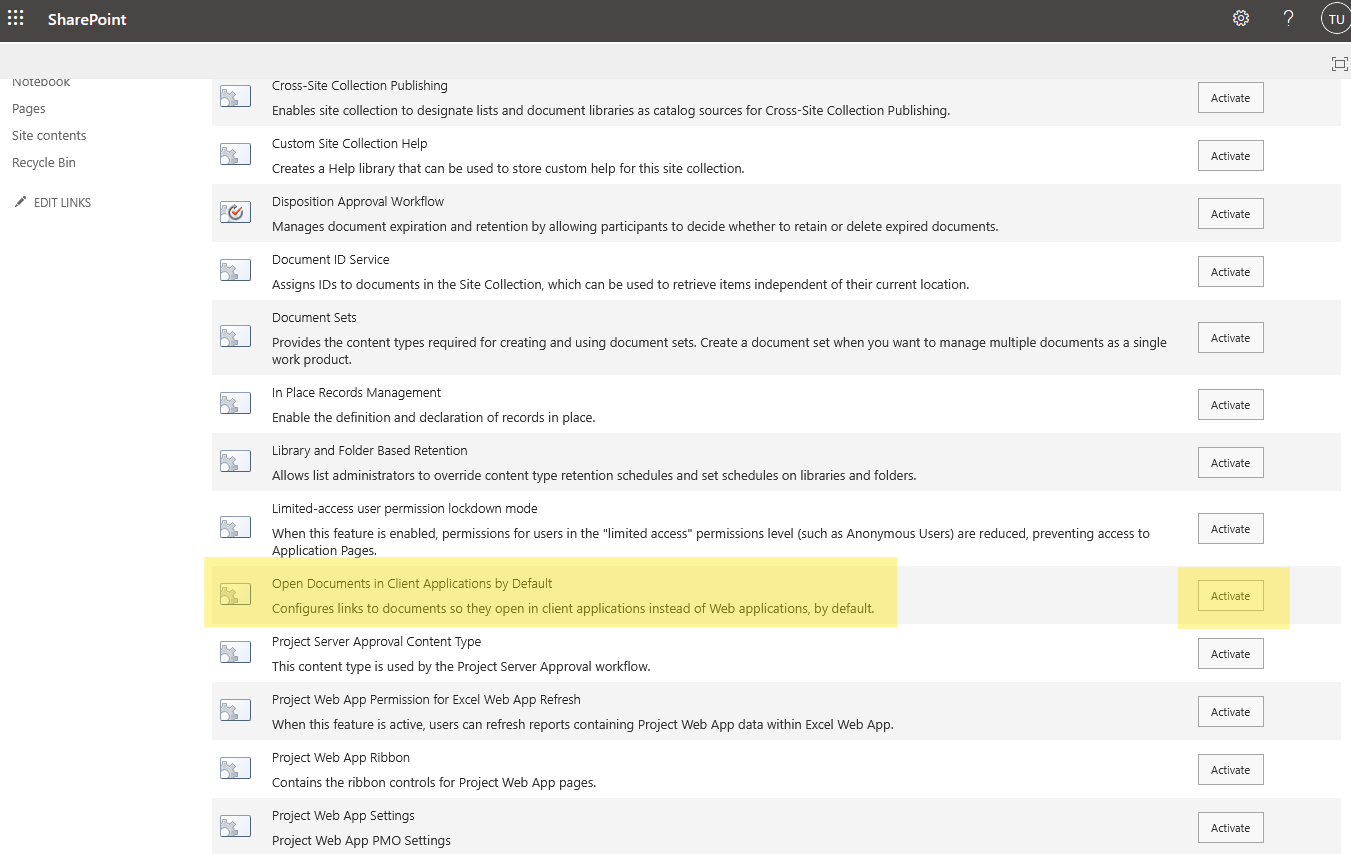
This turns on the desktop-app default for every document library in the site collection that is set to Use the server default, which is where libraries start out. A library you have already set to Open in the browser keeps its own setting.
3. Manual override (available to all users)
Even without admin permissions, you can still open a file in the desktop app at any time:
- Navigate to the file in the library or in OneDrive for Business.
- Click the ••• (More) button next to the file name.
- Choose Open → Open in app.
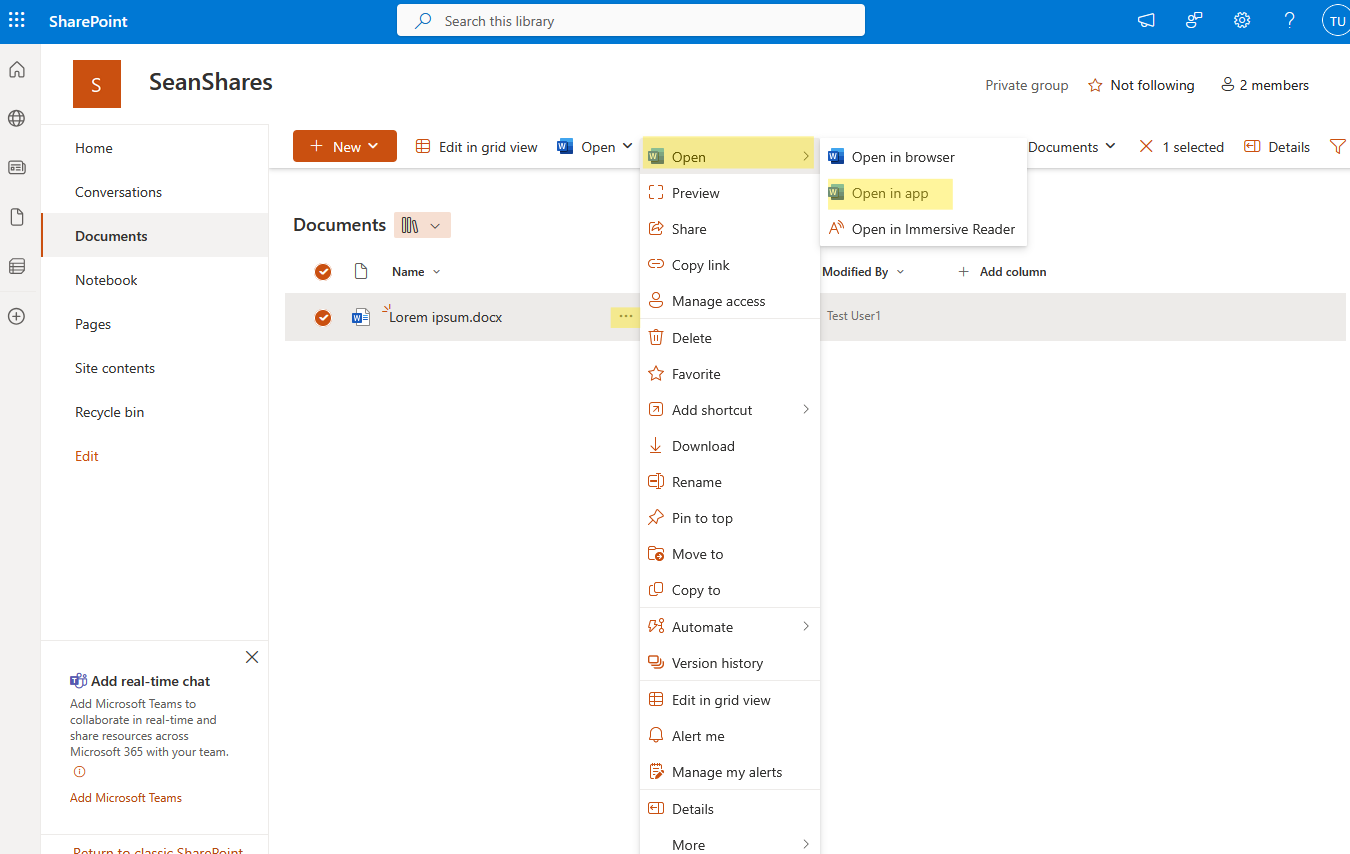
This opens the file in the desktop app, as long as the Office desktop apps are installed on that computer.
Bonus: Set the Same Preference in Teams
Files opened from Teams follow their own setting, not the SharePoint library setting. In the Teams desktop app, go to Settings and more > Settings > Files and links and look for Always open Word, PowerPoint, and Excel files in. Choose Desktop app. If that option is missing, the Office desktop apps either aren't installed or aren't included in your license.
For Admins: Links Opened From Outlook and Office Apps
The library and site settings only apply to files opened from the SharePoint or OneDrive web pages. If you want file links clicked in classic Outlook, Word, Excel, or PowerPoint to open in the desktop apps too, Microsoft has a separate Open in Desktop group policy for Windows. Users can still override it with their own file open preference.
Before You Switch: Users Without Desktop Apps
If some people in your organization only have the web apps, such as users on Microsoft 365 Business Basic, think twice before setting a library to open in the client application. The setting says it falls back to the browser when the desktop app isn't available, but in practice the click can fail silently for those users. In mixed-license organizations, it's usually safer to leave libraries on Open in the browser and let people with desktop apps use Open > Open in app.
For more on how SharePoint handles files, see SharePoint vs OneDrive and Why Does SharePoint Keep Asking for My Credentials?, which covers another common snag when opening files in the desktop apps.
Between the library setting, the site collection feature, and the Open in app option, you can make SharePoint files open in the desktop apps for yourself or for everyone who uses your site. Let me know any questions below and thanks for reading!