
Trace Email Delivery and Authentication
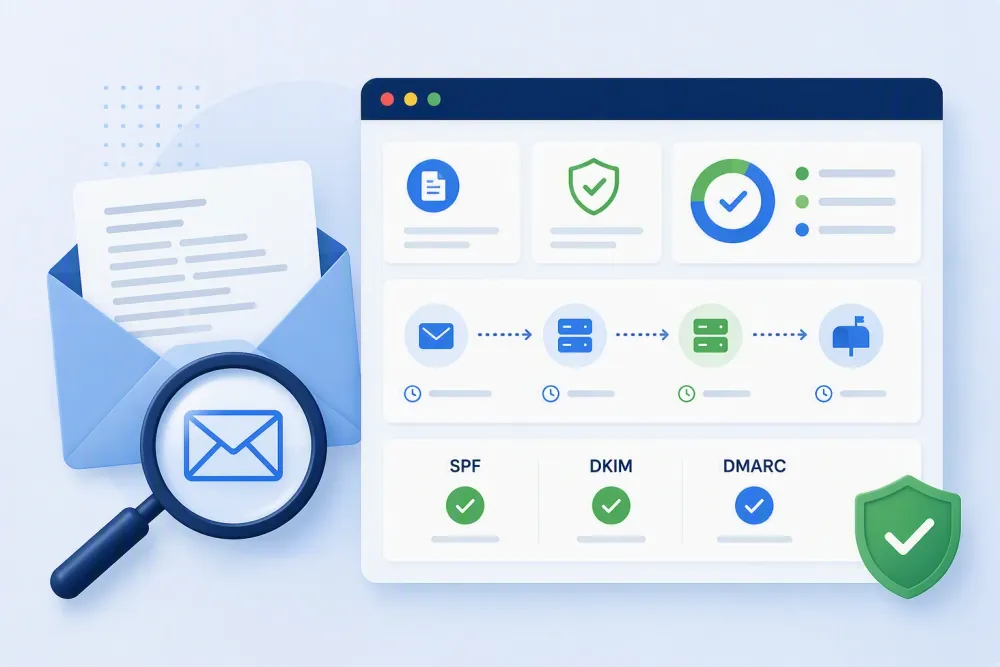
Email headers contain detailed information about how a message was delivered, which mail servers handled it, and whether it passed important authentication checks. This free browser-based tool organizes that information into a readable summary, helping Microsoft 365 administrators review the delivery path, identify delays between mail servers, and examine SPF, DKIM, and DMARC results. Paste the raw message headers below to begin.
Paste Message Headers
Paste the complete raw headers from an email to analyze its delivery path, hop-by-hop timing, and available SPF, DKIM, and DMARC authentication results. The analyzer organizes the header information into separate summary, authentication, delivery path, and complete header views.
Paste the raw headers from an email to see its delivery path, hop-by-hop delays, and SPF, DKIM, and DMARC authentication results. Everything is parsed in your browser, nothing is uploaded.
Tip: in Outlook open the message, then File › Properties › Internet headers. In Outlook on the web, open the message › (•••) › View › View message details.
Summary
Authentication
Delivery path
| # | From | By | With | Time | Delay |
|---|
All headers (0)
Runs entirely in your browser. Headers you paste are never sent anywhere. Not affiliated with or endorsed by Microsoft.
How the Email Header Analyzer Works
Every email includes a set of message headers containing technical details about its delivery. As a message travels from its source to its destination, mail systems add routing and processing information to the header.
This analyzer takes the raw header data and presents the available information in a more readable format. The results are separated into a summary, email authentication details, the message delivery path, and a complete view of the parsed headers.
Review the Delivery Path
The delivery path shows the mail systems recorded in the message headers. Each available hop includes the sending system, receiving system, transfer method, recorded time, and calculated delay.
Reviewing the path can help an administrator see how a message moved between mail systems and locate a hop where an unusual delay may have occurred. It can also make lengthy Received headers easier to review by presenting the recorded information in chronological, structured rows.
Examine SPF, DKIM, and DMARC Results
The authentication section displays available SPF, DKIM, and DMARC results found in the message headers.
- SPF results indicate whether the sending mail system was permitted to send mail for the domain being evaluated.
- DKIM results relate to the cryptographic signature included with the message.
- DMARC results reflect the available DMARC evaluation recorded in the headers.
The analyzer reports the authentication information contained in the pasted headers. The presence and level of detail available will depend on the headers added by the mail systems that processed the message.
Understand Message Delays
Email delivery is not always immediate. A message may pass through several mail systems, filtering services, security platforms, or routing points before reaching its final destination.
The delivery path calculates the available time difference between recorded hops, making potential delays easier to find. This can be useful when investigating a message that arrived later than expected or when determining where time was spent during delivery.
A delay shown between two header entries identifies a time difference in the recorded data. It does not necessarily prove that either mail system malfunctioned. Additional investigation may be required to determine the reason for the delay.
View the Complete Header
The All Headers section provides access to the complete set of parsed header fields. This is useful when the information needed is not included in the summary or dedicated authentication and delivery sections.
Complete headers may include message identifiers, timestamps, routing information, authentication results, content details, security filtering data, and other fields added during delivery. The exact fields vary depending on the sending service, receiving service, and systems that handled the message.
Privacy and Local Processing
The analyzer runs entirely in your browser. Headers pasted into the tool are not uploaded or sent to SeanShares.
Email headers may contain email addresses, mail server names, IP addresses, message identifiers, tenant-related information, and other details associated with the sender, recipient, or mail environment. Even though this tool processes headers locally, review and remove sensitive information before sharing header data or analysis results with other people.
Intended Use
This tool provides a more accessible way to review the technical information contained in email headers. It can assist Microsoft 365 administrators, security teams, support personnel, and application owners when investigating message delivery and authentication results.
The analyzer presents information recorded in the supplied headers. Results should be considered alongside Microsoft 365 message tracing, mail flow configuration, security platform data, and other available diagnostic information when conducting a broader investigation.
SeanShares is not affiliated with or endorsed by Microsoft.