
How to Schedule a Message in Microsoft Teams
Yes, you can schedule a message in Microsoft Teams. Type your message, select the + (Actions and apps) button next to the message box, choose Schedule message, pick a date and time, and select Send. Teams holds it and delivers it for you at that time.
It works in one-on-one chats, group chats and channel posts, and it works in the Teams desktop app and Teams on the web. Below are the exact steps, how to change or cancel a scheduled message, and a few quirks that trip people up.
Why Schedule a Teams Message?
This is one of those features people don't know exists until someone shows them. The most common reason I hear for wanting it is simple: you are working late and don't want to ping a coworker at 10 PM. Schedule it for 8 AM and they see it when they start their day instead of on their phone at dinner.
It's also handy for reminders. Write "Timesheets are due today" on Monday, schedule it for Friday morning, and forget about it.
How to Schedule a Chat Message in Teams
- Open the chat with the person or group you want to message.
- Type your message in the message box, but don't press Enter.
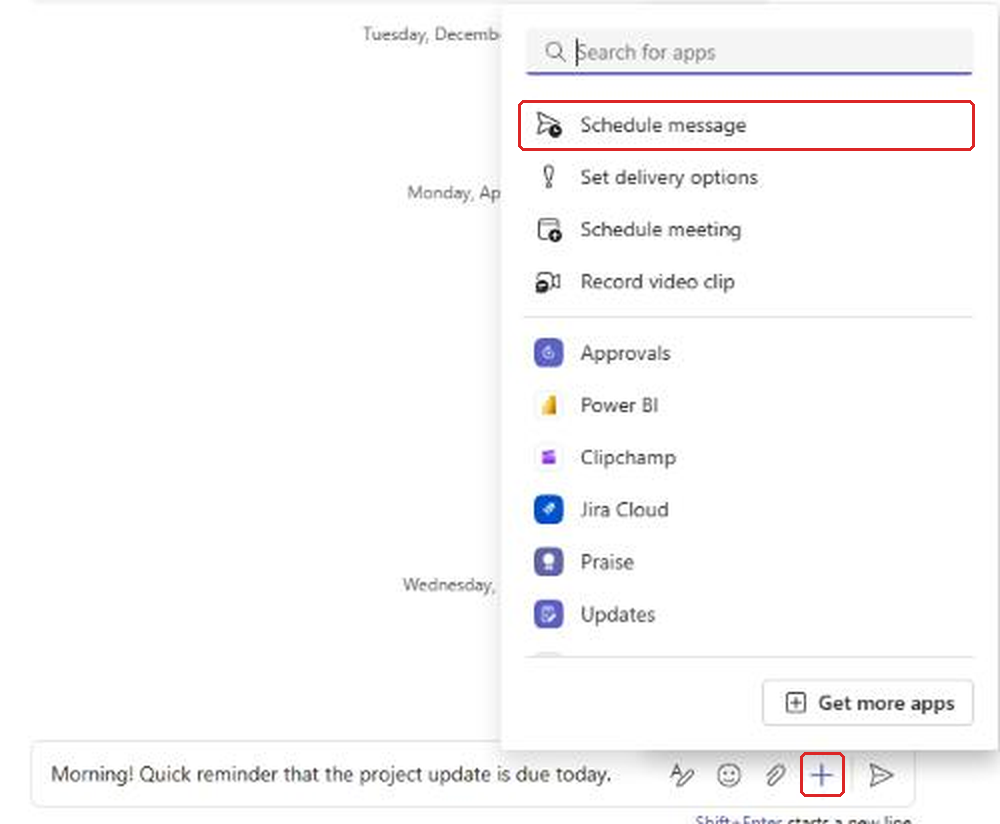
- Select the + (Actions and apps) button next to the message box.
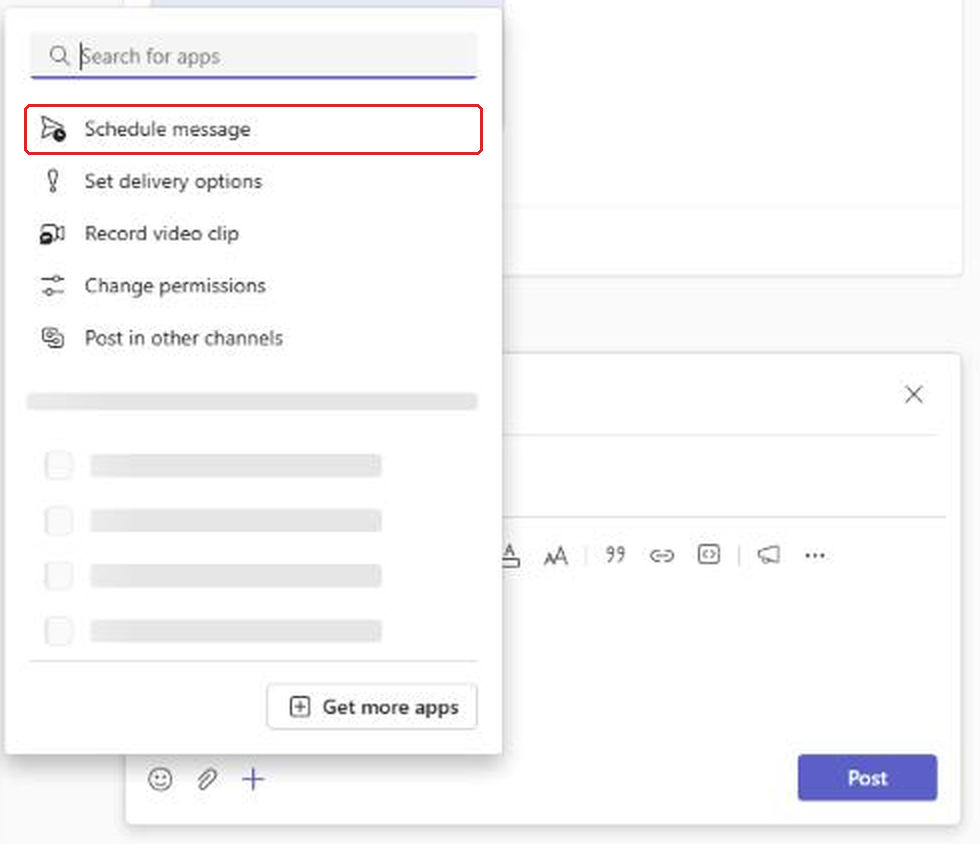
- Select Schedule message at the top of the menu.
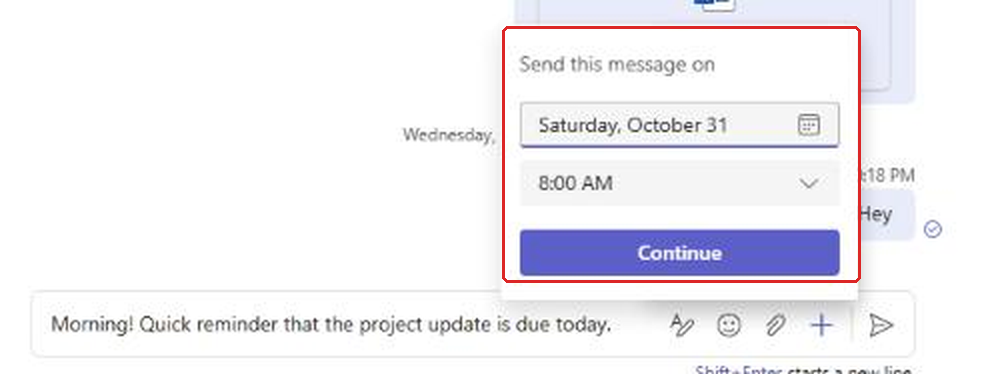
- Under Send this message on, pick a date and a time. Teams suggests the next day at 8:00 AM by default.
- Select Continue.
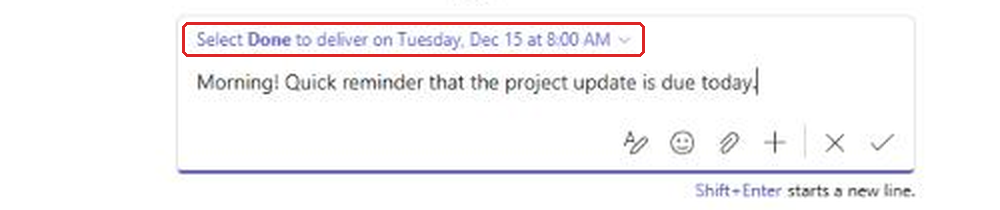
- Check the line above your message. It now says Select Send to deliver on followed by your date and time, and the send button changes to a send icon with a small clock.
- Select Send.

That last step catches people. Picking a time doesn't schedule anything by itself. Until you select Send, it's just a draft with a time attached.
What a scheduled message looks like
After you select Send, the message shows up in the chat with a gray outline and a label like Sending on Tuesday, Dec 15 at 8:00 AM. The other person doesn't get it, or a notification for it, until that time.
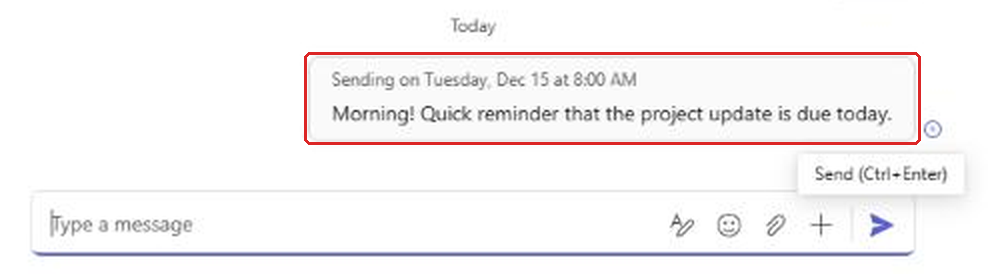
Teams sends it from the service, so you don't need to leave your computer on or stay signed in to the desktop app.
How to Schedule a Message in a Teams Channel
Channels work almost the same way, which surprises people because older guides say channel posts can't be scheduled. In current Teams they can.
- Go to the channel and select Post in channel.
- Write your post (and a subject if you want one).
- Select the + (Actions and apps) button at the bottom of the post box.
- Select Schedule message, choose the date and time, and select Continue.
- Select Post.
For channel announcements, schedule during your team's working hours. A post that lands at 6 AM gets buried under everything that comes in after it.
Practical Ways to Use Scheduled Messages
Once you start using it, you will find more reasons than you expect. A few that work well:
- After-hours replies. Answer a question at night while it's fresh in your head, then schedule it for the start of the other person's workday. You get it off your plate and they don't get pinged at home.
- Recurring reminders. Teams can't repeat a scheduled message, but you can queue up a few at once. On Monday, schedule "Reports are due Friday" for every Thursday this month in a single sitting.
- Deadlines and follow-ups. Schedule a "Did this get done?" check-in for the morning a task is due, so you don't have to remember to ask.
- Before time off. Going on vacation? Schedule the handful of messages that need to go out while you are gone, like a reminder to the team that you are back on a certain date.
- Across time zones. If you work with people overseas, schedule your messages for their morning so they land at the top of their chat list instead of buried under a night's worth of activity.
The one thing I would avoid is scheduling anything that depends on a situation not changing. A message that says "The server is back up" is a bad candidate. Something that might be outdated by the time it sends should just be sent when it's true.
Tips for Writing a Good Scheduled Message
A scheduled message is read later, sometimes days later, and the reader doesn't have the context you had when you wrote it. A few habits make a big difference:
- Write it for the moment it arrives. Avoid words like "today," "tomorrow" or "later" unless you have checked them against the delivery date. "The report is due Friday" ages better than "The report is due tomorrow."
- Include the link. If the message is about a file, a meeting or a ticket, paste the link in. Don't make the person dig for something you had open when you wrote it.
- Pick a sensible time. 8:00 AM looks thoughtful. Midnight looks like you forgot to change the default. For most people, the first hour of their workday is when they are triaging chats anyway.
- Re-read it before it goes. If a lot changes between when you write it and when it sends, open the scheduled message and update it. It takes ten seconds and saves an awkward follow-up.
Teams Scheduled Messages vs Outlook Schedule Send
A common question is whether to schedule something in Teams or send an email with a delay instead. Outlook has its own version of this feature. In new Outlook and Outlook on the web, you select the arrow next to Send and choose Schedule send, and the email waits in your Drafts folder until the delivery time.
Here's how I think about which one to use:
- Use Teams for quick, conversational things: a reminder, a nudge, a short answer to a question someone asked in chat. It shows up where the conversation already lives.
- Use Outlook for anything formal, anything with attachments people will need to find again, or anything going to people outside your organization who may not use Teams.
- Use Outlook if you need a record that's easy to search and forward later. Teams chats are searchable too, but email is still what most people treat as the official version.
One difference to keep in mind: a scheduled email in Outlook sits in your Drafts folder, so you can find all of your scheduled emails in one place. Teams has nothing like that, which is why it's worth keeping track of what you have queued up.
How to Edit or Reschedule a Scheduled Message
- Hover over the scheduled message and select Edit (the pencil icon).
- Change the text if you need to.
- To change the time, select the small arrow next to Select Done to deliver on and pick a new date or time, then select Continue.
- Select Done (the checkmark).
If you change your mind halfway through, select the X instead. Teams asks if you want to Discard draft. That only throws away your edits. The scheduled message stays exactly as it was.
How to Cancel a Scheduled Message
- Hover over the scheduled message and select More options (...).
- Select Delete.
When I tested this, Teams deleted it immediately. There was no confirmation prompt and no "This message was deleted" note left behind, so the other person never knows it existed. Just be sure you are deleting the right message.
There's no "Send now" button
Some guides mention a Send now option for scheduled messages. In my testing, the menu on a scheduled message only offered Delete and Translation. If you want it to go out right away, copy the text, delete the scheduled message, and send it as a normal message.
Scheduling From the Teams Mobile App
On iPhone or Android, type your message, then press and hold the send button. Choose your date and time and confirm. The scheduled message sits in the chat with the same "Sending on" label you see on desktop, so it's easy to spot later.
Limits and Quirks to Know About
- You need an existing conversation. Microsoft says you must already be in a chat with the person before you can schedule a message to them. For a new contact, send a quick hello first.
- You can schedule further out than you might think. A lot of older articles say Teams only lets you schedule seven days ahead. When I tested it, the calendar let me pick dates months out, and Teams accepted a message scheduled six weeks out without complaint.
- Your time zone is used. The time you pick is based on your own Teams and computer time zone, not the recipient's. If someone is three time zones away, do the math first.
- Important and Urgent don't mix well. Teams has historically removed the Important or Urgent label from scheduled chat messages. If a message is truly urgent, it shouldn't be scheduled anyway.
- No list of scheduled messages. There's no single place to see everything you have queued up. Each scheduled message lives in its own chat or channel.
Schedule send suggestions
If your organization uses Viva Insights, Teams may suggest scheduling a message when you write to someone outside their working hours in a one-on-one chat. It's just a prompt. You can schedule it or send it right away.
Schedule Message Missing? What to Check
If you select the + button and don't see Schedule message, work through these in order:
- Update or restart Teams. This fixes it more often than anything else. In the desktop app, select Settings and more (...) next to your profile picture, then Check for updates. In the browser, a hard refresh usually does the trick.
- Make sure you are in an existing chat. In a brand-new chat that hasn't been started yet, the option may not be there. Send one normal message first.
- Check whether you can post in the channel. Some channels are moderated or set up for announcements only. If you can't post normally, you can't schedule a post there either.
- Look at who you are messaging. Scheduling has worked in chats with people in other Microsoft 365 organizations, but chats with some external or consumer accounts have had problems with scheduled delivery in the past. If it's important, send those messages normally.
- Try another client. If the desktop app is acting up, open Teams on the web and check there. If it works on the web, the problem is your desktop install, not your account.
If none of that works, it's time to ask your IT team. Something specific to your account or your organization may be in the way.
Can Admins Turn Off Scheduled Messages?
As far as I can tell, no. There's no setting in Teams messaging policies to disable scheduled send, so it's available to everyone by default. If you are an admin and a user says they don't see Schedule message, the usual cause is an outdated Teams client rather than a policy.
Frequently Asked Questions
Can you schedule a message in Teams on the web?
Yes. In current Teams on the web, select the + button next to the message box and choose Schedule message, the same as the desktop app.
How far in advance can I schedule a Teams message?
Older guidance said seven days. In current Teams I was able to schedule a message several weeks out, so the old limit no longer seems to apply.
Does the recipient get notified when I schedule a message?
No. They don't see the message or get a notification until the scheduled time.
Does scheduling work in group chats?
Yes. It works the same way in one-on-one chats, group chats and channel posts. Everyone in the group chat gets the message at the scheduled time.
Can I schedule a message to myself in Teams?
Yes. Open the chat with your own name at the top of your chat list and schedule it like any other message. It works well as a simple reminder.
Final Thoughts
Scheduling a message takes about ten seconds once you know where the + button is, and it's one of the easiest ways to respect your coworkers' time. If you are working on your Teams habits in general, my posts on why Teams shows you as Away, turning off Teams notifications in Outlook and changing the language in Teams cover a few more things people ask about all the time.
Sources: Schedule chat messages in Microsoft Teams, Schedule channel messages in Microsoft Teams, Schedule send suggestions in Teams chat, Delay or schedule sending email messages in Outlook.