

Find Unused Microsoft 365 Licenses With Reports You Already Own
Most Microsoft 365 tenants are paying for at least a few licenses nobody is using. It's never on purpose. Someone leaves and their account gets blocked instead of cleaned up. A whole team gets Copilot and three people never open it. A shared inbox gets created as a regular user by mistake. None of it looks like much on its own, but at renewal time it adds up to real money.
The good news is you don't need a third party tool or a PowerShell script to find most of this. The Microsoft 365 admin center already has the reports. They're just spread across a few pages and a couple of them hide the useful part behind a privacy setting most admins never touch.
This is the routine I use. It's all read only until the very end, so you can run through it on a Friday afternoon without breaking anything. I took every screenshot from my own test tenant, which only has a single user and one license, so the numbers are tiny. In your tenant the same screens will tell a much bigger story.
Start With the Number You're Actually Paying For
Before you go hunting for unused licenses you need to know what you own. The Licenses page gives you that in one line per product.
- In the admin center, select Billing, then Licenses.
- Stay on the Subscriptions tab.
- Select Export to CSV if you want a copy to work from.
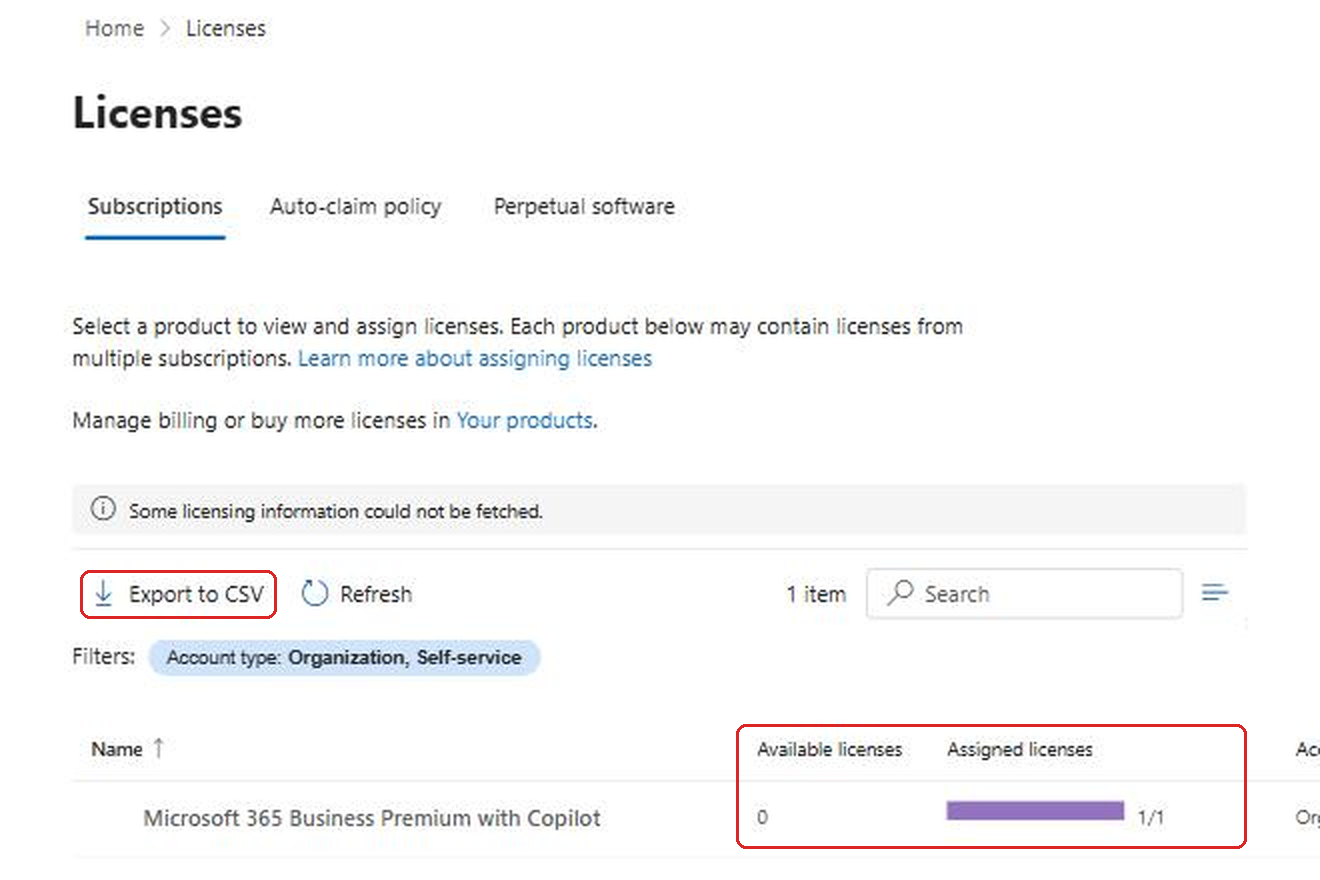
There are two kinds of waste on this page and they're easy to mix up. The first is licenses that are bought but sitting unassigned, which shows up as a number greater than zero under Available licenses. That's the obvious one and most admins already know about it. The second kind is licenses that are assigned to someone who isn't using them. This page can't show you that at all. My tenant shows 1 of 1 assigned and zero available, which looks perfectly efficient, but that tells you nothing about whether the person holding the license actually uses it.
That second kind is where most of the money goes, and it's what the rest of this post is about.
One small thing I like to do here is write down the product names and the assigned counts on a sticky note or in a quick spreadsheet. Everything else in this routine is about deciding which of those assigned numbers should be lower, and it helps to have the starting point in front of you.
Check Who Is Blocked but Still Licensed
This is the fastest win and it's almost always there. When someone leaves, the first thing most helpdesks do is block sign-in. That's the right move for security. The problem is that blocking sign-in does nothing to the license. The account keeps its license until somebody removes it, and that somebody often never comes back to finish the job.
- Go to Users, then Active users.
- In the filter row, select Sign-in status.
- Pick Blocked.
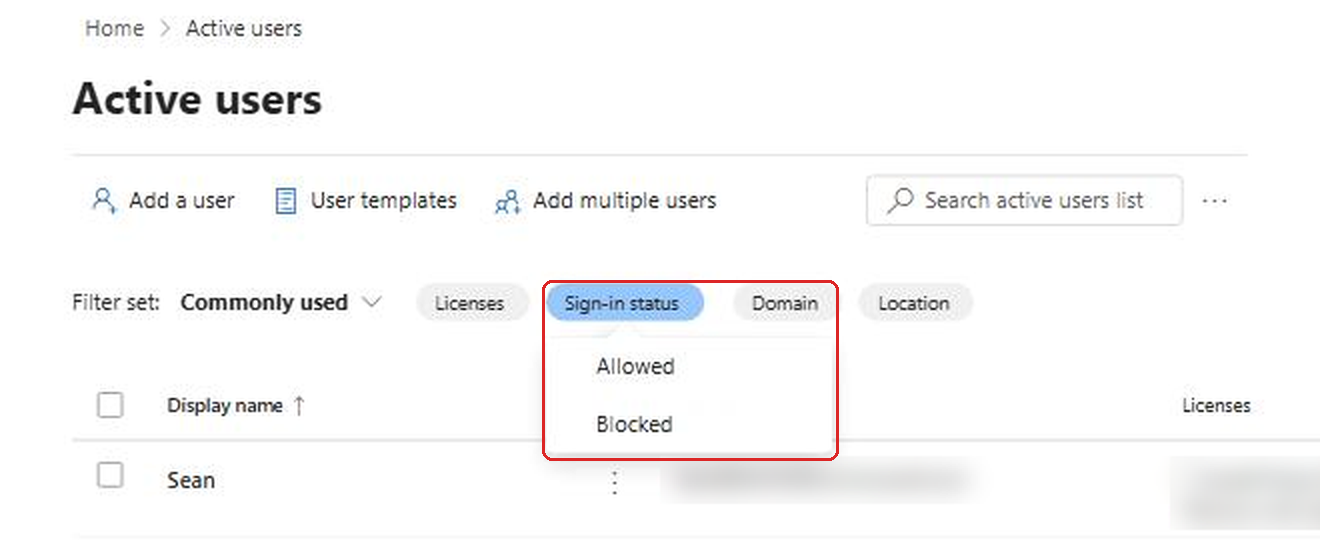
Now look at the Licenses column for everyone in that list. Any blocked account with a paid license is a candidate. Some of them are blocked on purpose and still need a license for a good reason, like a mailbox on legal hold. Most of them are just leftovers.
Before you pull a license from a former employee, decide what happens to their mailbox and OneDrive. If someone still needs the mail, converting the mailbox to a shared mailbox is usually the better path. Microsoft's own guidance says a shared mailbox doesn't need a license as long as it stays under 50 GB and you aren't using archiving or litigation hold on it. The catch is the order. The user mailbox has to still have a license when you convert it, otherwise the convert option doesn't show up. Convert first, then remove the license. And don't delete the user account afterward, because the shared mailbox needs it as an anchor.
While you're on this page, look for anything with a name like info, sales, support or billing that has a license. Those are often shared inboxes that someone created as normal users years ago. Same fix applies.
Find Licenses Where the Apps Were Never Installed
This one is less obvious and it's my favorite. A lot of business plans include the desktop Office apps, and the desktop apps are a big part of why those plans cost more than the web only plans. If someone has never activated Word, Excel or Outlook on a computer, they might be fine on a cheaper plan.
- Go to Reports, then Usage.
- Under Reports on the left, select Microsoft 365 apps.
- Stay on the Activations tab.
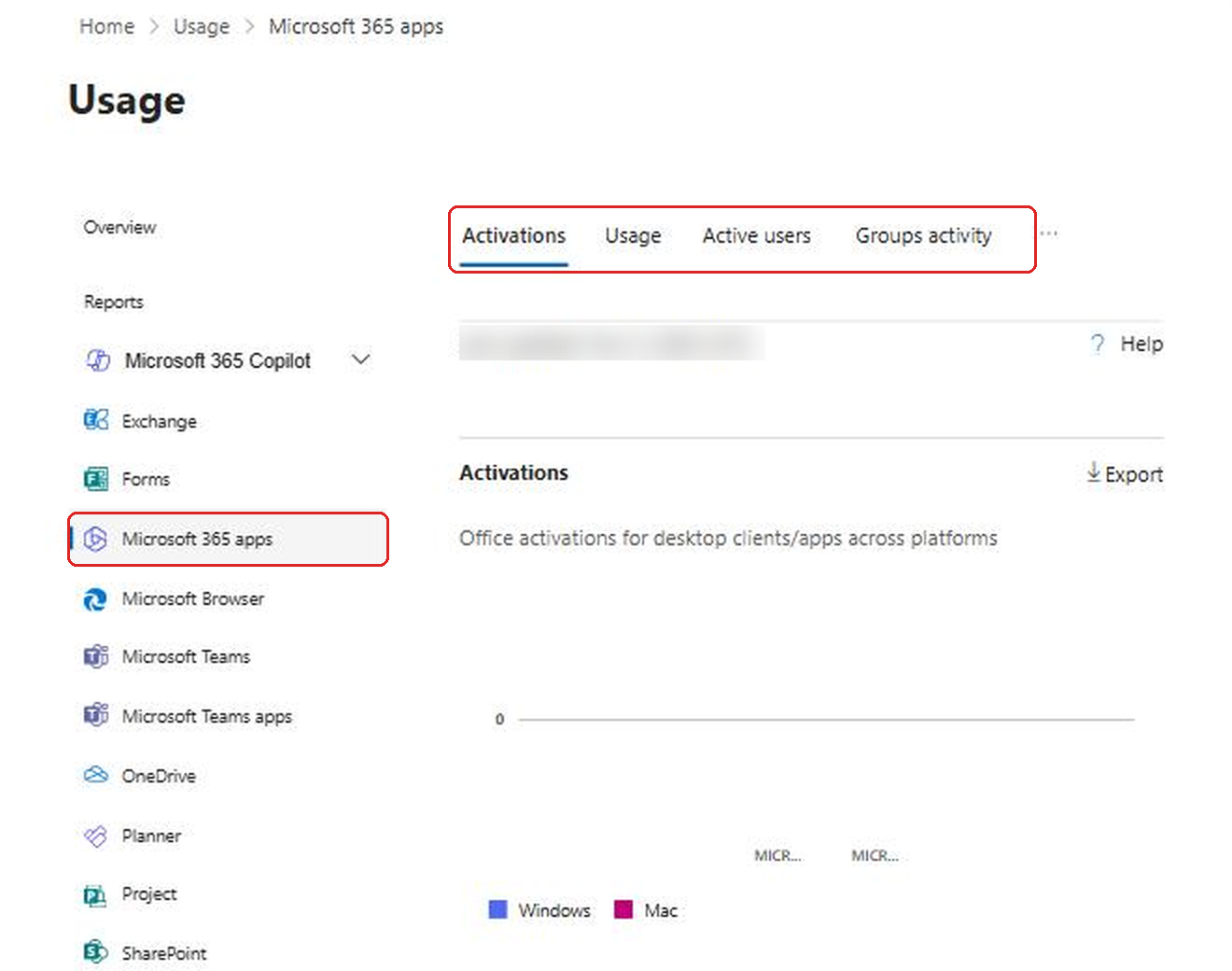
The charts give you the overall picture. In my test tenant you can see zero Windows or Mac activations and a couple of Android ones, because I only ever use the apps on my phone and in the browser in that tenant. If that were a real employee on a plan that includes desktop apps, that's a sign the plan might be bigger than they need.
Scroll down and the Users chart compares assigned licenses with activated ones. Below that is the per user table, and that's where it gets useful.
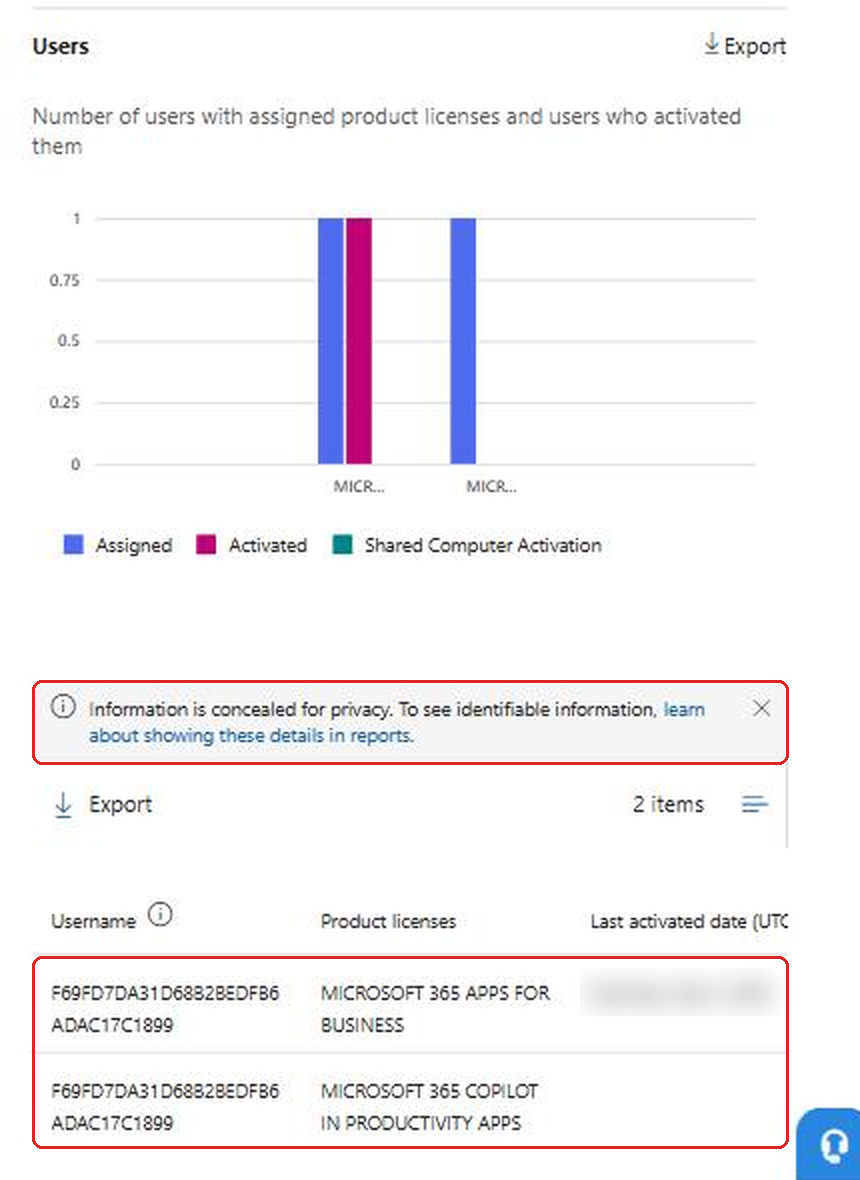
Look at the two rows in my table. The same scrambled username shows up twice, once for Microsoft 365 Apps for Business, which has a last activated date, and once for the Copilot product, which doesn't. Here's the part a lot of people miss. Even with names concealed, the scrambled ID is consistent for the same person within a report. So you can still sort and spot patterns, like one person with two products where only one was ever activated, without unmasking anybody. If you just need counts to make a case to your manager, that may be all you need.
Don't make decisions from activations alone, though. Someone who works entirely in the browser will never show a desktop activation and may still be a heavy user. That's what the next report is for.
Use Last Activity, Not Gut Feeling
The Usage overview is the first thing you see under Reports, and it's built for exactly this question. Microsoft's own description of usage reports says they help you see who barely uses a service and might not need a license.
- Go to Reports, then Usage.
- Use the period dropdown at the top right and pick Past 180 days.
- Select Microsoft 365 apps on the left, then the Active users tab.
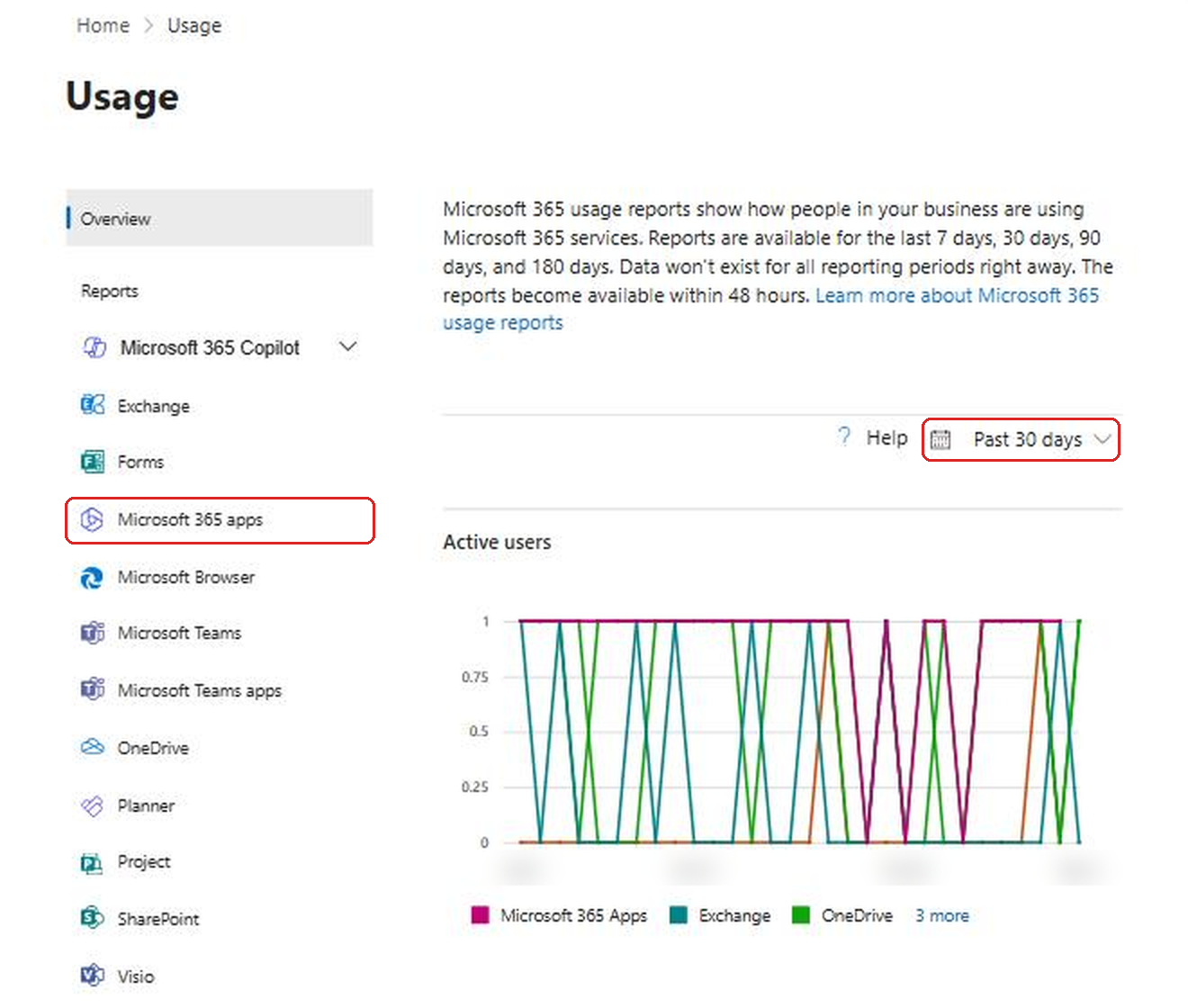
The Active users report has a last active date for each service, like Exchange, OneDrive, SharePoint and Teams, per user. Export it, open it in Excel, and sort by the Exchange and Teams columns. Anyone who hasn't touched email or Teams in months is either gone, on leave, or a service account that doesn't need a full license.
There's a detail in Microsoft's docs that changes how you should read this. The last activity date shows the most recent day the person did anything in that app, no matter which period you picked. So a blank or very old date isn't an artifact of a short window. It really means the person hasn't used it.
The 180 day view matters for another reason. People go on parental leave, long medical leave or sabbaticals. A 30 day view will flag them and you'll look silly pulling a license from someone who's coming back next month. Six months of data filters most of that out. Still check with HR or the manager before you act on anyone.
Look Hard at Your Copilot Licenses
If your organization has bought Microsoft 365 Copilot, this report is the one your finance team cares about most, because Copilot is usually the priciest add on in the tenant.
- In Reports, Usage, expand Microsoft 365 Copilot on the left.
- Select Copilot.
- Open the Usage tab.
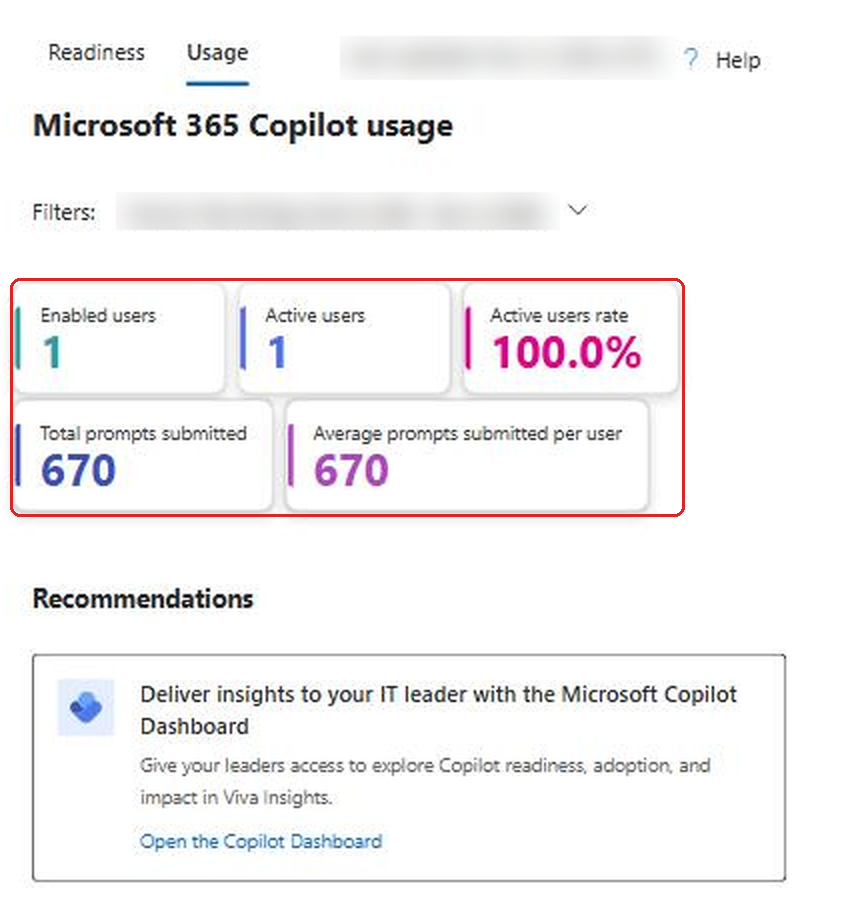
The cards at the top are what you want. Enabled users is the number of people who held a Copilot license during the period. Active users is how many of them actually tried a Copilot feature. Active users rate is one divided by the other. My test tenant shows 100 percent because I'm the only one and I use it constantly. In a larger organization, it's common for this number to land well under that a few months after a rollout, and that gap is pure cost.
Scroll down to Adoption by app and you'll see which apps people use Copilot in. That's helpful for a different reason. If a group is using Copilot Chat but not Copilot in Word, Excel or Outlook, they might be happy with the free Copilot Chat experience instead of a paid seat. I wrote about the difference between the license types in my post on adding Copilot to Outlook and the license differences.
A low number here doesn't always mean you should pull licenses. Sometimes it means people never got trained or don't know the feature is there. Send the inactive group a short note or a 15 minute demo first. If they're still not using it after a month, then move those seats to people who've been asking for one. That's a much easier conversation than just taking it away.
Decide Whether to Show Real Names
By now you've probably noticed that every report shows scrambled IDs instead of names. That's on purpose. Since 2021 Microsoft hides user, group and site names in usage reports by default.
To see real names, a Global Administrator can change it here. I'm only showing where the setting lives. I didn't change it in my tenant and you shouldn't change it in yours without checking your company's privacy policy first.
- Go to Settings, then Org settings.
- On the Services tab, select Reports.
- The option is Conceal user, group, and site names in all reports.
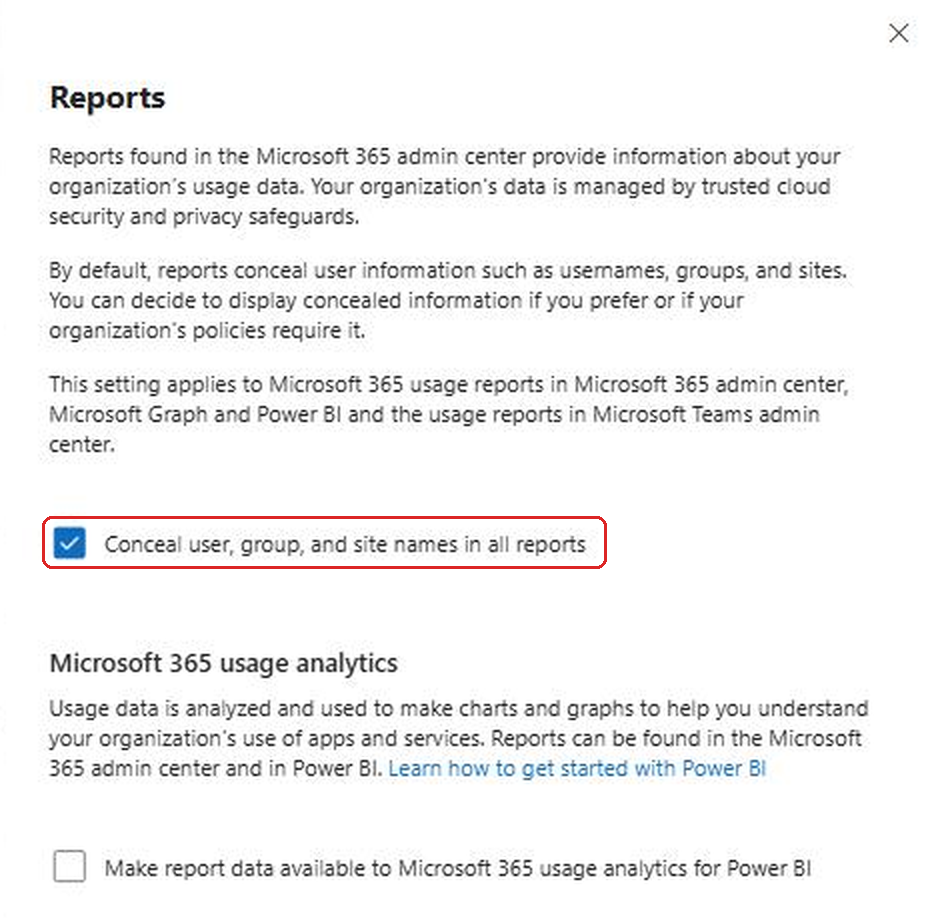
A few things worth knowing before anyone unchecks that box. It applies everywhere, not only in the admin center. The same setting covers the usage reports in Microsoft Graph, Power BI and the Teams admin center. Microsoft also says that showing identifiable user information is logged in the Purview audit log, so it's not a quiet change.
What I usually suggest is this. Do the whole review with names concealed and get your counts. Then if you need names to take action, unhide them briefly, export what you need, and turn concealment back on. Or skip the setting entirely and cross check from the Active users page, which always shows real names, using the clues you found in the reports.
Give the Job to the Right Role
One more outside the box tip. You don't need to be a Global Administrator to run this review. Microsoft lists Reports Reader as one of the roles that can view usage reports. If your finance person or IT manager wants to keep an eye on license use every quarter, give them Reports Reader instead of asking you for exports. They can see the reports and can't change anything, which is exactly what you want.
There's also a Usage Summary Reports Reader role that only sees summary numbers with no user details. That's a nice fit for someone who just needs to know the Copilot adoption rate for a monthly meeting.
If you're tightening up Copilot more generally, my list of Copilot admin settings to check pairs well with this review.
Put It on the Calendar
Here's the routine in short. Once a quarter, and always about 60 days before your renewal date:
- Note available versus assigned on the Licenses page.
- Filter Active users by Blocked and clean up leftover licenses, converting mailboxes to shared first where needed.
- Check the Microsoft 365 apps Activations tab for people who never installed the desktop apps.
- Export the Active users report on a 180 day view and sort by last activity.
- Compare Enabled versus Active on the Copilot usage report.
The 60 days matters. Most subscriptions let you reduce license counts at renewal, but if you find the waste after the renewal date you're often stuck paying for it for another term. Doing the review early gives you time to talk to managers and move licenses around before the bill is locked in.
One last reminder that bites people. Removing a license from a user doesn't reduce your bill by itself. The Licenses page will just show one more available license. To actually stop paying, you need to lower the license quantity on the subscription in Billing. Microsoft calls this out in its shared mailbox docs too, and it's the step that gets forgotten most often.
FAQ
Does blocking sign-in free up a Microsoft 365 license?
No. Blocking sign-in stops the person from logging in but the license stays assigned until you remove it. Filter Active users by Blocked to find these accounts.
Why do usage reports show random letters and numbers instead of names?
Microsoft conceals user, group and site names in usage reports by default. A Global Administrator can change it in Org settings under Reports, but it applies to every report and the change is audited.
Can I remove the license from a former employee's mailbox and keep the email?
Yes, if you convert it to a shared mailbox first and it's under 50 GB with no archiving or litigation hold. Convert while the license is still assigned, then remove the license, and keep the user account.
Who can view usage reports without being a Global Administrator?
Reports Reader can view them, along with several other admin roles like Exchange, SharePoint and Teams Administrator. Usage Summary Reports Reader sees summary numbers only.
How far back do the usage reports go?
Most reports cover the last 7, 30, 90 or 180 days. Use 180 days for license decisions so you don't flag people who are just on leave.
Final Thoughts
Nothing in this routine is hidden. It's just scattered across Billing, Users, Reports and Settings, and nobody connects the dots until someone in finance asks why the bill went up. Spend an hour on it once a quarter and you'll usually find enough to pay for something your team actually wants. If you're also planning ahead for feature changes, Targeted release is worth setting up for a couple of admins so you see changes to these reports before everyone else does.
Sources: Microsoft Learn, Microsoft 365 admin center usage reports overview, Microsoft 365 apps Active users report, Microsoft Copilot usage report, Convert a user mailbox to a shared mailbox, Create a shared mailbox.