

How to Clear the Microsoft Teams Cache on Windows with PowerShell
Teams cache problems show up in a predictable pattern: the app gets slow, chat messages stop loading, the app freezes on the splash screen, or notifications stop coming through even though everything looks fine on the server side. This is one of the more common categories of Teams support tickets, and also one of the most consistently misdiagnosed. People assume a real outage or a network problem before anyone checks the one thing that is actually responsible: a bloated or corrupted local cache.
The pattern tends to cluster around a specific trigger: weeks of back-to-back meetings pile up chat history, meeting artifacts, and call logs in the local cache without it ever getting cleared, and Teams eventually chokes trying to load all of it at launch. Clearing that cache resolves the large majority of these tickets in under ten seconds, without a reinstall, a support escalation, or any real troubleshooting beyond running the right cleanup.
The complication is that Microsoft has been running two versions of Teams in parallel for a while now: Classic Teams, an Electron app that stores its cache under %APPDATA%\Microsoft\Teams, and New Teams, an MSIX-packaged app that stores its cache in a completely different location under %LOCALAPPDATA%\Packages. A script that only knows how to clear one of them is only half useful in an organization that is mid-migration between the two, which is most organizations right now. So this version detects and handles both.
Prerequisites
- Windows PowerShell 5.1, built into Windows 10 and 11
- Microsoft Teams installed, either Classic or New (or both, during a migration window)
- No admin rights required, since both cache locations live in the current user's profile
- No PowerShell modules and no tenant connection
The one soft dependency is Get-AppxPackage, which the script uses to look up New Teams and relaunch it afterward. This cmdlet ships with Windows by default, so there is nothing extra to install, but it is worth knowing it is there if you are trimming this script down for a locked-down environment where AppX cmdlets have been restricted.
The Script
<#
.SYNOPSIS
    Clear-TeamsCache - A lightweight GUI tool to clear the Microsoft Teams cache.

.DESCRIPTION
    Safely clears the local cache for Microsoft Teams. Supports both:
      - Classic Teams         (%APPDATA%\Microsoft\Teams)
      - New Teams (MSIX/Store) (%LOCALAPPDATA%\Packages\MSTeams_8wekyb3d8bbwe\LocalCache)

    The script auto-detects which version(s) are present, closes Teams,
    deletes only cache/temp folders (settings & sign-in are preserved where
    possible), and can optionally relaunch Teams afterward.

    No admin rights or external modules required - uses only built-in
    Windows Forms. Safe to send directly to an end user to double-click/run.

.NOTES
    Run with:  Right-click > "Run with PowerShell"
        or:    powershell -ExecutionPolicy Bypass -File .\Clear-TeamsCache.ps1
#>

#------------------------------------------------------------------------------
# Make sure we're running in STA mode (required for Windows Forms).
# If not, relaunch ourselves in STA.
#------------------------------------------------------------------------------
if ([System.Threading.Thread]::CurrentThread.ApartmentState -ne 'STA') {
    Start-Process powershell.exe -ArgumentList @(
        '-NoProfile', '-ExecutionPolicy', 'Bypass', '-STA',
        '-File', "`"$PSCommandPath`""
    )
    return
}

Add-Type -AssemblyName System.Windows.Forms
Add-Type -AssemblyName System.Drawing
[System.Windows.Forms.Application]::EnableVisualStyles()

#------------------------------------------------------------------------------
# Teams definitions
#-------------------------------------------------------------------------------
# Classic Teams: clear these subfolders inside %APPDATA%\Microsoft\Teams.
# We intentionally do NOT delete the whole folder so that settings survive.
$classicRoot      = Join-Path $env:APPDATA 'Microsoft\Teams'
$classicSubFolders = @(
    'Cache', 'blob_storage', 'databases', 'GPUCache', 'IndexedDB',
    'Local Storage', 'tmp', 'Code Cache', 'Service Worker\CacheStorage',
    'Application Cache', 'Network'
)

# New Teams (MSIX): the entire LocalCache folder under the package is safe to clear.
$newTeamsPackage  = 'MSTeams_8wekyb3d8bbwe'
$newTeamsRoot     = Join-Path $env:LOCALAPPDATA "Packages\$newTeamsPackage\LocalCache"

# Process names to stop before clearing.
$teamsProcessNames = @('Teams', 'ms-teams', 'msteams')

#-------------------------------------------------------------------------------
# Helper functions
#-------------------------------------------------------------------------------
function Test-ClassicTeams { Test-Path -LiteralPath $classicRoot }
function Test-NewTeams     { Test-Path -LiteralPath $newTeamsRoot }

function Get-FolderSizeMB {
    param([string]$Path)
    if (-not (Test-Path -LiteralPath $Path)) { return 0 }
    try {
        $bytes = (Get-ChildItem -LiteralPath $Path -Recurse -Force -ErrorAction SilentlyContinue |
                  Measure-Object -Property Length -Sum).Sum
        if (-not $bytes) { return 0 }
        return [math]::Round($bytes / 1MB, 1)
    } catch { return 0 }
}

function Stop-Teams {
    param([scriptblock]$Log)
    $stopped = $false
    foreach ($name in $teamsProcessNames) {
        $procs = Get-Process -Name $name -ErrorAction SilentlyContinue
        if ($procs) {
            & $Log "Closing $name ($($procs.Count) process(es))..."
            $procs | Stop-Process -Force -ErrorAction SilentlyContinue
            $stopped = $true
        }
    }
    if ($stopped) { Start-Sleep -Seconds 3 }
    return $stopped
}

function Remove-FolderContents {
    param([string]$Path, [scriptblock]$Log)
    if (-not (Test-Path -LiteralPath $Path)) { return }
    try {
        Get-ChildItem -LiteralPath $Path -Force -ErrorAction SilentlyContinue | ForEach-Object {
            try {
                Remove-Item -LiteralPath $_.FullName -Recurse -Force -ErrorAction Stop
            } catch {
                & $Log "  Skipped (in use): $($_.Name)"
            }
        }
    } catch {
        & $Log "  Could not access: $Path"
    }
}

function Get-NewTeamsAumid {
    # Returns the Application User Model ID used to relaunch New Teams, if installed.
    try {
        $pkg = Get-AppxPackage -Name 'MSTeams' -ErrorAction SilentlyContinue
        if ($pkg) {
            $app = Get-AppxPackageManifest $pkg -ErrorAction SilentlyContinue
            $appId = @($app.Package.Applications.Application)[0].Id
            if ($appId) { return "$($pkg.PackageFamilyName)!$appId" }
        }
    } catch {}
    return $null
}

function Start-Teams {
    param([scriptblock]$Log)
    # Prefer New Teams if present.
    $aumid = Get-NewTeamsAumid
    if ($aumid) {
        try {
            Start-Process "shell:AppsFolder\$aumid" -ErrorAction Stop
            & $Log 'Relaunched New Teams.'
            return
        } catch {}
    }
    # Fall back to Classic Teams.
    $classicExe = Join-Path $env:LOCALAPPDATA 'Microsoft\Teams\Update.exe'
    if (Test-Path -LiteralPath $classicExe) {
        try {
            Start-Process $classicExe -ArgumentList '--processStart','Teams.exe' -ErrorAction Stop
            & $Log 'Relaunched Classic Teams.'
            return
        } catch {}
    }
    & $Log 'Could not auto-launch Teams - please start it manually.'
}

#-------------------------------------------------------------------------------
# Build the GUI
#-------------------------------------------------------------------------------
$form = New-Object System.Windows.Forms.Form
$form.Text          = 'Teams Cache Cleaner'
$form.Size          = New-Object System.Drawing.Size(540, 460)
$form.StartPosition = 'CenterScreen'
$form.FormBorderStyle = 'FixedSingle'
$form.MaximizeBox   = $false
$form.Font          = New-Object System.Drawing.Font('Segoe UI', 9)

# --- Header ---
$lblHeader = New-Object System.Windows.Forms.Label
$lblHeader.Text     = 'Microsoft Teams Cache Cleaner'
$lblHeader.Font     = New-Object System.Drawing.Font('Segoe UI', 13, [System.Drawing.FontStyle]::Bold)
$lblHeader.Location = New-Object System.Drawing.Point(15, 12)
$lblHeader.Size     = New-Object System.Drawing.Size(500, 28)
$form.Controls.Add($lblHeader)

# --- Detection status ---
$lblStatus = New-Object System.Windows.Forms.Label
$lblStatus.Location = New-Object System.Drawing.Point(15, 44)
$lblStatus.Size     = New-Object System.Drawing.Size(500, 40)
$form.Controls.Add($lblStatus)

# --- Options ---
$chkClose = New-Object System.Windows.Forms.CheckBox
$chkClose.Text     = 'Close Teams before clearing (recommended)'
$chkClose.Location = New-Object System.Drawing.Point(15, 88)
$chkClose.Size     = New-Object System.Drawing.Size(500, 22)
$chkClose.Checked  = $true
$form.Controls.Add($chkClose)

$chkRestart = New-Object System.Windows.Forms.CheckBox
$chkRestart.Text     = 'Restart Teams when finished'
$chkRestart.Location = New-Object System.Drawing.Point(15, 112)
$chkRestart.Size     = New-Object System.Drawing.Size(500, 22)
$chkRestart.Checked  = $true
$form.Controls.Add($chkRestart)

# --- Log box ---
$txtLog = New-Object System.Windows.Forms.TextBox
$txtLog.Multiline   = $true
$txtLog.ScrollBars  = 'Vertical'
$txtLog.ReadOnly    = $true
$txtLog.Location    = New-Object System.Drawing.Point(15, 144)
$txtLog.Size        = New-Object System.Drawing.Size(500, 200)
$txtLog.BackColor   = [System.Drawing.Color]::White
$txtLog.Font        = New-Object System.Drawing.Font('Consolas', 9)
$form.Controls.Add($txtLog)

# --- Progress bar ---
$progress = New-Object System.Windows.Forms.ProgressBar
$progress.Location = New-Object System.Drawing.Point(15, 352)
$progress.Size     = New-Object System.Drawing.Size(500, 18)
$progress.Style    = 'Continuous'
$form.Controls.Add($progress)

# --- Buttons ---
$btnClear = New-Object System.Windows.Forms.Button
$btnClear.Text     = 'Clear Cache'
$btnClear.Location = New-Object System.Drawing.Point(300, 380)
$btnClear.Size     = New-Object System.Drawing.Size(105, 34)
$btnClear.BackColor = [System.Drawing.Color]::FromArgb(98, 100, 167)
$btnClear.ForeColor = [System.Drawing.Color]::White
$btnClear.FlatStyle = 'Flat'
$form.Controls.Add($btnClear)

$btnClose = New-Object System.Windows.Forms.Button
$btnClose.Text     = 'Close'
$btnClose.Location = New-Object System.Drawing.Point(410, 380)
$btnClose.Size     = New-Object System.Drawing.Size(105, 34)
$btnClose.FlatStyle = 'Flat'
$btnClose.Add_Click({ $form.Close() })
$form.Controls.Add($btnClose)

#-------------------------------------------------------------------------------
# Logging helper bound to the GUI
#-------------------------------------------------------------------------------
$script:Log = {
    param([string]$msg)
    $txtLog.AppendText(("{0}  {1}{2}" -f (Get-Date -Format 'HH:mm:ss'), $msg, [Environment]::NewLine))
    [System.Windows.Forms.Application]::DoEvents()
}

#-------------------------------------------------------------------------------
# Detection on startup
#-------------------------------------------------------------------------------
function Update-Detection {
    $hasClassic = Test-ClassicTeams
    $hasNew     = Test-NewTeams
    $parts = @()
    if ($hasClassic) { $parts += "Classic Teams ($(Get-FolderSizeMB $classicRoot) MB)" }
    if ($hasNew)     { $parts += "New Teams ($(Get-FolderSizeMB $newTeamsRoot) MB)" }

    if ($parts.Count -gt 0) {
        $lblStatus.ForeColor = [System.Drawing.Color]::FromArgb(0, 110, 0)
        $lblStatus.Text = 'Detected: ' + ($parts -join '   |   ')
        $btnClear.Enabled = $true
    } else {
        $lblStatus.ForeColor = [System.Drawing.Color]::FromArgb(170, 0, 0)
        $lblStatus.Text = 'No Teams cache folders found for the current user.'
        $btnClear.Enabled = $false
    }
    return @{ Classic = $hasClassic; New = $hasNew }
}

$detected = Update-Detection

#-------------------------------------------------------------------------------
# Clear action
#-------------------------------------------------------------------------------
$btnClear.Add_Click({
    $btnClear.Text    = 'Working...'
    $btnClear.Enabled = $false
    $progress.Value   = 0
    $txtLog.Clear()

    $det = @{ Classic = (Test-ClassicTeams); New = (Test-NewTeams) }

    & $script:Log 'Starting cache cleanup...'

    # 1. Close Teams
    if ($chkClose.Checked) {
        $progress.Value = 10
        if (-not (Stop-Teams -Log $script:Log)) {
            & $script:Log 'Teams was not running.'
        }
    } else {
        & $script:Log 'WARNING: Clearing while Teams is open may skip in-use files.'
    }
    $progress.Value = 25

    # 2. Classic Teams
    if ($det.Classic) {
        & $script:Log 'Clearing Classic Teams cache...'
        $step = [math]::Floor(40 / [math]::Max($classicSubFolders.Count,1))
        foreach ($sub in $classicSubFolders) {
            $path = Join-Path $classicRoot $sub
            if (Test-Path -LiteralPath $path) {
                & $script:Log "  Clearing $sub"
                Remove-FolderContents -Path $path -Log $script:Log
            }
            $progress.Value = [math]::Min($progress.Value + $step, 65)
        }
        & $script:Log 'Classic Teams cache cleared.'
    }
    $progress.Value = 70

    # 3. New Teams
    if ($det.New) {
        & $script:Log 'Clearing New Teams cache...'
        Remove-FolderContents -Path $newTeamsRoot -Log $script:Log
        & $script:Log 'New Teams cache cleared.'
    }
    $progress.Value = 90

    # 4. Restart
    if ($chkRestart.Checked) {
        & $script:Log 'Restarting Teams...'
        Start-Teams -Log $script:Log
    }

    $progress.Value = 100
    & $script:Log 'Done! Cache cleanup complete.'
    Update-Detection | Out-Null

    [System.Windows.Forms.MessageBox]::Show(
        'Teams cache cleared successfully.',
        'Complete',
        [System.Windows.Forms.MessageBoxButtons]::OK,
        [System.Windows.Forms.MessageBoxIcon]::Information) | Out-Null

    $btnClear.Text    = 'Clear Cache'
    $btnClear.Enabled = $true
})

#-------------------------------------------------------------------------------
# Show the form
#-------------------------------------------------------------------------------
[void]$form.ShowDialog()
$form.Dispose()
How It Works
The script opens by defining what "cache" means for each Teams version, and this distinction matters more than it looks. For Classic Teams, it does not delete the entire Microsoft\Teams folder. Instead it targets a specific list of subfolders: Cache, blob_storage, databases, GPUCache, IndexedDB, Local Storage, tmp, Code Cache, the Service Worker cache storage folder, Application Cache, and Network. These are all Chromium/Electron cache mechanisms, the same kind of local storage a browser keeps. Deleting only these and leaving the rest of the Teams folder alone means sign-in tokens and app settings survive the cleanup, so the user does not have to log back in afterward.
New Teams gets simpler treatment. Because it is an MSIX app, its entire LocalCache folder under the package directory is safe to clear as a unit, since MSIX apps are designed to rebuild their local cache from scratch without losing account state, which lives elsewhere in the package's protected storage.
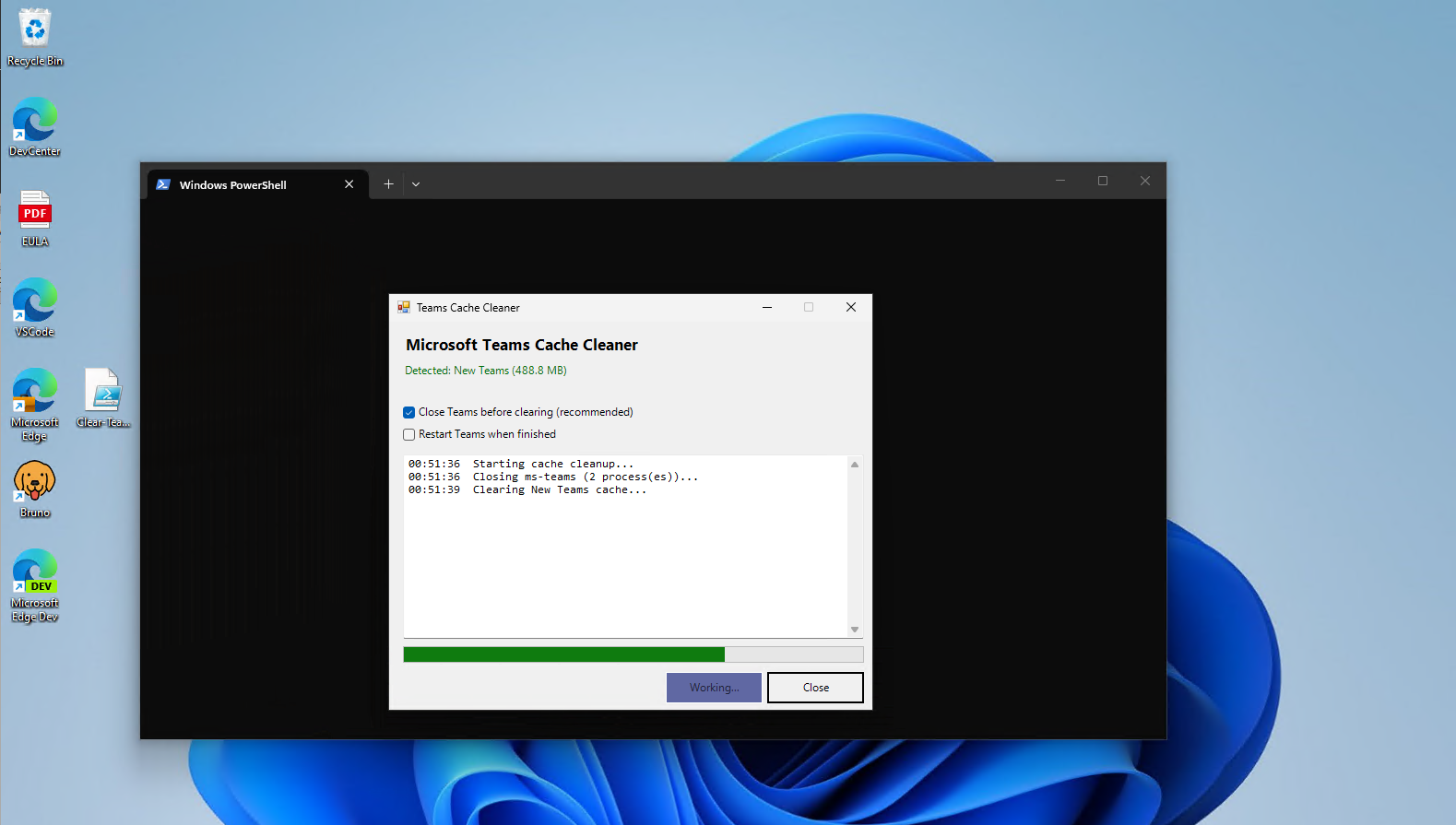
Before touching either cache, the Stop-Teams function looks for running processes named Teams, ms-teams, or msteams and force-stops them, then pauses three seconds. This is the same pattern used in the other cache-clearing scripts in this series: you cannot delete a file a running process has open, so closing the app first avoids a pile of "skipped, in use" messages.
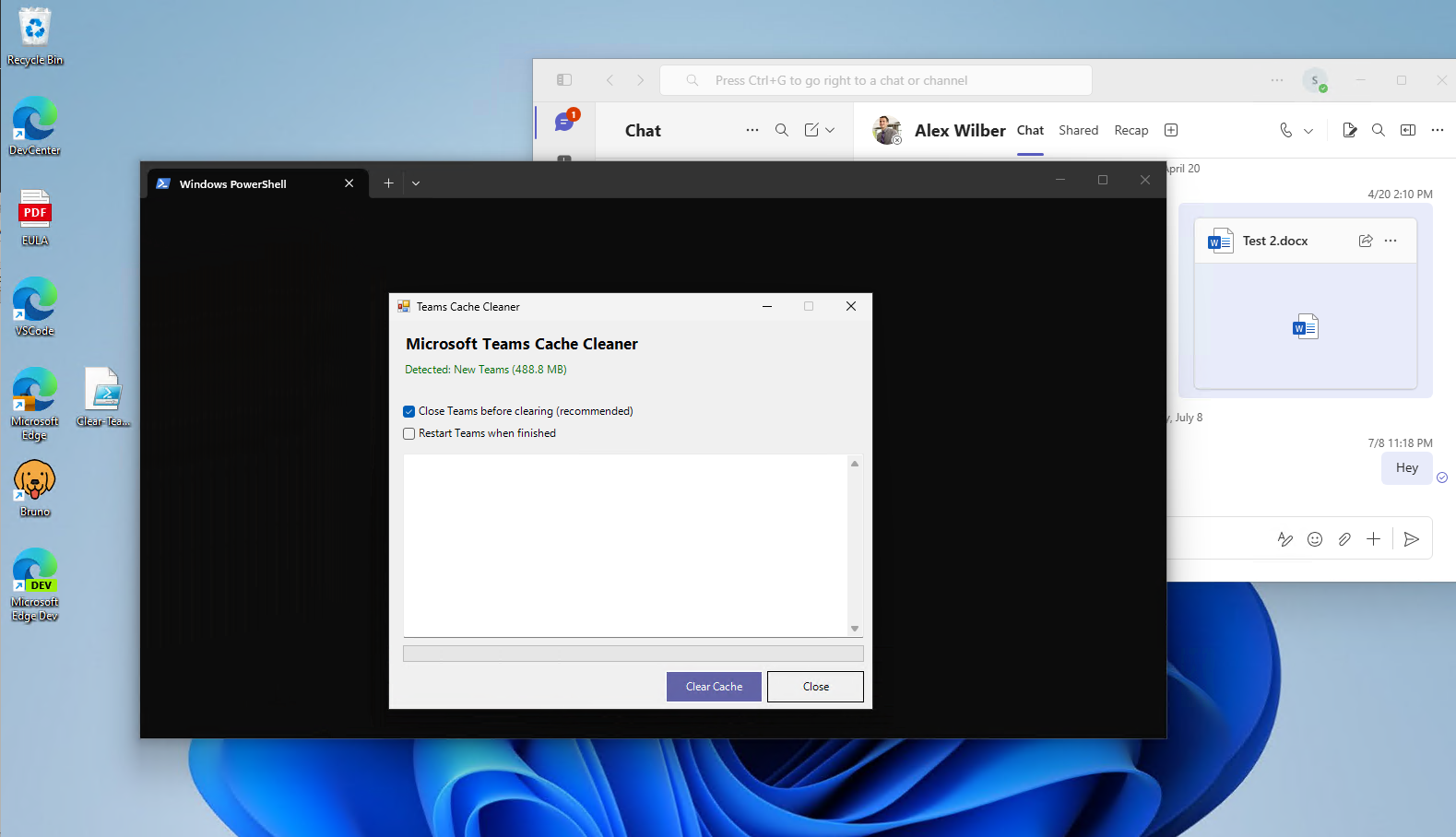
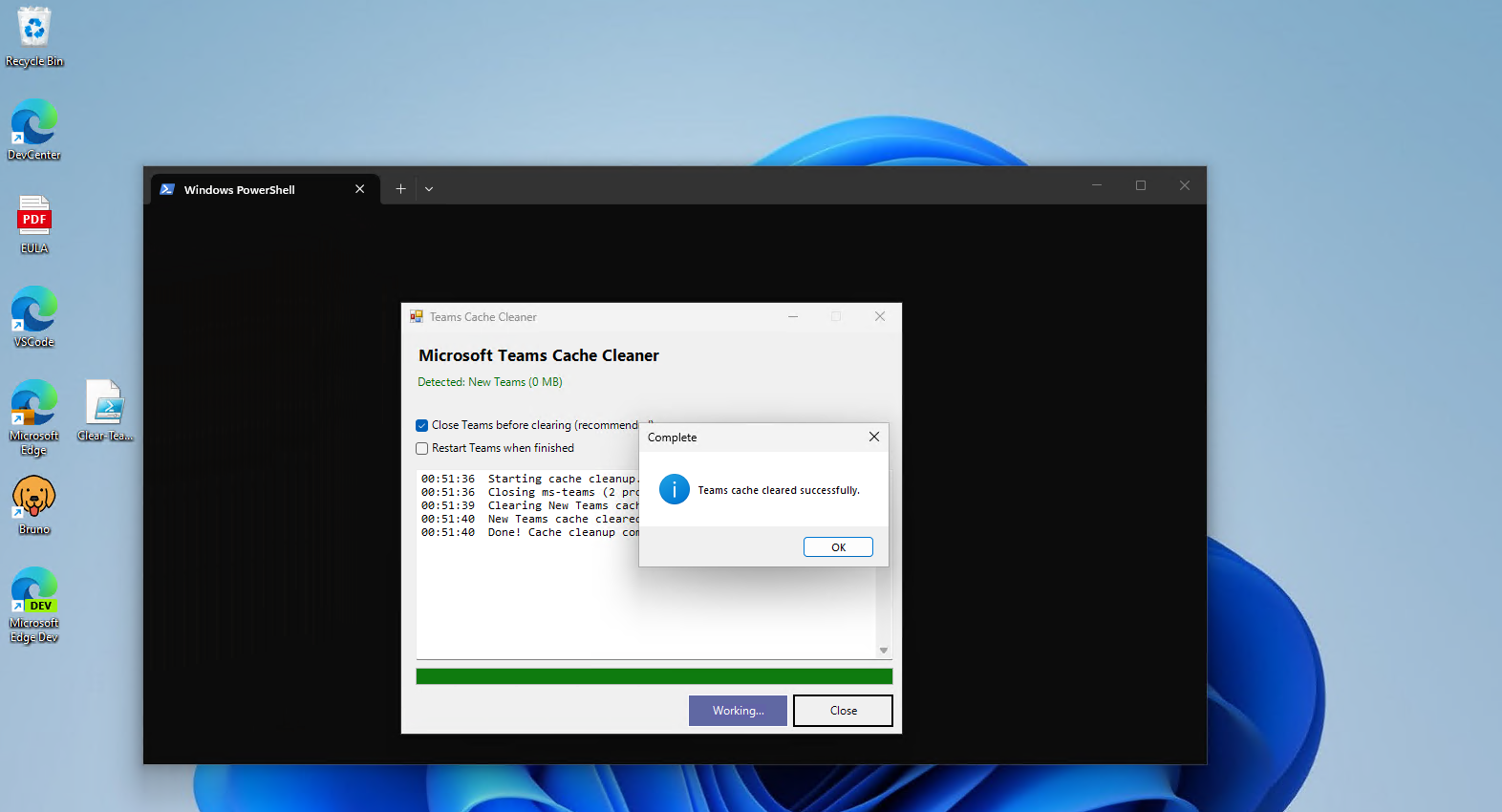
The detection logic runs both at startup and again right before clearing, through the Update-Detection function. It checks whether each Teams version's root folder exists and reports the size of what it found, which is what populates the status line at the top of the window: "Detected: Classic Teams (340 MB) | New Teams (128 MB)" or similar. This detection step means the tool never tries to clear a cache that is not there, and it tells you up front roughly how much you are about to reclaim.
The most interesting piece is Get-NewTeamsAumid, which figures out the Application User Model ID needed to relaunch New Teams from a script, since New Teams does not have a simple .exe you can call the way Classic Teams does. It looks up the installed AppX package, reads its manifest, and builds an AUMID string in the form PackageFamilyName!AppId. If that lookup fails for any reason, wrapped safely in a try/catch, the script falls back to trying the Classic Teams launcher instead, and if that also fails, it tells the user to start Teams manually rather than leaving them wondering why nothing happened.
Sample Output
Gotchas & Safety
Check the detection status line, which shows you exactly what was found and how large it is before you click Clear Cache. If the status says nothing was detected, the button is disabled and there is nothing to accidentally clear.
Test this against both Classic and New Teams in a dev environment before rolling it out broadly, especially if your organization is mid-migration between the two. Microsoft has changed the New Teams cache folder location before during the MSIX transition, and if your users are on an older or newer build than what this script expects, the LocalCache path may not match. Confirm the path on a representative machine first.
The restart step is opt-in through the Restart Teams when finished checkbox, checked by default. If you are running this against a machine remotely or in an unattended context, consider unchecking the corresponding logic so Teams does not pop back up unexpectedly in front of a user who was not expecting it.
Because Classic Teams' cache clearing deliberately excludes the folders holding sign-in tokens and settings, users should not need to sign back in after this runs. If you do see a forced re-authentication, that is a sign something outside the expected cache subfolders was cleared, and it is worth double-checking the subfolder list against what is on disk before running this more broadly.
FAQ & Variations
Will this sign me out of Teams?
The script only clears cache and temporary data folders, not the folders holding authentication tokens or your account settings. You should see Teams reload your chats and channels from the server the same way it would after a normal restart. However, it may ask you to pick your account again when you start Teams up again.
How do I scope this to only clear New Teams, or only Classic?
Comment out the block you do not want. The script structure keeps Classic and New Teams handling in clearly separate sections gated by $det.Classic and $det.New, so removing one path is a matter of deleting or commenting out the relevant if block rather than rewriting anything.
My organization is still on Classic Teams. Do I need the New Teams code at all?
You can leave it in without any downside. The detection logic checks whether the New Teams folder exists before doing anything with it, so on a machine that only has Classic Teams installed, that entire section is a no-op. There is no harm in keeping both paths in case your organization migrates later.
Can I run this without closing Teams first?
Uncheck Close Teams before clearing, though the script will warn you that files currently open by Teams will be skipped rather than deleted. In practice this means you get a partial cleanup, which defeats a lot of the purpose. Leave this checked unless there is a specific reason not to.
How do I add this to a logon script for a whole department?
Strip out the Windows Forms interface and keep the detection and clearing functions, then wrap the core logic in a script that runs the clear silently and logs to a file instead of a GUI text box. Just be careful about the process kill step landing during active meetings. Trigger this at logon rather than mid-session, so nobody gets bumped out of an active Teams call.
Does this affect meeting recordings or files shared in chat?
No. Recordings and shared files live in OneDrive, SharePoint, or Stream, not in the local Teams cache. Clearing the cache only affects locally stored temporary data used to speed up the app, not anything stored in the cloud.