Disable Storyline in Teams or Outlook
Storyline is a social feed feature built into Microsoft Viva Engage (formerly Yammer) that surfaces posts in Microsoft Teams and Outlook. Think of it as a LinkedIn-style activity feed inside your Microsoft 365 environment. For some organizations it is a useful internal communication tool, but for many IT teams it is an unwanted social layer that adds distraction without adding value. Here is what it is, why you might want to disable it, and how to do so.
What Is Storyline?
Storyline was introduced as part of Microsoft's Viva Engage experience. When enabled, each Microsoft 365 user gets a personal story feed that others in the organization can follow. Posts appear on user profile pages in Teams, in Outlook, and in the Viva Engage app itself.
From the user side, Storyline adds a "New Storyline Post" option in Teams and lets users share updates, announcements, or content with colleagues who follow them. From an admin perspective, it creates a social media-style layer within your Microsoft 365 environment that may or may not fit your organization's communication culture.
Reasons Organizations Disable Storyline
There are several common reasons admins choose to disable Storyline in their tenants.
Distraction and scope creep: Not all organizations want a social feed inside their productivity tools. For highly regulated or focused work environments, Storyline adds noise without clear business value.
Compliance and data governance: Any new communication channel creates potential compliance requirements. Organizations with strict records management policies may want to avoid the additional data that Storyline generates until they have the governance framework in place.
Support burden: When new features appear in Teams without much context, the help desk typically sees an increase in questions. Disabling Storyline before it becomes visible to users avoids that wave.
Scoping to specific groups: Rather than disabling entirely, some organizations restrict Storyline posting rights to specific groups such as HR or leadership, which limits it to a broadcast tool rather than an open social feed.
Who Can Disable Storyline?
Storyline is controlled through the Viva Engage (Microsoft Engage) admin center, not the Teams admin center or the Microsoft 365 admin center. You need to be either a Global Administrator or a Viva Engage (Yammer) network administrator to access the required settings. SharePoint admins, Teams admins, and other delegated admin roles do not have access to these controls.
These actions can only be performed by a Global admin or Viva Engage (Yammer) network admin. Turning the feature off removes the Storyline tab from user profiles in Teams, Viva Engage, and Outlook, but it does not delete historical posts. Use eDiscovery or data export later if you need to wipe existing content. Microsoft Learn
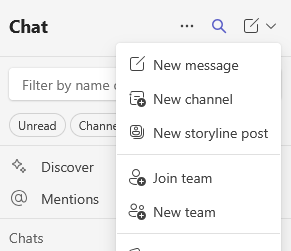
Steps to Disable Storyline
- Login to https://engage.cloud.microsoft/main/admin as a Global Administrator or an Engage Administrator
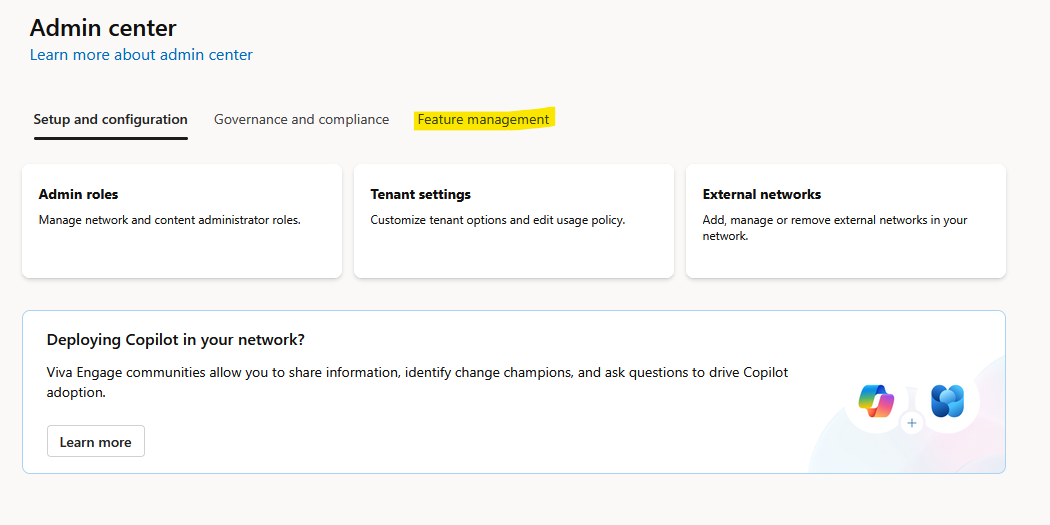
- Click on Feature Management Tab
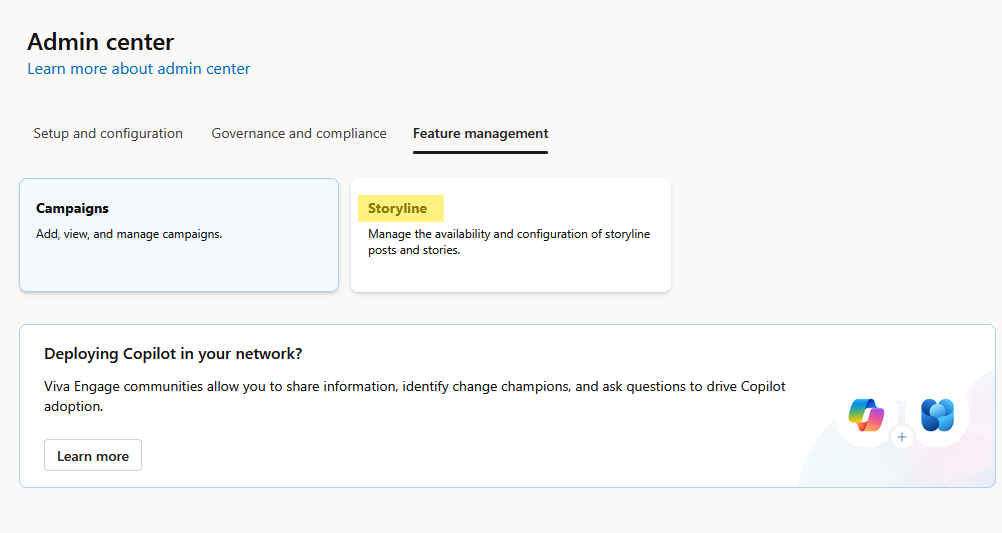
- Now Click Storyline option
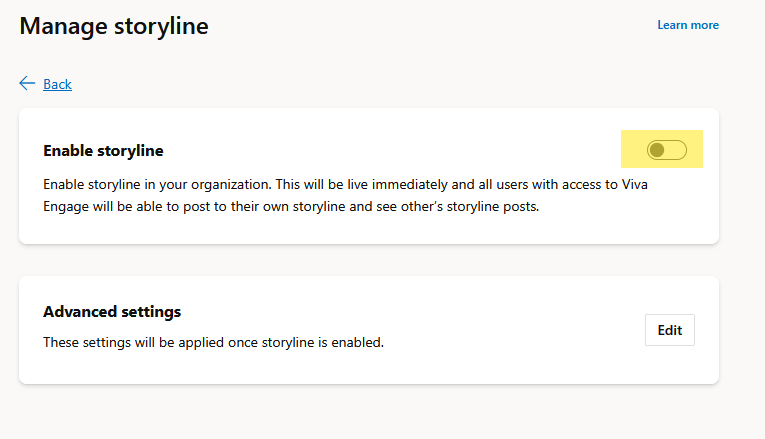
- Now toggle the "Enable storyline" to the off position. Please keep in mind this will disable the storyline feature throughout Engage, Teams and Outlook.
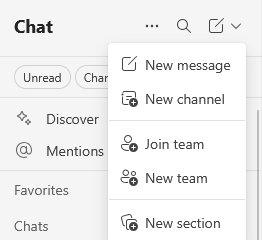
Verify that "New Storyline Post" no longer appears in Teams
- Ask a regular user (no admin roles) to relaunch the new Teams client or refresh teams.microsoft.com.
- Check that the New Storyline Post option no longer appears under the new post menu in Teams.
Disabling Does Not Delete Content
Disabling Storyline hides the feature from users going forward, but it does not delete any historical Storyline posts. Existing posts remain in Viva Engage and in the Dataverse database even after the feature is turned off. If you need to remove historical content for compliance or data governance reasons, you will need to use eDiscovery or Viva Engage's data export tools to identify and purge that content separately.
Scoping Storyline to Specific Groups Instead of Disabling Entirely
If you want to keep Storyline available but restrict who can post to it, Engage supports scoping. Rather than a global on/off toggle, you can configure a security group or Microsoft 365 group that controls which users have permission to create Storyline posts. Users not in that group can still view Storyline posts in their feed but cannot post.
This scoped approach works well for organizations that want to use Storyline as a one-way broadcast tool from leadership or HR without opening it up for all-employee posting. The scoping controls are also in the Engage admin center under the Storyline settings.
Communicating the Change to Your Users
If Storyline was previously visible in your tenant and you disable it, users will notice the feature disappearing without explanation. A brief communication sent a few days before the change helps prevent confusion and help desk tickets. A simple note explaining that the Storyline feature is being removed and pointing users to the preferred communication channels in your organization is usually enough.
If you are disabling it before users have had a chance to discover it, no communication is strictly necessary, but a heads-up to your help desk team is still a good idea so they can handle any questions from early adopters who noticed it.
Frequently Asked Questions
Can individual users turn Storyline off for themselves?
Users cannot disable Storyline tenant-wide, but they can control their own personal notification preferences for Storyline activity. The toggle in the admin center is the only way to remove the feature entirely.
If I disable Storyline and then re-enable it later, will historical posts reappear?
Yes. Historical posts are retained while Storyline is disabled. If you re-enable the feature, those posts will become visible again.
Does Storyline affect Teams performance?
In most environments, no. Storyline is a content layer, not a real-time process. However, in very large organizations with high Storyline activity, there can be some feed processing overhead. This is rarely a practical concern for most tenants.
Final Thoughts
Disabling Storyline is a straightforward admin task, but it is one that needs to be done through the Viva Engage admin center rather than the more familiar Teams or Microsoft 365 admin centers. If your organization has decided it is not the right fit, the steps above will cleanly remove it from your tenant. If you want to evaluate it more carefully before making a decision, scoping it to a pilot group is a good way to test the feature without exposing it to your full user base.