

SharePoint Online Gets a Major User Experience Redesign
It's hard to believe Microsoft SharePoint turned 25 recently and that I've been working with it for almost 20 of those years. Happy Birthday SharePoint!
Along with the birthday celebration comes a new redesign for SharePoint Online and it is the biggest visual and navigation overhaul SharePoint has seen in years. Microsoft is starting public preview this month (March 2026), and full production rollout is scheduled for May 2026. This post covers what is changing, what is not changing, SharePoint admin considerations, and how to get ahead of the support panic before it hits.
What Is Changing in the SharePoint Redesign
Simplified Navigation
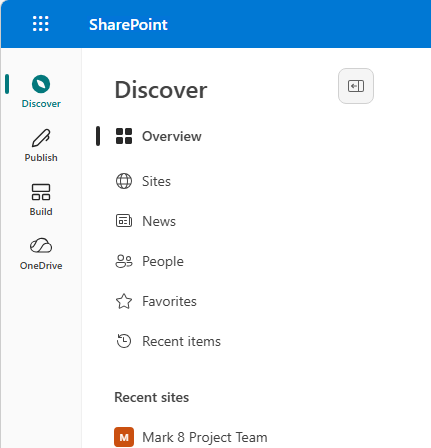
The most noticeable update is a simplified navigation structure across SharePoint Online. The left-side app bar has been reorganized to surface key elements such as Discover, Publish, Build and OneDrive. Hub navigation is also being simplified to reduce deep nesting that often made larger SharePoint environments feel overwhelming.
For users, this will hopefully be cleaner and faster feel. For SP admins, it means any navigation-oriented documentation or training materials will need updating.
AI-Assisted Content Discovery
The redesign introduces AI-assisted content discovery through Microsoft Copilot integrated directly into SharePoint search and browsing. Users will be able to describe what they want in natural language, and AI-powered search will surface relevant files, pages, and sites.
The quality of results depends heavily on the quality of your content governance. Well-named files, proper metadata, and clean site structures will all improve Copilot’s effectiveness. Poorly managed sites will confuse the AI as much as they confuse people.
Refreshed App Bar
The SharePoint app bar is receiving structural and visual updates that change how quick access links, news, and search are presented. Organizations that have customized their app bar will need to review and potentially rebuild those configurations after rollout.
Before the redesign arrives, review your current app bar setup in the SharePoint Admin Center and document everything.
Dark Mode for the SharePoint Admin Center
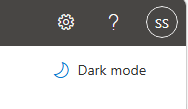
Admins will now have access to a dark mode option within the SharePoint Admin Center. This is a quality-of-life improvement, especially for admins with accessibility needs.
What Is Being Retired: Featured Links
Featured Links are being removed from the SharePoint Start Page starting in March 2026, with complete retirement planned by late June 2026.
Featured Links were commonly used to curate important resources for users. Once retired:
- Existing Featured Links will no longer appear on the Start Page
- They will be removed from the SharePoint mobile app
- There is no direct export or import process for migrating them elsewhere
Document your current Featured Links and determine where those key links should be surfaced in the redesigned experience. Communicate the change early to prevent a surge of “Where did my links go” tickets.
How to Enable the New SharePoint Experience
To prepare for the 2026 redesign rollout, SharePoint admins can enable the new SharePoint experience in a test or preview environment before it reaches production. Enabling the preview gives you early access to the updated navigation, app bar, AI features, and overall layout so you can test customizations and update documentation.
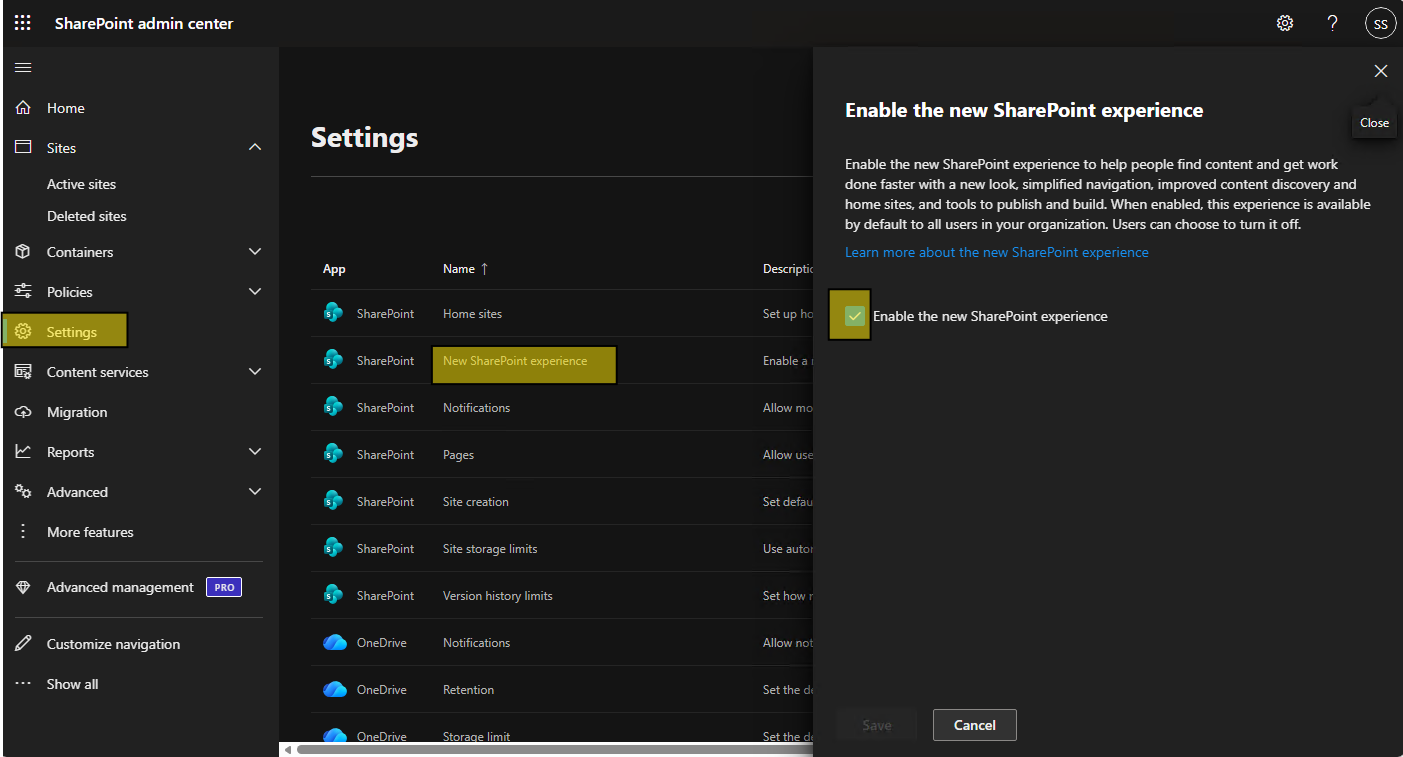
Steps to enable the preview in the SharePoint Admin Center
- Sign in to the Microsoft 365 Admin Center with SharePoint admin or global admin permissions.
- Open the SharePoint Admin Center from the left navigation menu.
- Select Settings in the left navigation.
- Scroll to the section labeled New SharePoint Experience.
- Check the option to "Enable the new SharePoint Experience".
- Save your changes. It may take several minutes for the preview features to appear in your tenant.
Other SharePoint Admin Considerations
SharePoint navigation changes always bring an increase in user questions.
1. Test the New Experience Early
Opt in to the public preview in March 2026 and explore the new experience in a test tenant. The earlier you familiarize yourself with the changes, the easier it will be to support your users.
2. Identify Change Champions
Select knowledgeable SharePoint users in each major department and brief them before the full rollout. These champions help field basic questions and reduce IT workload.
3. Update Intranet Documentation
If you maintain a “How to Use SharePoint” guide or intranet help page, add time to update it during or before the rollout period.
4. Review Hub Navigation Configurations
Hub navigation is commonly impacted during redesigns. Validate your hub navigation in the preview environment and adjust as necessary.
5. Prepare User Communication
Prepare one clear announcement about what is changing, when it is happening, and where users can find help. Send it one to two weeks before the rollout.
Custom Scripting and SharePoint Framework: Important Changes
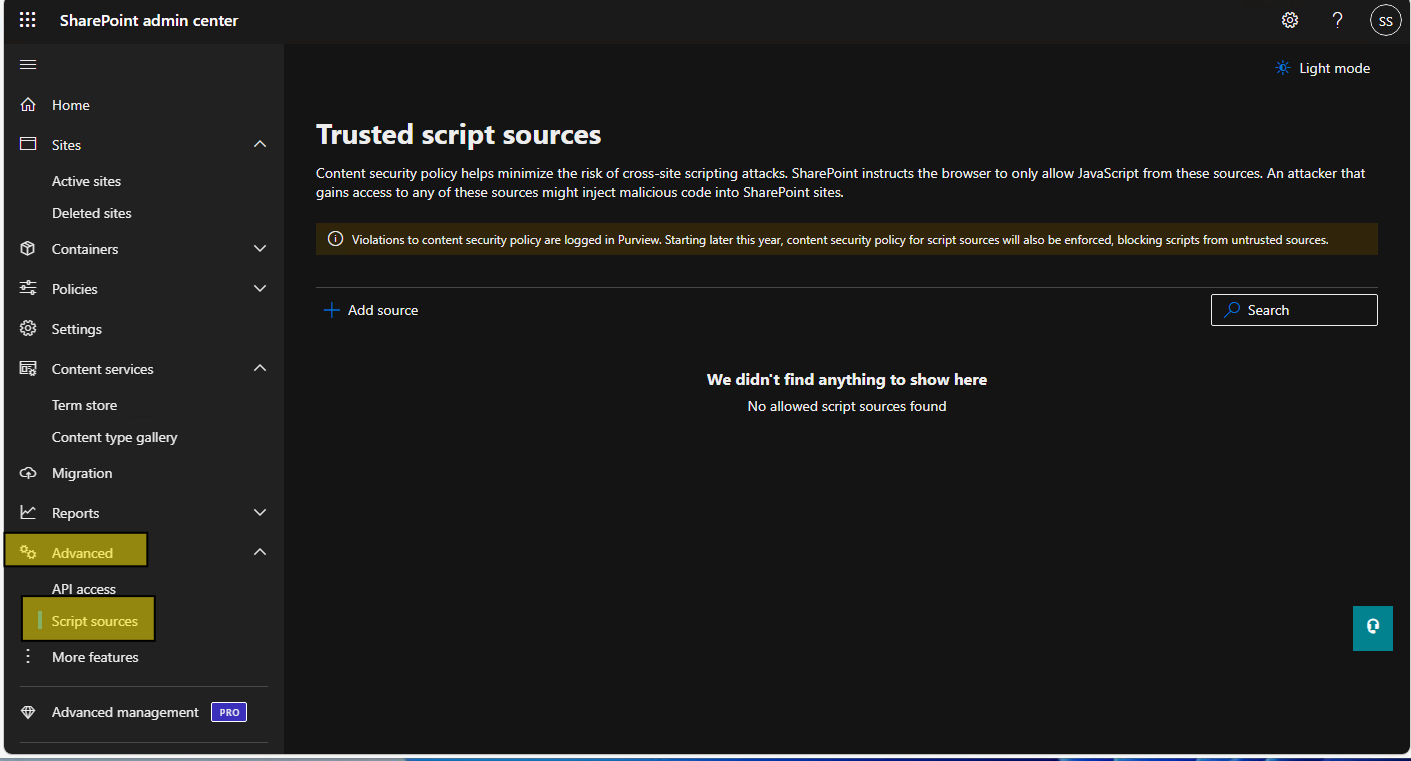
As part of the tightened Content Security Policy, organizations may need to review and update their list of trusted sources for custom scripts and SharePoint Framework components. Trusted sources define which external domains are allowed to load scripts, styles, or other resources within SharePoint.
If your SPFx solutions depend on content from CDNs or third party endpoints, you may need to explicitly add those domains to your allowed sources in the SharePoint Admin Center or within your SPFx package configuration. This ensures that external assets load correctly while still maintaining a strong security baseline. Configuring trusted sources reduces the risk of unauthorized scripts running in your environment and helps maintain compliance with modern security standards.
Testing Custom Solutions
Test the following components in the preview environment:
- Web parts loading external JavaScript
- Scripts making cross-origin API calls
- Custom app bar modifications
- iFrame-based embeds
If anything breaks, you will have time to update or rebuild before production rollout.
SharePoint Mobile App Updates
The SharePoint mobile app will receive interface updates aligned with the desktop redesign. Featured Links will also be removed from mobile. If you maintain mobile-specific SharePoint documentation or training, plan to update it.
The Opportunity to Spring Clean
Although major UI changes require work, they also create a natural opportunity to modernize and clean up your SharePoint environment.
Consider using this moment to:
- Audit and archive unused sites
- Improve site and document metadata for better AI discovery
- Establish or reconfigure your SharePoint Home Site
- Conduct a permissions audit to improve security and user experience
OneDrive Sync Folder: Custom Naming
Admins can now define a custom name for the OneDrive sync folder created in File Explorer or Finder. Shorter, cleaner names help prevent Windows path-length issues and improve consistency for users.
Summary
- Audit and document Featured Links before they retire in June 2026
- Document and review your current app bar customizations
- Opt into preview to explore the new experience early
- Brief your change champions
- Prepare user communication before rollout
- Test SPFx solutions against updated CSP rules
- Use the redesign as a launchpad for broader governance cleanup
The redesign will hopefully improve the SharePoint experience for users. By preparing early, SP admins can make the transition smoother and reduce support panic.


