PSHistory: Search and Manage Your PowerShell Command History
If you spend a lot of time working in PowerShell, your command history can become a valuable reference. The problem is that finding a specific command from days or weeks ago is not always convenient, especially when your history file contains hundreds or thousands of entries.
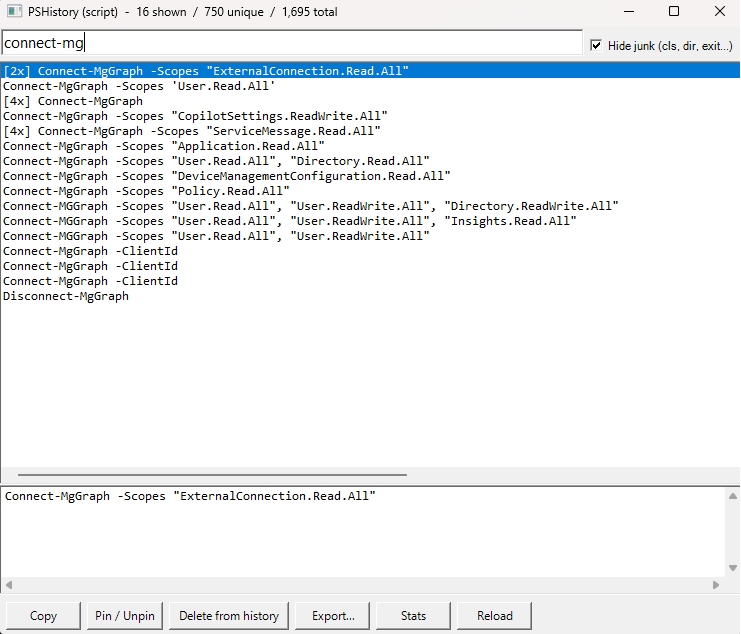
PSHistory provides a searchable graphical interface for managing your PowerShell command history. It runs quietly in the Windows system tray and can be opened at any time by pressing Ctrl+Shift+H.
The script version requires no installer and does not require any additional PowerShell modules. Run the script, leave it running in the system tray, and use the keyboard shortcut whenever you need to find an earlier command.
What PSHistory Can Do
PSHistory reads your local PSReadLine command history and provides several ways to search, organize, and manage it.
- Search your PowerShell command history in real time
- Copy a previous command to the Windows clipboard
- Open PSHistory using
Ctrl+Shift+H - Pin frequently used commands to the top of the list
- Hide common commands such as
cls,dir,exit, andcd - Identify commands that were used multiple times
- Preview complete commands, including multiline commands
- Delete commands from the PowerShell history file
- Export the currently displayed commands to a .ps1 or .txt file
- View command-history statistics and the most frequently used commands
- Reload the history file without restarting the script
- Run quietly from the Windows system tray
- Prevent multiple copies of PSHistory from running simultaneously
Pinned commands are saved separately, allowing them to remain pinned the next time PSHistory is started.
Requirements
- Windows 10 or Windows 11
- Windows PowerShell 5.1
- PSReadLine command history
- Windows Forms support
- Permission to read and modify your PowerShell history file
The script uses Windows Forms, the Windows notification area, and a Windows global keyboard shortcut.
Note: The default history path used by the script is for Windows PowerShell. If you primarily use PowerShell 7, you may need to update the history file path in the script.
How PSHistory Works
By default, Windows PowerShell stores PSReadLine command history in the following location:
%APPDATA%\Microsoft\Windows\PowerShell\PSReadLine\ConsoleHost_history.txtPSHistory reads this file and creates a searchable list of unique commands. If a command appears more than once, PSHistory displays the number of occurrences next to it.
[5x] Get-Mailbox -ResultSize UnlimitedPinned commands appear at the top of the results:
[PIN] Connect-ExchangeOnlineIf a pinned command has been used multiple times, both indicators are displayed:
[PIN] [12x] Get-MgUser -AllPSHistory also rebuilds multiline PowerShell commands saved using continuation backticks, allowing the complete command to be previewed, copied, and exported.
Download or Copy the Script
Copy the complete script below and save it with a .ps1 extension. A suitable filename is:
PSHistory.ps1# PSHistory - search and manage your PowerShell command history
# In plain PowerShell. No installs needed.
# Hotkey: Ctrl+Shift+H to open. Lives in the system tray.
Add-Type -AssemblyName System.Windows.Forms
Add-Type -AssemblyName System.Drawing
# ---------------- Native helper form (global hotkey) ----------------
$csharp = @'
using System;
using System.Runtime.InteropServices;
using System.Windows.Forms;
public class PSHistHotkeyForm : Form
{
public event EventHandler HotkeyPressed;
public bool AllowShow = false;
private const int WM_HOTKEY = 0x0312;
[DllImport("user32.dll")] private static extern bool RegisterHotKey(IntPtr hWnd, int id, uint fsModifiers, uint vk);
[DllImport("user32.dll")] private static extern bool UnregisterHotKey(IntPtr hWnd, int id);
public void InitHooks()
{
IntPtr h = this.Handle; // forces handle creation even while hidden
// 0x0002 = MOD_CONTROL, 0x0004 = MOD_SHIFT, 0x48 = 'H'
RegisterHotKey(h, 1, 0x0002 | 0x0004, 0x48);
}
protected override void SetVisibleCore(bool value)
{
base.SetVisibleCore(AllowShow && value);
}
protected override void WndProc(ref Message m)
{
if (m.Msg == WM_HOTKEY && m.WParam.ToInt32() == 1)
{
if (HotkeyPressed != null) HotkeyPressed(this, EventArgs.Empty);
}
base.WndProc(ref m);
}
protected override void OnFormClosed(FormClosedEventArgs e)
{
try { UnregisterHotKey(this.Handle, 1); } catch {}
base.OnFormClosed(e);
}
}
'@
Add-Type -TypeDefinition $csharp -ReferencedAssemblies 'System.Windows.Forms','System.Drawing'
# ---------------- Single instance guard (shared with PSHistory.exe) ----------------
$script:mutex = New-Object System.Threading.Mutex($false, 'PSHistory_SingleInstance')
if (-not $script:mutex.WaitOne(0, $false)) {
[System.Windows.Forms.MessageBox]::Show('PSHistory is already running (exe or script). Press Ctrl+Shift+H to open it.', 'PSHistory') | Out-Null
exit
}
# ---------------- Paths and state ----------------
$appData = [Environment]::GetFolderPath('ApplicationData')
$script:histPath = Join-Path $appData 'Microsoft\Windows\PowerShell\PSReadLine\ConsoleHost_history.txt'
$dataDir = Join-Path $appData 'PSHistory'
if (-not (Test-Path $dataDir)) { New-Item -ItemType Directory -Path $dataDir | Out-Null }
$script:pinsFile = Join-Path $dataDir 'pins.json'
# Hashtable keys are case-insensitive in PowerShell, which suits us fine here
$script:junk = @{}
foreach ($j in @('cls','clear','exit','quit','dir','ls','pwd','cd','cd..','cd ..','cd ~','gci','q','h','history')) {
$script:junk[$j] = $true
}
$script:pins = @{}
$script:raws = New-Object System.Collections.ArrayList
$script:entries = New-Object System.Collections.ArrayList
$script:view = @()
$script:reallyExit = $false
$script:lastWrite = [DateTime]::MinValue
function Load-Pins {
if (Test-Path $script:pinsFile) {
try {
$loaded = Get-Content $script:pinsFile -Raw -Encoding UTF8 | ConvertFrom-Json
foreach ($p in @($loaded)) { if ($p) { $script:pins[[string]$p] = $true } }
} catch { }
}
}
function Save-Pins {
try {
$arr = @($script:pins.Keys | ForEach-Object { [string]$_ })
if ($arr.Count -eq 0) { $json = '[]' }
elseif ($arr.Count -eq 1) { $json = '["' + ($arr[0] -replace '\\','\\\\' -replace '"','\"') + '"]' }
else { $json = ConvertTo-Json $arr }
Set-Content -Path $script:pinsFile -Value $json -Encoding UTF8
} catch { }
}
function Load-History {
$script:raws = New-Object System.Collections.ArrayList
$script:entries = New-Object System.Collections.ArrayList
if (-not (Test-Path $script:histPath)) { return }
$script:lastWrite = (Get-Item $script:histPath).LastWriteTimeUtc
try { $lines = [System.IO.File]::ReadAllLines($script:histPath) }
catch { $lines = @(Get-Content $script:histPath) }
# Rebuild multiline commands: a trailing backtick means the command continues on the next line
$i = 0
$n = $lines.Length
while ($i -lt $n) {
$raw = $lines[$i]
$cmd = ''
$cur = $lines[$i]
while ($cur.EndsWith('`') -and ($i + 1) -lt $n) {
$cmd += $cur.Substring(0, $cur.Length - 1) + "`n"
$i++
$cur = $lines[$i]
$raw += "`n" + $cur
}
$cmd = ($cmd + $cur).Trim()
if ($cmd.Length -gt 0) {
[void]$script:raws.Add([PSCustomObject]@{ Raw = $raw; Command = $cmd })
}
$i++
}
$map = @{}
for ($k = 0; $k -lt $script:raws.Count; $k++) {
$c = $script:raws[$k].Command
$en = $map[$c]
if ($null -eq $en) {
$en = [PSCustomObject]@{ Command = $c; Count = 0; LastIndex = 0; Pinned = $script:pins.ContainsKey($c) }
$map[$c] = $en
[void]$script:entries.Add($en)
}
$en.Count = $en.Count + 1
$en.LastIndex = $k
}
}
function Save-HistoryFile {
try {
$sb = New-Object System.Text.StringBuilder
foreach ($r in $script:raws) { [void]$sb.Append($r.Raw).Append("`r`n") }
$enc = New-Object System.Text.UTF8Encoding($false)
[System.IO.File]::WriteAllText($script:histPath, $sb.ToString(), $enc)
return $true
} catch {
[System.Windows.Forms.MessageBox]::Show("Could not write the history file:`r`n$($_.Exception.Message)", 'PSHistory', 'OK', 'Warning') | Out-Null
return $false
}
}
# ---------------- UI ----------------
$form = New-Object PSHistHotkeyForm
$form.Text = 'PSHistory (script)'
$form.Size = New-Object System.Drawing.Size(760, 640)
$form.MinimumSize = New-Object System.Drawing.Size(480, 360)
$form.StartPosition = 'CenterScreen'
$form.KeyPreview = $true
$form.TopMost = $true
$form.ShowInTaskbar = $false
$form.Icon = [System.Drawing.SystemIcons]::Application
$topPanel = New-Object System.Windows.Forms.Panel
$topPanel.Dock = 'Top'
$topPanel.Height = 34
$topPanel.Padding = New-Object System.Windows.Forms.Padding(2)
$junkBox = New-Object System.Windows.Forms.CheckBox
$junkBox.Text = 'Hide junk (cls, dir, exit...)'
$junkBox.Checked = $true
$junkBox.AutoSize = $true
$junkBox.Dock = 'Right'
$junkBox.Padding = New-Object System.Windows.Forms.Padding(6, 4, 4, 0)
$search = New-Object System.Windows.Forms.TextBox
$search.Dock = 'Fill'
$search.Font = New-Object System.Drawing.Font('Segoe UI', 11)
$topPanel.Controls.Add($search)
$topPanel.Controls.Add($junkBox)
$list = New-Object System.Windows.Forms.ListBox
$list.Dock = 'Fill'
$list.Font = New-Object System.Drawing.Font('Consolas', 10)
$list.HorizontalScrollbar = $true
$list.IntegralHeight = $false
$preview = New-Object System.Windows.Forms.TextBox
$preview.Dock = 'Bottom'
$preview.Height = 110
$preview.Multiline = $true
$preview.ReadOnly = $true
$preview.ScrollBars = 'Both'
$preview.WordWrap = $false
$preview.Font = New-Object System.Drawing.Font('Consolas', 10)
$preview.BackColor = [System.Drawing.SystemColors]::Window
$btnPanel = New-Object System.Windows.Forms.FlowLayoutPanel
$btnPanel.Dock = 'Bottom'
$btnPanel.Height = 40
$btnPanel.Padding = New-Object System.Windows.Forms.Padding(4)
function New-Btn([string]$label) {
$b = New-Object System.Windows.Forms.Button
$b.Text = $label
$b.AutoSize = $true
$b.Font = New-Object System.Drawing.Font('Segoe UI', 9)
return $b
}
$btnCopy = New-Btn 'Copy'
$btnPin = New-Btn 'Pin / Unpin'
$btnDelete = New-Btn 'Delete from history'
$btnExport = New-Btn 'Export...'
$btnStats = New-Btn 'Stats'
$btnReload = New-Btn 'Reload'
$btnPanel.Controls.AddRange(@($btnCopy, $btnPin, $btnDelete, $btnExport, $btnStats, $btnReload))
$form.Controls.Add($list)
$form.Controls.Add($preview)
$form.Controls.Add($btnPanel)
$form.Controls.Add($topPanel)
$notify = New-Object System.Windows.Forms.NotifyIcon
$notify.Icon = [System.Drawing.SystemIcons]::Application
$notify.Text = 'PSHistory (script) - Ctrl+Shift+H'
$notify.Visible = $true
$trayMenu = New-Object System.Windows.Forms.ContextMenuStrip
[void]$trayMenu.Items.Add('Open PSHistory')
[void]$trayMenu.Items.Add('Exit')
$notify.ContextMenuStrip = $trayMenu
# ---------------- Behavior ----------------
function Refresh-List {
$q = $script:search.Text
$items = @()
foreach ($en in $script:entries) {
if ($script:junkBox.Checked) {
if (-not $en.Pinned) {
if ($script:junk.ContainsKey($en.Command) -or $en.Command.Length -le 2) { continue }
}
}
if ($q) {
if ($en.Command.IndexOf($q, [System.StringComparison]::OrdinalIgnoreCase) -lt 0) { continue }
}
$items += $en
}
$pinnedPart = @($items | Where-Object { $_.Pinned } | Sort-Object LastIndex -Descending)
$restPart = @($items | Where-Object { -not $_.Pinned } | Sort-Object LastIndex -Descending)
$script:view = @($pinnedPart) + @($restPart)
$script:list.BeginUpdate()
$script:list.Items.Clear()
foreach ($en in $script:view) {
$p = ($en.Command -replace '\s+', ' ').Trim()
if ($p.Length -gt 200) { $p = $p.Substring(0, 200) + '...' }
$prefix = ''
if ($en.Pinned) { $prefix += '[PIN] ' }
if ($en.Count -gt 1) { $prefix += '[' + $en.Count + 'x] ' }
[void]$script:list.Items.Add($prefix + $p)
}
$script:list.EndUpdate()
if ($script:list.Items.Count -gt 0) { $script:list.SelectedIndex = 0 }
elseif (-not (Test-Path $script:histPath)) {
$script:preview.Text = "No PSReadLine history file found at:`r`n$($script:histPath)"
} else {
$script:preview.Text = ''
}
$script:form.Text = 'PSHistory (script) - {0:n0} shown / {1:n0} unique / {2:n0} total' -f $script:view.Count, $script:entries.Count, $script:raws.Count
}
function Get-Selected {
$i = $script:list.SelectedIndex
if ($i -ge 0 -and $i -lt $script:view.Count) { return $script:view[$i] }
return $null
}
function Update-Preview {
$en = Get-Selected
if ($en) { $script:preview.Text = $en.Command.Replace("`n", "`r`n") } else { $script:preview.Text = '' }
}
function Use-Selected {
$en = Get-Selected
if (-not $en) { return }
try { [System.Windows.Forms.Clipboard]::SetText($en.Command) } catch { }
Hide-Form
}
function Toggle-Pin {
$en = Get-Selected
if (-not $en) { return }
$en.Pinned = -not $en.Pinned
if ($en.Pinned) { $script:pins[$en.Command] = $true } else { $script:pins.Remove($en.Command) }
Save-Pins
Refresh-List
}
function Delete-Selected {
$en = Get-Selected
if (-not $en) { return }
if ($en.Count -gt 1) { $msg = "Remove all $($en.Count) occurrences of this command from the history file?" }
else { $msg = 'Remove this command from the history file?' }
$r = [System.Windows.Forms.MessageBox]::Show($msg, 'PSHistory', 'YesNo', 'Question')
if ($r -ne 'Yes') { return }
$cmd = $en.Command
$keep = New-Object System.Collections.ArrayList
foreach ($x in $script:raws) { if ($x.Command -ne $cmd) { [void]$keep.Add($x) } }
$script:raws = $keep
if (Save-HistoryFile) {
$script:pins.Remove($cmd)
Save-Pins
}
Load-History
Refresh-List
}
function Export-View {
if ($script:view.Count -eq 0) { return }
$dlg = New-Object System.Windows.Forms.SaveFileDialog
$dlg.Filter = 'PowerShell script (*.ps1)|*.ps1|Text file (*.txt)|*.txt'
$dlg.FileName = 'history-export.ps1'
if ($dlg.ShowDialog($script:form) -ne 'OK') { return }
try {
$sb = New-Object System.Text.StringBuilder
foreach ($en in $script:view) { [void]$sb.Append($en.Command.Replace("`n", "`r`n")).Append("`r`n") }
$enc = New-Object System.Text.UTF8Encoding($false)
[System.IO.File]::WriteAllText($dlg.FileName, $sb.ToString(), $enc)
} catch {
[System.Windows.Forms.MessageBox]::Show("Export failed: $($_.Exception.Message)", 'PSHistory', 'OK', 'Warning') | Out-Null
}
}
function Show-Stats {
$sb = New-Object System.Text.StringBuilder
[void]$sb.AppendLine(('Total commands typed : {0:n0}' -f $script:raws.Count))
[void]$sb.AppendLine(('Unique commands : {0:n0}' -f $script:entries.Count))
if (Test-Path $script:histPath) {
$fi = Get-Item $script:histPath
[void]$sb.AppendLine(('History file size : {0:n0} KB' -f [math]::Floor($fi.Length / 1024)))
[void]$sb.AppendLine('History file : ' + $script:histPath)
}
[void]$sb.AppendLine('')
[void]$sb.AppendLine('Top 10 most used:')
$rank = 1
foreach ($en in @($script:entries | Sort-Object Count -Descending | Select-Object -First 10)) {
$p = ($en.Command -replace '\s+', ' ').Trim()
if ($p.Length -gt 80) { $p = $p.Substring(0, 80) + '...' }
[void]$sb.AppendLine(('{0,2}. [{1}x] {2}' -f $rank, $en.Count, $p))
$rank++
}
$f = New-Object System.Windows.Forms.Form
$f.Text = 'PSHistory - Stats'
$f.Size = New-Object System.Drawing.Size(680, 420)
$f.StartPosition = 'CenterParent'
$f.MinimizeBox = $false
$f.MaximizeBox = $false
$f.ShowInTaskbar = $false
$f.Icon = [System.Drawing.SystemIcons]::Application
$tb = New-Object System.Windows.Forms.TextBox
$tb.Dock = 'Fill'
$tb.Multiline = $true
$tb.ReadOnly = $true
$tb.ScrollBars = 'Both'
$tb.WordWrap = $false
$tb.Font = New-Object System.Drawing.Font('Consolas', 10)
$tb.Text = $sb.ToString()
$tb.BackColor = [System.Drawing.SystemColors]::Window
$f.Controls.Add($tb)
[void]$f.ShowDialog($script:form)
}
function Show-Form {
$script:form.AllowShow = $true
# Only re-parse the file if it changed since last load
if ((Test-Path $script:histPath) -and ((Get-Item $script:histPath).LastWriteTimeUtc -ne $script:lastWrite)) {
Load-History
}
Refresh-List
$script:form.Show()
$script:form.Activate()
$script:search.SelectAll()
$script:search.Focus()
}
function Hide-Form {
$script:form.Hide()
}
function Exit-App {
$script:reallyExit = $true
$script:notify.Visible = $false
$script:notify.Dispose()
$script:form.Close()
}
# Events
$form.add_HotkeyPressed({
if ($script:form.Visible) { Hide-Form } else { Show-Form }
})
$form.add_FormClosing({
param($s, $e)
if (-not $script:reallyExit) { $e.Cancel = $true; Hide-Form }
})
$form.add_KeyDown({
param($s, $e)
if ($e.KeyCode -eq 'Escape') { Hide-Form; $e.Handled = $true }
})
$search.add_TextChanged({ Refresh-List })
$search.add_KeyDown({
param($s, $e)
if ($e.KeyCode -eq 'Down') { $script:list.Focus(); $e.Handled = $true }
elseif ($e.KeyCode -eq 'Enter') { Use-Selected; $e.Handled = $true; $e.SuppressKeyPress = $true }
})
$junkBox.add_CheckedChanged({ Refresh-List })
$list.add_SelectedIndexChanged({ Update-Preview })
$list.add_KeyDown({
param($s, $e)
if ($e.KeyCode -eq 'Enter') { Use-Selected; $e.Handled = $true; $e.SuppressKeyPress = $true }
elseif ($e.KeyCode -eq 'Delete') { Delete-Selected; $e.Handled = $true }
})
$list.add_DoubleClick({ Use-Selected })
$btnCopy.add_Click({ Use-Selected })
$btnPin.add_Click({ Toggle-Pin })
$btnDelete.add_Click({ Delete-Selected })
$btnExport.add_Click({ Export-View })
$btnStats.add_Click({ Show-Stats })
$btnReload.add_Click({ Load-History; Refresh-List })
$notify.add_DoubleClick({ Show-Form })
$trayMenu.Items[0].add_Click({ Show-Form })
$trayMenu.Items[1].add_Click({ Exit-App })
# ---------------- Startup ----------------
Load-Pins
Load-History
$form.InitHooks()
Refresh-List
$notify.ShowBalloonTip(3000, 'PSHistory', 'Running in the tray. Press Ctrl+Shift+H to open.', 'Info')
[System.Windows.Forms.Application]::Run($form)
$script:mutex.ReleaseMutex()
Running PSHistory
Open Windows PowerShell and navigate to the folder where you saved the script.
cd "C:\Scripts\PSHistory"Run the script:
.\PSHistory.ps1When the script starts, a notification should appear indicating that PSHistory is running in the Windows system tray. Press Ctrl+Shift+H to open it. Press the same shortcut again to hide the window.
You can also open PSHistory by double-clicking its icon in the Windows system tray. Alternatively, right-click the tray icon and select Open PSHistory.
If PowerShell Blocks the Script
Depending on your PowerShell execution policy, Windows may prevent the script from running. View the execution policies currently applied to your system with:
Get-ExecutionPolicy -ListTo temporarily allow the script to run in the current PowerShell session, use:
Set-ExecutionPolicy -Scope Process -ExecutionPolicy BypassThen run PSHistory:
.\PSHistory.ps1The Process scope applies only to the current PowerShell session. Closing that PowerShell window removes the temporary execution-policy change.
If Windows marked a downloaded copy of the script as originating from the internet, you can remove that mark with:
Unblock-File -Path ".\PSHistory.ps1"Important: Only unblock and run a script after reviewing its contents and confirming that you trust its source.
Searching Your PowerShell History
Start typing in the search box to filter your command history. Searches are not case-sensitive. For example, searching for mailbox could return commands such as:
Get-Mailbox -ResultSize Unlimited
Get-MailboxPermission -Identity [email protected]
Set-Mailbox -Identity [email protected]
Use the arrow keys to move through the results. Press Enter to copy the selected command to the Windows clipboard and hide PSHistory. You can then paste it into PowerShell, Windows Terminal, Visual Studio Code, or another editor. Double-clicking a command performs the same action.
Important: PSHistory copies the selected command to your clipboard. It does not automatically execute the command.
Pinning Frequently Used Commands
Select a command and click Pin / Unpin to pin it. Pinned commands appear at the top of the results, which is useful for commands you regularly reuse but do not want to save in a separate script.
Pinned command information is stored in:
%APPDATA%\PSHistory\pins.jsonUnpinning a command removes it from the pinned list but does not remove it from your PowerShell command history.
Hiding Common Commands
The Hide junk option filters out short or commonly used commands that may not be useful in search results, including:
cls, clear, exit, quit, dir, ls, pwd, cd, gci, historyPinned commands remain visible even if they would normally be excluded by this filter. Clear the Hide junk checkbox to display all available history entries.
Copying a Command
Select a command and click Copy to copy it to the Windows clipboard. You can also double-click the command or select it and press Enter.
After copying the command, PSHistory hides its window but continues running in the Windows system tray.
Deleting Commands from Your History
Select a command and click Delete from history, or press the Delete key while the command list is selected. If the command appears multiple times, PSHistory asks whether you want to remove all occurrences.
Deleting a command updates the underlying PSReadLine history file. This cannot be undone unless you have a backup. Before removing entries, consider backing up your history:
Copy-Item `
  -Path "$env:APPDATA\Microsoft\Windows\PowerShell\PSReadLine\ConsoleHost_history.txt" `
  -Destination "$env:USERPROFILE\Desktop\ConsoleHost_history_backup.txt"
It is also a good idea to close other PowerShell sessions first. Another session could write new commands to the history file while PSHistory is modifying it.
Exporting Commands
The Export button exports the commands currently displayed in the PSHistory window. Results can be saved as a PowerShell script using .ps1 or as a standard text file using .txt.
Because PSHistory exports the current view, you can search for a term first and export only the matching commands. For example, search for ExchangeOnline and save the results as:
exchange-commands.ps1Always review exported commands before running the resulting script. Command history may contain incomplete commands, commands that depend on previous session state, or commands intended to be run individually.
Viewing Command Statistics
Click Stats to view:
- Total commands typed
- Number of unique commands
- History file size
- History file location
- Ten most frequently used commands
This information can help identify commands that you use frequently enough to convert into functions, aliases, or reusable PowerShell scripts.
Reloading the History File
PSHistory checks whether the history file changed whenever its window is opened. You can also click Reload to immediately read the file again. This is useful after entering additional commands while PSHistory is running.
Closing PSHistory
Closing the PSHistory window hides it and leaves the script running in the Windows system tray. To exit completely:
- Locate the PSHistory icon in the Windows system tray.
- Right-click the icon.
- Select Exit.
The script includes a single-instance check. If PSHistory is already running and you launch it again, a message directs you to press Ctrl+Shift+H to open the existing instance.
Starting PSHistory Automatically
To start PSHistory when you sign in to Windows, create a shortcut in the Windows Startup folder. Press Windows key + R, enter the following command, and press Enter:
shell:startupCreate a shortcut with a target similar to:
powershell.exe -NoProfile -WindowStyle Hidden -ExecutionPolicy Bypass -File "C:\Scripts\PSHistory\PSHistory.ps1"Change the script path to match where you saved PSHistory.ps1. The -WindowStyle Hidden argument prevents the PowerShell console window from remaining visible while the utility runs in the system tray.
Security note: Review your organization's security policies before configuring a script to run automatically or using an execution-policy bypass.
Using PSHistory with PowerShell 7
PowerShell 7 may use a different PSReadLine history location than Windows PowerShell 5.1. To determine the history file used by your current environment, run:
(Get-PSReadLineOption).HistorySavePathThe default history path in PSHistory is configured with:
$script:histPath = Join-Path $appData 'Microsoft\Windows\PowerShell\PSReadLine\ConsoleHost_history.txt'To use the history path reported by the current PowerShell environment, replace that line with:
$script:histPath = (Get-PSReadLineOption).HistorySavePathRun PSHistory from the PowerShell environment whose history you want to manage.
Changing the Keyboard Shortcut
The default shortcut is Ctrl+Shift+H. It is registered in the embedded C# section of the script:
RegisterHotKey(h, 1, 0x0002 | 0x0004, 0x48);0x0002: Control0x0004: Shift0x48: H
Changing the shortcut requires updating the modifier values or virtual-key code. Make sure the new shortcut is not already registered by another application.
Privacy and Security Considerations
PSHistory processes the PowerShell command history stored locally on your computer. It does not intentionally upload your history or send it to an external service.
PowerShell history can contain sensitive information, including:
- Usernames and email addresses
- Tenant names and internal server names
- File paths and IP addresses
- Administrative commands
- Access tokens
- Credentials, secrets, or API keys entered directly into commands
- Information copied from production environments
Avoid entering passwords, access tokens, client secrets, API keys, or other sensitive values directly into PowerShell commands. If sensitive information already exists in your history, consider removing it and rotating the affected credential.
You can search for some potentially sensitive terms with:
Select-String `
  -Path "$env:APPDATA\Microsoft\Windows\PowerShell\PSReadLine\ConsoleHost_history.txt" `
  -Pattern "password|secret|token|credential|apikey"
This can help identify entries that should be reviewed, but it cannot detect every type of sensitive information.
Known Limitations
- PSHistory is designed for Windows.
- The default history path targets Windows PowerShell.
- PowerShell 7 may use a different PSReadLine history location.
- The script requires Windows Forms support.
- Another application may already be using
Ctrl+Shift+H. - Deleting a command removes every matching occurrence of the selected command.
- Commands copied from history are not automatically validated.
- Exported commands may not run correctly outside their original session.
- Multiple open PowerShell sessions may write to the history file independently.
- Commands executed with history saving disabled will not appear.
- Commands used in noninteractive or remote sessions may be stored elsewhere or may not be stored at all.
- The script manages only the history file associated with the configured path.
Final Thoughts
PowerShell history is useful for more than recalling the last few commands. Over time, it becomes a record of administrative work, troubleshooting steps, configuration changes, and commands that may be needed again.
PSHistory makes that information easier to search and reuse without requiring a separate database, PowerShell module, or installation package. It can be especially useful for administrators, developers, help desk technicians, and anyone who regularly works from a PowerShell console.
Once the script is running, press Ctrl+Shift+H, find the command you need, and press Enter to copy it.
Disclaimer: This script is provided as-is for informational and administrative use, without warranty of any kind. Review and test it in a safe environment before using it with important PowerShell history. You are responsible for any changes made to your files or system.