

Find What Is Using OneDrive Storage with PowerShell
OneDrive storage issues often begin with a sync error or a notification that the user’s available storage is full. The first challenge is determining exactly what is consuming the space. Windows Storage settings can report overall usage for a drive, but they do not provide a detailed breakdown of OneDrive content. Searching for large files through File Explorer can also be slow and unreliable, particularly when the location of the user’s OneDrive root folder is not immediately clear.
In many cases, most of the storage is being consumed by a relatively small number of files located in unexpected folders. These may include old videos, photo backups, installation files, or project archives that are no longer actively used. Finding them manually requires checking individual folder properties throughout what may be a deeply nested directory structure. A script that scans the complete OneDrive folder, calculates usage by top-level folder, and identifies the largest files provides a much faster and more consistent way to locate the primary sources of storage consumption.
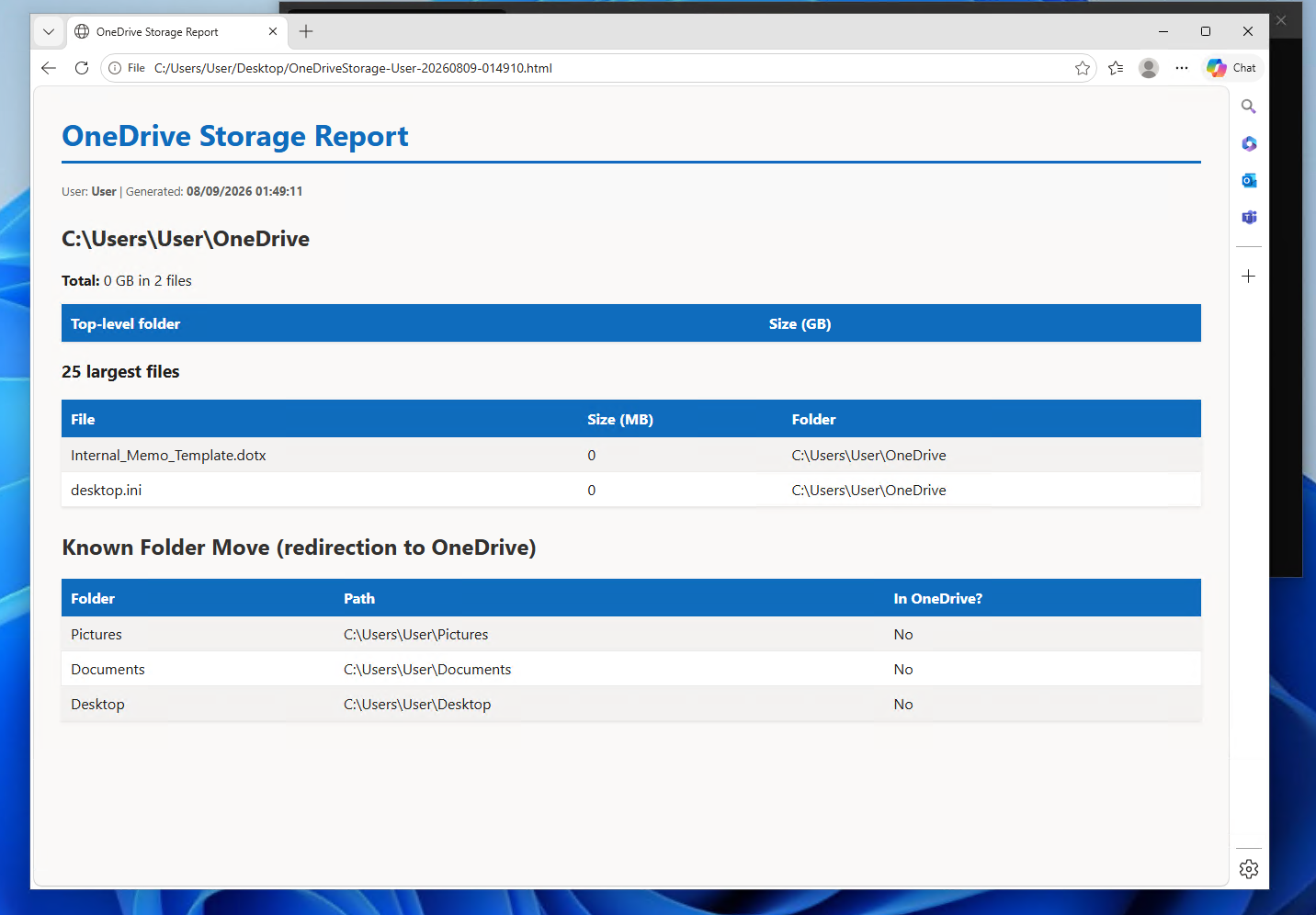
Known Folder Move adds another important consideration. When an organization redirects the Desktop, Documents, and Pictures folders to OneDrive, files that users consider local may actually be included in OneDrive’s synchronization scope. As a result, local storage habits can directly affect OneDrive capacity and synchronization. This report checks the redirection status of these folders, making it clear whether content stored in Desktop, Documents, or Pictures is being protected and synchronized through OneDrive.
Prerequisites
This script reads from folders that already exist on the local machine.
- Windows PowerShell 5.1, included with Windows 10 and 11
- OneDrive installed and at least one OneDrive folder synced (personal, work/school, or both)
- No admin rights required, since everything read here lives inside the current user's own profile
- No PowerShell modules and no connection to your tenant
The script discovers OneDrive folders automatically rather than requiring you to specify a path. It checks the OneDrive, OneDriveCommercial, and OneDriveConsumer environment variables, which Windows sets for personal and work/school accounts respectively, and also scans the user profile folder for anything matching the OneDrive* naming pattern as a fallback, so it works whether someone has one account synced or several.
The Script
<#
.SYNOPSIS
    Get-OneDriveStorageReport - GUI report of OneDrive folders and largest files.
.DESCRIPTION
    Maps the local OneDrive (personal and Work/School) folders, totals their
    size, shows whether Known Folder Move is active (Desktop/Documents/Pictures
    redirected to OneDrive), and lists the 25 largest files. Helps users find
    what is eating their OneDrive storage.

    Read-only. Saves an HTML report to the Desktop. PowerShell 5.1+, no modules.
.NOTES
    Run: right-click > Run with PowerShell.
#>

if ([System.Threading.Thread]::CurrentThread.ApartmentState -ne 'STA') {
    Start-Process powershell.exe -ArgumentList @('-NoProfile','-ExecutionPolicy','Bypass','-STA','-File',"`"$PSCommandPath`"")
    return
}
Add-Type -AssemblyName System.Windows.Forms; Add-Type -AssemblyName System.Drawing
[System.Windows.Forms.Application]::EnableVisualStyles()

$desktop=[Environment]::GetFolderPath('Desktop')
$reportPath=Join-Path $desktop ("OneDriveStorage-$env:USERNAME-$(Get-Date -Format 'yyyyMMdd-HHmmss').html")
function Enc { param($s) if($null -eq $s){return ''}; return [System.Security.SecurityElement]::Escape([string]$s) }

# Discover OneDrive roots from environment + known folders.
$roots=@()
if ($env:OneDrive) { $roots+=$env:OneDrive }
if ($env:OneDriveCommercial) { $roots+=$env:OneDriveCommercial }
if ($env:OneDriveConsumer) { $roots+=$env:OneDriveConsumer }
Get-ChildItem $env:USERPROFILE -Directory -Filter 'OneDrive*' -ErrorAction SilentlyContinue | ForEach-Object { $roots+=$_.FullName }
$roots = @($roots | Where-Object { $_ -and (Test-Path -LiteralPath $_) } | Select-Object -Unique)

$form=New-Object System.Windows.Forms.Form
$form.Text='OneDrive Storage Report'; $form.Size=New-Object System.Drawing.Size(560,420)
$form.StartPosition='CenterScreen'; $form.FormBorderStyle='FixedSingle'; $form.MaximizeBox=$false
$form.Font=New-Object System.Drawing.Font('Segoe UI',9)
$lbl=New-Object System.Windows.Forms.Label; $lbl.Text='OneDrive Storage Report'
$lbl.Font=New-Object System.Drawing.Font('Segoe UI',13,[System.Drawing.FontStyle]::Bold)
$lbl.Location=New-Object System.Drawing.Point(15,12); $lbl.Size=New-Object System.Drawing.Size(520,28); $form.Controls.Add($lbl)
$txt=New-Object System.Windows.Forms.TextBox; $txt.Multiline=$true; $txt.ScrollBars='Vertical'; $txt.ReadOnly=$true
$txt.Location=New-Object System.Drawing.Point(15,52); $txt.Size=New-Object System.Drawing.Size(525,270)
$txt.Font=New-Object System.Drawing.Font('Consolas',9); $txt.BackColor=[System.Drawing.Color]::White; $form.Controls.Add($txt)
$btnGo=New-Object System.Windows.Forms.Button; $btnGo.Text='Generate Report'; $btnGo.Location=New-Object System.Drawing.Point(200,336); $btnGo.Size=New-Object System.Drawing.Size(120,34)
$btnGo.BackColor=[System.Drawing.Color]::FromArgb(15,108,189); $btnGo.ForeColor=[System.Drawing.Color]::White; $btnGo.FlatStyle='Flat'; $form.Controls.Add($btnGo)
$btnOpen=New-Object System.Windows.Forms.Button; $btnOpen.Text='Open Report'; $btnOpen.Location=New-Object System.Drawing.Point(325,336); $btnOpen.Size=New-Object System.Drawing.Size(110,34); $btnOpen.FlatStyle='Flat'; $btnOpen.Enabled=$false
$btnOpen.Add_Click({ Start-Process $reportPath }); $form.Controls.Add($btnOpen)
$btnClose=New-Object System.Windows.Forms.Button; $btnClose.Text='Close'; $btnClose.Location=New-Object System.Drawing.Point(440,336); $btnClose.Size=New-Object System.Drawing.Size(100,34); $btnClose.FlatStyle='Flat'
$btnClose.Add_Click({ $form.Close() }); $form.Controls.Add($btnClose)
$Log={ param($m) $txt.AppendText($m+[Environment]::NewLine); [System.Windows.Forms.Application]::DoEvents() }

$btnGo.Add_Click({
    $btnGo.Enabled=$false; $txt.Clear()
    if ($roots.Count -eq 0) { & $Log 'No OneDrive folders found for this user.'; [System.Windows.Forms.MessageBox]::Show('No OneDrive folders were found.','OneDrive','OK','Information')|Out-Null; $btnGo.Enabled=$true; return }
    $html=@"
<!DOCTYPE html><html><head><meta charset='utf-8'><title>OneDrive Storage Report</title><style>
body{font-family:Segoe UI,Arial,sans-serif;margin:30px;color:#201f1e;background:#faf9f8}
h1{color:#0f6cbd;border-bottom:3px solid #0f6cbd;padding-bottom:8px}h2{color:#323130;margin-top:26px}
table{border-collapse:collapse;width:100%;background:#fff;box-shadow:0 1px 3px rgba(0,0,0,.1)}
th{background:#0f6cbd;color:#fff;text-align:left;padding:10px}td{padding:8px 10px;border-bottom:1px solid #edebe9}
tr:nth-child(even){background:#f3f2f1}.meta{color:#605e5c;font-size:13px;margin-bottom:20px}
</style></head><body><h1>OneDrive Storage Report</h1>
<div class='meta'>User: <b>$env:USERNAME</b> | Generated: <b>$(Get-Date)</b></div>
"@
    foreach ($root in $roots) {
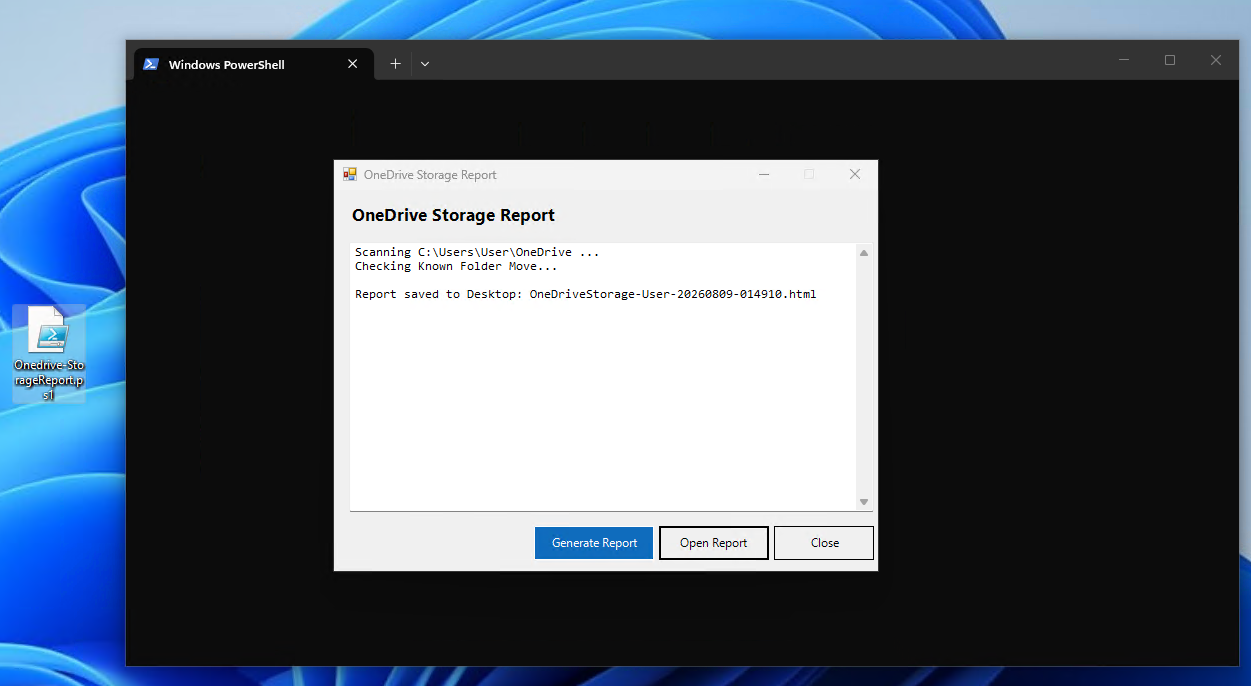
        & $Log "Scanning $root ..."
        $all=Get-ChildItem -LiteralPath $root -Recurse -Force -File -ErrorAction SilentlyContinue
        $tot=($all | Measure-Object Length -Sum).Sum
        $html+="<h2>$(Enc $root)</h2>"
        $html+="<p><b>Total:</b> $([math]::Round($tot/1GB,2)) GB in $($all.Count) files</p>"
        # Top-level folders
        $html+='<table><tr><th>Top-level folder</th><th>Size (GB)</th></tr>'
        Get-ChildItem -LiteralPath $root -Directory -Force -ErrorAction SilentlyContinue | ForEach-Object {
            $s=(Get-ChildItem -LiteralPath $_.FullName -Recurse -Force -File -ErrorAction SilentlyContinue | Measure-Object Length -Sum).Sum
            [pscustomobject]@{ Name=$_.Name; GB=[math]::Round(($s/1GB),2) }
        } | Sort-Object GB -Descending | ForEach-Object { $html+="<tr><td>$(Enc $_.Name)</td><td>$($_.GB)</td></tr>" }
        $html+='</table>'
        # Largest files
        $html+='<h3>25 largest files</h3><table><tr><th>File</th><th>Size (MB)</th><th>Folder</th></tr>'
        $all | Sort-Object Length -Descending | Select-Object -First 25 | ForEach-Object {
            $html+="<tr><td>$(Enc $_.Name)</td><td>$([math]::Round($_.Length/1MB,1))</td><td>$(Enc $_.DirectoryName)</td></tr>"
        }
        $html+='</table>'
    }
    # Known Folder Move status
    & $Log 'Checking Known Folder Move...'
    $html+='<h2>Known Folder Move (redirection to OneDrive)</h2><table><tr><th>Folder</th><th>Path</th><th>In OneDrive?</th></tr>'
    $kf=@{Desktop=[Environment]::GetFolderPath('Desktop');Documents=[Environment]::GetFolderPath('MyDocuments');Pictures=[Environment]::GetFolderPath('MyPictures')}
    foreach ($k in $kf.Keys) { $inOd=($kf[$k] -like '*OneDrive*'); $html+="<tr><td>$k</td><td>$(Enc $kf[$k])</td><td>$(if($inOd){'Yes'}else{'No'})</td></tr>" }
    $html+='</table></body></html>'
    $html | Out-File -FilePath $reportPath -Encoding UTF8
    & $Log ''; & $Log "Report saved to Desktop: $([System.IO.Path]::GetFileName($reportPath))"
    $btnOpen.Enabled=$true; $btnGo.Enabled=$true
})
[void]$form.ShowDialog(); $form.Dispose()
How It Works
Discovery happens before the GUI even opens. The script builds a list of candidate OneDrive roots from environment variables first, then supplements that with a directory scan, and finally filters down to only the paths that actually exist and de-duplicates the list. This matters because a machine with both a personal and a work/school OneDrive account will have two completely separate sync folders, often named something like OneDrive and OneDrive - Company Name, and the report needs to handle both without the user having to tell it where to look.
For each discovered root, the script does a full recursive file enumeration with Get-ChildItem -Recurse -Force -File, which is the one part of this script that can take a noticeable amount of time on a OneDrive folder with tens of thousands of files. The -Force flag matters here because OneDrive placeholder files (the "files on demand" feature, where a file shows as available but is not actually downloaded locally) still need to be counted by their reported size even though their content is not physically present on disk.
From that full file list, the script builds two views. The first is a per-top-level-folder size breakdown, calculated by running a second recursive size calculation scoped to just each folder directly under the OneDrive root, then sorting descending so the biggest folders show up first. The second is a simple top-25 list of the largest individual files across the entire OneDrive root, sorted by size, which is usually where the real "aha" moment happens when someone finds the one video or archive file responsible for half their usage.
The Known Folder Move check at the end is a straightforward comparison: it reads the actual current paths for Desktop, Documents, and Pictures using [Environment]::GetFolderPath, which returns wherever Windows currently has those folders pointed, and checks whether the string "OneDrive" appears in each path. If redirection is active, these folders will resolve to somewhere inside the OneDrive tree instead of the traditional C:\Users\username\Desktop location, and the report flags this clearly so there is no confusion about whether "my Desktop files" and "my OneDrive files" are the same thing on this particular machine.
Sample Output
Why Known Folder Move Can Complicate OneDrive Troubleshooting
Known Folder Move often causes confusion because its effect is largely transparent to the user. When an organization enables it, Windows redirects the Desktop, Documents, and Pictures folders from their traditional local locations to corresponding folders within OneDrive. The user experience remains largely unchanged. Desktop icons stay in place, files open normally, and everyday workflows continue as before.
The important difference is that content stored in those redirected folders becomes part of the user’s OneDrive synchronization scope and contributes to OneDrive storage usage. A user may reach the storage limit without intentionally saving files directly to OneDrive because existing desktop content, documents, and pictures may already be synchronized. This can also explain sync errors involving files that the user has not recently opened or modified. When the Desktop folder is redirected, for example, files stored there are managed as OneDrive content rather than as local-only files.
Confirming whether Known Folder Move is active is therefore an important part of investigating OneDrive storage problems. If the folders are redirected, removing unnecessary files from Desktop, Documents, or Pictures can reduce OneDrive usage. If they are not redirected, content in those local folders does not contribute to the user’s OneDrive storage, and the investigation can focus on files stored within the OneDrive folder structure.
This report checks the redirection status of Desktop, Documents, and Pictures directly. That provides a clear view of which folders are included in OneDrive synchronization without requiring an administrator to inspect each folder location manually.
Gotchas & Safety
The script reads folder sizes and file properties, then writes an HTML report. The most it does is trigger OneDrive to resolve some file metadata during enumeration, which is a normal read operation and not something that changes sync state.
The one performance note worth knowing ahead of time: on a OneDrive folder with a very large number of files, particularly if many are cloud-only placeholder files that OneDrive needs to fetch metadata for, the scan can take a noticeable amount of time, sometimes a minute or more on a heavily used account. This is normal and not a sign anything is stuck. The log window updates as each root folder starts and finishes scanning, so there is visible progress rather than a frozen-looking window.
Test this on your own machine first before handing it out broadly, particularly to see how long the scan takes against a typical user's OneDrive size in your organization, since that gives you a realistic expectation to set when you hand this to end users.
Why Not Just Use Windows Storage Settings?
Settings, System, Storage does give you a "OneDrive" category with a total size, and on newer Windows builds it will even let you drill in somewhat. The gap is that it groups by broad category rather than by your actual folder structure, and it does not give you a ranked list of your specific largest files with their names and locations. When the goal is "what folder or file should I clean up," a category total does not answer the question. This report is built specifically to answer it: which top-level folder is the heaviest, and which individual files are actually worth deleting or moving.
FAQ & Variations
Does this download cloud-only files to check their size?
No. OneDrive reports the correct file size for cloud-only placeholder files without needing to download their content, so this script sees accurate sizes across the board regardless of which files are actually stored locally versus available on demand.
How do I scope this to just one OneDrive account if I have two synced?
The report already runs against every discovered root and labels each section with its folder path, so if you have both a personal and work/school account synced, you will see two separate sections in the same report. If you specifically want to check just one, you could hardcode the $roots array to a single path instead of relying on auto-discovery.
Why does the top-level folder breakdown not match the file system's own folder sizes exactly?
It should match closely, but small differences can appear if files are being actively synced or modified during the scan, since the script takes two separate passes (one for the full file list, one for per-folder sizes) a few moments apart. For a stable snapshot, close OneDrive sync activity before running the report, though this is rarely necessary in practice.
Can I have this alert me automatically when OneDrive usage crosses a threshold?
Yes, with some rework. Strip out the Windows Forms interface, keep the collection and sizing logic, and add a check comparing the total against a threshold you define, then trigger a notification or email if it is exceeded. This would turn the script from an on-demand report into a proactive storage monitor you could run on a schedule.
Does this affect OneDrive's Files On-Demand settings?
No. This script only reads file and folder metadata. It does not change which files are set to always be available locally, does not pin or unpin anything, and does not touch OneDrive's sync configuration.