
How to Back Up and Restore Outlook Signatures with PowerShell
Why Outlook Signatures Need to Be Backed Up Separately
Outlook signatures can be overlooked during device migrations because they are stored differently from much of a user’s other Microsoft 365 data. Mailbox content synchronizes with Exchange Online, documents may be protected through OneDrive, and some settings can follow the user between devices. Classic Outlook signatures, however, are stored as local files within the user’s AppData folder.
Because these signature files are stored locally, they may not be preserved when a computer is replaced, reimaged, or reset. Outlook can be reinstalled and the user’s mailbox can reconnect successfully while locally stored signatures remain on the previous Windows installation. The missing signature may not become apparent until the user begins composing a new message and notices that the expected name, title, contact information, formatting, or images are no longer available.
This creates an important consideration for IT teams managing device refreshes and migrations. Signature files should be included in the migration process when locally stored Outlook signatures need to be retained. Otherwise, users may need to recreate them manually after moving to the new device.
The underlying signature data is stored as a collection of files, which makes it relatively straightforward to preserve. This script automates the process by packaging the contents of the current user’s Outlook signature folder into a single portable ZIP archive. The archive can be created before a device is wiped or replaced and then used to restore the signatures afterward. This avoids the need to manually locate and copy files from a hidden folder within the user’s Windows profile.
Prerequisites
The script has only a few requirements:
- Windows PowerShell 5.1, which is included with Windows 10 and Windows 11
- Classic Outlook for Windows, with at least one locally stored signature already created when performing a backup
- No administrator rights are required because the script works only with files inside the current user’s Windows profile
- No Microsoft Graph or Exchange Online PowerShell modules are required because the script does not connect to a Microsoft 365 tenant
Because the script does not require elevated permissions or a connection to Microsoft 365, it can be provided directly to users as a self-service backup and restore utility before a scheduled device refresh. All files accessed by the script remain within the current user’s profile.
The Script
<#
.SYNOPSIS
    Backup-OutlookSignatures - GUI tool to back up and restore Outlook signatures.
.DESCRIPTION
    Outlook email signatures live in a single per-user folder. This tool backs
    them up to a timestamped .zip (great before a PC refresh or migration) and
    restores them onto a new machine. Covers all signature components - HTML,
    RTF, plain text, and the images folder.

    Backup folder: %APPDATA%\Microsoft\Signatures
    No admin rights or modules required.
.NOTES
    Run: right-click > Run with PowerShell.
#>

if ([System.Threading.Thread]::CurrentThread.ApartmentState -ne 'STA') {
    Start-Process powershell.exe -ArgumentList @('-NoProfile','-ExecutionPolicy','Bypass','-STA','-File',"`"$PSCommandPath`"")
    return
}
Add-Type -AssemblyName System.Windows.Forms; Add-Type -AssemblyName System.Drawing
Add-Type -AssemblyName System.IO.Compression.FileSystem
[System.Windows.Forms.Application]::EnableVisualStyles()

$sigFolder=Join-Path $env:APPDATA 'Microsoft\Signatures'
$desktop=[Environment]::GetFolderPath('Desktop')

$form=New-Object System.Windows.Forms.Form
$form.Text='Outlook Signature Backup & Restore'; $form.Size=New-Object System.Drawing.Size(560,420)
$form.StartPosition='CenterScreen'; $form.FormBorderStyle='FixedSingle'; $form.MaximizeBox=$false
$form.Font=New-Object System.Drawing.Font('Segoe UI',9)
$lbl=New-Object System.Windows.Forms.Label; $lbl.Text='Outlook Signature Backup & Restore'
$lbl.Font=New-Object System.Drawing.Font('Segoe UI',13,[System.Drawing.FontStyle]::Bold)
$lbl.Location=New-Object System.Drawing.Point(15,12); $lbl.Size=New-Object System.Drawing.Size(520,28); $form.Controls.Add($lbl)
$status=New-Object System.Windows.Forms.Label; $status.Location=New-Object System.Drawing.Point(15,44); $status.Size=New-Object System.Drawing.Size(525,22); $form.Controls.Add($status)
$txt=New-Object System.Windows.Forms.TextBox; $txt.Multiline=$true; $txt.ScrollBars='Vertical'; $txt.ReadOnly=$true
$txt.Location=New-Object System.Drawing.Point(15,74); $txt.Size=New-Object System.Drawing.Size(525,250)
$txt.Font=New-Object System.Drawing.Font('Consolas',9); $txt.BackColor=[System.Drawing.Color]::White; $form.Controls.Add($txt)
$btnBackup=New-Object System.Windows.Forms.Button; $btnBackup.Text='Back Up'; $btnBackup.Location=New-Object System.Drawing.Point(150,336); $btnBackup.Size=New-Object System.Drawing.Size(110,34)
$btnBackup.BackColor=[System.Drawing.Color]::FromArgb(15,108,189); $btnBackup.ForeColor=[System.Drawing.Color]::White; $btnBackup.FlatStyle='Flat'; $form.Controls.Add($btnBackup)
$btnRestore=New-Object System.Windows.Forms.Button; $btnRestore.Text='Restore...'; $btnRestore.Location=New-Object System.Drawing.Point(265,336); $btnRestore.Size=New-Object System.Drawing.Size(110,34); $btnRestore.FlatStyle='Flat'; $form.Controls.Add($btnRestore)
$btnClose=New-Object System.Windows.Forms.Button; $btnClose.Text='Close'; $btnClose.Location=New-Object System.Drawing.Point(430,336); $btnClose.Size=New-Object System.Drawing.Size(100,34); $btnClose.FlatStyle='Flat'
$btnClose.Add_Click({ $form.Close() }); $form.Controls.Add($btnClose)
$Log={ param($m) $txt.AppendText($m+[Environment]::NewLine); [System.Windows.Forms.Application]::DoEvents() }

if (Test-Path $sigFolder) {
    $n=(Get-ChildItem $sigFolder -Filter *.htm -ErrorAction SilentlyContinue).Count
    $status.ForeColor=[System.Drawing.Color]::FromArgb(0,110,0); $status.Text="Signatures folder found ($n HTML signature(s))."
} else { $status.ForeColor=[System.Drawing.Color]::FromArgb(170,0,0); $status.Text='No signatures folder found - nothing to back up yet.'; $btnBackup.Enabled=$false }

$btnBackup.Add_Click({
    $btnBackup.Enabled=$false
    $zip=Join-Path $desktop "OutlookSignatures-$env:USERNAME-$(Get-Date -Format 'yyyyMMdd-HHmmss').zip"
    & $Log 'Backing up signatures...'
    try {
        if (Test-Path $zip) { Remove-Item $zip -Force }
        [System.IO.Compression.ZipFile]::CreateFromDirectory($sigFolder,$zip)
        & $Log "  Saved: $zip"
        [System.Windows.Forms.MessageBox]::Show("Signatures backed up to your Desktop:`r`n$([System.IO.Path]::GetFileName($zip))",'Backup Complete','OK','Information')|Out-Null
    } catch { & $Log "  Backup failed: $($_.Exception.Message)" }
    $btnBackup.Enabled=$true
})

$btnRestore.Add_Click({
    $dlg=New-Object System.Windows.Forms.OpenFileDialog; $dlg.Filter='Signature backup (*.zip)|*.zip'; $dlg.InitialDirectory=$desktop
    if ($dlg.ShowDialog() -ne 'OK') { return }
    $r=[System.Windows.Forms.MessageBox]::Show('This will merge the backup into your current signatures (existing files with the same name are overwritten). Continue?','Confirm Restore',[System.Windows.Forms.MessageBoxButtons]::YesNo,[System.Windows.Forms.MessageBoxIcon]::Question)
    if ($r -ne 'Yes') { return }
    & $Log 'Restoring signatures...'
    try {
        if (-not (Test-Path $sigFolder)) { New-Item -ItemType Directory -Path $sigFolder -Force | Out-Null }
        $tmp=Join-Path $env:TEMP ("sigrestore-"+[guid]::NewGuid())
        [System.IO.Compression.ZipFile]::ExtractToDirectory($dlg.FileName,$tmp)
        Get-ChildItem -LiteralPath $tmp -Recurse -Force | Where-Object { -not $_.PSIsContainer } | ForEach-Object {
            $rel=$_.FullName.Substring($tmp.Length).TrimStart('\')
            $dest=Join-Path $sigFolder $rel
            $dd=Split-Path $dest -Parent; if (-not (Test-Path $dd)) { New-Item -ItemType Directory -Path $dd -Force | Out-Null }
            Copy-Item -LiteralPath $_.FullName -Destination $dest -Force
        }
        Remove-Item $tmp -Recurse -Force -ErrorAction SilentlyContinue
        & $Log '  Restore complete.'
        [System.Windows.Forms.MessageBox]::Show('Signatures restored. Restart Outlook to see them.','Restore Complete','OK','Information')|Out-Null
    } catch { & $Log "  Restore failed: $($_.Exception.Message)" }
})
[void]$form.ShowDialog(); $form.Dispose()
How It Works
The first block checks whether the script is running on an STA thread. Windows Forms requires this to render a GUI, and PowerShell does not default to it, so the script relaunches itself with the -STA flag when needed. This happens transparently; the window simply opens as expected rather than throwing a threading error.
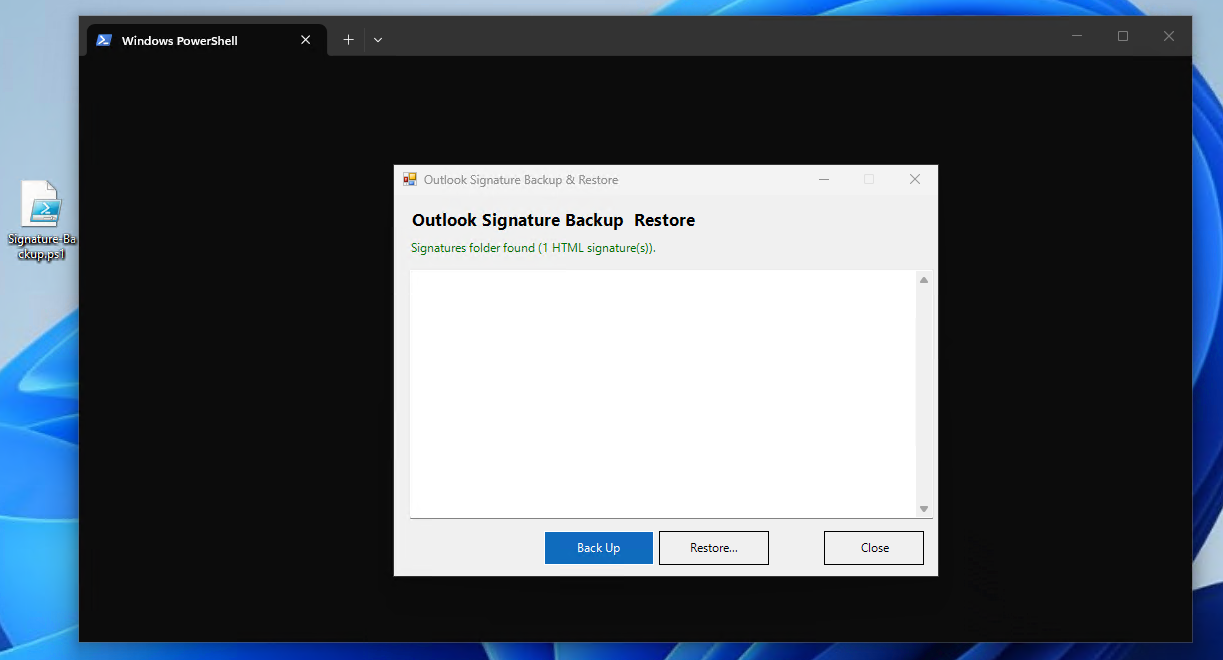
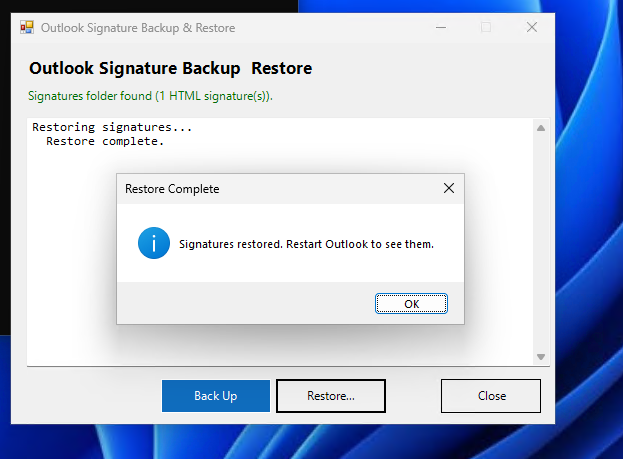
From there it builds a small form with a status label, a log box, and three buttons: Back Up, Restore..., and Close. On load, it checks whether the signatures folder exists and counts the HTML signature files inside it, giving an immediate read on whether there is anything worth backing up.
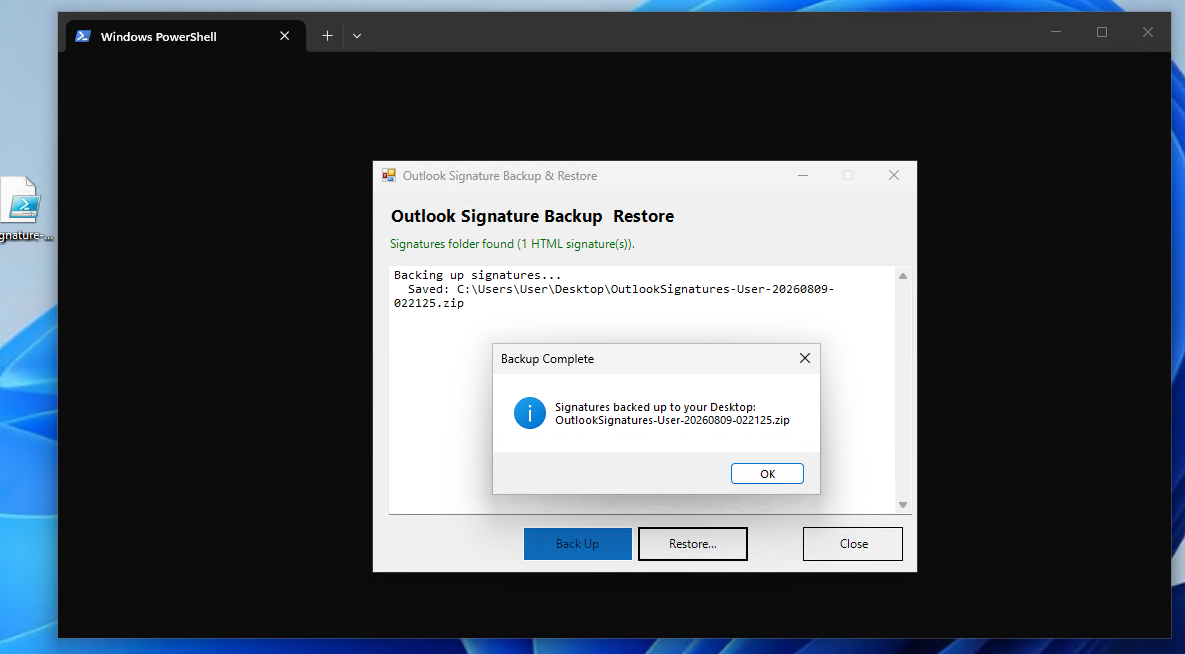
The Back Up button zips the entire signatures folder using .NET's built-in compression class and writes the archive to the desktop with a timestamp embedded in the filename, for example OutlookSignatures-jsmith-20260703-143012.zip. That timestamp becomes relevant when comparing an older backup against a more recent one, or confirming which capture corresponds to which device state.
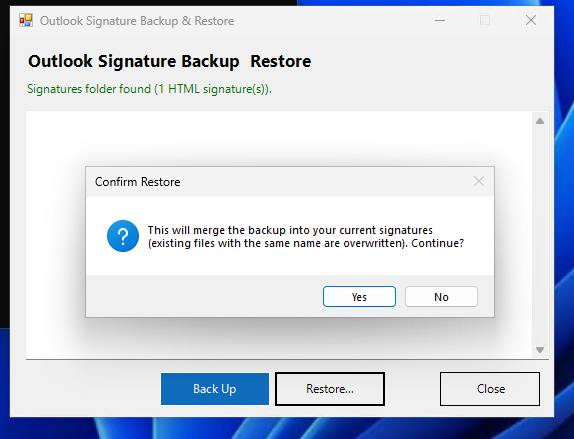
The Restore... button opens a file picker, requires confirmation before proceeding since it will overwrite any file with a matching name, then extracts the archive into a temporary folder and copies its contents into the live signatures folder. Extracting through an intermediate temp directory rather than directly into the target folder avoids partial overwrites if the process is interrupted mid-extraction.
Sample Output
Why Signature Data Stays Local
The architectural reason signatures remain local rather than cloud-synced comes down to how Outlook has historically treated per-device rendering settings versus mailbox content. Signatures are inserted client-side at compose time, referencing local HTML, RTF, and plain-text files plus an associated images subfolder for embedded logos or headshots. Because insertion happens entirely within the desktop client rather than the server, there has never been a strict architectural requirement for the data to live anywhere other than the local machine.
Newer sync mechanisms exist for signatures created through the Outlook web app or through centrally managed signature tools, which do store their data server-side. But the classic desktop Outlook signature, the kind created through File, Options, Mail, Signatures, remains local-only on most installations, which means the millions of desktop Outlook users relying on that path are all exposed to the same gap this script addresses.
Organizations that manage signatures centrally, through a mail flow rule or a third-party signature management platform, sidestep this problem entirely, since the signature is applied server-side or injected at send time rather than stored per-device. For everyone else, backing up the local signature folder before a hardware transition remains the most direct way to prevent the data from being lost silently.
Gotchas & Safety
The restore path includes its own safeguard: a confirmation dialog before anything gets overwritten. Anyone adapting this into a scripted, non-interactive version for mass deployment should reintroduce an equivalent check before running it against a whole department.
Testing on a spare machine or throwaway profile first is advisable, particularly before pushing the restore step out silently. Restoring merges files into the existing signatures folder rather than wiping it first, so anything with a different filename survives. Anything with the same filename is overwritten with no undo available.
Because this runs entirely within the user's own profile, with no admin rights and no tenant connection, the blast radius is limited by design. The worst-case outcome is a bad restore overwriting a signature, not a mistake that reaches other users' mailboxes or a shared system resource.
FAQ & Variations
Can this run without the GUI?
Yes. The backup half is effectively one line: [System.IO.Compression.ZipFile]::CreateFromDirectory($sigFolder, $zip). Stripping out the Windows Forms code and wrapping that line in a scheduled task produces silent, automatic backups ahead of a device refresh.
How should multiple users' signatures on a shared machine be backed up?
Loop through each profile under C:\Users and point $sigFolder at C:\Users\<name>\AppData\Roaming\Microsoft\Signatures for each one. Admin rights are required to read other users' profile folders, which is the one scenario where this script's "no admin required" property does not hold.
Can backups be directed to OneDrive or a network share instead of the desktop?
Yes; changing the $desktop variable to any target path is sufficient. Pointing it at a synced OneDrive folder means the archive survives even if the desktop itself is wiped during the refresh.
Does this back up Outlook rules or mailbox settings too?
No. This covers only the signature files: HTML, RTF, plain text, and the accompanying images folder. Rules and mailbox settings live in a separate part of the profile and would require a different script.