How to Take Control in Microsoft Teams Screen Share
If you run meetings, trainings, or live support sessions in Microsoft Teams, you have probably wished you could click something on the presenter’s screen instead of talking them through every step. Teams includes a built-in feature that lets the presenter give control to someone else, or lets a viewer take control during screen sharing, so another person can interact with what is being shared.
Jump To:
- How to take control in Teams screen share (viewer steps)
- How to give control in Teams screen share (presenter steps)
- Admin controls: allow or block Teams screen share control
- Common issues and fixes
- Teams Screen Share Control FAQ
What “take control” means in Teams
In Teams, “take control” is the same idea as remote control during a screen share:
- A presenter shares their desktop or a window.
- Another participant requests control.
- The presenter approves the request.
- The participant can use their mouse and keyboard to interact with the shared content until control is released.
This is different from “presenter permissions” or “who can present.” It specifically refers to interacting with the shared screen.
Requirements before you try
Before troubleshooting buttons and settings, check the basics:
- You must be in an active screen share (desktop or window).
- The presenter must approve the request before anyone can control their screen.
- Your organization’s meeting policy can disable giving and requesting control.
Desktop app vs browser vs Mac differences
- Control works most consistently when both users are in the Teams desktop app.
- Teams for the web has been gaining support for “take control” in newer experiences, but it has specific limitations and may require preview or targeted release in some cases.
- On Mac, if you enable the native macOS content sharing option, Teams cannot give or take control in that mode.
How to take control in Teams screen share (viewer steps)
Use this when someone else is sharing and you want to click or type on their shared screen.
- Join the Teams meeting.
- When the other person starts sharing, look at the sharing toolbar and you will see a "Take Control" button appear.
- Select Take Control. A new window will appear to verify you want to Request Control, click on the Request button.
- Wait for the presenter to click on the Give Control button that should now appear at the top of their screen .
- When finished, select the Stop control button at the top of your Teams.
Tip: Tell the presenter what you plan to do before you request control, especially if they have sensitive content open.
Take control on Teams screen share
How to give control in Teams screen share (presenter steps)
Use this when you are sharing and you want someone else to drive.
- Start sharing your desktop or a window in Teams by clicking on the Share button at the top of your Teams.
- On the sharing toolbar, select Give control (or approve a request when prompted).
- Choose the participant.
- When you want control back, select the Take back button (or ask the other person to Release control).
How to take control in Teams for the web
Microsoft has been rolling out “take control” for Teams on the web in newer clients, especially for organizations using Public Preview or Targeted Release. In supported scenarios:
- While someone is sharing, select Take control.
- The presenter approves.
- Select Release control when done.
One key limitation to know: web support can depend on who is sharing and which client they are using. For example, Microsoft notes scenarios where web “take control” is supported when the person sharing is on the desktop client.
Admin controls: allow or block Teams screen share control
If you are an admin and your users cannot request or give control, I would recommend checking your Meeting policy settings using the steps below.
Teams admin center policy setting
This is controlled through a Teams meeting policy. To adjust the setting:
- First navigate to https://admin.teams.microsoft.com/
- Select Meetings > Meeting Policies
- Select the policy you would like to adjust, for example the Global (Org-wide default) policy
- Scroll to the Content Sharing section
- Now you can toggle the Participants can give or request control option to control internal users and you can also adjust the External participants can give or request control option to control external users.
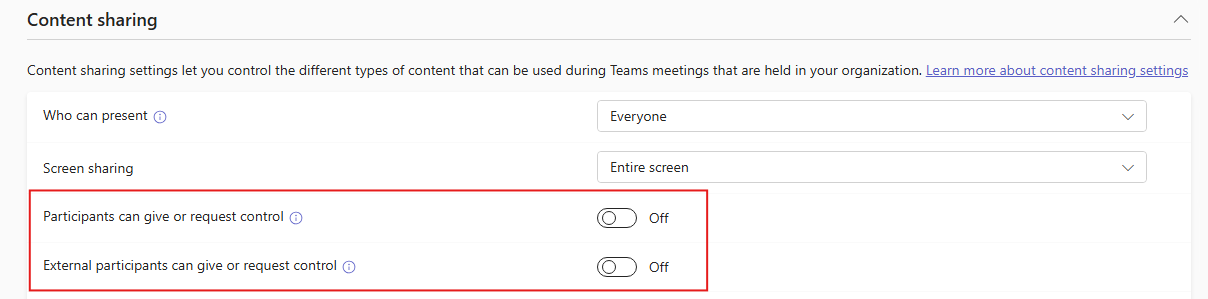
PowerShell options to configure the tenant control policy
If you have the Microsoft Teams Powershell module installed, you can adjust these settings using the following Teams PowerShell commands:
- Connect using
Connect-MicrosoftTeams Set-CsTeamsMeetingPolicy -Identity <Your Policy> -AllowParticipantGiveRequestControl $True

-AllowExternalParticipantGiveRequestControlfor external participants

Common issues and fixes
“Give control” does nothing or you cannot approve requests
On some systems, Teams requires GPU hardware acceleration for the give control menu to work properly. If hardware acceleration is unavailable, the controls can fail to open or respond.
What to try
- Verify the device supports hardware acceleration (Microsoft suggests checking
edge://gpu/orchrome://gpu/).
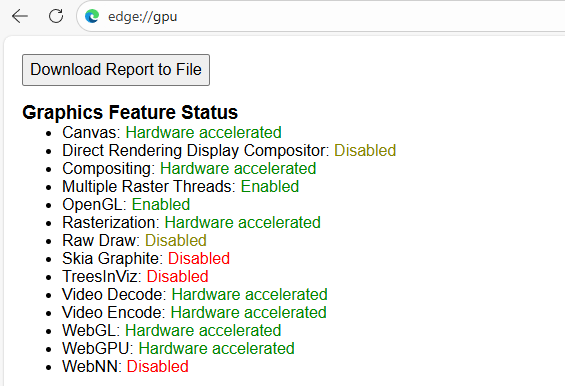
edge://gpu/- Update graphics drivers and make sure hardware acceleration is enabled where applicable.
On Mac: “Give or take control” is missing
If you enabled Use macOS content sharing (the native macOS sharing experience), Teams cannot give or take control while using that mode.
Fix: Turn off macOS content sharing in Teams settings if you need remote control.
External users cannot request control
Even when internal users can request control, external participants may be blocked by policy. Make sure the organizer’s meeting policy allows external participants to give or request control.
Best practices for using Teams screen share control
- Share a specific window when possible, not your entire desktop.
- Close sensitive apps and browser tabs before you approve control.
- Narrate what is happening if you are hosting a training session.
- Use control for short, specific tasks, and then release control to reduce risk.
Teams Screen Share Control FAQ
Can anyone take control of my screen in Teams at anytime?
No. A participant can request control, but the presenter must approve before they can interact with the shared screen.
Why do I not see “Request control” in my meeting?
Common causes include meeting policy restrictions and client limitations. The ability to give or request control can be disabled by Teams meeting policy.
Can I use take control in Teams on the web?
In some environments, yes. Microsoft has introduced take control during screen sharing for Teams on the web in newer clients, with noted limitations and rollout requirements.
Why is give control not working even though I see the button?
On some devices, Teams needs GPU hardware acceleration for the give control menu to function properly. If hardware acceleration is unavailable, it can break the give control experience.
Why can’t I give or take control on my Mac?
If you enabled the native macOS screen sharing experience in Teams settings, remote control is not supported in that mode. Turn it off if you need give or take control.