
Disable Copilot as a Microsoft 365 Admin
Copilot in Microsoft 365 can feel like both a helpful assistant and an automatic addition to your environment. Some tenants want tighter control over what’s available in their Microsoft 365 environment.
Organizations with strict data handling and compliance requirements may not want an AI assistant interacting with documents and emails even if it stays within Microsoft’s compliance boundaries. Copilot licensing can also bring additional cost, and some admins prefer to prevent unexpected use or billing. Others simply find that their users do not want Copilot at all or that it distracts from established workflows. In these cases, turning the feature off at the tenant level gives you a clear way to govern who can use it and how it behaves in your tenant.
With that said, if you're an IT admin looking to block Copilot across your Microsoft 365 tenant, here’s exactly how to do it via the Integrated Apps settings in the Admin Center.
How to disable Microsoft Copilot as an Admin
1. Sign in to Microsoft 365 Admin Center
Use your Global Admin or AI Admin credentials to log in at admin.microsoft.com.
2. Navigate to Integrated Apps
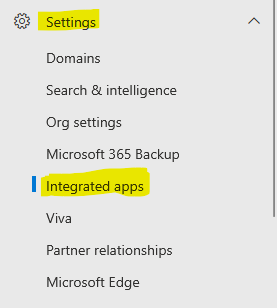
Go to Settings → Integrated apps.
3. Search for Copilot
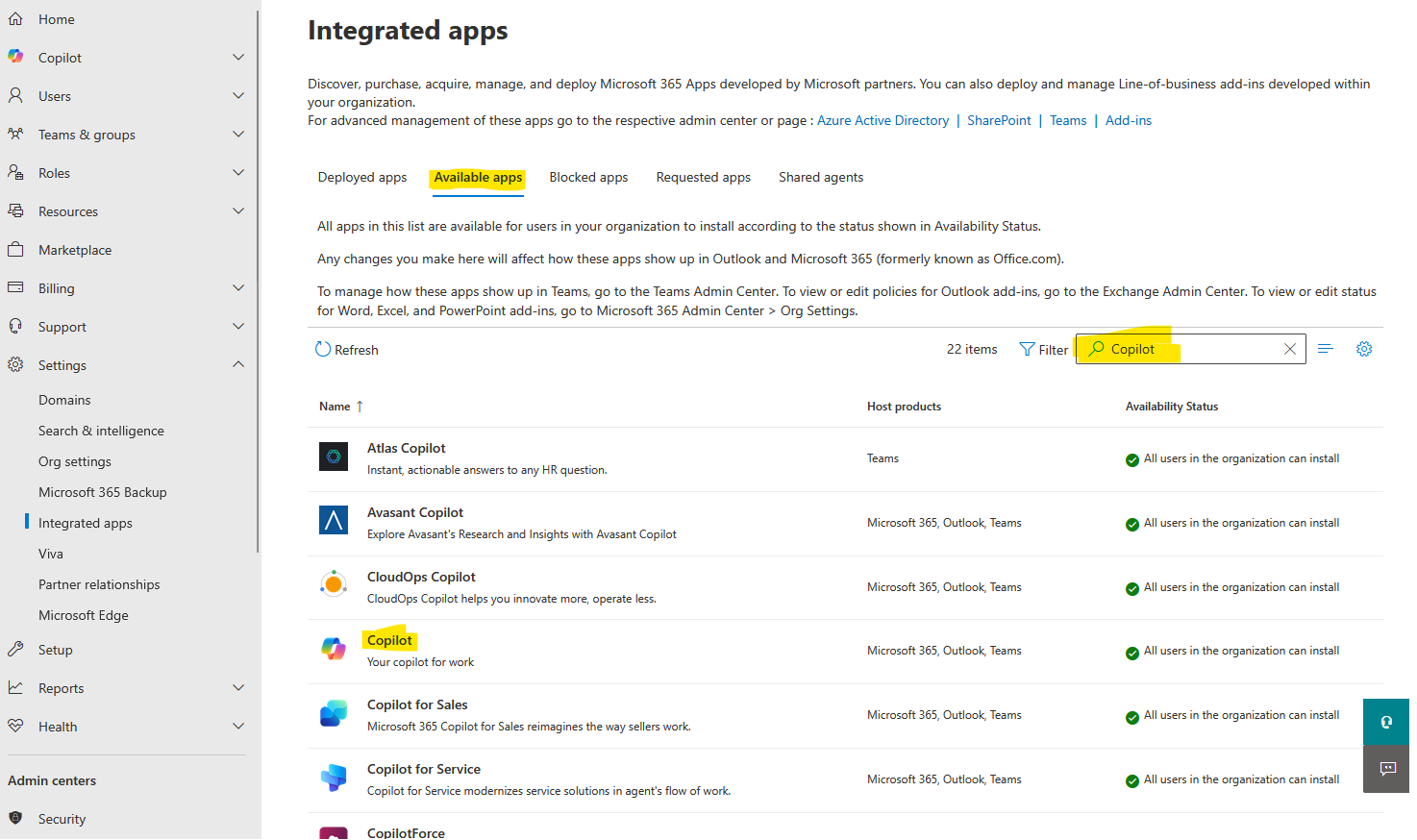
Use the Search box to search for Copilot under Available Apps
4. Block the Copilot App
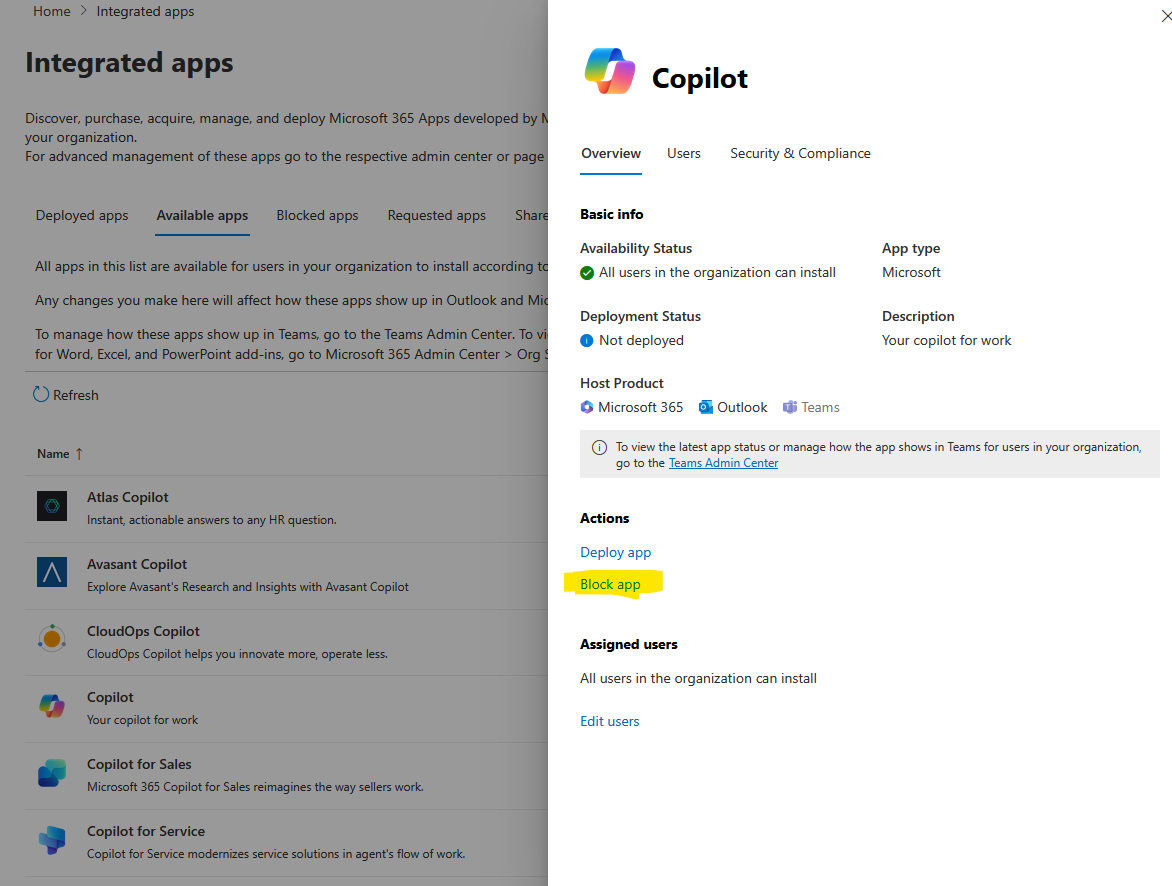
Find the Copilot app in the list. Click it and choose Block. This blocks the app tenant‑wide across Outlook, web, desktop, mobile. When it is blocked here it means no user can access Copilot from anywhere in Microsoft 365.
 Stickers, Posters, Mugs, Shirts and More - StickaTime
5. (Optional) Fine‑Tune User Access
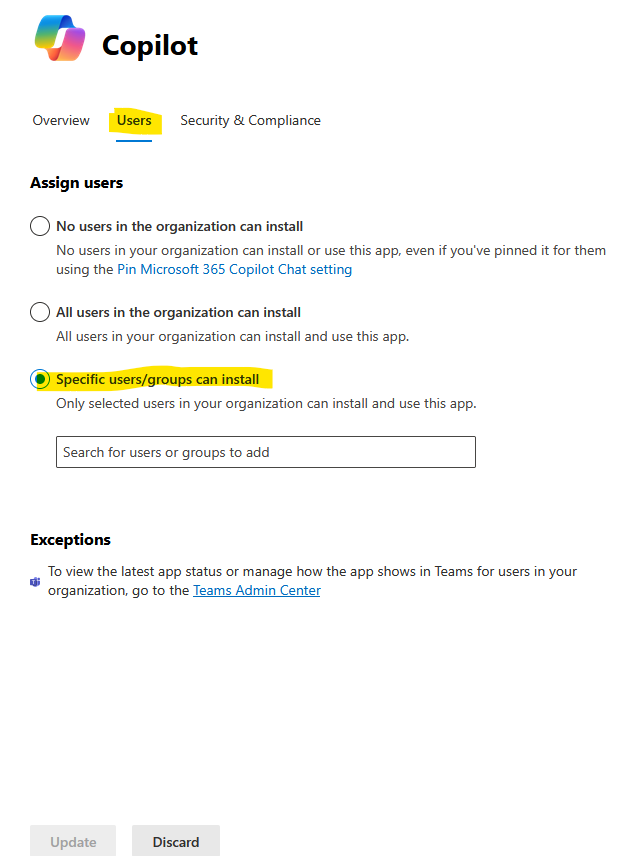
If you want only certain users to keep access, select Specific users/groups instead of blocking entirely. Then assign access only to those in your Copilot‑licensed group.
6. Wait for It to Take Effect
Settings may take up to 24 hours to roll out fully across your tenant. In my experience, it did take almost the full 24 hours before it disappeared from Microsoft 365 for users.
What Happens After You Disable Copilot
Once you block Copilot through the Integrated Apps setting in the Microsoft 365 admin center, users will no longer be able to use Copilot in your tenant. Here is what to expect once the change has taken effect.
Users will see an access error
If a user tries to navigate to m365copilot.com or open Copilot in Outlook, Word, Teams or any other Microsoft 365 app, they will receive a message indicating they do not have access. For example, they may see a message like:
Looks like you do not have access to the Copilot. Contact your administrator to get access to Copilot.
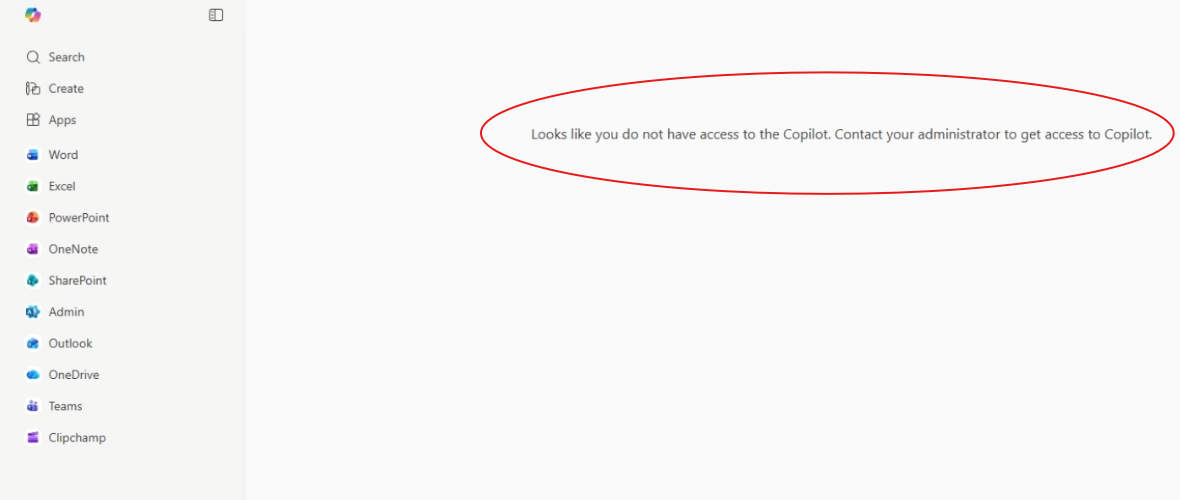
This makes it clear that Copilot is blocked at the tenant level.
Copilot features are not available
With Copilot disabled, the AI-assisted capabilities such as text generation, summarization, suggested replies and similar features will not launch or function in Microsoft 365 apps. Users will simply not be able to invoke Copilot.
Propagation can take some time
Config changes in Microsoft 365 may take time to fully propagate across all clients. In practice this means it can take several hours before the Copilot block fully applies everywhere in your organization.
Users cannot self-enable Copilot
Once disabled centrally, end users cannot turn Copilot back on for themselves. They will continue to see the access error until the setting is changed by an admin or exceptions (such as group-based access) are configured.
UI elements might briefly remain visible
In some apps or cached sessions, Copilot buttons or icons might still appear temporarily. Those UI elements will not launch a working experience and typically disappear after the clients refresh settings.
Licenses are still assigned unless removed
Disabling Copilot access does not automatically remove any Copilot licenses assigned to users. If you want to stop billing for Copilot seats or free up licenses, you will need to unassign them separately in the Microsoft 365 admin center.