3 Copilot admin settings to check right now for better governance
Microsoft 365 Copilot is shipping new features, providers, and companion apps at a fast rate. Admin centers quietly gain new toggles, and if you are not watching closely, your Copilot governance can drift away from your written policies.
In this post I will walk through three specific admin settings I recommend you check today and align them with your Copilot governance:
- AI providers operating as Microsoft subprocessors
- Multiple account access to Copilot for work documents
- Microsoft 365 Copilot app in Microsoft 365 Apps Admin Center
If you own Copilot rollout, data protection or endpoint management, these three surfaces should be part of your regular governance review.
1. AI providers operating as Microsoft subprocessors
In December 2025, Microsoft introduced a new model choice option where Anthropic models (Claude) are offered as part of Microsoft Online Services and treated as Microsoft subprocessors, not as a separate third party you contract with directly.
With that rollout, a new admin toggle appeared in the Microsoft 365 admin center:
Microsoft 365 admin center
Copilot > Settings
Data access > AI providers operating as Microsoft subprocessors
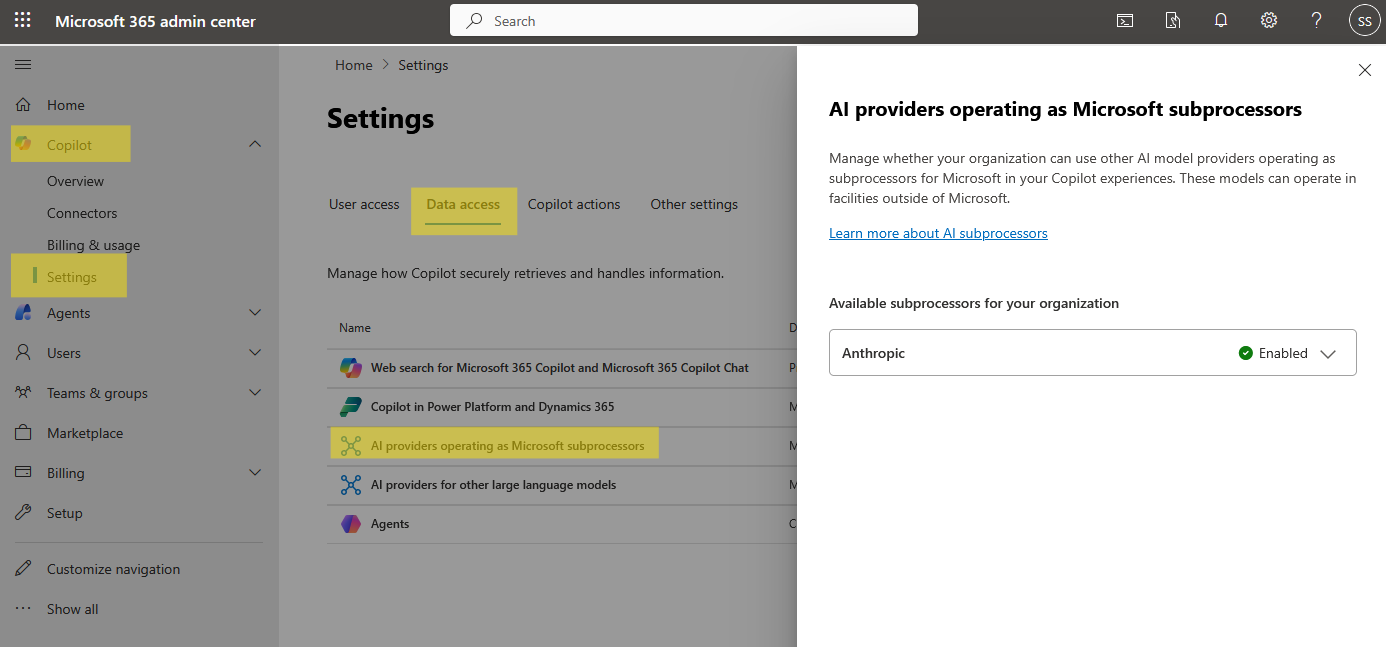
With this setting you can:
- See Anthropic listed under Available subprocessors for your organization
- Turn Anthropic models On or Off as a Microsoft subprocessor
- Understand that in most commercial regions, Anthropic is enabled by default starting December 8, 2025, with enablement rolling to orgs by January 7, 2026, except for EU, EFTA and UK where it is Off by default.
This impacts where and how Claude models can be used in:
- Microsoft 365 Copilot
- Copilot Studio
- Researcher and Agent mode in Excel
- Word, Excel and PowerPoint agents
Governance Concerns
If your AI governance documentation only mention OpenAI's GPT as a Microsoft model processor, adding Anthropic as a Microsoft subprocessor may require:
- A review of your records of processing and vendor lists
- Updates to your internal AI usage policy that explain model choices
- A check against regional requirements, especially if you depend on EU Data Boundary or in-country processing commitments
Although Anthropic operates under Microsoft Product Terms and the Microsoft DPA when used this way, it is still another entity with potential access to prompts and data via Microsoft.
How to check and align the setting
- Locate the toggle
- Go to Microsoft 365 admin center
- Open Copilot > Settings
- Select Data access
- Choose AI providers operating as Microsoft subprocessors
- Review your current state
- Note whether Anthropic is Enabled or Disabled
- Check if your region is one where Anthropic is On by default (most commercial regions) or Off by default (EU, EFTA, UK and sovereign or government clouds).
Configure AI Providers in Microsoft Copilot
2. Multiple account access to Copilot for work documents (Cloud Policy)
Microsoft 365 apps settings has the option to allow Multiple account access to Copilot for work documents. When this feature is enabled, users can:
- Use Copilot access from one account (for example a personal Microsoft 365 subscription) on documents owned by another account, including work or school files
PLEASE NOTE, if the policy is Enabled or Not configured, users can use Copilot from an external account on work and school documents. This is what is not great about this setting. For some reason, Microsoft has decided that if you do not configure this policy, users are ALLOWED to use other Copilot licenses on your tenants documents!
- If multiple account access is enabled, a user with Copilot on a personal account can use Copilot on organizational documents even if the org account does not have a Copilot license.
- Data protection and web grounding still follow the identity that is accessing the file, not the account that brought Copilot. Copilot cannot see more data than that identity can already access through Microsoft Graph.
- Users with multiple account access get a limited Copilot experience. They can use Copilot in the currently open document, but they cannot use Graph-wide questions or cross-document grounding unless they have an internal Copilot license.
Configure the policy setting
To configure this setting, you need to be one of the following:
- Office Apps Administrator – I recommend this role for managing cloud policies and to maintain least privileged access.
- Global Administrator – Can also configure any Cloud Policy setting, including this one, because it has permissions across all Microsoft 365 services.
You control this behavior using the Microsoft 365 Apps admin Center:
config.office.com
Customize > Policy management
Create or edit a policy for Microsoft 365 Apps
Setting: Multiple account access to Copilot for work documents
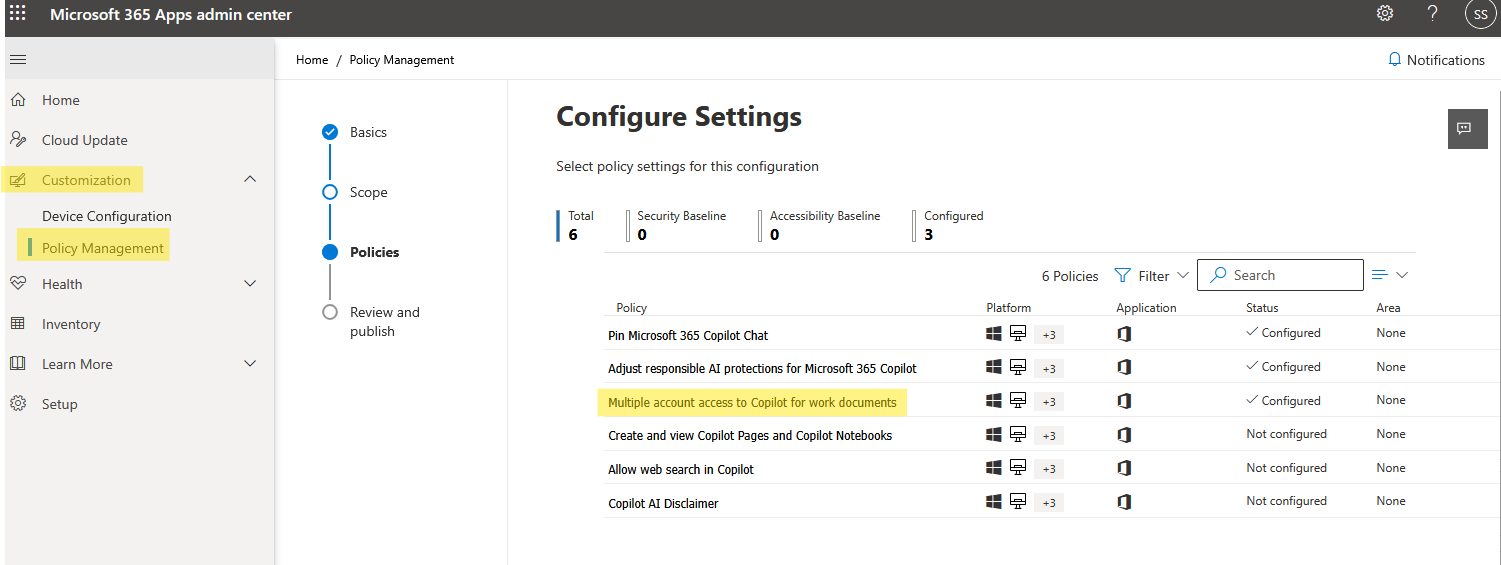
Some important notes on this setting:
- The policy became available in Cloud Policy on January 30, 2025
- GCC, GCC High, DoD and 21Vianet tenants see the setting but it has no effect, because multiple account access is always disabled there.
- If the policy is Enabled or Not configured, users can use Copilot from an external account on work and school documents.
- If the policy is Disabled, that cross-account behavior is blocked. Copilot entry points disappear in the document canvas and users see an error if they try to invoke Copilot from another account.
Stop multiple Copilot accounts from accessing your work documents
Governance questions to answer
Before you decide how to set the policy, answer these:
- Do we allow bring your own Copilot at work?
- If your policy says that only licensed work accounts should use Copilot on corporate content, you should strongly consider disabling this feature tenant-wide, or at least for high risk groups.
- How do we treat personal accounts on managed devices?
- If you are already controlling personal account sign-in through Conditional Access or Windows policies, align this Copilot setting with those choices.
Recommended patterns
You can adapt the following patterns to your tenant:
- Strict corporate boundary
- In Cloud Policy, set Multiple account access to Copilot for work documents = Disabled for all users.
- Document that personal Copilot plans can only be used on personal content, not work content.
- Scoped bring your own Copilot
- Create a dedicated pilot policy that enables multiple account access for a small, approved group.
- Keep it disabled for default and high-risk groups.
- Monitor for confusion in support tickets and audit logs, then adjust.
- Starter checklist
- Locate the policy in config.office.com and record the current state
- Validate the setting with your security and privacy teams
- Update your Copilot governance page to mention this feature explicitly
- Add the policy to your change management documents so it is revisited
3. Microsoft 365 Copilot app in Modern Apps Settings
Alongside Copilot experiences inside Office apps, Microsoft is rolling out the Microsoft 365 Copilot app and several companion apps (People, Files, Calendar) to Windows 11 devices that already have Microsoft 365 desktop apps. These appear as lightweight taskbar apps that integrate tightly with Copilot and Microsoft Graph. If you do not configure this setting, Microsoft will start automatically installing it on your users computers.
Similar to the setting above, either an Office Apps Administrator or Global Admins can control this rollout through the Microsoft 365 Apps Admin Center:
Microsoft 365 Apps Admin Center (config.office.com)
Customization > Device configuration
Modern Apps Settings
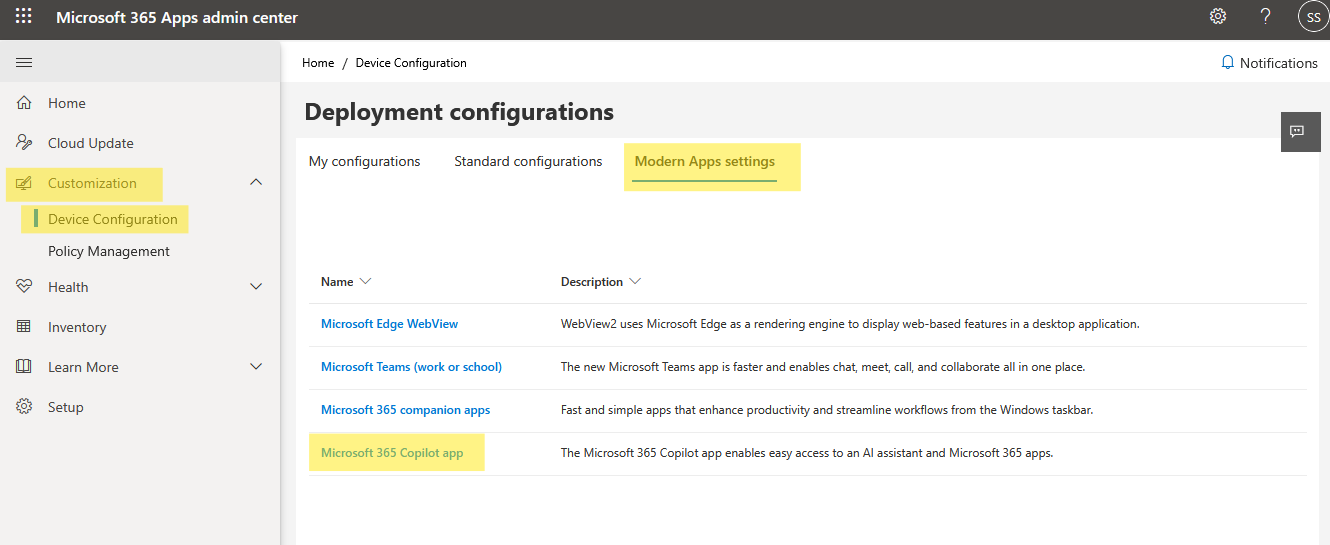
From there you can:
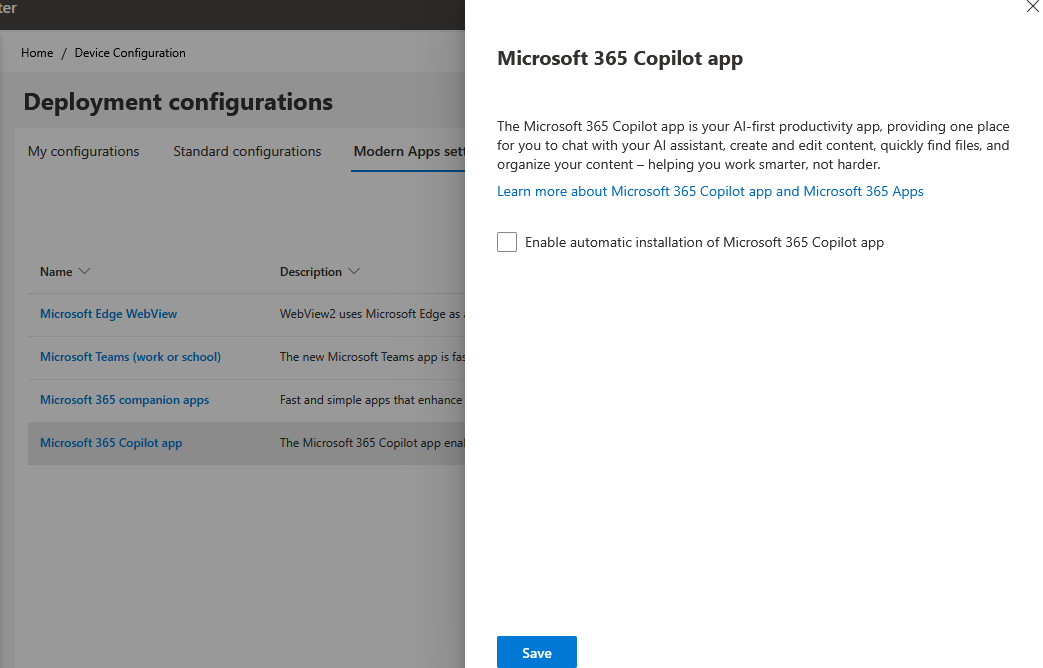
- Disable or enable the Microsoft 365 Copilot app for managed installations
- Control automatic installation of Microsoft 365 companion apps and related experiences
- Apply settings per update channel or group of devices
Governance Concerns
- Companion apps and the Microsoft 365 Copilot app are scheduled for automatic installation on eligible Windows 11 devices beginning late October 2025, with rollout completing by late December 2025 for many tenants.
- The companion apps are configured to launch on startup (minimized to the taskbar) to be ready immediately.
- Admins can prevent future automatic installs of companion apps by clearing the Enable automatic installation of Microsoft 365 companion apps checkbox in Modern Apps Settings, but that does not uninstall apps that have already been installed.
For governance, this touches:
- User experience – surprise icons and auto-launched apps on the taskbar
- Endpoint attack surface – new apps and services to patch and monitor
- Licensing clarity – users might assume that having a Copilot app means they have full Microsoft 365 Copilot access, even if they only have basic Copilot Chat.
Actions to take
- Audit your Modern Apps Settings
- In the Apps Admin Center, open Modern Apps Settings and check:
- Is Microsoft 365 Copilot app allowed on managed devices
- Is automatic installation of Microsoft 365 companion apps enabled
- In the Apps Admin Center, open Modern Apps Settings and check:
- Decide your preferred path:
- Pilot first
- Disable automatic installation tenant-wide
- Use Intune to explicitly deploy the Copilot app and companions only to pilot device groups
- Measure performance, user sentiment and support volume before broader rollout
- Enable with guardrails
- Allow the Copilot app on corporate devices but:
- Document the experience for users and helpdesk
- Ensure privileged, kiosk, or specialized devices are excluded or have separate configuration
- Add the apps to your software inventory and vulnerability management processes
- Allow the Copilot app on corporate devices but:
- Conservative
- Disable Copilot app and companion auto install for now
- Rely on in app Copilot experiences only while you finalize endpoint risk analysis
- Pilot first
- Plan for removal where needed
- Remember that disabling auto install does not uninstall apps already present. Use:
- Intune uninstall assignments
- Scripts or third party tools to remove the Copilot or companion apps on affected devices
- Remember that disabling auto install does not uninstall apps already present. Use:
How these three settings fit into Copilot governance
If you look at a Copilot control system as a set of layers, these three settings correspond neatly to different concerns:
- Data and AI providers
- AI providers operating as Microsoft subprocessors
- Ensures your organization knows exactly which AI models and subprocessors can be used under Microsoft’s enterprise commitments.
- Identity and licensing boundaries
- Multiple account access to Copilot for work documents
- Controls whether personal Copilot plans can be used against corporate content and clarifies the separation between internal and external licenses.
- Endpoint and user experience
- Microsoft 365 Copilot app in Modern Apps Settings
- Governs which devices surface Copilot entry points and companion experiences, and how aggressive that rollout is.
Together with higher level frameworks such as the Copilot Control System and Microsoft’s security and governance guidance, these three switches give you fast tactical levers to keep your environment aligned with your written policies.
FAQ
What is Copilot governance in Microsoft 365?
Copilot governance is the combination of policies, admin settings and processes that control:
- Who gets access to Copilot and agents
- Which AI providers and models may be used
- What data Copilot can ground on
- Where and how Copilot experiences appear on devices
Microsoft’s Copilot Control System and related guidance describe this as a mix of data security, AI security and compliance controls layered across your environment.
If I disable Anthropic as a subprocessor, do users lose Copilot entirely?
No. Disabling Anthropic in the AI providers operating as Microsoft subprocessors page only removes access to Anthropic models, such as Claude, from supported Copilot experiences. Microsoft’s own models continue to operate under the usual Microsoft 365 Copilot privacy and security commitments.
Some features that specifically rely on Anthropic models may become unavailable.
Does multiple account access to Copilot expose more of my data to personal accounts?
The multiple account access feature does not change what data a user can access. Copilot can only see content that the signed in identity already has permission to read through Microsoft Graph.
However, it does change the licensing and user experience. A user might be able to apply a personal Copilot license to a corporate file if you allow the feature, which may conflict with your policy that only corporate Copilot licenses should be used on corporate content. That is why this policy should be explicitly considered in your governance design.
Is config.office.com different from the standard Microsoft 365 admin center?
Yes.
- Microsoft 365 admin center is the main tenant admin portal where you manage users, licensing and many Copilot settings, including AI providers and the Copilot Control System.
- Apps Admin Center at config.office.com is focused on Microsoft 365 Apps for enterprise configuration, including Cloud Policy and Modern Apps device settings that affect how Office and Copilot behave on endpoints.
For Copilot governance you typically need to use both.
Should I block the Microsoft 365 Copilot app everywhere?
Not necessarily. The right answer depends on your organization:
- If you are still in early pilot, it often makes sense to block automatic installation and deploy the app only to a small set of test devices.
- If Copilot is broadly adopted, the app can improve discoverability and give users a central place to interact with Copilot, as long as you are comfortable with the endpoint footprint and user experience.
I think the important part is that you make an intentional choice, document it and regularly revisit these settings as Microsoft continues to evolve Copilot and its companion apps.