No .ost or .pst files were found in the usual locations.
' & $Log ' No data files found.' } else { $total=0 $html+='| File | Type | Size (GB) | Last Modified | Location |
|---|---|---|---|---|
| $(Enc $f.Name) | $type | $gb | $($f.LastWriteTime) | $(Enc $f.DirectoryName) |
Total: $([math]::Round($total/1GB,2)) GB across $($files.Count) file(s).
" $html+='Tip: An .ost over ~40 GB can slow Outlook. The offline cache rebuilds automatically if removed; .pst archives should be backed up before any change.
' } $html+='' $html | Out-File -FilePath $reportPath -Encoding UTF8 & $Log ''; & $Log "Report saved to Desktop: $([System.IO.Path]::GetFileName($reportPath))" $btnOpen.Enabled=$true; $btnGo.Enabled=$true }) [void]$form.ShowDialog(); $form.Dispose() ``` ## How It Works The script searches three locations by default: `%LOCALAPPDATA%\Microsoft\Outlook`, which is where the offline cache (.ost) files live under a default installation, `Documents\Outlook Files`, the standard location Outlook suggests when a user creates a new .pst archive, and the root of the Documents folder itself, since plenty of users end up with a stray .pst sitting there from an old import or manual save. Searching all three catches the vast majority of real-world setups without requiring the user to know or report where their files actually live. Within each location, **Get-ChildItem -Include \*.ost,\*.pst -Recurse** finds every matching file, and the results across all three search roots get combined and de-duplicated by full path before the report builds, since it is entirely possible for the same file to technically be reachable through more than one search root in an unusual folder configuration. Each file gets classified by extension: .ost files are labeled "Offline cache," meaning they are Outlook's local copy of an Exchange or Microsoft 365 mailbox and can be safely deleted and rebuilt if needed, while .pst files are labeled "Personal/archive," meaning they are often the only copy of whatever data they contain and should be backed up rather than casually deleted. This distinction matters enormously for anyone acting on the report, since treating a .pst like a disposable cache file risks permanent data loss in a way that treating an .ost that way does not. The size threshold is set at 40 GB, which is where Outlook's own performance guidance starts recommending users trim their mailbox or archive older mail. Any file at or above that size gets a distinct visual warning style in the report, so it stands out immediately in a list rather than requiring you to scan a column of numbers looking for the big one. ## Sample Output 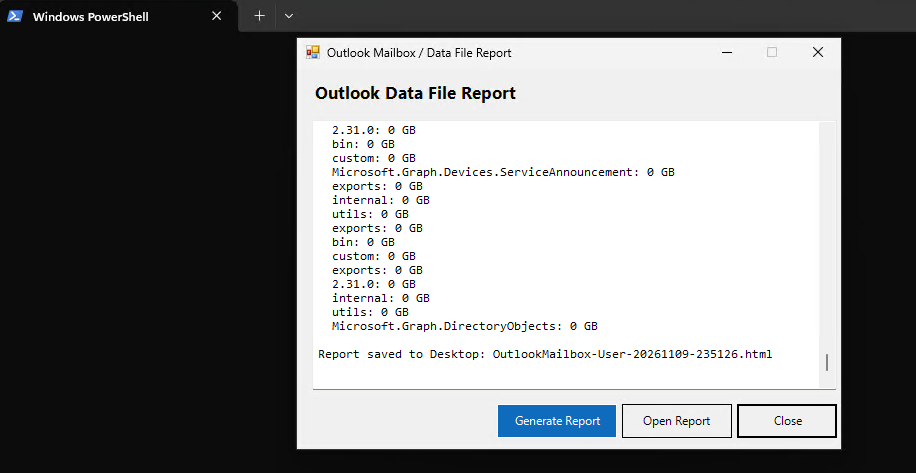 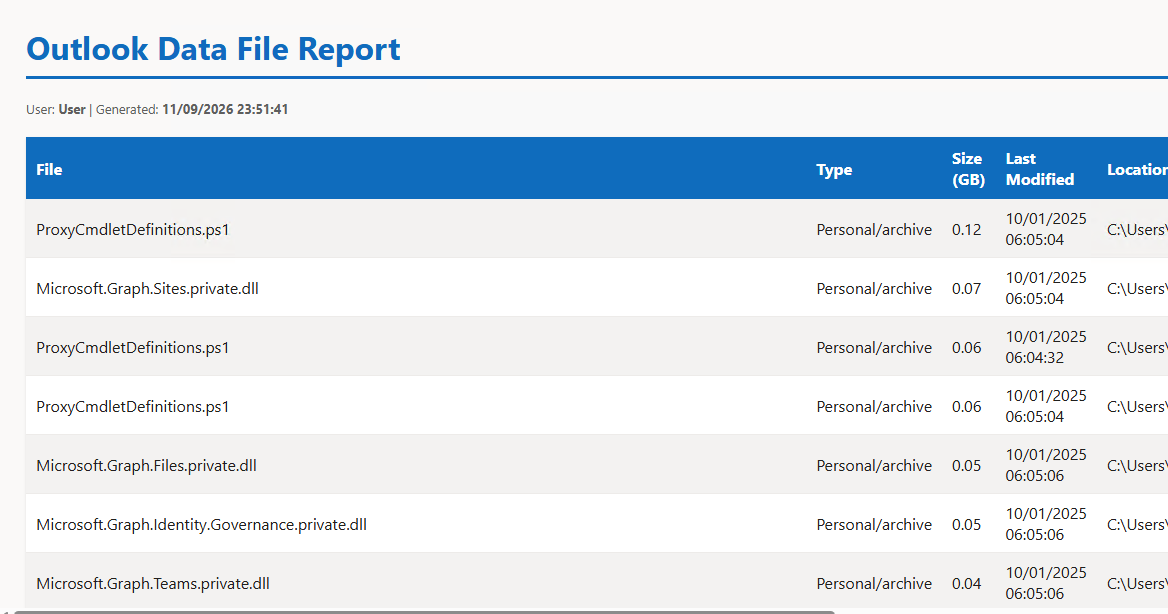 ## Why OST Files Grow So Large in the First Place It is worth understanding why the offline cache balloons in size for some users and not others, since it changes how you think about a genuinely oversized .ost. In Cached Exchange Mode, which is the default and recommended setting for most Microsoft 365 accounts, Outlook keeps a local copy of everything in the mailbox so it can work offline and respond faster than round-tripping every action to the server. That local copy grows in direct proportion to how much mail, how many attachments, and how much calendar and contact data a user has accumulated. Retention policies play a bigger role than most people expect. An organization with a generous or nonexistent auto-archive policy lets mail pile up indefinitely, and a user who never deletes anything, who keeps every attachment, every newsletter, every meeting invite going back a decade, ends up with a mailbox that can legitimately reach tens of gigabytes on the server side alone. The .ost simply mirrors whatever the server-side mailbox contains, so a large server mailbox always means a large local cache under Cached Exchange Mode. There is a setting worth knowing about for genuinely oversized mailboxes: Outlook lets you configure Cached Exchange Mode to sync only a rolling window, such as the last 3, 6, or 12 months, rather than the entire mailbox. This keeps the local .ost bounded even as the server-side mailbox keeps growing, at the cost of needing an online connection to search or open older mail outside that window. For users who mostly care about recent mail and rarely dig into old messages, this is often a better long-term fix than repeatedly clearing an .ost that just grows right back to the same size. ## Gotchas & Safety There is no **\-WhatIf** flag because this script does not touch, move, or delete anything. It searches for files and reads their metadata, then writes an HTML report. Nothing about running this affects Outlook, the mailbox, or any file it finds. The one thing worth knowing: a large .ost is genuinely safe to delete if you need to, since Outlook rebuilds it automatically from the server the next time it starts, though the rebuild can take a while and requires a live connection to redownload everything. A large .pst is a different story entirely. It may be the only copy of years of archived mail, and there is no server-side original to rebuild it from. This report labels the two differently for exactly this reason, but the responsibility for treating them differently when acting on the report still falls on whoever is reading it. Test this on a spare machine first if you plan to roll it out broadly, mainly to confirm the three default search paths match what your organization's users actually have, particularly if your environment uses custom Outlook profile locations or redirects Documents somewhere non-standard. ## Why Not Just Check Outlook's Own Mailbox Cleanup Tool? Outlook does have a built-in Mailbox Cleanup feature under File, Tools, but it only reports on the currently open profile's mailbox and archive, one account at a time, and it does not surface .pst files that are not currently loaded into the active profile. A user with an old .pst they stopped opening years ago, still sitting on disk taking up space, would never see it flagged by Outlook's own tools, because Outlook only reports on what it currently has open. This script finds files on disk regardless of whether Outlook currently has them loaded, which is exactly the case that trips up the built-in tooling. ## FAQ & Variations ### Is it safe to just delete a large .ost file? Yes, generally. The .ost is a local cache Outlook rebuilds automatically from the server. Close Outlook first, delete the file, then reopen Outlook and let it resync. Depending on mailbox size and connection speed, the resync can take anywhere from a few minutes to a few hours, so this is best done when the user does not need Outlook immediately afterward. ### Can I safely delete a .pst file the same way? No, not without understanding what is inside it first. A .pst is often the only copy of its contents, particularly for older archived mail that has since been removed from the server. Always confirm the .pst is genuinely unneeded, or back it up somewhere safe, before deleting it. ### How do I change the 40 GB warning threshold? Change the value in the `if ($gb -ge 40)` comparison inside the file loop to whatever threshold makes sense for your environment. Some organizations with tighter mailbox size limits might want to flag anything over 10 or 15 GB instead. ### Does this find data files stored on OneDrive or a network drive? Only if they happen to fall under one of the three default search paths. If your organization stores .pst archives on a mapped network drive or a synced OneDrive folder outside those paths, add that path to the `$searchRoots` array near the top of the script. ### Why does the same file sometimes show up in multiple locations during testing? It should not, since the script de-duplicates by full file path with `Sort-Object FullName -Unique` before building the report. If you genuinely see true duplicates, check whether two of the search roots overlap in your environment, for example if `Documents\Outlook Files` and `Documents` both resolve to paths that contain each other. ### Does this work for shared mailboxes as well as the primary account? Yes, indirectly. Shared mailboxes that are added to a profile and cached offline get their own .ost files inside the same Outlook data folder, so they show up in the scan automatically alongside the primary account's cache file, with no special handling required.